
Is There a Slack Huddles API for Recordings and Transcripts?

There is no official API to get recordings or transcripts from Slack Huddles. Slack does not expose huddle audio to apps, either live or after the fact, so there is nothing for a developer to call.
This is a common pain point for developers building tools that rely on conversational data. You might want to summarize key decisions, track action items, or feed huddle content into a knowledge base. Without an API, these workflows are difficult to automate. The core issue is that Huddles are designed to be ephemeral, real-time conversations, not persistent, archivable meetings.
MeetStream supports Zoom, Google Meet and Microsoft Teams, plus Webex, GoTo Meeting, Slack huddles and WhatsApp calls in Beta. Beta platforms are enabled per workspace. Contact us for access. The standard approach is to use a meeting bot API to send an automated participant into a meeting on a platform like Zoom, Google Meet, or Microsoft Teams. This bot can capture audio, generate transcripts, and stream data to your application in real time.
This article explains the technical limitations of the Slack API for Huddles and shows the alternative path for developers: using a bot-based API on supported platforms to build the exact same features.
Why Slack's APIs Don't Expose Huddle Media
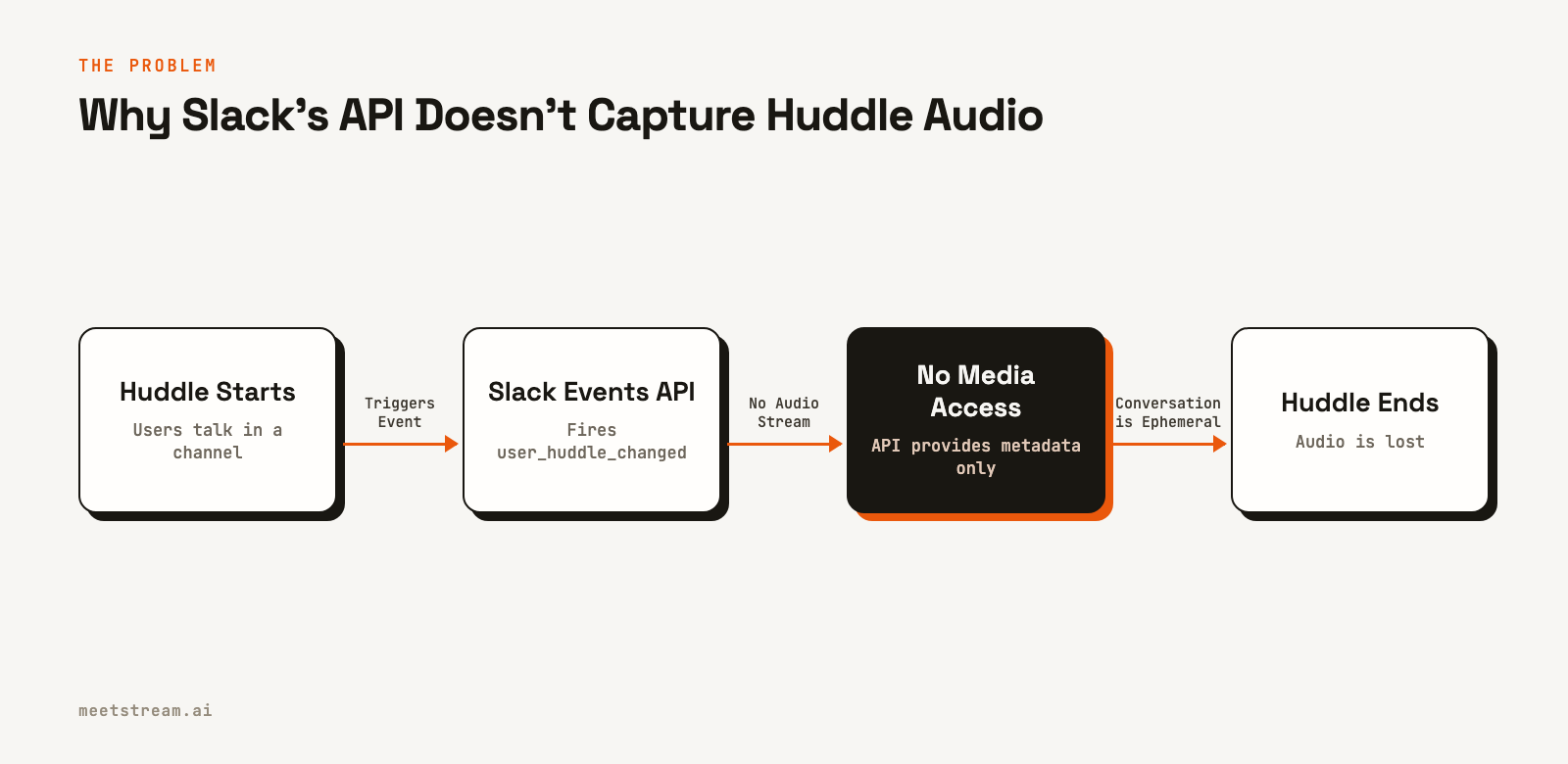
To understand the limitation, it is useful to look at what Slack's APIs do provide. The Events API includes a user_huddle_changed event. This event fires when a user joins or leaves a huddle, giving you metadata about who was present and for how long. However, it contains no audio, video, or transcript payload. It only tells you about participant status.
The absence of a media stream is a deliberate design choice. Huddles are positioned as lightweight, informal audio chats, distinct from recordable, structured meetings. Slack does not store the audio from Huddles, so there is nothing for an API to retrieve after the conversation ends. The only way to capture the content is by recording it live from the client side, which is complex and not supported by any public API.
Native Slack Features for Huddle Content
While you cannot get a full recording or transcript, Slack does offer a few native features to make Huddles more useful. During a huddle, participants can create a thread in the associated channel. This thread becomes a place to share links, post notes, and save key takeaways from the conversation. It is a manual process, but it provides a way to create a persistent record of the discussion.
When a huddle ends, this thread remains in the channel. For very simple use cases, you could use the Slack API to fetch the contents of this message thread. This gives you the text-based notes but not the spoken conversation itself. For any application that requires a full transcript with speaker attribution, this is not a sufficient solution.
The Meeting Bot Approach on Supported Platforms
For platforms that do allow programmatic access, the solution is to deploy a bot that joins the meeting as a participant. This bot functions like any other attendee, giving it access to the main audio and video feeds. It is not using a special backdoor or a private API, it is simply acting as a user.
This approach works reliably on Zoom, Google Meet, and Microsoft Teams. A single API call can instruct the bot to join a meeting using a standard meeting link. Once inside, the bot can begin capturing media and processing it. This is the foundation for building AI notetakers, sales coaching tools, and other intelligent meeting agents.
The key difference is that these platforms are built with a more formal meeting structure in mind, where recording and third-party integrations are common. Their architecture allows for a third-party application to connect and receive media streams, which is the hook that meeting bot APIs use.
How to Capture Meeting Audio and Transcripts with an API
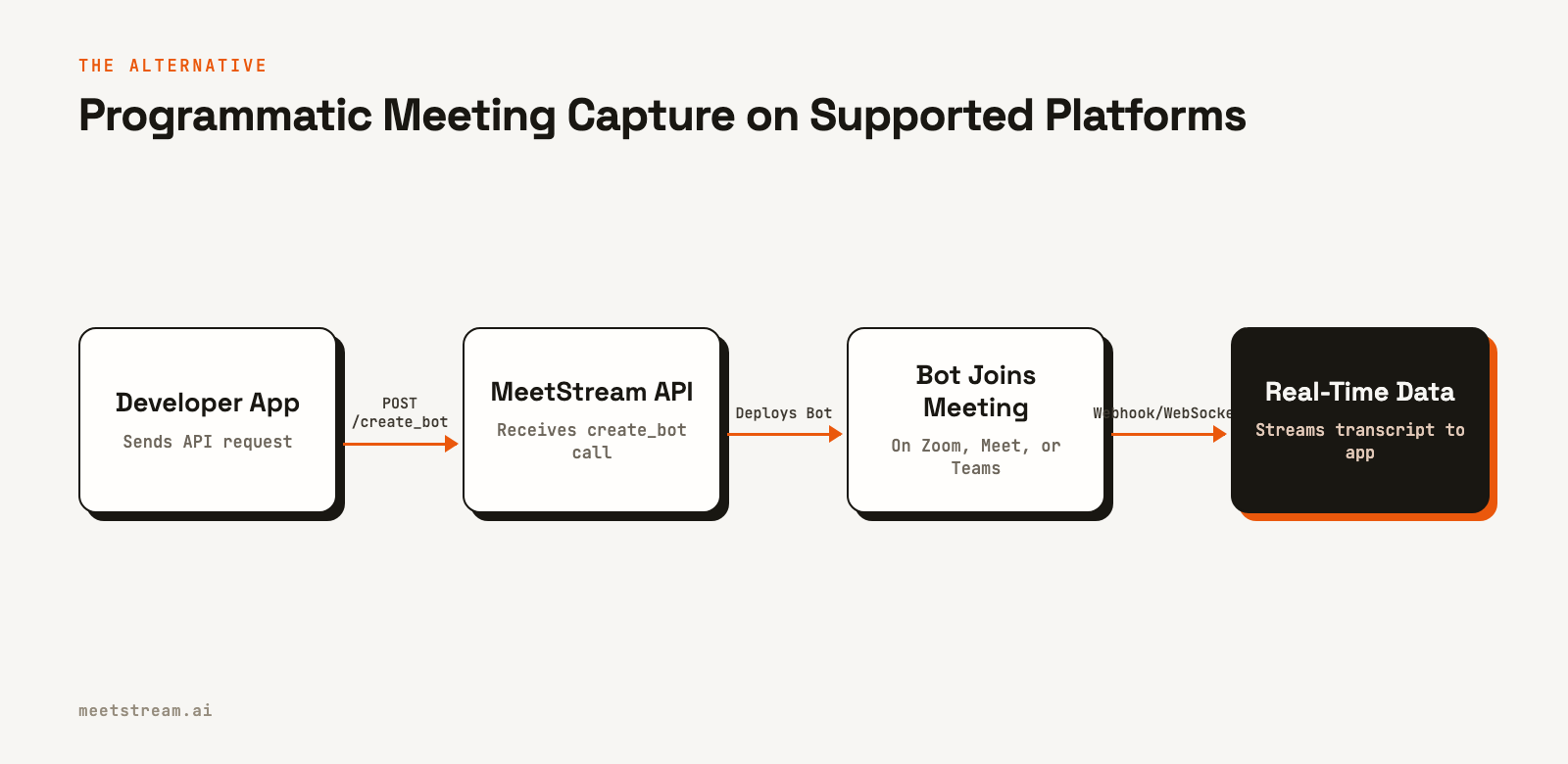
Let's walk through how you would implement this on a supported platform like Google Meet. The process involves sending a single API request to create and deploy a bot. This example uses the MeetStream API.
First, you need an API key, which you can get from your account dashboard. Then, you make a POST request to the /create_bot endpoint, providing the meeting link and a name for your bot. You can also include a callback_url to receive webhook events and a configuration for live transcription.
curl -X POST "https://api.meetstream.ai/api/v1/bots/create_bot" \
  -H "Authorization: Token <YOUR_API_KEY>" \
  -H "Content-Type: application/json" \
  -d '{
    "meeting_link": "https://meet.google.com/xyz-abc-def",
    "bot_name": "Sales Coach",
    "callback_url": "https://yourapp.com/webhooks/meetstream",
    "live_transcription_required": {
      "webhook_url": "https://yourapp.com/webhooks/transcript"
    },
    "recording_config": {
      "transcript": {
        "provider": {
          "deepgram_streaming": {}
        }
      }
    }
  }'
Once this request is sent, the bot joins the Google Meet call. As people speak, the transcription service generates text in real time. This data is pushed to the webhook_url you specified. The payload includes the speaker's name, the text, and timestamps.
This real-time data stream is what enables you to build interactive experiences. For example, you could analyze the transcript for keywords, extract action items, or trigger alerts in another system, all while the meeting is still in progress. After the meeting, you can also retrieve the full recording and final transcript.
Limitations and What to Watch For
While the meeting bot approach is effective, there are a few things to keep in mind. First, the bot's presence is visible to all participants. It appears in the participant list just like a person, so you need to give it a clear name (e.g., "Note Taker by Acme") to avoid confusion.
Second, platform-specific rules apply. On Zoom, for example, a bot can only record if the host grants permission. Your application needs to handle cases where the bot is denied entry or kicked from the meeting. A reliable implementation uses webhooks to listen for status events like bot.denied or bot.kicked and reacts accordingly.
Finally, since you are processing meeting data, security and compliance are important. Ensure your infrastructure handles data correctly, especially for sensitive conversations. This includes using secure connections and having clear data retention policies. We've found that running this kind of infrastructure at scale requires careful management of bot clusters and state, which is why many developers choose a managed API.
Building on Meeting Data with MeetStream
MeetStream is designed to be the infrastructure layer for these kinds of applications. Instead of building and scaling a fleet of bots yourself, you can use our API to programmatically control agents that join meetings on your behalf. Our platform handles the complexities of connecting to Zoom, Google Meet, and Microsoft Teams, providing a single, unified integration.
Our focus is on providing the real-time, agent-first infrastructure needed to build intelligent applications on top of meetings. This includes low-latency audio streams, real-time transcripts, and the ability for AI voice agents to not just listen but also speak and act within the meeting. For example, you could build an agent that answers questions or automatically posts meeting summaries to a Slack channel after a call ends.
MeetStream supports Slack huddles in Beta, alongside Webex, GoTo Meeting and WhatsApp calls. Beta platforms are enabled per workspace. Contact us for access. Zoom, Google Meet and Microsoft Teams, the three largest enterprise platforms, are generally available.
Conclusion
Directly getting transcripts and recordings from Slack Huddles is not something Slack offers an API for today, and MeetStream supports Slack huddles in Beta. The platform is designed for ephemeral conversations and does not expose the necessary media streams. The most effective alternative for developers is to use a meeting bot API on supported platforms like Zoom, Google Meet, and Teams.
This approach allows you to capture high-quality audio and generate real-time, speaker-attributed transcripts. By sending a bot as an active participant, you gain the raw data needed to build sophisticated AI agents, notetakers, and automated workflows. It provides a reliable path for building the same features on the platforms where most structured business meetings happen.
See the full API reference at docs.meetstream.ai.
Frequently Asked Questions
Can you record a Slack Huddle?
Slack does not have a built-in feature to record Huddles. The conversations are ephemeral and disappear after they end. Through Slack itself, the only way to capture a huddle is third-party screen or audio recording software on your computer, and Slack's API cannot do it programmatically. MeetStream supports Slack huddles in Beta. Beta platforms are enabled per workspace. Contact us for access.
Does Slack save Huddle history?
No, Slack does not save the audio history of Huddles. While a huddle is active, participants can use a dedicated message thread in the channel to save notes and links. This text-based thread persists after the huddle ends, but the spoken conversation does not.
Is there a Slack API for Huddles?
Yes, but it is limited. The Slack Events API provides the user_huddle_changed event, which tells you when users join or leave a huddle. However, this API provides only participant metadata and does not give access to the audio, video, or transcript of the conversation.
How can I get a transcript from a meeting automatically?
For platforms like Zoom, Google Meet, and Microsoft Teams, you can use a meeting bot API. You send an API request with the meeting URL, and a bot joins the call as a participant. The bot captures the audio and uses a speech-to-text engine to generate a live transcript, which can be sent to your application via webhooks.


