

To record each meeting participant separately, you need an API that can capture an independent audio stream for every person in the call. A standard meeting recording mixes all participants into a single audio track, which is a problem for any application that needs to know precisely who said what. A per-participant audio API solves this by providing a clean, isolated audio file for each speaker.
This capability is foundational for building reliable AI meeting agents. When an agent receives a single mixed audio file, crosstalk and low-quality connections can make accurate transcription and speaker identification difficult. This messy data leads to errors in downstream tasks like summarization or action item detection. At MeetStream, we provide the agent-first voice infrastructure for meetings, and we have seen that clean, separated audio is the most important input for building dependable real-time meeting agents that can hear, speak, and act in the call.
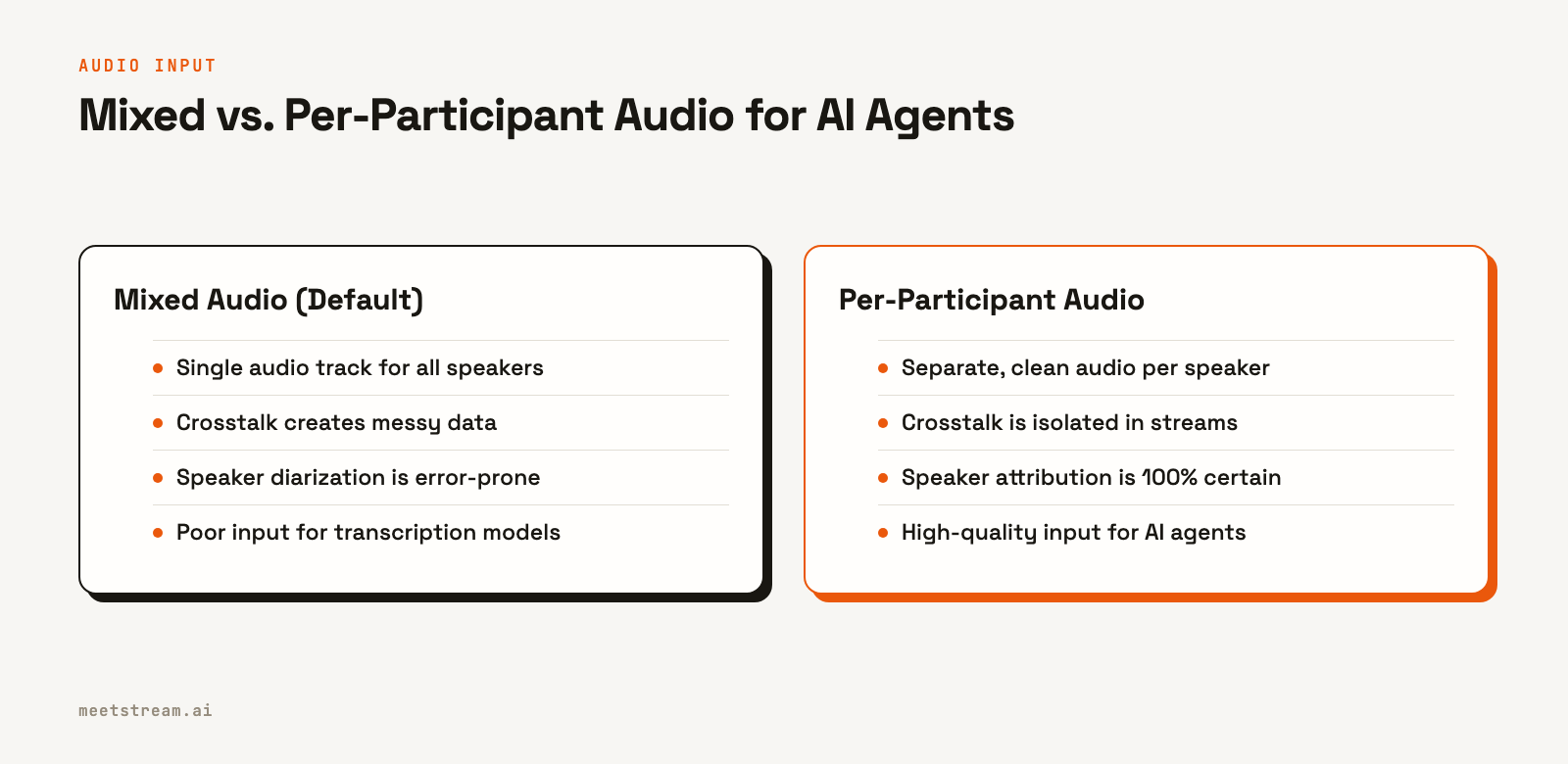
Per-participant audio ensures that what you send to a transcription model is a single, clear voice. This improves accuracy and eliminates the need for complex, error-prone speaker diarization. You get a separate audio file for each person who spoke, which is essential for building high-quality conversation intelligence tools, AI sales coaches, or automated note-takers. Let's walk through how it works.
Why Separated Audio Streams Matter
Most meeting bots and native recording features produce a composite recording. This means they capture the meeting as a single experience, mixing all audio into one track and all video into one frame, like a gallery or active speaker view. This is useful for a simple archive, but it creates problems for programmatic analysis.
When multiple people speak at once, a composite recording merges their voices. This makes it hard for even advanced speech-to-text models to produce an accurate transcript. The process of identifying speakers in a mixed track, known as speaker diarization, is a common workaround but is often inaccurate, especially with short utterances or similar-sounding voices.
A per-participant audio API avoids these issues entirely. By capturing a separate stream for each person, it provides a definitive record of who spoke and what they said. This clean data is the starting point for any serious AI application built on top of meeting conversations. It is the difference between a product that works sometimes and one that works reliably.
How Per-Participant Recording Works
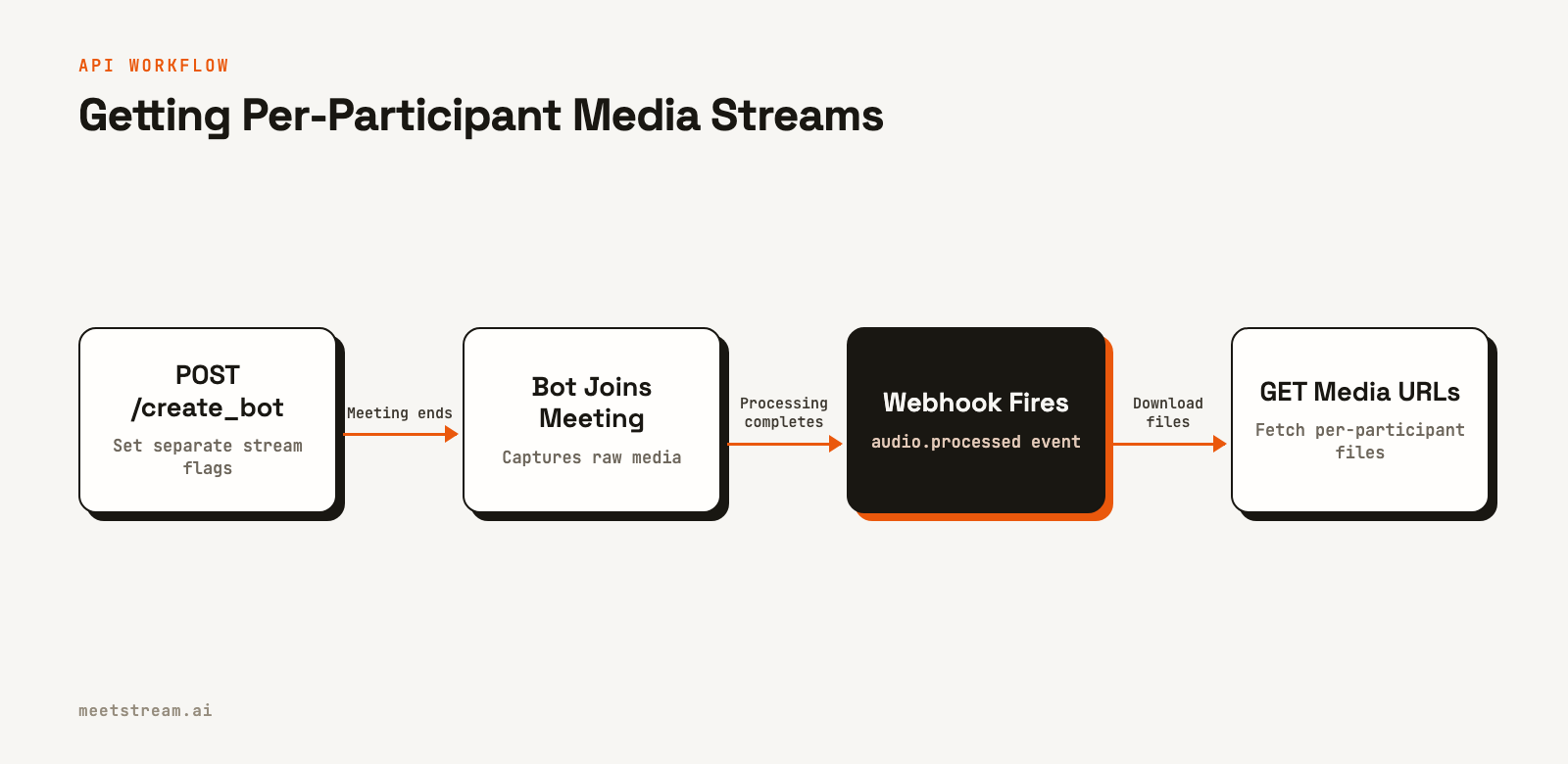
The architecture for capturing separate streams involves a few key components. First, a bot joins the call as a standard participant. Instead of just recording the mixed output, it taps into the individual media streams that the video conferencing platform provides for each person. After the meeting, these raw streams are processed into individual, downloadable files.
The process is managed through an API and webhooks:
- Create a Bot: You make an API call with the meeting link and set boolean flags like
audio_separate_streamsto enable per-participant capture. The API returns a uniquebot_id. - Receive Lifecycle Events: Your application listens for webhook events at a specified
callback_url. These events tell you when the bot has joined, when the meeting has ended, and, most importantly, when the media files are processed and ready. - Retrieve Media Files: After receiving the
audio.processedorvideo.processedwebhook, you call an endpoint with thebot_idto get a list of signed URLs for each participant's audio and video files.
This event-driven approach means you do not have to constantly poll for status. You are notified as soon as the files are available for download.
Building a Per-Participant Recorder: Step-by-Step
This guide uses Node.js, but the API calls are simple HTTP requests that work with any language. We will create a bot, handle the webhook that tells us the files are ready, and then download the separated audio and video for each participant.
1. Create the Bot with Separated Streams
The first step is to send a bot to the meeting. What matters is in the body of the POST request to the /create_bot endpoint. By setting audio_separate_streams and video_separate_streams to true, you instruct the bot to capture individual tracks instead of a single composite file.
curl -X POST "https://api.meetstream.ai/api/v1/bots/create_bot" \
  -H "Authorization: Token <YOUR_API_KEY>" \
  -H "Content-Type: application/json" \
  -d '{
    "meeting_link": "<YOUR_MEETING_LINK>",
    "bot_name": "Recorder Bot",
    "callback_url": "https://your-app.com/webhooks/meetstream",
    "video_required": true,
    "audio_separate_streams": true,
    "video_separate_streams": true
  }'
The API will respond with a bot_id, which you should store. This ID is used to manage the bot and retrieve its recordings later. You can find more details in the bot creation guide.
2. Handle Webhook Events for Processing
Your callback_url will receive a series of events about the bot's lifecycle. A common mistake is to try downloading files immediately after the bot.stopped event. This event only confirms the meeting has ended, not that the media has been processed. Processing can take some time, especially for long meetings.
The correct signal is the audio.processed or video.processed event. Your webhook handler should listen for these specific events. Once one arrives, you know the corresponding media files are ready.
import express from 'express';

const app = express();

app.post('/webhooks/meetstream', express.json(), (req, res) => {
  const { bot_event, bot_id } = req.body;
  console.log(`Received event: ${bot_event} for bot: ${bot_id}`);

  // Acknowledge the webhook immediately
  res.sendStatus(200);

  if (bot_event === 'audio.processed') {
    // Trigger function to fetch audio files
    fetchAndSaveAudio(bot_id);
  }

  if (bot_event === 'video.processed') {
    // Trigger function to fetch video files
    fetchAndSaveVideo(bot_id);
  }
});

app.listen(3000, () => console.log('Webhook server listening on port 3000'));
Always respond with a 2xx status code quickly to acknowledge the webhook. If your processing logic takes time, run it asynchronously after sending the response.
3. Fetch and Save Per-Participant Files
Once the audio.processed webhook fires, you can call the API to get the download links. The response will contain per-participant download links. You can then iterate through them and download each file.
import fetch from 'node-fetch';
import fs from 'fs';
import path from 'path';

async function fetchAndSaveAudio(botId) {
  const url = `https://api.meetstream.ai/api/v1/bots/${botId}/get_audio_streams`;
  const options = {
    headers: { 'Authorization': `Token ${process.env.MEETSTREAM_API_KEY}` }
  };

  const response = await fetch(url, options);
  const data = await response.json();

  // The 'data' object contains download links for each participant's audio.
  // The exact shape of the response should be confirmed in the API documentation.
  // This example assumes a list of objects with 'participant_name' and 'download_url'.
  console.log('Received per-participant stream data:', data);

  // Example of iterating and downloading (adapt to the actual response structure)
  if (Array.isArray(data)) {
    for (const stream of data) {
      if (stream.download_url && stream.participant_name) {
        // ... download and save the file using stream.download_url ...
        console.log(`Downloading audio for ${stream.participant_name}...`);
      }
    }
  }
}
This code fetches the audio metadata and shows how you would begin to process it. A similar function would handle video files. You can see the full API details in our docs for per-participant audio and video.
Platform-Specific Considerations
While the API call is the same across platforms, how the media streams are captured can vary. It is important to understand these differences.
For Zoom, MeetStream can access the raw media streams, allowing for fully isolated, high-fidelity audio for each participant. This provides the cleanest possible data.
For Google Meet and Microsoft Teams, MeetStream also provides per-participant audio and video, a significant improvement over a single mixed track and high-quality input for AI applications.
Using a meeting bot API abstracts these platform differences away. You make one API call, and the infrastructure handles the specific integration details for Zoom, Google Meet, or Microsoft Teams.
Use Cases for Per-Participant Audio
Clean, separated audio is not just a technical detail; it enables entire categories of products that are difficult to build with mixed audio.
AI Sales Coaching: To analyze a sales representative's performance, you need their audio isolated from the prospect's. Per-participant streams allow you to analyze pitch delivery, talk-to-listen ratios, and keyword usage with high accuracy.
Automated Note-Takers: Accurately assigning action items and decisions requires knowing exactly who said what. Separated audio removes ambiguity and makes the output of your NLP models more reliable.
Recruiting and Interviews: When evaluating a candidate, you need to focus on their responses. Isolated audio allows for sentiment analysis, speech pattern analysis, and accurate transcription of their answers without interference from the interviewer.
Podcast and Media Production: For any application that involves editing or repurposing meeting content, separate audio tracks are essential for post-production. They allow for independent leveling, noise reduction, and editing for each speaker.
How MeetStream Fits In
MeetStream is an API platform for deploying bots and AI voice agents into meetings. Our infrastructure is designed to provide developers with the highest quality real-time and post-call media, including per-participant audio and video streams. We manage the complexity of connecting to Zoom, Google Meet, and Microsoft Teams, so you can focus on building your application, not on managing bot infrastructure.
Our API provides both post-call files and real-time audio streaming over WebSockets, giving you the flexibility to build live agents or post-call analysis pipelines. The goal is to provide the clean, reliable data streams needed to power the next generation of AI meeting tools.
Conclusion
Using a per-participant audio API is a direct way to improve the quality and reliability of any application built on meeting conversations. By moving from a single mixed track to clean, separated streams for each speaker, you provide better input for transcription models and NLP pipelines. This leads to more accurate data and a better experience for your users. The core of a successful AI meeting product is the quality of its input data, and per-participant audio is the best foundation.
See the full API reference at docs.meetstream.ai.
Frequently Asked Questions
How do I record each meeting participant as a separate audio file?
Use a meeting bot API that supports this feature. In your API call to create the bot, set a parameter like audio_separate_streams to true. After the meeting, you will receive a webhook notification when processing is complete, allowing you to download an individual audio file for each speaker.
What is the difference between composite and per-participant recording?
Composite recording captures the entire meeting into a single file with one mixed audio track. Per-participant recording captures a separate audio and video file for each individual. Composite is fine for simple archiving, while per-participant is necessary for accurate AI analysis and post-production.
Can meeting bots record individual video streams?
Yes, if the meeting bot API supports it. Similar to audio, this is typically enabled by a flag like video_separate_streams in the bot creation request. This provides an isolated video file for each participant, which is useful for video editing or analysis.
Is it possible to get per-participant audio from Zoom?
Yes. A bot using the Zoom Meeting SDK can access raw, fully isolated audio streams for each participant. This provides the highest quality separated audio, as it captures each person's microphone input directly before any mixing occurs on the platform's servers.
Does Google Meet support separate audio tracks for each participant?
Google Meet does not provide fully separated raw audio streams in the same way Zoom does. However, MeetStream provides per-participant audio on Google Meet, as it does on Zoom and Microsoft Teams, which is a significant improvement over a single mixed track.


