How to Build an AI Meeting Agent That Generates Designs On Command and Shares Them in Chat

Learn how to build an AI meeting agent that generates designs on command during live meetings, then shares the finished images directly in meeting chat.

An AI agent that creates designs during a live call needs three things wired together: a hosted meeting bot that can hear a wake phrase, a design tool with an API built for tool calling, and a bridge that keeps the two talking without leaking credentials. This guide builds exactly that. By the end, you will have a bot that joins a Zoom, Meet, or Teams call, listens for "Hey MIA," turns a spoken event brief into a real Canva design request, and drops the finished poster links into meeting chat while the call is still going. Most meeting bots only hand you notes after everyone has left. This one takes an action while the conversation is still happening.


What You'll Build

You'll deploy MIA Poster Design Bot, a MeetStream Hosted Agent that listens for a wake phrase, sends a structured design request to Canva through MCP (Model Context Protocol), and posts the resulting poster candidates back into the meeting's chat panel, using:

  • MeetStream MIA for the hosted meeting agent
  • Deepgram nova-3 for meeting transcription
  • OpenAI gpt-4.1-mini for reasoning and tool selection
  • Canva MCP for poster generation
  • mcp-remote for local Canva OAuth
  • Node.js for the bridge, lifecycle webhook, and deployment logic
  • ngrok for a public HTTPS endpoint
  • Docker Compose for a repeatable runtime

This same pattern (wake word, structured request, tool call, chat delivery) works for any design tool with an MCP or REST API, not just Canva. More on that near the end.


What Does an AI Agent That Creates Designs During a Live Call Actually Look Like?

Picture a participant unmuting and saying:

Hey MIA, create three poster concepts for Aarav's seventh birthday
on 10 August 2026 at 6 PM. Use bright playful colors, balloons,
and confetti. The headline is "Aarav Turns Seven." Generate now.

MIA then needs to:

  1. Detect the wake phrase.
  2. Transcribe the spoken request.
  3. Preserve the factual details from the conversation (date, time, headline).
  4. Fill only the optional creative gaps with sensible defaults.
  5. Call Canva's generate-design tool exactly once.
  6. Ask Canva for three visually distinct poster concepts.
  7. Post the real Canva and thumbnail links in meeting chat.

The agent never speaks. Participants talk to it out loud, and it answers in the chat panel, which is the more durable surface for a set of links anyway.


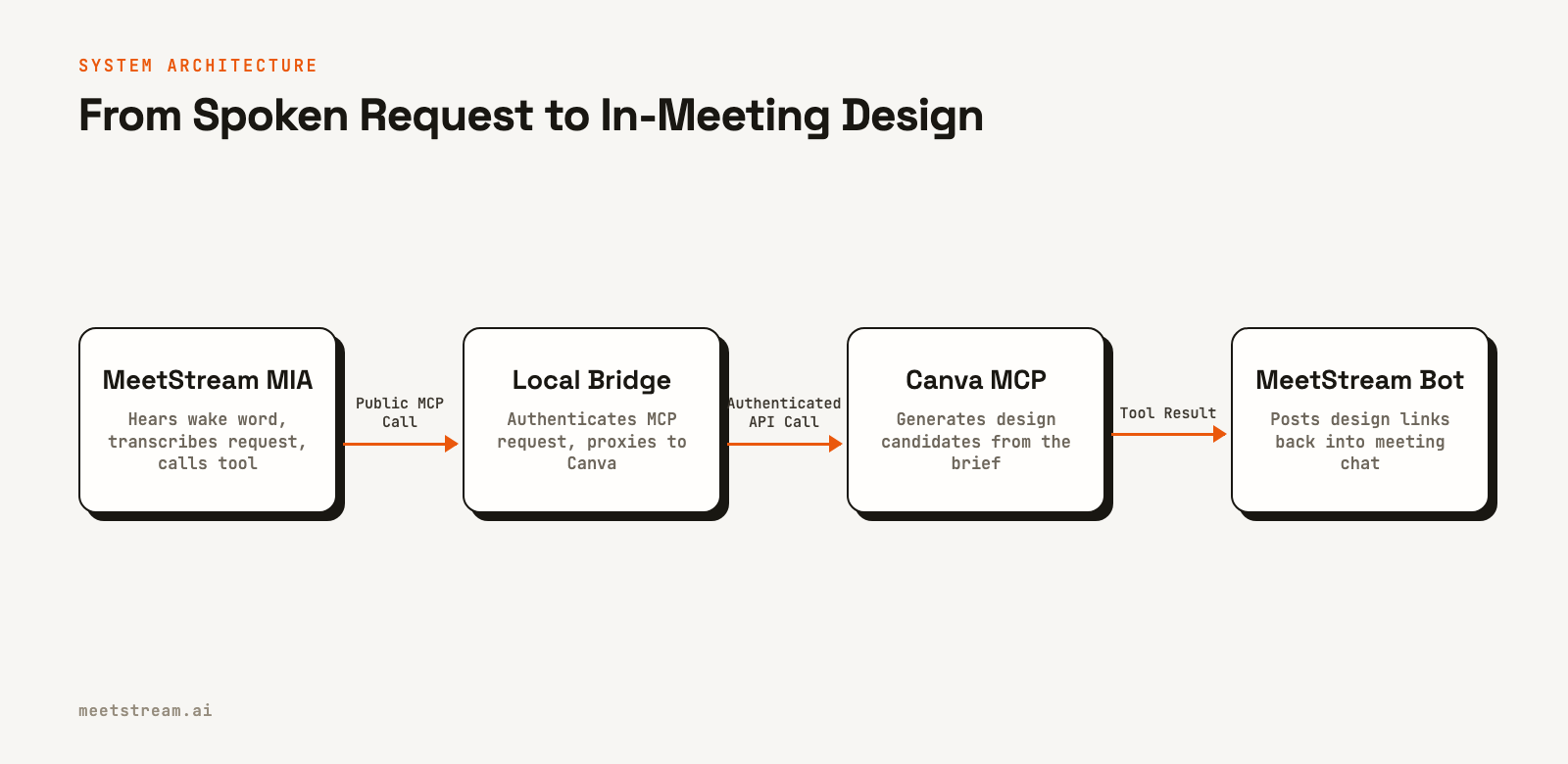
How Does an AI Meeting Agent Turn a Spoken Request Into a Generated Design and Share It in Chat?

The system spans three environments, and keeping them separate is the whole point of the design.

The laptop never touches speech recognition or calls OpenAI directly. MeetStream owns the meeting pipeline, Canva owns design generation, and the local application just connects and constrains the two.

What runs where

ResponsibilityRuntime
Join and leave the meetingMeetStream bot infrastructure
Read meeting audioMeetStream
Transcribe participantsDeepgram through MeetStream
Detect "Hey MIA"MeetStream native wake words
Decide when to generateOpenAI model through MeetStream
Call the design toolMeetStream MCP client
Authenticate the public MCP requestLocal Node.js bridge
Hold Canva OAuthLocal .mcp-auth directory
Generate designsCanva hosted MCP
Return results to meeting chatMeetStream

This is an owner-only Canva integration. Every meeting draws on the Canva account authenticated on the host machine. If you're building a public, multi-tenant product, you'd need a separate per-user authorization flow on top of this.


How to Build It: Step by Step

Project Setup

Start with MIA-poster-design from MeetStream Labs:

git clone https://github.com/meetstream-ai/labs
cd labs/MIA-poster-design
npm install
cp .env.example .env
MIA-poster-design/
|- src/
|  |- index.js             # starts and stops the complete application
|  |- deployBot.js         # prompt, validation, deployment, removal
|  |- canvaBridge.js       # authenticated Canva MCP adapter
|  `- webhookServer.js     # HTTP routes, ngrok, lifecycle events
|- scripts/
|  |- checkCanvaBridge.js  # verifies Canva OAuth and tool access
|  `- showMcpCredential.js # prints the private MCP header value
|- test/                   # Node test runner checks
|- compose.yaml
|- Dockerfile
|- .env.example
|- README.md
`- QUICKSTART.md

The runtime only pulls in three direct packages:

{
  "dependencies": {
    "@ngrok/ngrok": "^1.7.0",
    "dotenv": "^17.2.3",
    "mcp-remote": "^0.1.38"
  }
}

@ngrok/ngrok exposes the local server, dotenv loads local configuration, and mcp-remote handles Canva's MCP transport and OAuth flow.

Before running anything, you'll need:

  • Node.js 20 or newer
  • Docker Desktop
  • A MeetStream account and API key
  • A saved MeetStream MIA Agent ID
  • A supported meeting URL
  • An ngrok account and auth token
  • A Canva account with available design-generation credits

1. Configure the Environment

Fill in the real values in .env:

MEETSTREAM_API_KEY=your_meetstream_key_here
MEETSTREAM_AGENT_CONFIG_ID=your_agent_config_id_here
MEETING_LINK=https://meet.google.com/abc-defg-hij
NGROK_AUTHTOKEN=your_ngrok_token_here
PORT=3000
ADAPTER_ONLY=false

The application rejects missing placeholders, invalid meeting URLs, invalid ports, and invalid ADAPTER_ONLY values before it touches any external resource:

const required = [
  'MEETSTREAM_API_KEY',
  'MEETSTREAM_AGENT_CONFIG_ID',
  'MEETING_LINK',
  ...(!callbackUrl ? ['NGROK_AUTHTOKEN'] : [])
];

const missing = required.filter(
  (name) => !env[name]?.trim() || /^your_.+_here$/i.test(env[name].trim())
);

if (missing.length) {
  throw new Error(`Fill in ${missing.join(', ')} in .env.`);
}

Failing early matters here. A half-configured meeting bot is harder to diagnose, and it can end up stuck in the call after the local process has already exited.


2. Authenticate Canva Locally

Run the bridge check:

npm run check:canva

On the first run, mcp-remote opens Canva's OAuth flow. Sign in with the account that should own the generated posters. A successful check prints:

Canva bridge verified: generate-design

The OAuth session lands in .mcp-auth under the user's home directory. Docker mounts that same directory, so you don't need to re-authenticate in the browser on every container start.

This command only verifies tool discovery. It does not generate a design or spend a poster-generation credit.


3. How to Connect a Design Tool to a Meeting Bot API

MeetStream needs a public MCP server to call, while mcp-remote runs as a local child process. The bridge translates between those two transports, and this is the core piece if you're trying to trigger third-party API actions from a live meeting conversation for any tool, not just Canva.

Start the Canva proxy:

const child = spawn(process.execPath, [
  PROXY_PATH,
  'https://mcp.canva.com/mcp',
  '--transport', 'http-only',
  '--silent'
], {
  stdio: ['pipe', 'pipe', 'inherit'],
  env: process.env
});

JSON-RPC messages arrive over HTTP, get an internal request ID, and are written to the child process over standard input. Responses are matched back to the original request before returning to MeetStream:

const internalId = nextId++;

pending.set(internalId, {
  originalId: message.id,
  method: message.method,
  resolve,
  reject
});

child.stdin.write(`${JSON.stringify({ ...message, id: internalId })}\n`);

Canva generation can take a while, so long-running requests get a bounded 90-second timeout:

function send(message, timeoutMs = 90000) {
  const timer = setTimeout(() => {
    pending.delete(internalId);
    reject(new Error('Canva MCP request timed out.'));
  }, timeoutMs);
}

Restrict the bridge to one tool

Canva MCP exposes a lot of capabilities. This bot only needs poster generation, so the bridge filters discovery responses down to a single tool:

if (method === 'tools/list' && message.result?.tools) {
  message.result.tools = message.result.tools.filter(
    (tool) => tool.name === 'generate-design'
  );
}

It also blocks a direct call to anything else:

if (
  message.method === 'tools/call' &&
  message.params?.name !== 'generate-design'
) {
  return {
    jsonrpc: '2.0',
    id: message.id,
    error: { code: -32601, message: 'Tool not allowed.' }
  };
}

Filtering discovery helps the model stay focused. Enforcing the same rule on execution is what actually creates the security boundary.

Authenticate the public MCP endpoint

The bridge derives a stable owner credential from the MeetStream API key:

export function mcpSecret(apiKey) {
  return createHmac('sha256', apiKey)
    .update('mia-canva-mcp')
    .digest('base64url');
}

Every MCP request has to carry the expected Bearer value, and the comparison uses timingSafeEqual to avoid leaking timing information:

function authorized(header, secret) {
  const actual = Buffer.from(header || '');
  const expected = Buffer.from(`Bearer ${secret}`);

  return actual.length === expected.length &&
    timingSafeEqual(actual, expected);
}

Generate the header value when you configure MeetStream:

npm run show:mcp-credential

Save it as:

Authorization: Bearer <generated-value>

Don't publish this output anywhere. It's what protects a public endpoint that acts as the authenticated Canva owner.


4. Serve MCP and Lifecycle Webhooks on One HTTP Server

The project uses Node's built-in http server. No framework needed:

const server = http.createServer((request, response) => {
  if (request.method === 'GET' && request.url === '/health') {
    response
      .writeHead(200, { 'Content-Type': 'application/json' })
      .end('{"ok":true}');
    return;
  }

  if (request.method === 'POST' && request.url === '/mcp') {
    onMcpRequest(request, response);
    return;
  }

  if (
    request.method === 'POST' &&
    ['/webhooks/meetstream', '/webhook'].includes(request.url)
  ) {
    // Parse and handle the MeetStream lifecycle event.
  }
});

One server is enough because MCP calls and lifecycle events are both just HTTP requests. Request bodies are capped at 1 MB, invalid JSON gets a 400, and unknown routes get a 404.

Create the public HTTPS tunnel:

export async function startNgrokTunnel(port) {
  try {
    return await ngrok.forward({
      addr: port,
      authtoken_from_env: true
    });
  } catch {
    throw new Error('Could not start ngrok. Check NGROK_AUTHTOKEN.');
  }
}

The tunnel gives you two public routes on the same origin:

https://your-domain.example/mcp
https://your-domain.example/webhooks/meetstream

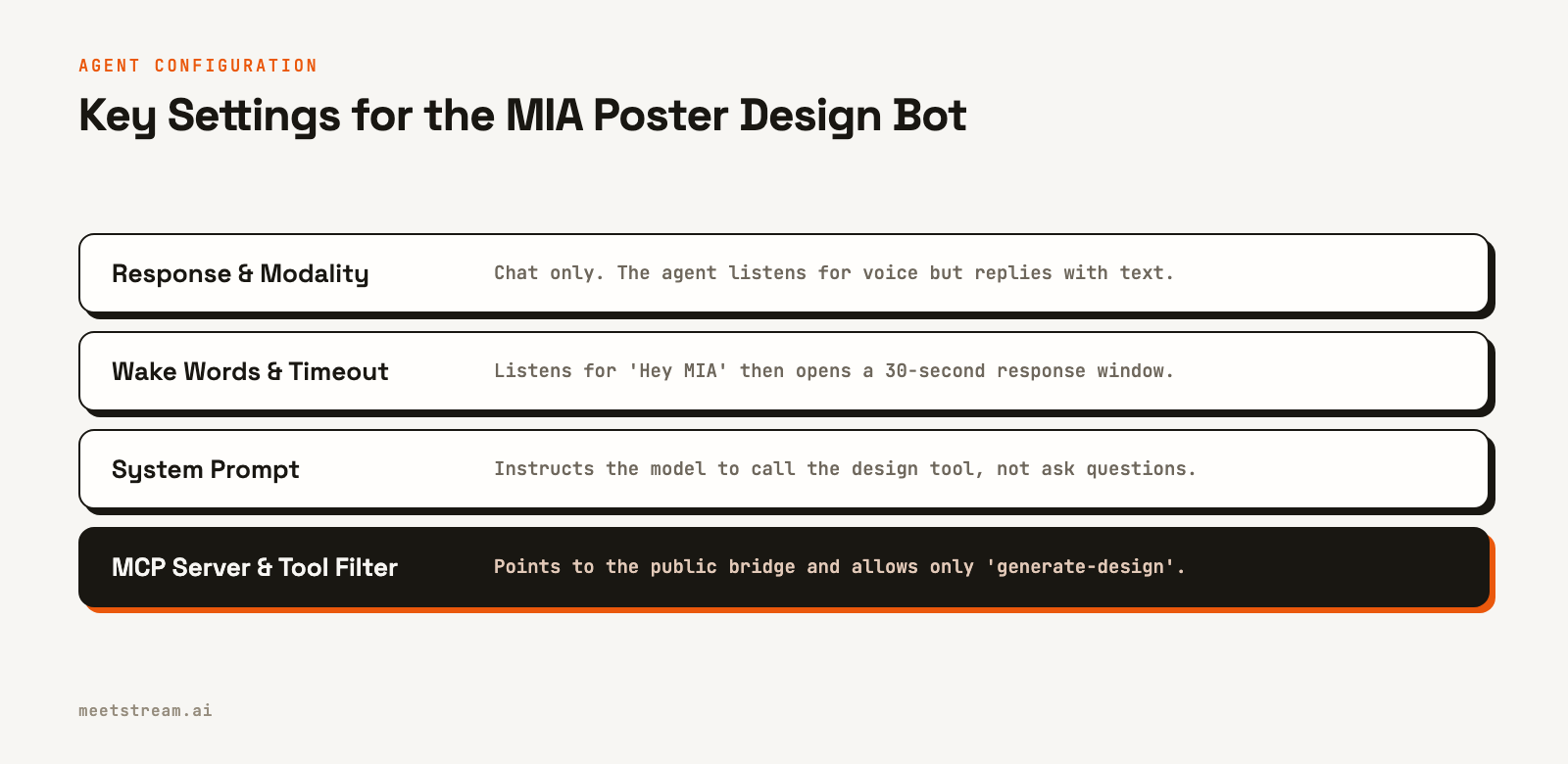
5. Configure the MeetStream MIA Agent for Voice-Triggered Design Generation

Create or edit a saved MIA agent in the MeetStream dashboard.

SettingValue
ModePipeline
Model providerOpenAI
Modelgpt-4.1-mini
Response typeChat
Response modalityChat
TranscriberDeepgram nova-3
Wake wordsEnabled
Wake timeout30 seconds
MCP URLPublic /mcp URL
MCP headerPrivate Authorization value
Allowed toolsOnly generate-design

Configured wake words:

export const WAKE_WORDS = [
  'hey mia',
  'okay mia',
  'ok mia',
  'hey assistant',
  'okay assistant',
  'hey bot'
];

The system prompt makes generation the default behavior and stops the agent from turning every request into a slow round of clarifying questions:

The event type is the only required field. As soon as the event type plus
any one detail is known, or the user asks to create, proceed, or generate,
call generate-design exactly once with design_type "poster".

Never ask a question, request confirmation, summarize the brief,
or announce progress.

The design request also needs strong art direction baked in:

Include every known fact and strong art direction: exact copy, palette,
typography, hierarchy, composition, motifs, contrast, legibility,
and safe margins. Request three polished, clearly different concepts.

This one instruction is the biggest quality lever in the whole system. Canva can only produce a strong poster if the tool query carries both the event facts and the visual direction together.


6. Validate the Hosted Agent Before Deployment

Dashboard configuration drifts. Someone changes the model, the response mode, the wake words, the prompt, or the MCP URL, and this repository never finds out unless it checks.

So the application reads the live agent configuration and validates every field that affects behavior:

export function validateAgentConfig(agent, expectedMcpUrl) {
  const config = field(agent, 'agent') || {};
  const transcriber = field(agent, 'transcriber') || {};
  const model = field(agent, 'model') || {};
  const wakeWord = field(agent, 'wakeWord') || agent.WakeWord || {};

  if (
    String(agent.Mode).toLowerCase() !== 'pipeline' ||
    model.provider !== 'openai' ||
    model.model !== 'gpt-4.1-mini'
  ) {
    throw new Error('MIA must use Pipeline mode with OpenAI gpt-4.1-mini.');
  }

  if (model.system_prompt?.trim() !== SYSTEM_PROMPT.trim()) {
    throw new Error('The Hosted Agent system prompt is out of date.');
  }

  if (
    config.response_type !== 'chat' ||
    config.response_modality !== 'chat'
  ) {
    throw new Error('The agent response must be chat.');
  }
}

The full function also checks Deepgram nova-3, all required wake phrases, the 30-second wake window, HTTPS MCP transport, the current ngrok URL, and the single allowed Canva tool. That turns silent runtime failures into loud startup errors with a message that actually tells you what to fix.


7. Deploy the Saved Agent Into a Meeting

The local application doesn't recreate the agent configuration for every meeting. It attaches the existing saved configuration by ID, so the payload stays small:

export function createBotPayload({
  agentConfigId,
  meetingLink,
  callbackUrl
}) {
  return {
    meeting_link: meetingLink,
    bot_name: 'MIA Poster Design Bot',
    bot_message: "Hi, I'm MIA Poster Design Bot. Tell me about your event, then ask me to create poster concepts.",
    video_required: false,
    agent_config_id: agentConfigId,
    callback_url: callbackUrl
  };
}

Deploy it through the MeetStream API:

const response = await fetch(
  'https://api.meetstream.ai/api/v1/bots/create_bot',
  {
    method: 'POST',
    headers: {
      Authorization: `Token ${apiKey}`,
      'Content-Type': 'application/json'
    },
    body: JSON.stringify(payload)
  }
);

MeetStream returns a bot_id. The application holds on to that exact ID so a Ctrl+C later removes the correct meeting participant, not a different one.


8. Orchestrate the Running Processes

src/index.js starts everything in dependency order:

async function main() {
  const config = settings();

  canvaBridge = createCanvaBridge(config.apiKey);
  server = await startWebhookServer(
    config.port,
    events.handle,
    canvaBridge.handle
  );

  tunnel = await startNgrokTunnel(config.port);
  const publicBaseUrl = tunnel.url().replace(/\/$/, '');

  config.callbackUrl = `${publicBaseUrl}/webhooks/meetstream`;
  config.mcpUrl = `${publicBaseUrl}/mcp`;

  if (config.adapterOnly) return;

  const agent = await fetchAgentConfig(
    config.apiKey,
    config.agentConfigId
  );

  validateAgentConfig(agent, config.mcpUrl);

  const deployed = await deployBot(config);
  activeBot = {
    apiKey: config.apiKey,
    id: deployed.bot_id
  };
}

The order matters:

  1. Validate local settings.
  2. Start the Canva child process.
  3. Start the local HTTP server.
  4. Create the public tunnel.
  5. Derive the current public routes.
  6. Fetch and validate the saved MIA agent.
  7. Deploy the bot.

The bot never enters the meeting before its callback and Canva endpoint are actually reachable.


9. Run With Docker Compose

The image pins Node.js 20 and installs from the lockfile for reproducible builds:

FROM node:20-bookworm-slim
WORKDIR /app
COPY package*.json ./
RUN npm ci --omit=dev
COPY src ./src
CMD ["node", "src/index.js"]

Compose passes .env, exposes the local port, mounts Canva OAuth, and gives the process up to 120 seconds to shut down cleanly:

services:
  mia-poster:
    build: .
    env_file: .env
    environment:
      ADAPTER_ONLY: "${ADAPTER_ONLY:-false}"
    ports:
      - "${PORT:-3000}:${PORT:-3000}"
    volumes:
      - "${MCP_AUTH_DIR:-${USERPROFILE}/.mcp-auth}:/root/.mcp-auth"
    stop_grace_period: 120s

First-time bridge mode. Start just the bridge while you paste its public URL into the MeetStream dashboard:

$env:ADAPTER_ONLY='true'
docker compose up --build -d
docker compose logs --tail 20

Full meeting mode:

$env:ADAPTER_ONLY='false'
docker compose up --build

Once the image is built, unchanged code can start with less noise:

docker compose up

For local development without Docker:

docker compose down
npm start

Don't run Docker and npm start at the same time. Both bind to port 3000.


What a Successful Run Looks Like

Bridge ready: https://your-domain.example/mcp
Agent ready: pipeline · gpt-4.1-mini · chat · Deepgram nova-3 · wake 30s
Bot joining meeting
Waiting to be admitted
Bot joined the meeting
Bot is listening

At this point:

  • The local HTTP server is running.
  • ngrok is forwarding public traffic.
  • mcp-remote is connected to Canva.
  • The saved MIA configuration passed validation.
  • MeetStream attached that agent to the bot.
  • The bot joined and is processing meeting audio.

"Bot is listening" means startup finished. It doesn't mean MIA responds to every sentence. The wake-word rule still applies.


How to Prompt the Agent During a Live Meeting

Speak the request aloud while unmuted. The pattern that works most reliably is a wake phrase and the complete instruction in one breath:

Hey Assistant, create three conference poster concepts for 15 September 2026
at 10 AM in Hall A. Use the headline "Build the Future," a dark navy and
electric cyan palette, bold geometric typography, and a premium technology
style. Use sensible defaults for anything missing and generate now.

Why it works:

  • "Hey Assistant" opens the wake window.
  • "Conference" gives the required event type.
  • The date, time, and venue are factual constraints.
  • The exact headline gets preserved word for word.
  • The palette, typography, and style sharpen Canva's art direction.
  • "Generate now" tells the agent to act instead of waiting for more.

If more than 30 seconds pass, say a wake phrase again.


How Does the Agent Post Generated Content Links Into Meeting Chat?

The system prompt only allows two final response shapes:

  1. Up to three real Canva results with candidate labels, Canva URLs, and thumbnail URLs.
  2. One concise upstream tool error.

MIA is not allowed to claim generation succeeded before Canva actually returns results. That rule exists to stop a progress message like "I will generate the poster now" from becoming a dead end nobody follows up on.

A successful response looks like this:

1. Playful Confetti
   Canva: https://www.canva.com/d/...
   Thumbnail: https://design.canva.ai/...

2. Bold Balloon Party
   Canva: https://www.canva.com/d/...
   Thumbnail: https://design.canva.ai/...

3. Color Burst Invitation
   Canva: https://www.canva.com/d/...
   Thumbnail: https://design.canva.ai/...

Graceful Shutdown Is Part of the Design

A meeting bot is an external resource. Closing the HTTP server isn't enough; the participant still needs to leave the call.

The application handles both Ctrl+C and container termination:

if (isMain) {
  process.on('SIGINT', stop);
  process.on('SIGTERM', stop);
}

The shutdown function removes the exact active bot before it closes the tunnel and the HTTP server:

async function stop() {
  if (stopping) return stopping;

  stopping = (async () => {
    await startup;

    if (activeBot) {
      await removeBot(
        activeBot.apiKey,
        activeBot.id,
        events.waitForTerminal
      );
    }

    await closeServices();
  })();

  return stopping;
}

Removal retries while a bot is still joining, waits for webhook confirmation, and polls bot detail as a fallback. The webhook server and the tunnel stay up until MeetStream confirms a terminal state.

Expected shutdown:

Removing bot
MeetStream reports the bot stopped
Bot removed; shutdown complete

Press Ctrl+C once and wait. Pressing Ctrl+C inside docker compose logs -f only stops the log viewer. It doesn't stop a detached container.


Test the Safety Boundaries

Run the test suite:

npm test

It covers:

  • Stable derivation of the private MCP credential.
  • Filtering and blocking every Canva tool except generate-design.
  • Prompt rules that generate once and cap the output.
  • Environment validation.
  • Live MIA configuration validation.
  • Minimal hosted-agent deployment payloads.
  • Credential redaction.
  • Graceful removal retry behavior.
  • Exact bot lifecycle tracking.
  • Concise webhook formatting.
  • Invalid webhook JSON.

The suite uses Node's built-in test runner, so there's no test framework to install.


Troubleshooting the Complete Pipeline

Each visible failure points at a specific layer.

SymptomLikely layerWhat to check
EADDRINUSELocal runtimeStop Docker before npm start, or use Docker alone.
Bot never joinsMeetStream or meeting admissionMeeting URL, API key, waiting room, platform permissions.
Bot listens but never respondsWake word or microphoneUnmute, speak aloud, use an exact wake phrase and complete request.
Agent prompt is out of dateMeetStream dashboardCopy the current SYSTEM_PROMPT from src/deployBot.js.
MCP URL mismatchngrok and MeetStreamReplace the saved URL with the latest printed /mcp URL.
Canva bridge stopsLocal OAuth or networkRun npm run check:canva.
Canva quota messageCanva accountWait for credits to reset or authenticate another account.
No Canva linksTool resultConfirm only generate-design is selected and the MCP timeout is long enough.
Bot remains after stopping logsDocker operationRun docker compose down; Ctrl+C on logs doesn't stop the container.

Why a quota message is actually a good sign

If MIA posts a Canva quota or credit-limit message in meeting chat, the entire integration path worked end to end:

speech -> wake word -> transcription -> model -> MCP -> bridge -> Canva -> chat

The failure sits at the final Canva account limit, not in Docker, MeetStream, or the local bridge.


Switch to Another Canva Account

Canva OAuth tokens aren't generation credits. To change the owner account, stop the bot, back up the current OAuth directory, and authenticate again.

Windows PowerShell:

docker compose down
Rename-Item -LiteralPath "$env:USERPROFILE\.mcp-auth" `
  -NewName ".mcp-auth.backup-$(Get-Date -Format yyyyMMdd-HHmmss)"
npm run check:canva

macOS or Linux:

docker compose down
mv "$HOME/.mcp-auth" "$HOME/.mcp-auth.backup-$(date +%Y%m%d-%H%M%S)"
npm run check:canva

Sign into the new Canva account when the browser opens. The MeetStream MCP Bearer credential stays the same unless the MeetStream API key changes.


Security Model

Even a small application like this one has several trust boundaries worth spelling out.

Secrets that stay local:

  • MeetStream API key in .env
  • ngrok auth token in .env
  • Canva OAuth session in .mcp-auth
  • Derived MCP Bearer credential

.env, .mcp-auth, and OAuth backup directories are excluded from Git and from the Docker build context.

Public routes:

  • /mcp is protected by the owner Bearer credential.
  • /health exposes only a boolean health response.
  • /webhooks/meetstream accepts lifecycle events and should be paired with platform-supported webhook signature verification before you put it in front of untrusted traffic.

Minimal capability: the model discovers one tool and can execute one tool. That's easier to reason about, and safer, than exposing the full Canva account surface.

Redacted errors: API keys, tokens, cookies, and authorization headers are stripped from nested error data before anything gets logged.


Design Decisions and Tradeoffs

Pipeline mode instead of realtime mode. This bot produces chat and tool results, so a separate transcription-and-reasoning pipeline gives more control than a speech-to-speech model. The extra latency is fine because Canva generation itself can take tens of seconds anyway.

Chat output instead of voice. Design candidates are URLs and thumbnails. Chat is the natural durable surface for that kind of result, and it avoids reading long links out loud.

One tool instead of the full Canva API. The use case is poster generation. More tools mean more chances for the model to pick the wrong one, and a bigger security surface for no real gain here.

Owner OAuth instead of multi-user OAuth. Local mcp-remote OAuth keeps the open-source project easy to run for one trusted owner. It's not the right shape once unrelated users need designs stored in separate Canva accounts.

Docker as the default runtime. npm start works fine, but Docker pins Node.js, mounts OAuth consistently, and gives every contributor the same environment. That's why it's the recommended plug-and-play command.


What's the Best Way to Integrate Design Tools Into a Live Meeting AI Agent?

This project stops at generation candidates, but the pattern extends cleanly. A few natural next steps:

  • Let a user pick one candidate before it becomes a permanent design.
  • Add Canva editing transactions for requested revisions.
  • Support brand templates for eligible Canva plans.
  • Store selected design metadata against the meeting or event.
  • Add a web UI for event briefs outside the meeting.
  • Add per-user Canva OAuth for a multi-tenant product.
  • Add webhook signature verification once it's available.

The bridge pattern here (filter tool discovery, block everything but the allowed tool, authenticate the public endpoint) is not specific to Canva. Real-time tool integration for meeting AI agents works the same way for other design tools like Figma, or for any external API that exposes an MCP or REST surface: restrict discovery to the one tool you need, enforce it at execution, and let the meeting agent do the calling. Each extension should still add only the tools it actually needs, rather than exposing the whole account.


Frequently Asked Questions

How do I build an AI agent that generates a design when asked during a meeting?

Combine a hosted meeting bot with native wake-word detection, a system prompt that treats "generate" language as a trigger rather than a suggestion, and an MCP bridge scoped to a single design tool. The meeting bot handles transcription and the tool call; the bridge authenticates the request and forwards it to the design API.

Can a meeting bot call external design tools like Canva in real time during a call?

Yes, through Model Context Protocol. MeetStream's Hosted Agent can call an MCP server over HTTPS mid-call, so a spoken request turns into a tool call within the same conversation, not in a follow-up step after the meeting ends.

How does an AI meeting agent turn a spoken request into a generated design and share it in chat?

Audio goes through transcription, a wake-word gate opens a response window, the model builds a structured design request from what was said, the request goes to the design tool's API over MCP, and the resulting URLs get posted into the meeting's chat panel as the agent's response.

What's the best way to integrate design tools into a live meeting AI agent?

Scope the integration to one tool at a time, filter what the model can discover, and enforce the same restriction at execution, not just at discovery. That keeps the security surface small and makes the model far less likely to call the wrong thing.

How do AI agents detect what topic is being discussed and act on it in real time?

Through continuous transcription paired with a trigger mechanism, usually a wake word or an explicit phrase like "generate now." The agent doesn't act on every sentence; it waits for the trigger, then treats a bounded window of speech as the actual request.

Does npm start run the full bot?

Yes. It runs the same src/index.js application Docker does. Use it for local development after stopping Docker; Docker is the recommended path for normal use.

Why does the bot respond only after a wake phrase?

MeetStream's native wake-word gate stops the agent from reacting to every sentence in the meeting. A recognized phrase opens a 30-second listening window.

Can I type the request in meeting chat instead of speaking it?

This project is built around spoken input. Speak the request aloud; MIA returns its result in chat.


Build an Agent That Acts Inside the Meeting

Poster generation is just the example. The bigger idea is that a meeting agent becomes genuinely useful once it can move from conversation to action without asking anyone to leave the call.

In this project, the loop is concrete:

describe an event -> say Hey MIA -> generate in Canva -> edit the result

MeetStream handles the live meeting presence, transcription, wake-word gate, reasoning, and chat delivery. Canva handles the creative action. A small Node.js bridge connects the two while keeping the tool surface, the credentials, and the lifecycle under control.

If you're also looking at read/write chat behavior more broadly, our guide on building a live meeting chat agent with MeetStream MIA covers the wake-word and response pipeline this project builds on top of.


Next Step

Ready to try it. Explore MeetStream's meeting bot API and read the full MIA documentation to deploy a live meeting design agent for Zoom, Google Meet, or Microsoft Teams.


Full source is in MeetStream Labs under MIA-poster-design. Clone it, fill in the keys, authenticate Canva, and run docker compose up.

Built with the MeetStream API. Supports Google Meet, Zoom, and Microsoft Teams.

Share