
Build a Hello World Voice Agent for Live Meetings
Learn how to send a hosted MeetStream Infrastructure Agent into a Zoom, Google Meet, or Microsoft Teams call and make it speak back when addressed.
You can send an AI agent into a live meeting to speak with a single API call. The core task is not building a complex media pipeline, but pointing a bot to a pre-configured agent. This approach separates the logic of deploying a bot from the logic of how that bot behaves, which makes getting a first version working much faster.
This matters because building an interactive meeting participant is different from building a passive recorder. A recorder captures what happened for later analysis. An active agent participates in the meeting as it happens, responding to requests and taking action in real time. MeetStream is an agent-first voice infrastructure platform designed for this second use case. We have processed over 1,000,000 meeting minutes for developers building active AI participants.
A hello world voice agent is the simplest version of an interactive bot. It joins a meeting, listens for a wake word or direct address, and speaks a response back into the call. It proves the live audio loop works end to end: the bot hears a human, an AI generates a response, and the bot speaks that response back into the same meeting. This pattern is the foundation for more advanced real-time meeting agents.
This tutorial walks through deploying a pre-configured voice agent into a Zoom, Google Meet, or Microsoft Teams call. We will use the MeetStream API to create the bot and attach a hosted agent that handles the entire real-time speech-to-text, language model, and text-to-speech pipeline. Let's get into the code.
Why Start with a Hosted Agent?
Building a voice agent from scratch requires wiring together several real-time services. You need a low-latency audio stream from the meeting, a way to detect when a person starts and stops speaking, a streaming transcription service, a fast language model, a text-to-speech (TTS) engine, and a way to inject the generated audio back into the meeting. You also need to handle interruptions so the bot does not talk over people.
A hosted agent platform abstracts this complexity. The MeetStream Infrastructure Agent (MIA) is a runtime that packages this entire live loop. Instead of managing multiple WebSockets and API calls, your application makes one request to create a bot and provides an agent_config_id. This ID points to a saved configuration in your MeetStream dashboard that defines the agent's prompt, voice, model, and response behavior.
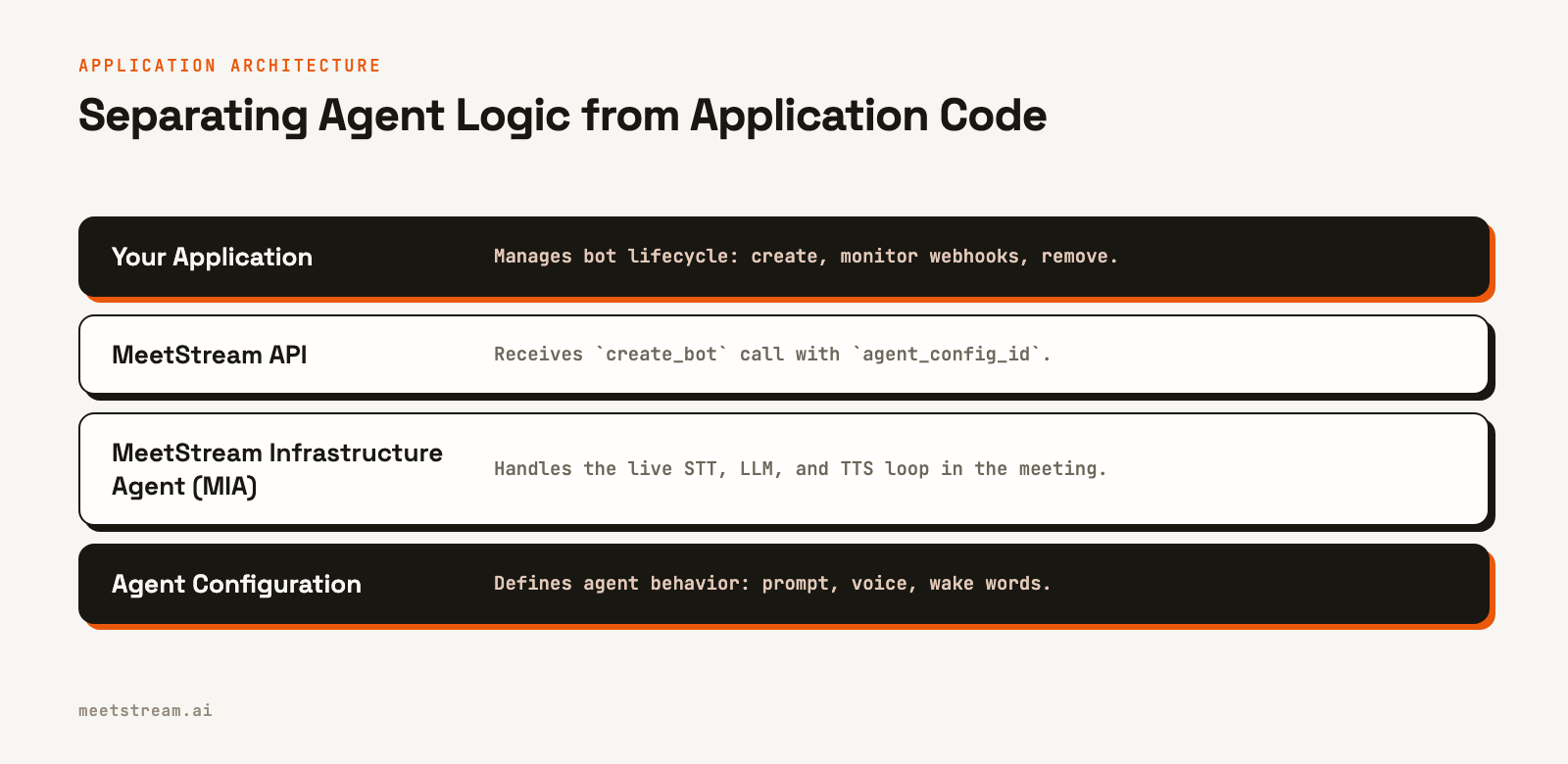
This separation of concerns is a useful pattern. Your application code is responsible for deployment, environment validation, and monitoring lifecycle events via webhooks. The agent's personality and conversational logic are managed in the dashboard. This means you can change the agent's prompt, voice, or wake words without redeploying your application.
How the Agent Decides When to Respond
A voice agent should not respond to every sentence it hears in a meeting. Most of the conversation is between human participants. The agent needs a clear signal to activate.
This behavior is defined in the agent's configuration, not in the code that deploys it. A typical hello world agent is configured with a few key settings:
- Response Type: Set to "Voice" to enable spoken output.
- Wake Words: A list of phrases, like "Hey MIA" or "Okay assistant", that trigger the agent.
- System Prompt: A concise instruction that tells the model its role, for example, "You are a helpful meeting assistant. Introduce yourself and explain your purpose when asked."
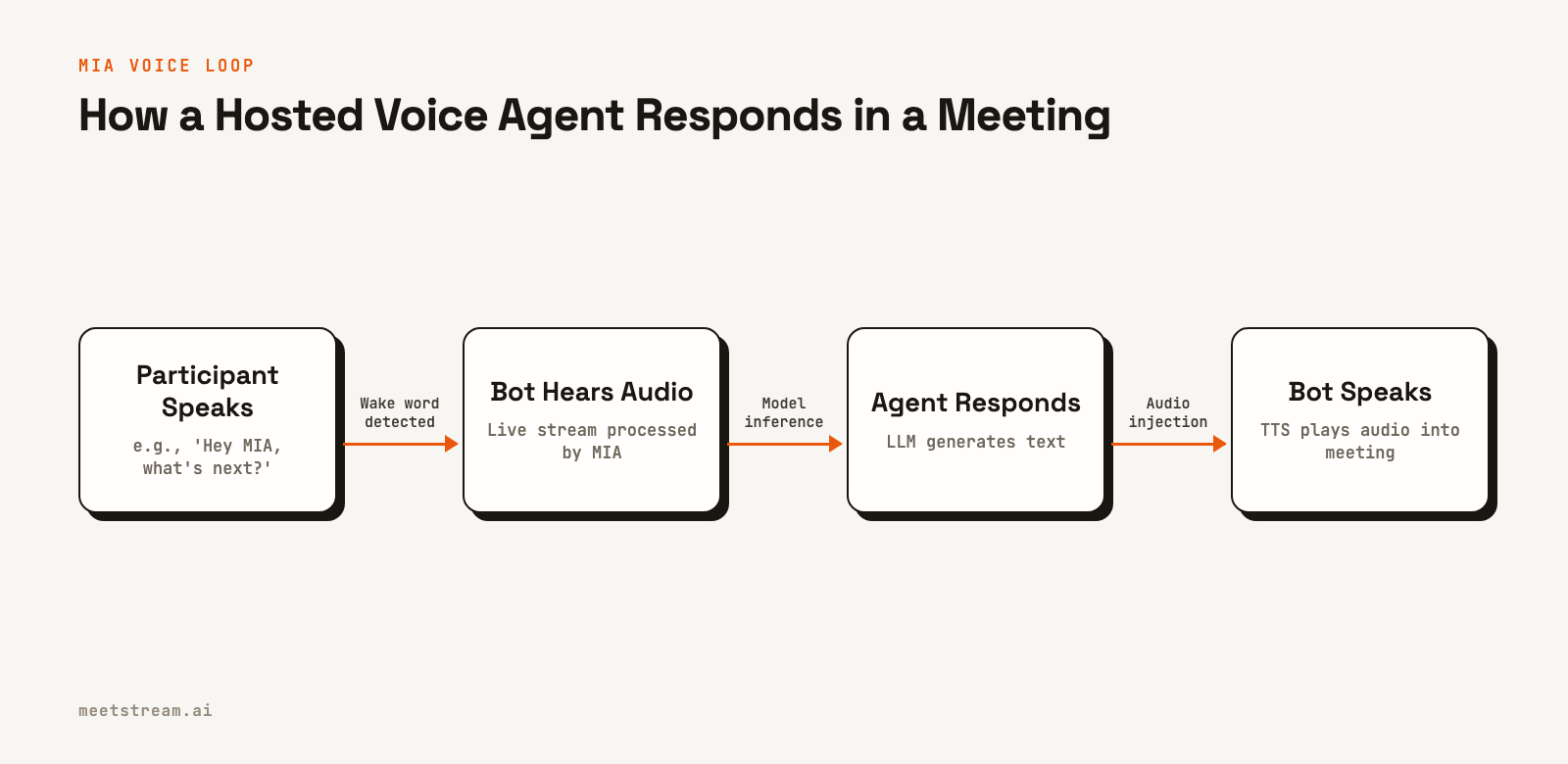
When a participant in the meeting says a wake word, MIA captures that audio turn and sends it to the configured language model. The model generates a text response, which is then synthesized into speech using the configured TTS voice and played back into the meeting by the bot. This entire loop is managed by the hosted MIA runtime.
How to Build It: A Step-by-Step Guide
This guide uses the official MeetStream Labs quickstart repository. It contains a minimal Node.js application for deploying a voice agent.
1. Set Up Your Project
First, clone the repository and install the dependencies.
git clone https://github.com/meetstream-ai/labs
cd labs/mia-hello-world-voice-agent
npm install
cp .env.example .env
Next, fill in the .env file with your credentials and the target meeting link. You will need your MeetStream API key and an Agent Config ID, which you can create and find in the MeetStream dashboard.
MEETSTREAM_API_KEY=your_meetstream_api_key
MEETSTREAM_AGENT_CONFIG_ID=your_mia_hello_world_agent_id
MEETING_LINK=https://meet.google.com/abc-defg-hij
The application also needs a public URL to receive webhooks from MeetStream. For local development, you can use ngrok by providing your authtoken. For a deployed environment, provide the public base URL of your application.
# For local development
NGROK_AUTHTOKEN=your_ngrok_token

# For a production or staging environment
# CALLBACK_URL=https://your-public-url.example.com
2. Start the Webhook Listener
The application runs a simple web server to listen for bot lifecycle events. This is important for knowing when the bot has successfully joined the meeting or if an error occurred.
const server = http.createServer(async (request, response) => {
  if (request.method === "POST" && request.url === "/webhooks/meetstream") {
    const payload = await readJson(request);
    sendJson(response, 200, { received: true });

    // Log the event from MeetStream
    console.log(`Received webhook: ${payload.bot_event}`);
    return;
  }
  // ... other routes
});
The handler immediately returns a 200 OK response to acknowledge receipt of the event. This is a required practice. Workspace webhooks are signed and logged, and you can resend any delivery from the dashboard. Any processing of the event should happen asynchronously after the response is sent.
3. Create the Bot and Attach the Agent
The core of the application is the API call to create a bot. The payload includes the meeting link, a name for the bot, and the callback URL for webhooks. The key field that activates the voice agent is agent_config_id.
const payload = {
  meeting_link: meetingLink,
  bot_name: "MIA Voice Agent",
  video_required: false,
  agent_config_id: agentConfigId,
  callback_url: callbackUrl,
  custom_attributes: {
    source: "mia-hello-world-voice-agent-tutorial",
  },
};

const response = await fetch(
  "https://api.meetstream.ai/api/v1/bots/create_bot",
  {
    method: "POST",
    headers: {
      Authorization: `Token ${apiKey}`,
      "Content-Type": "application/json",
    },
    body: JSON.stringify(payload),
  }
);
By providing the agent_config_id, you instruct MeetStream to connect this specific bot instance to the hosted MIA runtime using your saved configuration. The application code itself contains no prompts, model names, or voice settings.
4. Test the Agent in a Live Meeting
Run the application to deploy the bot.
npm startThe console will log the bot ID and the public callback URL. The bot will join the meeting specified in your .env file. Once the bot.inmeeting event is received, you can interact with the agent. Try saying one of the wake phrases from your agent configuration, followed by a question.
For example: "Hey MIA, can you introduce yourself?"
The agent should respond verbally in the meeting with the voice you configured in the dashboard. Your local console will show the sequence of lifecycle events, confirming that the bot joined and is active.
5. Clean Up Safely
The quickstart script includes a cleanup function to remove the bot from the meeting when you stop the application. It listens for SIGINT (Ctrl+C) and sends a request to the remove endpoint.
async function handleExit() {
  if (botId) {
    console.log(`\nRemoving bot ${botId}...`);
    await removeBot({ apiKey, botId });
    console.log("Bot removed.");
  }
  process.exit(0);
}

process.on("SIGINT", handleExit);
process.on("SIGTERM", handleExit);
This is a good practice during development. If the local process is killed without removing the bot, it may remain in the meeting until a platform or inactivity timeout is reached.
Real-World Use Cases for Voice Agents
While a "hello world" agent is simple, the underlying pattern of an active, in-meeting participant powers many production features. This same deployment method can be used for more sophisticated agents.
An internal meeting assistant can be built to answer questions about project status or pull up information from internal tools. A sales coaching agent could provide real-time feedback to a sales representative during a customer call. For customer support, an agent could guide a user through setup steps or answer common questions, acting as a hands-free helper for the support engineer. The key is moving from passive data collection to active, real-time participation.
What to Watch Out For
When testing voice agents, a few common issues can arise. If the bot joins but does not speak, first verify that the agent_config_id in your .env file is correct and points to an agent with "Voice" as its response type. Also check that the wake words in your configuration match what you are saying in the meeting.
If your webhook server receives no events, ensure your callback URL is public and correctly configured. If you are using ngrok, check that the tunnel is still active. A missing or incorrect callback URL is a frequent source of issues during initial setup.
Finally, if the bot stays in the meeting after your script exits, it likely means the cleanup handler was not called. You can manually remove the bot from the MeetStream dashboard. For reliable applications, it is a good idea to build a separate mechanism to list and manage active bots.
How MeetStream Fits In
MeetStream provides the infrastructure to deploy, manage, and scale interactive AI agents in meetings. The platform handles the complexities of connecting to Zoom, Google Meet, and Microsoft Teams with a single meeting bot API. Our hosted MIA runtime is designed specifically for building voice agents that can hear, speak, and act in real time.
The create_bot endpoint is the entry point for all interactions. By attaching an agent_config_id, you can deploy a fully functional voice agent without building your own real-time media processing pipeline. This lets you focus on the agent's behavior and the value it provides, not the underlying infrastructure. For more advanced use cases, you can stream real-time audio to your own backend for custom processing.
Conclusion and Next Steps
You have now seen how to deploy a hello world voice agent that can join a live meeting and speak. The key takeaway is the separation of the deployment logic in your application from the conversational logic defined in a hosted agent configuration. This pattern allows for rapid iteration on the agent's behavior without changing the core application code. This is a foundational step for building any kind of interactive AI meeting participant.
See the full API reference at docs.meetstream.ai.
Frequently Asked Questions
Can a meeting bot speak back during a live call?
Yes. By attaching a MeetStream Infrastructure Agent (MIA) with the agent_config_id parameter, a bot can generate speech from a language model and play it back into the meeting as audio. This works across Zoom, Google Meet, and Microsoft Teams.
Do I need to build my own STT and TTS pipeline?
No, not for this approach. The MIA hosted runtime includes an entire real-time pipeline for speech-to-text, language model inference, and text-to-speech. You configure the providers in the MeetStream dashboard, and your application only needs to reference the saved configuration ID.
Where do I configure the agent's voice and wake phrase?
The voice, wake phrase, system prompt, and language model are all configured in the Agent's settings within the MeetStream dashboard. Your application code does not contain these details, which allows you to update the agent's personality without redeploying your code.
Does this code work for Zoom, Google Meet, and Teams?
Yes. The MeetStream API is platform-agnostic. The meeting_link parameter in the create_bot call accepts a URL for any of our supported platforms, and the same application logic will work for all of them.
How is a voice agent different from a chat agent?
A voice agent responds by speaking into the meeting's audio channel. A live meeting chat agent responds by posting messages in the meeting's text chat. Both can be powered by MIA, but the response type is a key difference configured in the agent's settings.


