
Build an Interactive Meeting Agent That Responds in Real Time
Learn how to build a meeting chat agent for Zoom, Google Meet, or Teams that listens live and posts AI-generated answers directly into meeting chat.

To build an AI agent that interacts in meetings, you need an API that provides real-time audio and transcription from the live call. This allows your application to process the conversation, identify triggers, and generate responses. The agent can deliver these responses by speaking directly into the meeting using text-to-speech or by posting messages in the meeting chat, creating a two-way interactive experience.
Most meeting bots are passive recorders. They join a call, capture audio, and deliver a transcript after the meeting ends. This is useful for summarization but falls short when users want to ask questions or get information during the live conversation. The technical challenge is not just capturing media, but building a low-latency pipeline that can process audio, understand intent, and act on it in seconds.
An interactive meeting agent is an active participant in a call. It uses a real-time transcription stream to listen for specific triggers, like a wake word. When triggered, it sends the relevant part of the conversation to a large language model (LLM) and delivers the generated response back into the meeting. This creates a conversational loop that happens while the meeting is in progress.
This guide walks through building an interactive agent that listens to a meeting and responds to questions by posting in the chat. We will use MeetStream's hosted agent infrastructure to handle the complex real-time pipeline, so you can focus on the application logic. Let's get into it.
Why Passive Recording Is Only Half the Solution
For years, the main function of a meeting bot was to record and transcribe. The final output was a text file or an audio recording, delivered after the call ended. This model works well for post-meeting analysis, like generating summaries or identifying action items. Developers could build powerful tools on top of this data, from AI meeting notetakers to conversation intelligence platforms.
The limitation of this approach is its latency. All actions happen after the fact. If a sales representative needs a piece of information during a customer call, or a team wants to recall a decision made earlier in the same meeting, a post-call transcript is of no use. The demand has shifted from passive data capture to real-time interaction, turning the meeting bot from a stenographer into an active assistant.
How an Interactive Meeting Agent Works
An interactive agent is built on a continuous, real-time data flow. Instead of waiting for the meeting to end, it processes audio as it happens. The core architecture involves a few key components working together with low latency.
First, a bot joins the meeting on Zoom, Google Meet, or Microsoft Teams. It gains access to the raw audio stream. This stream is immediately sent for transcription. The resulting text is then passed through a gating mechanism, which is critical. Without a gate, the agent would react to every sentence spoken, creating noise. A common gate is a wake word detector, which listens for a specific phrase like "Hey assistant."
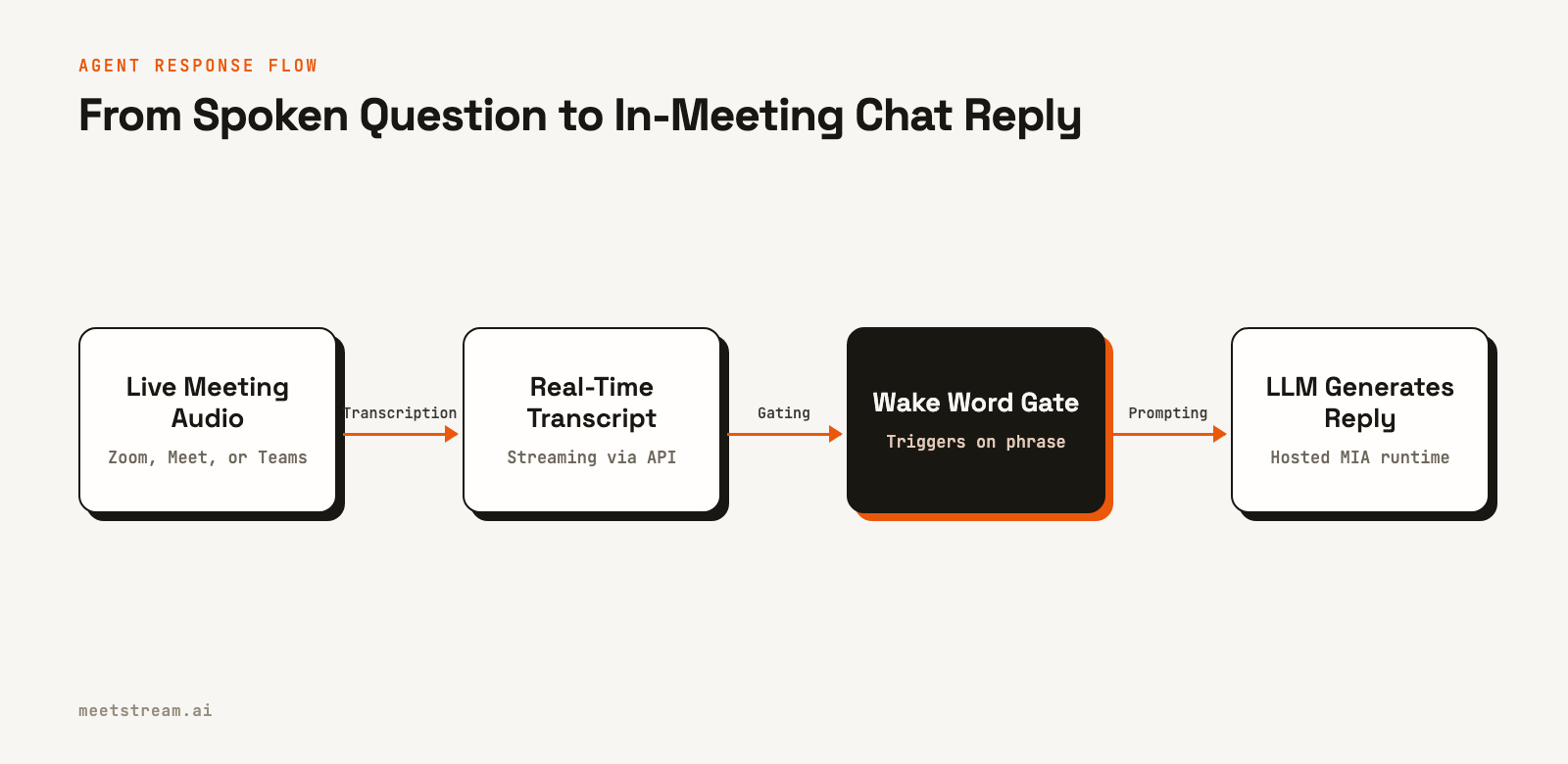
Once the wake word is detected, the agent captures the subsequent speech for a short period, treating it as the user's request. This request, along with conversational context, is sent to an LLM. The model generates a response, which the agent then delivers back into the meeting. The response can be a spoken answer via text-to-speech (TTS) or a message posted in the meeting's chat panel.
Building the Agent: A Step-by-Step Guide
This tutorial uses a sample application from MeetStream Labs to deploy an agent that responds in chat. The agent itself, including the LLM, prompt, and wake phrases, is configured in the MeetStream dashboard. This separation means you can change the agent's behavior without redeploying your application code.
Project Setup
First, clone the repository and set up your environment.
git clone https://github.com/meetstream-ai/labs
cd labs/MIA-chat-agent
npm install
cp .env.example .env
Next, edit the .env file with your credentials and the target meeting link. You can get your API key and Agent Config ID from the MeetStream dashboard.
MEETSTREAM_API_KEY=your_meetstream_key_here
MEETSTREAM_AGENT_CONFIG_ID=your_agent_config_id_here
NGROK_AUTHTOKEN=your_ngrok_token_here
MEETING_LINK=https://meet.google.com/abc-defg-hij
The agent used in this example is configured to use Deepgram for transcription and OpenAI's gpt-4o-mini for generation. The response type is set to "Chat," which instructs the agent to post its answers in the meeting chat instead of speaking.
1. Validate Local Settings
The application starts by checking for the required environment variables. The logic for the agent's prompt and model selection lives in the MeetStream cloud, not in this local code.
const required = [
  'MEETSTREAM_API_KEY',
  'MEETSTREAM_AGENT_CONFIG_ID',
  'MEETING_LINK'
];

const missing = required.filter(
  (name) => !process.env[name]?.trim()
);
2. Start the Webhook Listener
Your application needs a server to receive lifecycle events about the bot, such as when it's joining, admitted from a waiting room, or removed. This is handled with a simple Express server that listens for incoming webhooks. Using webhooks is more efficient than polling for status updates.
app.post('/webhooks/meetstream', (request, response) => {
  const event = request.body || {};
  botEvents.handle(event);
  const output = formatWebhookEvent(event);
  if (output) console.log(output);
  response.status(200).send('ok');
});
3. Create a Public Callback URL
For local development, ngrok can expose your local server to the internet, providing a public URL that MeetStream's API can send webhooks to. In a production environment, you would use your application's public domain.
tunnel = await startNgrokTunnel(config.port);

config.callbackUrl =
  `${tunnel.url().replace(/\/$/, '')}/webhooks/meetstream`;
4. Create the Bot and Attach the Agent
The core of the integration is a single API call to create the bot. The key parameter is agent_config_id. This field tells MeetStream to connect the bot to the pre-configured hosted agent runtime. The agent's configuration determines whether it responds with voice or chat.
const payload = {
  meeting_link: meetingLink,
  bot_name: 'Meeting Summary Bot',
  video_required: false,
  agent_config_id: agentConfigId,
  callback_url: callbackUrl
};

await fetch(
  'https://api.meetstream.ai/api/v1/bots/create_bot',
  {
    method: 'POST',
    headers: {
      Authorization: `Token ${apiKey}`,
      'Content-Type': 'application/json'
    },
    body: JSON.stringify(payload)
  }
);
5. Trigger the Agent in a Live Meeting
With the bot in the call, the entire AI pipeline is managed by MeetStream. A person in the meeting can say a trigger phrase followed by a question:
"Hey bot, what are the action items so far?"
The hosted agent detects the wake word, captures the question, sends it to the LLM, and posts the formatted response directly into the meeting chat. You do not need to manage any audio processing or LLM API calls in your own code.
Real-World Use Cases
Interactive agents open up new product possibilities beyond simple recording. The ability to act on conversational data in real time is valuable across many domains.
For sales coaching platforms, an agent can provide real-time feedback. For example, it can monitor a sales representative's talk-to-listen ratio and send a private message if they are dominating the conversation. It can also listen for competitor mentions or pricing objections and surface relevant talking points in the chat.
In customer support, an agent can listen for keywords related to a known issue and post a link to the relevant knowledge base article. This assists the support agent without interrupting their flow. For internal meetings, an agent can act as a team's collective memory, summarizing discussions or retrieving past decisions on command.
Common Issues and What to Watch For
When building an interactive agent, a few common problems can arise. If the bot joins the meeting but the agent doesn't respond to wake words, first confirm that the agent_config_id in your API call is correct. This ID is the only link between your bot and the hosted AI pipeline.
If the wake phrase is not being detected, try saying the phrase and the question as a single, continuous sentence, followed by a natural pause. The transcription service needs a complete utterance to process accurately. If the agent responds with voice instead of chat, check the agent's configuration in the MeetStream dashboard and ensure the response modality is set to "Chat." Configuration changes only apply to new bots, not ones already in a meeting.
How MeetStream Enables Interactive Agents
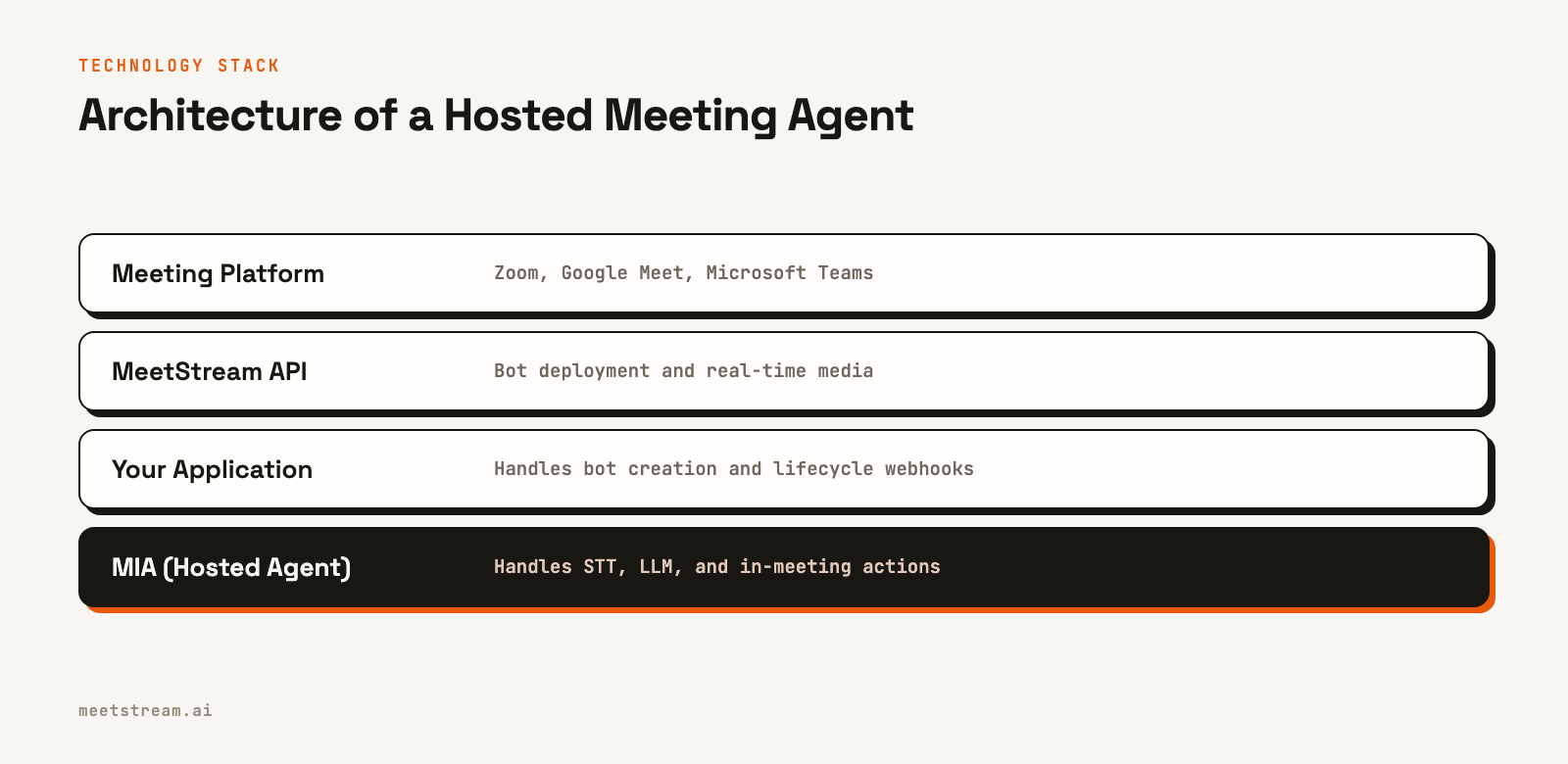
MeetStream provides the infrastructure for building AI voice and chat agents that act as participants in meetings. The platform handles the complexities of connecting to Zoom, Google Meet, and Teams, capturing low-latency audio, and managing the real-time AI pipeline. The MeetStream Infrastructure Agent (MIA) is the hosted runtime that connects transcription, language models, and in-meeting actions like speaking or sending chat messages.
By providing this as a managed service, MeetStream allows you to build interactive experiences with a single API. You define the agent's behavior and prompts in a dashboard, then deploy it into any meeting with a `create_bot` call. This abstracts away the need to build and scale your own media processing and AI orchestration layer.
Conclusion
Building an interactive meeting agent requires a shift from post-call batch processing to a real-time, event-driven architecture. The core components are a reliable multi-platform bot, a low-latency media pipeline, and a hosted AI runtime to handle transcription and language model integration. Using this approach, you can create applications that actively participate in conversations, providing information and automating tasks during the meeting itself. See the full API reference at docs.meetstream.ai.
Related guides
- Build a Meeting Agent That Generates Designs Live
- MIA Real-Time vs Pipeline: Two Voice Agent Modes Compared
Frequently Asked Questions
Can a meeting bot read chat messages and reply automatically?
Yes, an API-driven bot can read meeting chat. To reply automatically, it needs to be connected to an agent or LLM pipeline that can generate a response based on the chat content or other triggers during the call.
How does an AI meeting assistant listen and talk in the same call?
The assistant joins as a participant to access the audio stream for listening via real-time transcription. It "talks" by either sending synthesized audio through its microphone channel using a text-to-speech service or by posting messages to the meeting chat.
What is the difference between a passive recorder and an interactive agent?
A passive recorder captures audio and chat for post-meeting analysis, delivering a transcript after the call ends. An interactive agent processes data in real time to provide responses and perform actions during the live meeting.
How does real-time transcript data become an in-chat response?
The live transcript is monitored for a trigger, such as a wake word. When triggered, a segment of the transcript is sent to an LLM. The model's generated text is then sent back to the meeting via an API call that posts a message in the chat.


