
MIA Real-Time vs Pipeline: Two Voice Agent Modes Compared
Compare MIA realtime vs pipeline agents in the same live meeting to evaluate response speed, transcription, listening controls, tools, and workflow flexibility.
You are building a voice agent for meetings. A user asks a question. Should the agent answer in under a second, or in three seconds? The first feels conversational, like another participant. The second feels like a tool processing a command. This choice between speed and complexity is a critical architectural decision that defines the user experience.
The faster path often means less control over the underlying components like transcription or tool integrations. The more flexible path introduces latency with each step. Getting this tradeoff right is essential for building an effective AI voice agent that meets user expectations, whether it is for quick Q&A or for complex, multi-step tasks.
The MeetStream Infrastructure Agent (MIA) is our platform for deploying conversational AI into live Zoom, Google Meet, and Microsoft Teams calls. To manage this exact tradeoff, MIA offers two distinct runtime modes: Real-Time for the lowest possible latency, and Pipeline for maximum control and flexibility.
This guide compares both modes, explaining their architectures, ideal use cases, and how to configure them with the MeetStream API. We will look at the code required to deploy each type of agent and what to expect when they join a call. Let's get into it.
The Core Tradeoff: Latency vs. Flexibility
A voice agent performs several steps to answer a question in a meeting. It must capture audio, transcribe it with a speech-to-text (STT) model, understand the user's intent with a large language model (LLM), decide on an action, generate a spoken response using text-to-speech (TTS), and play that audio back into the call. Each step adds a small amount of processing and network time.
Optimizing for speed means bundling these steps as tightly as possible, often using a single, vertically integrated provider. This minimizes handoffs between services and reduces the total "ear-to-mouth" latency. The result is a more fluid, conversational feel.
Optimizing for flexibility means separating these steps. This allows you to choose the best STT provider for your specific audio environment, connect the LLM to external tools, or use a custom TTS voice. This modular approach gives you more control but adds latency at each stage. This is the fundamental design choice that led to MIA's two modes.
How MIA Real-Time Mode Works
MIA Real-Time mode is designed for one primary goal: the lowest possible response latency. It uses a single, unified provider that handles STT, LLM, and TTS in one integrated process. When your agent receives audio from the meeting, it makes a single call to this provider and streams the response audio back as soon as it is generated.
This architecture is ideal for building conversational assistants. If a user expects to speak naturally and get a fast spoken answer, Real-Time mode provides an experience that feels like another participant is in the conversation, not a tool that is processing a request after the moment has passed.
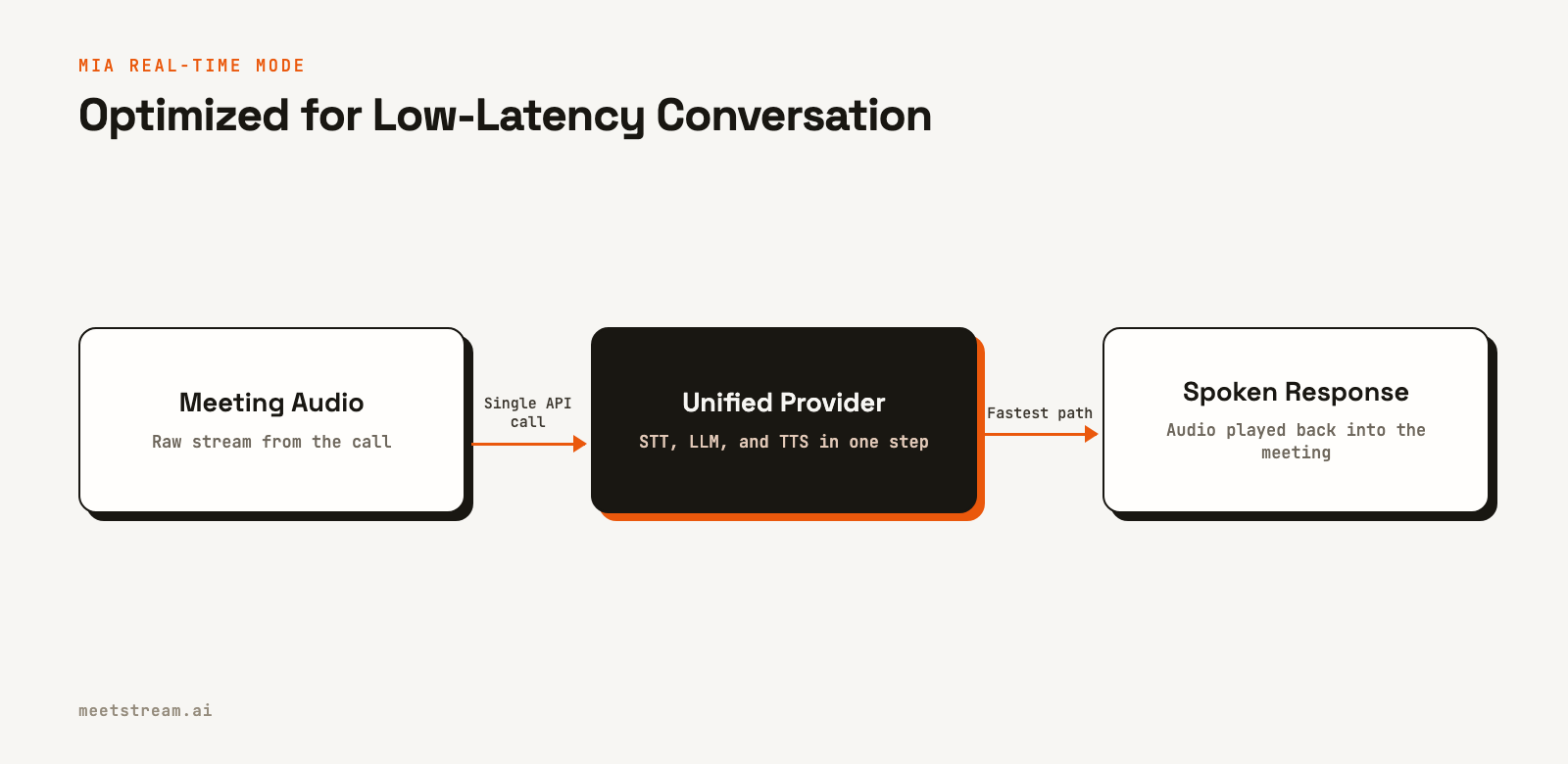
The key benefit is speed. By removing the network hops and orchestration logic between separate services, Real-Time mode can begin generating a response almost immediately. This is the best choice for features like quick Q&A, real-time language translation, or any application where a delay would disrupt the natural flow of conversation.
How MIA Pipeline Mode Works
MIA Pipeline mode is designed for control and complex workflows. It separates the core components of the agent, allowing you to configure each one independently. Audio from the meeting is first sent to a dedicated transcription provider. The resulting text is then passed to an orchestration layer where your LLM can apply custom logic, call external tools, or execute functions.
Once the LLM generates a text response, it is sent to a separate TTS provider to create the final audio, which is then played back into the meeting. This modular flow gives you precise control over every step of the process.
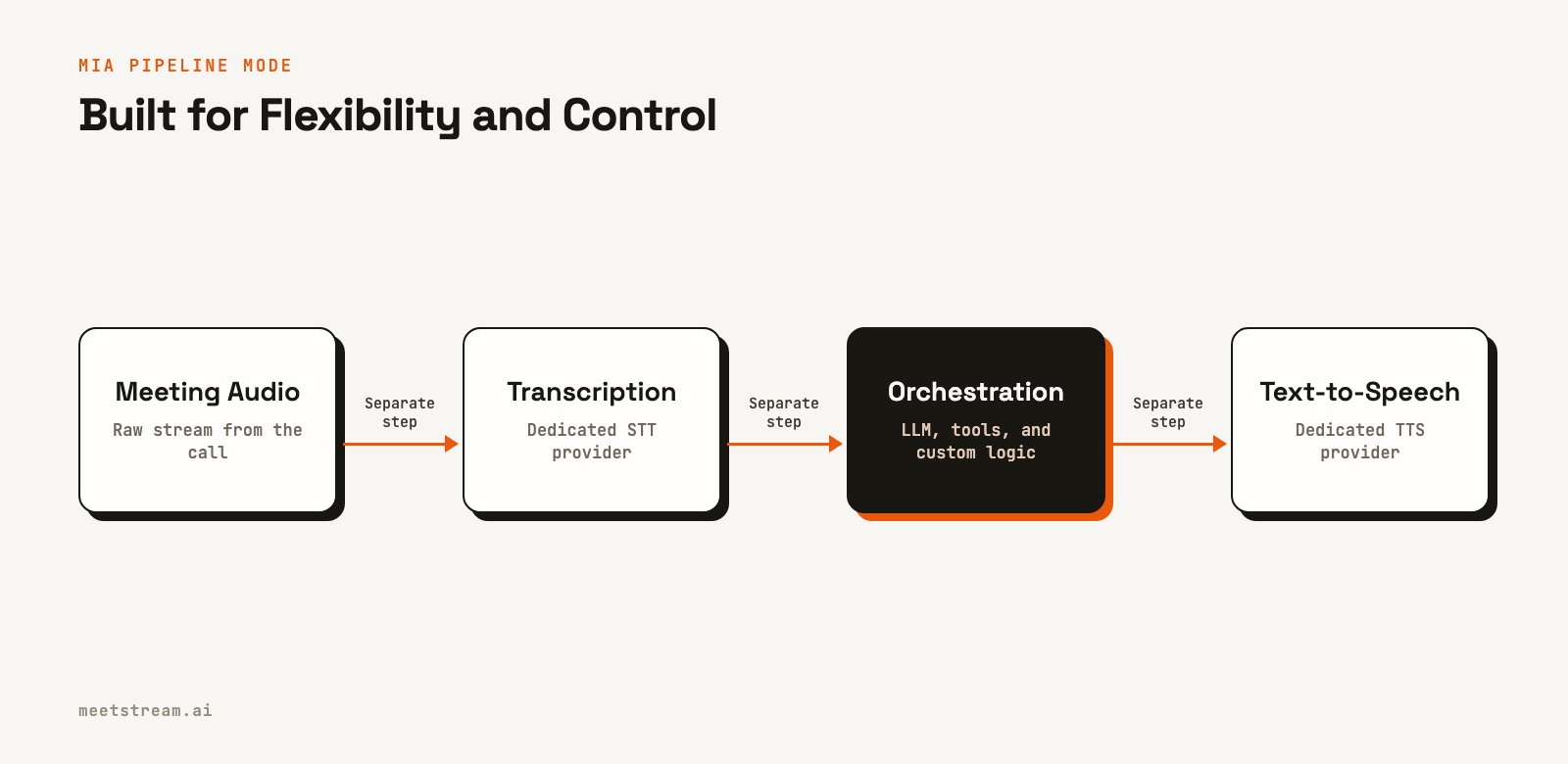
This approach is a better fit for agents that need to perform structured tasks. For example, an agent that updates a CRM, files a bug report in Jira, or pulls data from a knowledge base needs the flexibility to call external APIs. Pipeline mode provides the framework for these tool-connected meeting workflows, where the added control is more important than minimal latency.
Comparing Real-Time vs. Pipeline Agents
The most practical way to understand the difference is to see both agents in the same meeting. You can use the MeetStream API to launch one of each into a call and prompt them with the same request. This allows you to directly observe the difference in response time and behavior.
To do this, you first need two saved agent configurations in your MeetStream dashboard: one set to Real-Time mode and one to Pipeline mode. You can create an agent configuration through the dashboard or the API.
With your two `agent_config_id` values, you can create two bots for the same `meeting_link`. We use `custom_attributes` to tag each bot, which helps distinguish their lifecycle events in our webhook handler.
curl -X POST "https://api.meetstream.ai/api/v1/bots/create_bot" \
  -H "Authorization: Token <YOUR_API_KEY>" \
  -H "Content-Type: application/json" \
  -d '{
    "meeting_link": "<YOUR_MEETING_LINK>",
    "bot_name": "MIA Realtime Agent",
    "agent_config_id": "<YOUR_REALTIME_AGENT_ID>",
    "callback_url": "https://your-app.com/webhooks",
    "custom_attributes": { "mode": "realtime" }
  }'

curl -X POST "https://api.meetstream.ai/api/v1/bots/create_bot" \
  -H "Authorization: Token <YOUR_API_KEY>" \
  -H "Content-Type: application/json" \
  -d '{
    "meeting_link": "<YOUR_MEETING_LINK>",
    "bot_name": "MIA Pipeline Agent",
    "agent_config_id": "<YOUR_PIPELINE_AGENT_ID>",
    "callback_url": "https://your-app.com/webhooks",
    "custom_attributes": { "mode": "pipeline" }
  }'
When webhook events arrive at your server, you can inspect the `custom_attributes.mode` field to log and track the behavior of each agent separately. This provides a clear, side-by-side view of their join times and lifecycle status.
Key Differences at a Glance
Here is a summary of the main differences between the two modes.
| Feature | Real-Time Mode | Pipeline Mode |
|---|---|---|
| Primary Goal | Lowest latency | Flexibility and control |
| Architecture | Unified (STT+LLM+TTS) | Separated components |
| Use Cases | Conversational Q&A, live translation | Tool use, complex workflows, CRM updates |
| Configuration | Single provider selection | Separate providers for STT, LLM, TTS |
| Tool Integration | Limited | Supported via orchestration layer |
| Latency | Lower | Higher |
When to Use Each MIA Mode
Choosing between MIA Real-Time vs Pipeline mode depends entirely on the product you are building. There is no single "better" mode, only the right mode for a specific user experience.
Choose Real-Time for Conversational Assistants
If your users expect to speak to the agent as if it were another person, start with Real-Time mode. The agent will feel more present and integrated into the conversation. This is critical for applications like sales coaching bots that provide instant feedback or customer support agents that need to answer questions without awkward pauses.
Choose Pipeline for Tool-Connected Workflows
If your agent needs to interact with other systems, Pipeline mode is the correct choice. The ability to call external functions or follow a structured sequence of steps is essential for task-oriented agents. Use cases include voice-controlled project management, where an agent can create a ticket in Linear, or a sales assistant that can pull customer data from a CRM during a live call.
Some products may even use both modes for different features. A Real-Time agent could handle quick conversational questions, while a Pipeline agent is triggered for more complex actions that require external tools. The right choice is always the one that best matches the user's intent in that moment.
How MeetStream Enables Both Agent Types
MeetStream is designed as agent-first voice infrastructure. Our goal is to provide the components needed to deploy any kind of AI agent into a meeting. The MIA Real-Time and Pipeline modes are a direct reflection of this, giving developers a clear choice between speed and control without needing to build and manage complex media processing pipelines themselves.
Both modes are deployed using the same `create_bot` API endpoint. The only difference is the `agent_config_id` you provide. This allows you to experiment with both architectures easily and select the one that best fits your application's needs. Whether you are building a simple "Hello World" voice agent or a sophisticated workflow, the underlying infrastructure for joining the call, capturing audio, and speaking back is managed for you.
Conclusion
Choosing between MIA Real-Time and Pipeline mode is a fundamental decision when building a voice agent for meetings. Real-Time mode prioritizes low-latency, conversational interaction, making it ideal for assistants that need to feel present and responsive. Pipeline mode prioritizes flexibility and control, enabling complex, tool-connected workflows where additional processing time is an acceptable tradeoff. By understanding the architectural differences and testing both in a live environment, you can select the right mode to deliver the best possible experience for your users. The choice between MIA Real-Time vs Pipeline ultimately depends on the specific job your agent is designed to do.
See the full API reference at docs.meetstream.ai.
Related guides
- Build an Interactive Meeting Agent That Responds in Real Time
- Real-time meeting agent API: live audio at 200ms
Frequently Asked Questions
What is the main difference between MIA Real-Time and Pipeline mode?
Real-Time mode is optimized for low-latency voice interaction by using a single, unified provider for STT, LLM, and TTS. Pipeline mode separates these components to provide more control, flexibility, and support for external tools, which results in higher latency.
Can I use my own models with MIA?
Pipeline mode allows you to configure different providers for transcription, language modeling, and text-to-speech. You can select from a list of integrated partners in your agent configuration to match your application's requirements.
Can I switch an agent from Real-Time to Pipeline mode?
Yes. Update the saved agent configuration in the MeetStream dashboard or via the API, and the new mode applies from the next call.
Which mode is better for production applications?
Neither mode is universally better. Use Real-Time mode when conversational speed is the most important part of the user experience. Use Pipeline mode when your agent needs more control, custom transcription, or the ability to use tools and functions.
How do I test both MIA modes?
You can launch two separate bots into the same meeting, one for each mode. By providing a different `agent_config_id` for each bot in your API call, you can interact with both and compare their response behavior side-by-side.


