
How to build live translated captions for meetings with Lingo

A design review runs in Hindi while half the attendees only understand English. Someone asks the speaker to repeat a point, the thread breaks, and the notes afterward hold only one language. Live translated captions for meetings fix that by showing each speaker's words in the reader's language while the call is still going. The pipeline has four parts: a meeting bot captures audio, a speech provider turns it into text, your server translates that text, and an overlay puts the result on screen.
Most of the difficulty sits in the gaps between those parts. A caption has to say who is speaking. The original wording has to stay available for anyone who doubts a translation. And a translation provider failing halfway through a call should not erase what was already said.
Lingo is an open-source starter kit built around those gaps. It pairs a web workspace with a Chrome extension, supports up to eight output languages per recording, and stores the original words beside every translation. After the call, the same recording produces a translated transcript, a post-call overview and downloadable subtitles.
In this article, we'll explore how Lingo supports multilingual meeting accessibility, how audio becomes translated captions, which speech and translation providers it works with, and how to run it in a real call and prepare it for hosting. Let's get started!
What does multilingual meeting accessibility look like in practice?
Lingo is built on the MeetStream Meeting Bot API. A visible bot joins Google Meet, Zoom or Microsoft Teams and receives the meeting audio. Lingo handles everything a participant touches: picking caption languages, seeing who is speaking, checking the original text and saving the result.
Two surfaces carry this. The Chrome extension draws captions over a supported meeting page, in a panel you can drag, move with the keyboard, resize and tune for reading comfort. The web workspace holds the transcript, recordings, notes and summaries.
The extension captures nothing on its own. Audio comes from the admitted bot, so a running Lingo backend is required, and the extension never records your microphone or scrapes the platform's built-in captions. On desktop Zoom or Teams, where a Chrome overlay cannot appear, people open Lingo's web captions view separately.
Why is real-time meeting translation harder than one API call?
A caption reaches a reader after four hand-offs. The bot captures audio, the speech provider converts it to text, the translator converts that text again, and the browser draws it. Any hop can lag or fail on its own, so a translation API's response time says little about what a listener actually experiences.
Speaker names make it harder. Attribution depends on how each meeting platform exposes audio, and overlapping speech tends to expose the weak spots. Language coverage adds another layer, because speech languages, translation targets and read-aloud voices come from different services with different catalogs.
Lingo's answer is to treat each hop as its own job and to keep recognition apart from translation. A failed translation leaves the original text on screen, and the workspace can retry the job without throwing away what was recognized. The next section shows how a single caption moves through that pipeline.
How does Lingo turn meeting audio into translated captions?
Here is the path of one caption:
- A participant speaks, and the bot admitted to the call receives the audio.
- MeetStream passes it to the speech provider you chose, and transcript updates return to Lingo through a per-bot callback.
- The server normalizes the provider's payload, builds a speaker-attributed turn and saves the original text in SQLite.
- Lingo queues a translation job for each output language.
- When a job finishes, the workspace can show both versions, and the extension, which reads from the same backend, draws the translated caption.
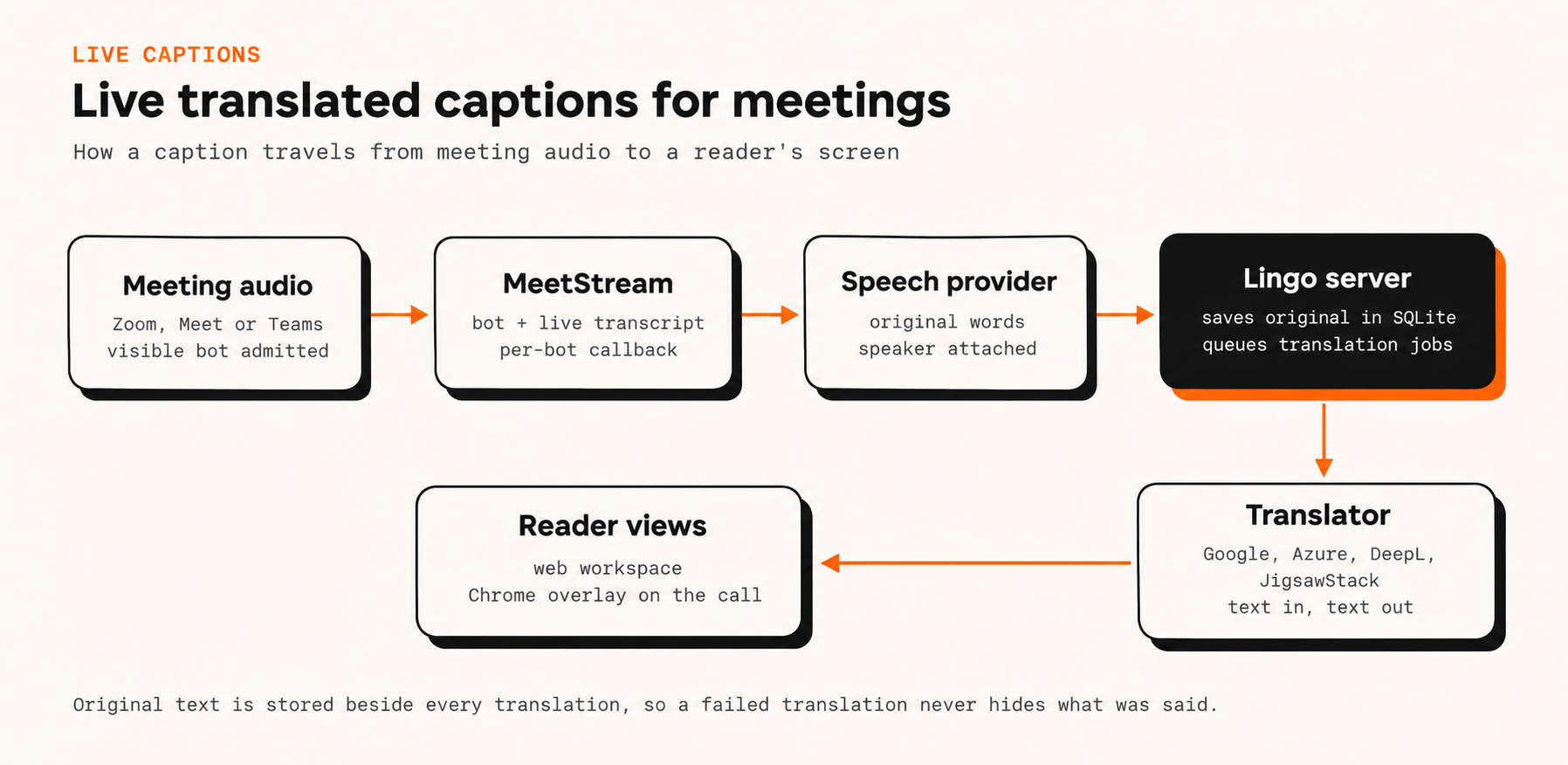
MeetStream carries the meeting audio into speech recognition. Lingo stores the returned turns, translates them and serves the caption views. Diagram of the implemented flow, not a latency benchmark.
A reduced cue shows what gets stored. The text is a handwritten example, and the shape is the application's own format, not the raw MeetStream webhook payload:
{
  "kind": "live",
  "speaker": "Sample speaker",
  "source": "hi",
  "start": 0,
  "end": 2,
  "text": "नमस्ते सभी को।",
  "translations": {
    "en": {
      "status": "ready",
      "text": "Hello everyone."
    }
  }
}
The speaker stays attached to the turn when the display language changes. How accurate that attribution is depends on how the platform captured the audio.
What happens when someone changes the language?
Changing the caption language only changes what the reader sees. Adding an output language queues translation for the saved turns as well as future captions.
Changing the spoken language is bigger, because it affects recognition. For supported Deepgram and JigsawStack setups, Lingo validates the new choice, stops the old bot and starts a linked recording in the new language. Captions pause during the switch, and the host may need to admit the replacement bot. Earlier transcript and recording parts stay available, though exports currently cover one part at a time.
What do you get after the call?
When recording ends, Lingo retrieves the final transcript and recording information, and its translated meeting transcripts keep the original beside each completed translation. Final transcription and translation run as separate jobs, so not every artifact is ready the moment the call ends. MeetStream's post-call transcription workflow documents the API side of that lifecycle.
The Summary section saves an overview built from selected transcript excerpts once the final text and that language's translations are ready, and it labels the result as excerpts. Optional JigsawStack AI summarization is a separate action, and its output needs checking against the transcript. Notes and action items are written by hand.
For accessible transcript exports, pick VTT or SRT for subtitles, HTML for a structured document, or Markdown, plain text and JSON for other workflows. Filenames carry the meeting name and a timestamp. Optional connections cover Drive uploads, Slack or Discord sharing and Gmail drafts. Sharing takes a deliberate click, and a Gmail draft is never sent for you.
Which speech and translation providers should you pick?
Speech and translation are separate choices in Lingo. Deepgram can supply the original words while Google translates them, and both roles show up in the interface.
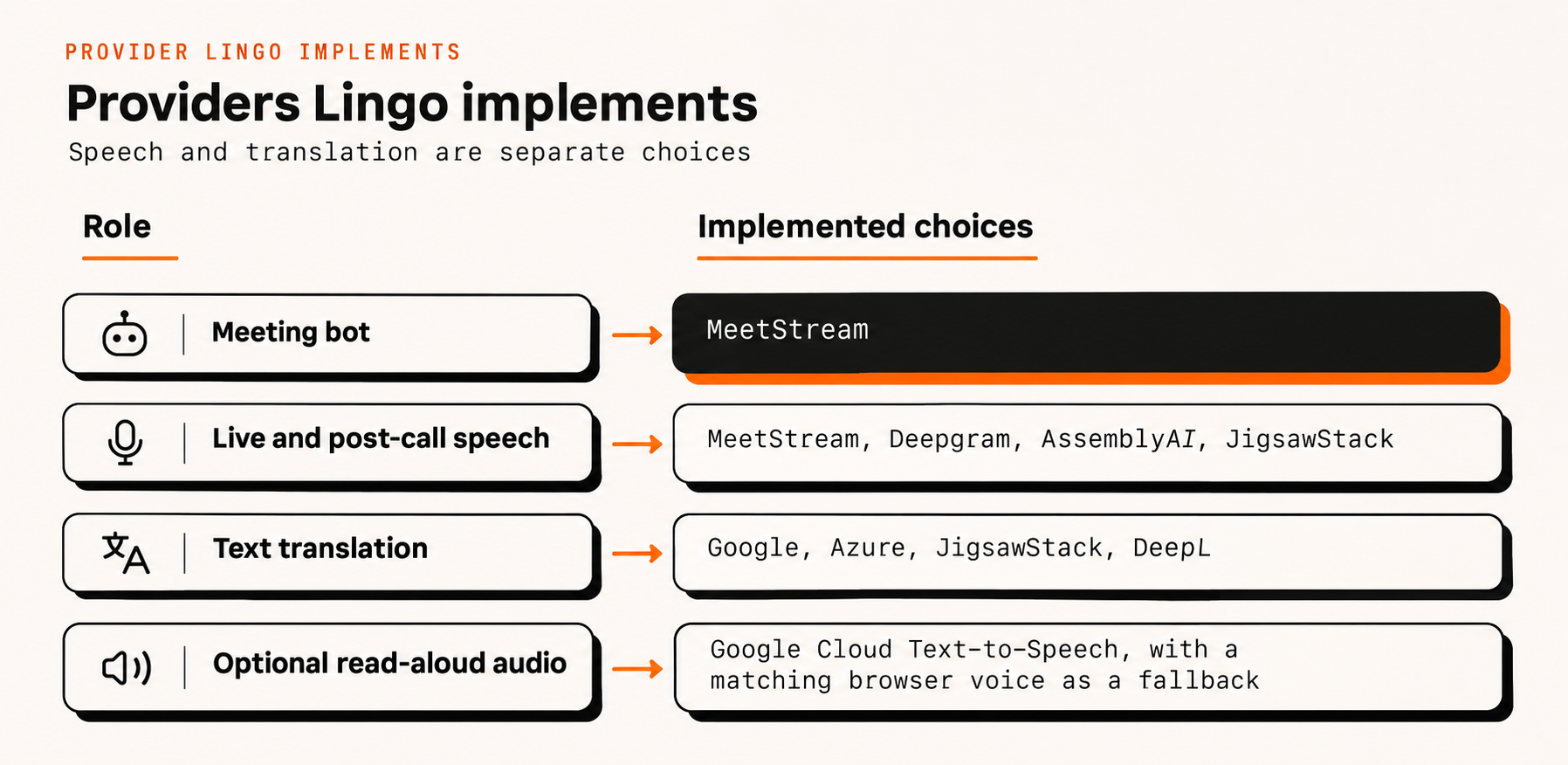
Speech has the tighter limits. In this implementation, Deepgram live recognition needs a fixed spoken language, AssemblyAI live is English-only, and JigsawStack live works only on Google Meet. Native MeetStream live recognition detects the language automatically. Check the MeetStream provider matrix too, since a provider the platform offers is not necessarily wired into this starter kit.
Translation limits come from each adapter's catalog, and the interface filters caption languages to match the translator you select. Lingo's DeepL adapter currently exposes a 32-code subset with no Hindi or Tamil targets. That describes this adapter, not DeepL's whole service.
Speaker attribution depends on the platform. MeetStream's live transcription documentation explains that Zoom can transcribe each speaker's audio separately, while Meet and Teams use active or dominant speaker attribution. If overlapping speech matters to you, test it on the platform you plan to use.
For a Hindi to English or Tamil to Hindi trial, pick a supported fixed speech language and a translator whose catalog includes the target. Then have someone fluent in both languages review the output before you trust it in a real meeting.
What does MeetStream handle, and what does Lingo handle?
The split is clean. MeetStream gets a bot into a Zoom, Google Meet or Microsoft Teams call and delivers the audio and transcript events. Lingo owns what happens afterward: translation jobs, caption delivery, storage and the interface.
The same division shows up in our Canva meeting-agent tutorial, where the bot handles the call and a small bridge handles the design tool. Lingo's backend does caption delivery and translation jobs in that same position.
If you are starting from scratch, the guide to creating your first bot shows the API call that sends a bot into a meeting, and the Zoom and Microsoft Teams pages cover platform specifics. Once captions work, our guide to storing and searching meeting transcripts explains why keeping the original structure pays off as an archive grows.
How do you build and run your own live captions setup?
You will need Node.js 24 or newer, Git, a MeetStream API key, a Google Cloud Translation key and an ngrok account. The sample in step 1 needs none of the accounts.
1. Run the sample
Clone the Lingo repository and start the app:
git clone https://github.com/meetstream-ai/lingo.git
cd lingo
npm start
Open http://localhost:3000 and start the sample. The launcher creates .env from the example, installs missing dependencies and packages the extension. Sample mode uses handwritten Hindi and Tamil content with handwritten translations, so no speech or translation provider is called.
Try the caption language controls, open the transcript and download an export. That shows how the app behaves and says nothing about real translation accuracy. Keep the launching terminal running, and stop the app with Ctrl+C or npm stop from another terminal in the project directory.
2. Configure the backend and callback URL
Stop the sample and edit the generated .env. For Google text translation behind an ngrok tunnel, set these variables:
MEETSTREAM_API_KEYcreates and manages bots in your MeetStream workspace.GOOGLE_TRANSLATE_API_KEYcalls Google Cloud Translation, so enable its API and billing.NGROK_AUTHTOKENopens the public HTTPS tunnel for callbacks.APP_PASSWORDprotects your Lingo workspace.SESSION_SECRETis a random string of at least 32 characters used to sign sessions.
Leave NGROK_ENABLED=auto and run npm start again. The launcher starts the tunnel and the server together, saves the public origin and prints the workspace URL. If the password or session secret was missing, it generates them, so read your private .env for the workspace password. That password is Lingo's APP_PASSWORD, not your MeetStream login.
Then sign in and open Connections to save or test provider credentials in the browser. Saved values win over environment values, so replace an already saved key there. Third-party speech keys belong in the matching MeetStream workspace, so you don't need a duplicate DEEPGRAM_API_KEY in Lingo. JigsawStack speech and JigsawStack text translation are separate connections even when you choose the same vendor for both.
Lingo builds per-bot callback URLs automatically and protects them with generated path tokens. The optional signed workspace lifecycle webhook is a separate endpoint, and the project quickstart covers its setup.
3. Install the Chrome extension
- Open
http://localhost:3000/extension-guide.html. Use the checkout'sextension/directory, or download and extract the extension ZIP. - In
chrome://extensions, enable Developer mode, select Load unpacked and choose the directory that containsmanifest.json. Pin Lingo to the toolbar. - Open your signed-in workspace. In the extension, enter that workspace's URL and choose Connect open workspace. Grant access to the hostname when Chrome asks.
4. Run a live call
Join a supported browser meeting, open Lingo on that tab, and choose the spoken language, speech provider, translator and caption languages. Select Start captions, admit the visible bot, and show the overlay.
Check that original text arrives before you judge any translation. If the bot joins but nothing appears, look at the meeting's status and the provider error. The usual causes are a bot that was never admitted, missing speech access, an unsupported language, exhausted quota or an unreachable callback URL. A working overlay cannot make up for missing source text.
Give Lingo an invitation that identifies the room. It normalizes Google Meet invitation and /meet/ links, numeric Zoom invitations and web join or start links, and supported Teams invitations, including business cloud URLs. A homepage or generic Teams app URL is not enough. For a Zoom personal /my/ room, copy the numeric invitation from its meeting details.
5. Measure delay and prepare for hosting
Measure from the moment the speaker talks to the moment the translated words appear on the listener's screen. Lingo's Chrome overlay polls the backend every 1.5 seconds, but recognition, translation, network transport and browser scheduling each add delay, and background tabs may behave differently. So that interval is not a promise of 1.5-second captions. Compare live and final translations with a fluent reviewer, and log missing words and attribution errors separately from translation errors.
For hosting, deploy the Node backend with HTTPS and persistent storage. SQLite and the job worker currently assume one process, so run a single replica. Protect the database, connection settings and backups, and set a retention policy for saved text. Lingo uses one shared workspace password, so individual accounts and per-user authorization are still work to do before a public multi-user service.
The server has to stay reachable for callbacks and caption delivery. A free host that sleeps or discards local files can interrupt a recording or lose saved artifacts, and speech and translation usage can still cost money there. Read the hosting guide, confirm your data survives a restart, and test a short call with your deployment's accounts.
What should you try first with Lingo?
Run the sample. It needs no accounts, and it shows the caption controls, the transcript and the export formats before any provider is involved. Once the interface makes sense, add a MeetStream API key and a translator, and test a short call with someone who reads both languages.
The bot supplies the audio, the speech provider supplies the original words, and the translator supplies the second language. Because Lingo stores each of those separately, you can see which one failed when a caption looks wrong. The code is in the Lingo repository, and the MeetStream documentation covers the bot API underneath it.
Frequently Asked Questions
Can the extension translate a meeting without a backend?
No. It needs a running Lingo server and an admitted MeetStream bot. The extension displays the captions that pipeline produces and does not capture meeting audio itself.
Does Lingo use the meeting platform's built-in captions?
No. Audio comes from the admitted MeetStream bot. The extension does not record your microphone or scrape the platform's own captions.
Can participants listen to a translation as well as read it?
Yes. Select Listen to hear translated text read aloud. Lingo tries Google Cloud Text-to-Speech first, then falls back to a matching voice if your browser provides one. To use Google’s service, enable Cloud Text-to-Speech and billing and configure an API key that allows requests to that API. Listen plays the selected text on demand, it does not continuously dub the meeting.
Does the starter kit support every language a provider advertises?
No. The available choices are the overlap between Lingo's adapter catalogs and the selected services' capabilities, and speech languages, translation targets and voices all differ. Confirm the exact source, target and voice in the interface and with a real test.
Are provider keys sent to the meeting page?
No. Provider API calls run on the backend, and the extension uses revocable, time-limited workspace and meeting grants. Meeting audio and text still pass through the services you configure, so review their terms and your participants' consent requirements.