
Grok Meeting Bot: Put Grok in Google Meet, Zoom or Teams
Build a Grok meeting bot that joins Google Meet, Zoom or Teams and answers out loud, with two API calls, a hosted MIA agent and open-source code.

A Grok meeting bot is a participant that joins a Google Meet, Zoom or Microsoft Teams call, listens to everyone, and answers out loud in Grok's voice. You can build one with two API calls. The first saves a MeetStream MIA agent with "provider": "xai", and the second sends a bot into the meeting with that agent attached. In our test calls on Google Meet, the bot was in the call within 15 seconds of starting to join, and Grok answered out loud in its Ara voice.
Most AI in meetings today is a notetaker: it records, transcribes and writes a summary after everyone has left. A speaking participant is a different product. It has to hear the room, decide when someone is talking to it, reply fast enough to keep up with a conversation, and get its own voice back into the call. That used to mean running your own audio bridge between the meeting and a model.
Two things make it simpler now. xAI's voice API includes a realtime speech-to-speech model, grok-voice-latest, that hears audio and replies with audio in a single step. MeetStream's MIA can run that model as a hosted agent, so the meeting audio, the connection to Grok and the bot's presence in the call are all handled for you.
In this article, we'll explore what a Grok meeting bot is, why putting a model into a live call is harder than it looks, how the bot works step by step with real config and code, where Grok fits among realtime voice agents, and how to build and run your own. Let's get started!
What is a Grok meeting bot?
A Grok meeting bot is an AI voice agent that sits in a video call as its own participant, named like any other attendee, and uses Grok to understand speech and answer out loud. It is not a notetaker and not a chat widget: people talk to it, and it talks back to the whole room.
| Grok meeting bot | |
|---|---|
| What it is | A meeting bot that speaks, powered by Grok's realtime voice model |
| Platforms | Google Meet, Zoom and Microsoft Teams (we tested on Google Meet) |
| How it hears and speaks | Realtime mode: one speech-to-speech model, no separate transcription or text-to-speech step |
| What you send | POST /mia to save the agent, then POST /bots/create_bot with its agent_config_id |
| Voice | Any built-in Grok voice, such as Ara; xAI lists 28 |
| Code | Open source: meetstream-grok-demo |
Grok is built by xAI. The bot in this guide is built by MeetStream on xAI's API, and is not an official xAI product.
Why is it hard to put Grok in a live meeting?
Talking to Grok in an app is a one-to-one conversation over a clean connection. A meeting is neither of those things, and four problems show up as soon as you try.
- Getting into the call. The bot has to join Meet, Zoom or Teams like a person: show up in the waiting room, be admitted by the host, and stay connected. Each platform does this differently.
- Getting audio in and out. The model needs the meeting's audio as it happens, and its reply has to be played back into the call as the bot's own voice, not as a recording someone shares.
- Knowing when to speak. In a group, a pause doesn't always mean "your turn", and people talk over each other. A bot that answers every silence is unusable.
- Not hearing itself. If the bot's own voice comes back into its input, it can respond to itself in a loop.
Our guide on how to put a voice AI agent in Google Meet, Zoom or Teams goes deep on turn-taking, barge-in and echo for any model. This post focuses on Grok, and on the path that hands all four problems to a hosted agent.
How does the Grok meeting bot work?
There are two pieces: your code, which makes two API calls, and MeetStream, which runs the bot and the bridge to Grok.
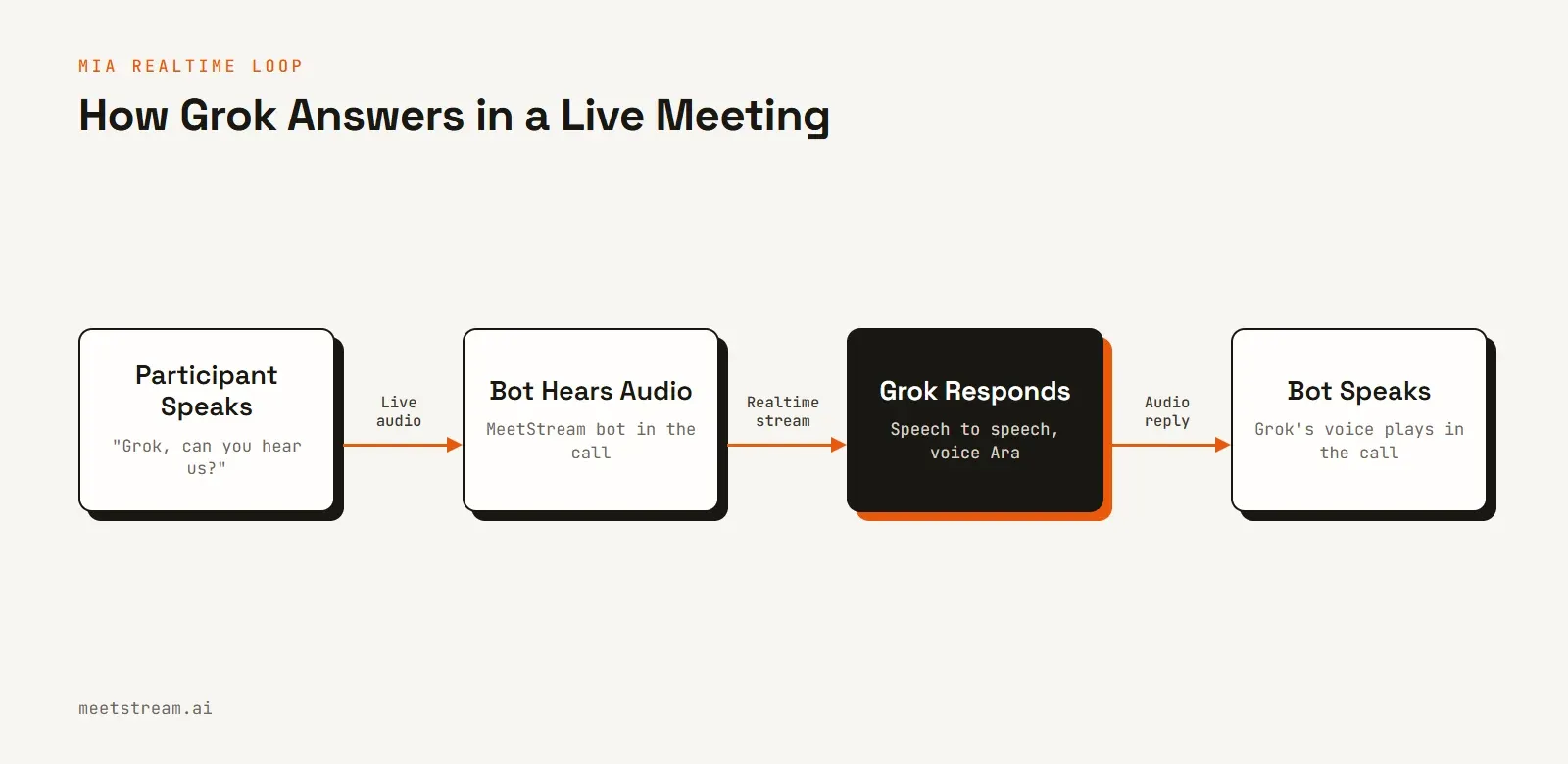
Step 1: Save a Grok agent
An agent config is a saved recipe for the voice agent. For Grok it uses realtime mode and the xai provider, following the "Realtime – xAI Grok" example in MeetStream's create agent config reference. This is the config the open-source template creates, with the system prompt shortened:
{
  "agent_name": "Grok Meeting Demo",
  "mode": "realtime",
  "model": {
    "provider": "xai",
    "voice": "Ara",
    "system_prompt": "You are Grok, built by xAI, taking part in a live video meeting. Keep every reply to one or two short spoken sentences. Only speak when someone talks to you.",
    "first_message": "",
    "temperature": 0.8
  },
  "agent": {
    "response_modality": "audio",
    "preemptive_generation": true,
    "interruption_mode": "vad",
    "vad_type": "semantic_vad",
    "vad_eagerness": "medium",
    "enable_interruptions": true,
    "interruptions": { "min_duration_seconds": 0.5, "word_threshold": 0 },
    "false_interruption_timeout": 2,
    "resume_false_interruption": true,
    "user_away_timeout": 15
  },
  "audio": { "sample_rate": 24000, "num_channels": 1 }
}
POST it to https://api.meetstream.ai/api/v1/mia with the header Authorization: Token <your MeetStream API key>. The response contains an agent_config_id. Save it, because every later run can reuse the same agent.
There is no model.model field. MeetStream picks its Grok voice model unless you set one, and there is no transcriber or text-to-speech block, because in realtime mode Grok hears audio and speaks audio itself.
Step 2: Send the bot into the meeting
Attaching the agent to a bot is one field on create bot:
curl -X POST https://api.meetstream.ai/api/v1/bots/create_bot \
  -H "Authorization: Token $MEETSTREAM_API_KEY" \
  -H "Content-Type: application/json" \
  -d '{
    "meeting_link": "https://meet.google.com/abc-defg-hij",
    "bot_name": "Grok",
    "video_required": false,
    "agent_config_id": "<agent_config_id from step 1>"
  }'
agent_config_id is the whole integration. You don't add a WebSocket URL or turn on live audio, because MeetStream runs the bridge to Grok. video_required: false is sent explicitly because the API treats a missing value as true.
Step 3: Admit it and talk
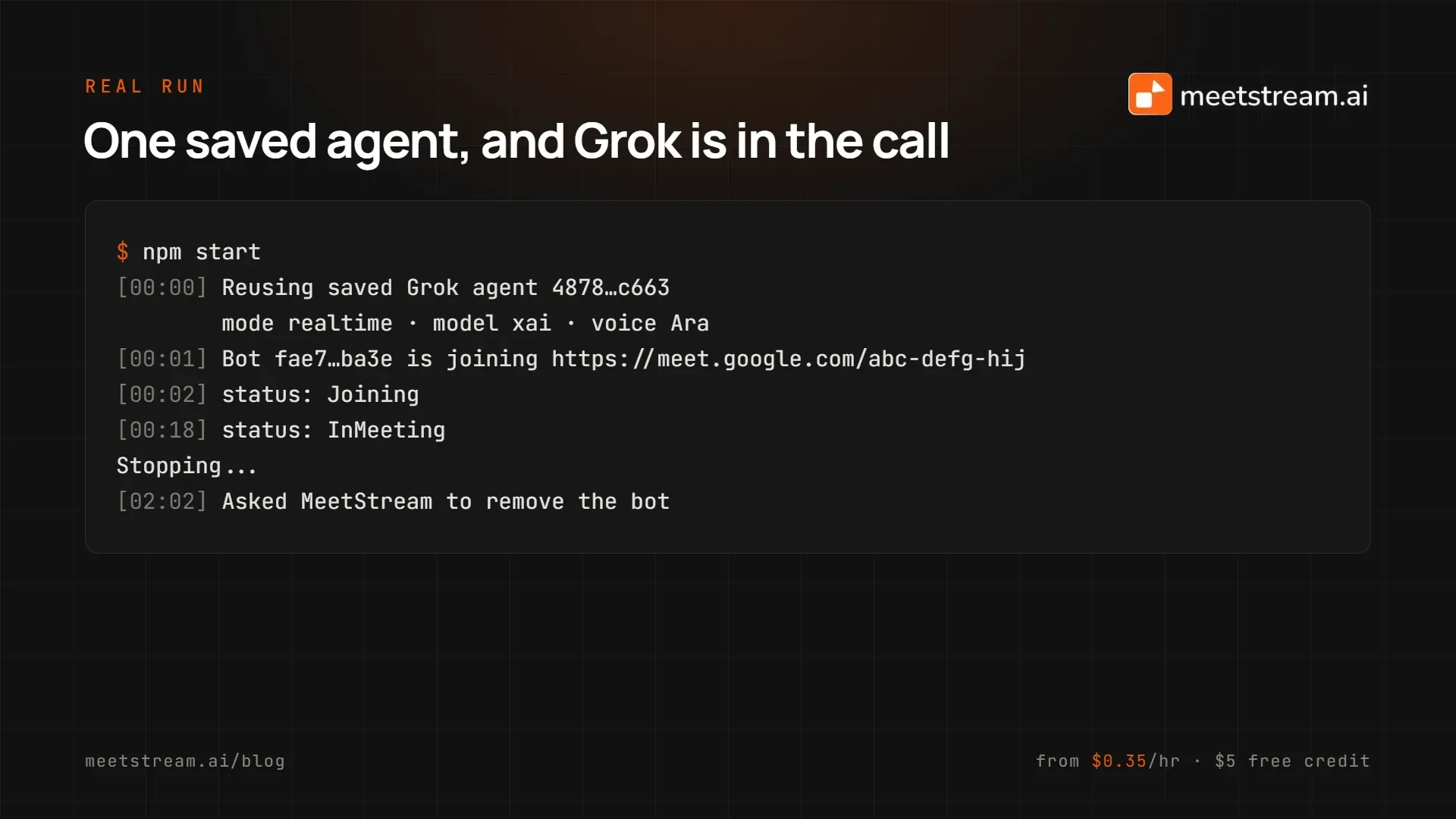
The bot appears in the waiting room as Grok. Once the host admits it, it stays silent until someone speaks to it, then answers out loud. In three test calls on Google Meet, the bot reached the waiting room 13 seconds after it began joining and was in the call by 15 seconds.
The settings that matter
| Setting | Value | Why |
|---|---|---|
first_message |
"" (empty) |
Grok waits to be addressed instead of greeting the room the moment it's admitted. |
vad_type |
semantic_vad |
Decides when a speaker has finished a thought, not just when they paused, so Grok doesn't cut in mid-sentence. |
enable_interruptions |
true |
Talking over Grok stops it. Set false in a noisy room, so a cough can't cut a reply short. |
system_prompt |
One or two spoken sentences | Long answers hurt a live call more than a slow model does. |
voice |
Ara |
Any built-in Grok voice. Keep one per agent; changing it means saving a new config. |
Where does Grok fit among realtime voice agents?
MIA runs voice agents in two modes, and the choice matters more than the model.
| Realtime mode (this guide) | Pipeline mode | |
|---|---|---|
| How a reply is made | One speech-to-speech model hears audio and speaks audio | Speech-to-text, then a text model, then text-to-speech |
| Network hops per reply | One | Three |
| Choice of voice | The model's own voices | Any text-to-speech provider |
| Wake word | Not part of the config | Supported |
| Best for | Natural back-and-forth conversation | Control over each layer, wake-word gating |
MeetStream's comparison of MIA realtime and pipeline modes tests both in a live meeting.
Within realtime mode, MeetStream's create agent config reference has examples for three providers: OpenAI (gpt-realtime-mini), Google (a Gemini native-audio model) and xAI (Grok). On xAI's side, the voice API overview lists the speech-to-speech model as grok-voice-latest, with sub-second latency and a price of $0.08 per minute for direct API use. It also lists 28 built-in voices, from ara and eve to rex and sal.
Two trade-offs are worth knowing before you choose Grok, or any realtime model:
- Latency in a call is more than model latency. In our Google Meet test, Grok started answering a median of 2.8 seconds after a question ended (2.6 to 3.5 seconds across six questions). That gap includes waiting to be sure the speaker has finished, MeetStream's bridge, Grok's model and the platform's audio buffering, so it is well above the model's own sub-second figure.
- The recording is one mixed channel. The bot's voice is recorded together with everyone else's. In one of our calls the transcript labelled Grok's lines with its own name, and in another it labelled every line with the human participant. Don't rely on speaker labels to separate the bot from people.
How MeetStream fits in
MeetStream is the meeting layer underneath the bot. Its meeting bot API joins Google Meet, Zoom and Microsoft Teams, and its voice agents (MIA) run the model inside the call. For a Grok meeting bot, that means:
- One field to attach the agent.
agent_config_idon create bot, with no audio bridge or WebSocket server of your own. - The same code on three platforms. The meeting link decides whether the bot joins Google Meet, Zoom or Teams.
- A recording and transcript of the same call. Add a transcription provider to the bot, and you get the call's transcript afterwards, which is how we checked what Grok said.
- Provider choice. The agent config is where Grok lives. Change
providerand the model block to move the same bot to another realtime model.
The bot itself is $0.35 per hour on MeetStream's pricing page, and new accounts start with $5 of free credit. MIA pricing is on request.
Build your own Grok meeting bot
The open-source meetstream-grok-demo template wraps the steps above, with checks that make a live run predictable. It's built on MeetStream's Labs mia-realtime-agent template.
- Get the template and a key. Clone the repo, run
npm install, copy.env.exampleto.env, and add your MeetStream API key from app.meetstream.ai and your meeting link. - Check before you join.
npm run checkconfirms the API key and any saved agent without sending a bot.npm run dry-runprints both request bodies with no network calls at all. - Save the agent once. The first
npm startprints anagent_config_id. Put it in.envasMEETSTREAM_AGENT_CONFIG_ID, so later runs reuse it instead of creating a new agent each time. - Run it and admit Grok. Start the meeting, run
npm start, admit Grok from the waiting room, and ask it something short, such as "Grok, can you hear us?" - Check what it said. With
TRANSCRIBE=truein.env, runnpm run verify -- <bot_id>after the call. It prints the call's transcript and checks that there was speech and that any phrases you expect were heard.
Three habits make it work better in a real meeting:
- Tell people it's an AI. The bot joins under the name "Grok", and the host should tell the room an AI is in the call. Our voice agent guide covers how a voice agent should tell people it is an AI.
- Keep questions short, and avoid live facts. This agent has no tools, so Grok can't look up today's news or prices from inside the call, and a confident wrong answer is worse than a short one.
- If you script it, say so. For a recorded demo,
npm run demouses a prompt that guides Grok's answers so takes can be repeated. Anything published from a guided take should say the answers were guided, and credit Grok with "Created with Grok".
Conclusion: Grok can be a real participant in your calls
A Grok meeting bot turns a well-known model into someone you can actually talk to in a meeting. It hears the room, waits to be addressed and answers out loud, on Google Meet, Zoom or Teams. With MIA running the bridge, the integration is a saved agent config with "provider": "xai" and one agent_config_id on create bot, and the hard parts of a live call are handled for you.
If you want to try it, clone the meetstream-grok-demo template and send Grok into your next call. Or start from the MIA documentation and build the agent your way.
Related guides
- How to Put a Voice AI Agent in Google Meet, Zoom or Teams
- MIA Real-Time vs Pipeline: Two Voice Agent Modes Compared
- Build a Hello World Voice Agent for Live Meetings
Frequently Asked Questions
Can Grok join a Google Meet, Zoom or Microsoft Teams call?
Yes, through a meeting bot API. Grok has no built-in way to join a video call, but a MeetStream bot can join Google Meet, Zoom or Teams with a MIA agent that uses Grok as its model, and Grok answers out loud as that participant.
Do I need an xAI API key to build a Grok meeting bot?
Your code never handles one. MIA connects to Grok through the xAI integration on your MeetStream account, and your code only sends MeetStream API calls. Check the integrations in your MeetStream dashboard to see how Grok access is set up for your account.
Which voices can a Grok meeting bot use?
Any of Grok's built-in voices, set in the agent config's model.voice field. Our bot used Ara. xAI's voice docs list 28 built-in voices, including ara, eve, leo, rex and sal, and all of them can speak every supported language.
How fast does Grok answer in a meeting?
About 2.8 seconds. In our Google Meet test, Grok started answering a median of 2.8 seconds after a question ended, between 2.6 and 3.5 seconds across six questions. xAI describes its realtime voice API as sub-second; the rest of the gap is waiting for the speaker to finish, MeetStream's bridge and the meeting platform's audio buffering.
Is the Grok meeting bot an official xAI product?
No. It's built by MeetStream on xAI's API, and Grok and xAI are trademarks of xAI. The bot runs as your own MeetStream bot in your own meetings, under the name you give it.