
Running the Zoom Meeting SDK in Docker
Learn how to run the Zoom Meeting SDK in Docker for meeting bots, the Linux audio and video pitfalls, and when a managed API is the better path.

A Zoom meeting bot works on your laptop, joins calls, and captures audio. Then you try to run it on a server, where there is no monitor, no speakers, and no logged-in desktop. The Zoom Meeting SDK was built for client applications on real machines with displays and audio devices. A Docker container has none of these, and this is where many bot projects stall.
Running the Zoom SDK in Docker is possible, but it is not a simple Dockerfile. It requires recreating a graphical desktop and a virtual sound card inside a headless container so the SDK believes it is running on a standard machine. The SDK itself is a small part of the work; the framebuffer, audio sink, join lifecycle, and fleet management are the rest.
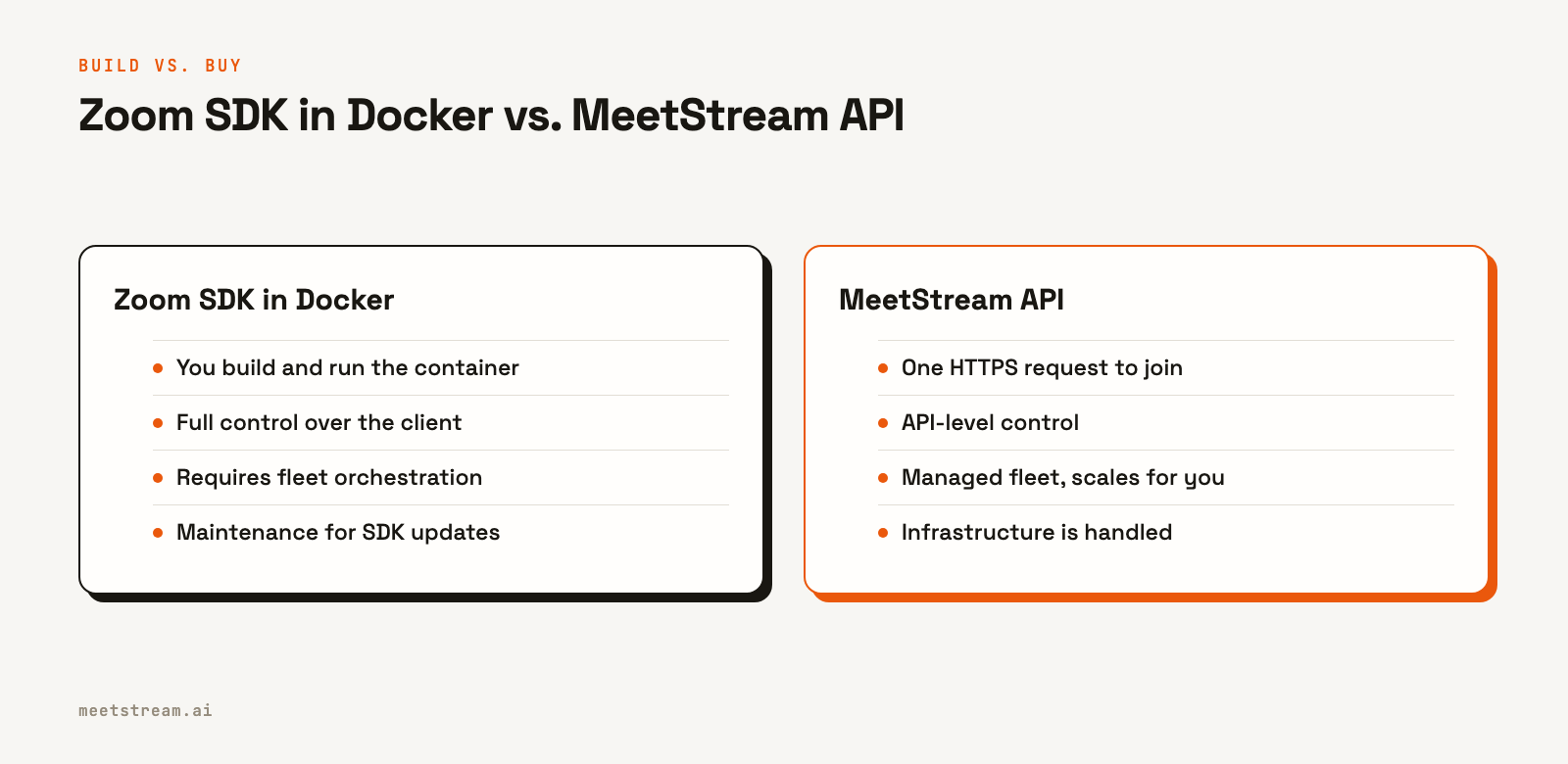
This is also where the build-versus-buy decision becomes concrete. A managed API lets you skip the container entirely and join a Zoom call with one HTTPS request. The tradeoff is between low-level control and development time, and it is worth evaluating before discovering the true cost of the infrastructure months into a project.
This guide covers the components for a working Docker setup, common audio and video issues, and the operational load of scaling a bot fleet. We will also look at how a managed API changes the approach. Let's get into it.
Why the Zoom SDK Fights Containerization
The Zoom Meeting SDK is a client SDK, designed to be embedded in a desktop or mobile application run by a person. The operating system is expected to provide a screen, a microphone, and speakers. When you move it into a container for an unattended bot, these assumptions break.
First, there is no display. The SDK initializes UI components and expects a windowing system, even if you never render a window. Without one, initialization fails or the process exits. Second, there is no audio hardware. The SDK tries to open playback and capture devices on startup. A standard Linux container has no sound card, so device enumeration returns nothing and audio paths fail silently. The bot may appear to join the meeting but will capture no audio.
Zoom provides a Linux Meeting SDK and a separate headless raw-data path for server-side recording. This is the correct starting point, but it still expects you to provide the surrounding environment. Our guide to building a Zoom meeting bot covers the join flow; this article focuses on making that flow work inside a container.
What a Working Docker Setup Needs
A container that can run the Zoom SDK headlessly has several cooperating parts. Most production setups converge on this layout.
It needs a virtual display. Xvfb (X virtual framebuffer) gives the SDK an X server to connect to without a physical monitor. You start it, point the DISPLAY environment variable at it, and the SDK’s UI layer initializes against a framebuffer that is never seen.
It also needs a virtual audio device. PulseAudio, or PipeWire on newer systems, can run inside the container with a null sink and a virtual source. The SDK plays meeting audio into this sink, and you capture the meeting's mixed audio from the monitor of that sink. This is how you record sound without a sound card.
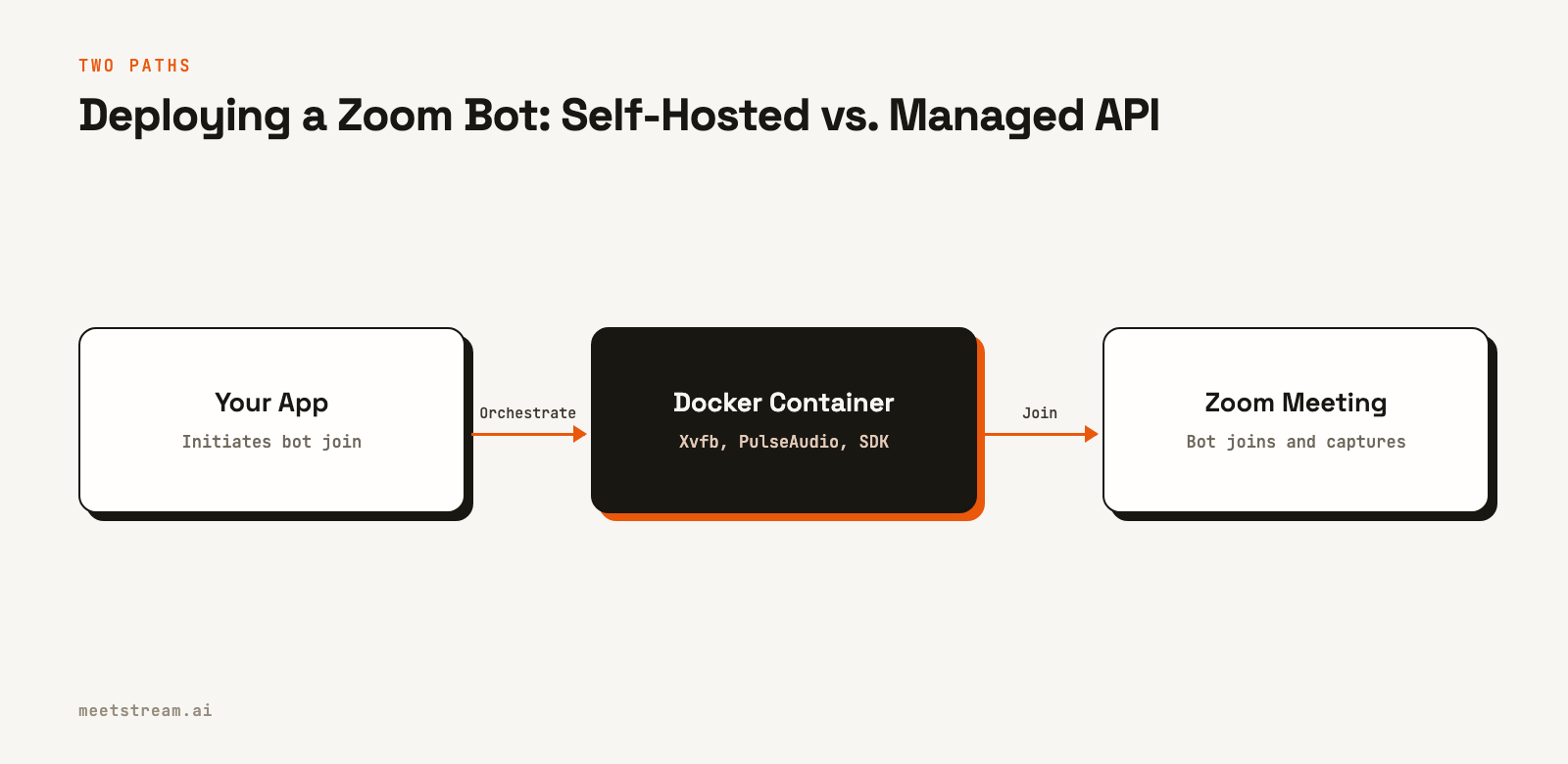
The container must also include the SDK runtime and its system libraries. The Linux SDK links against many shared libraries for GTK, ALSA or PulseAudio, and X11. A missing shared object file is a common reason a container that builds successfully fails to start.
Finally, you need a lifecycle wrapper. This is your own code that initializes the SDK, authenticates, joins the meeting, handles the waiting room, captures media, detects when the call ends, and exits cleanly. This wrapper is where most of the engineering effort is spent.
A minimal Dockerfile looks something like this. The exact base image and package list will depend on the SDK version, so treat this as a structural guide.
FROM ubuntu:22.04

# System libs for the Linux Zoom SDK and virtual A/V.
# Confirm this list against Zoom's current SDK docs.
RUN apt-get update && apt-get install -y \
    xvfb pulseaudio \
    libgtk-3-0 libnss3 libasound2 libxcb-shape0 \
    && rm -rf /var/lib/apt/lists/*

# Add the Linux Meeting SDK and your wrapper application.
COPY ./zoom-sdk /opt/zoom-sdk
COPY ./bot /opt/bot

ENV DISPLAY=:99
COPY entrypoint.sh /entrypoint.sh
ENTRYPOINT ["/entrypoint.sh"]
The entrypoint script starts the virtual desktop before running the bot.
#!/usr/bin/env bash
set -e

# Start virtual display for the SDK's UI layer.
Xvfb :99 -screen 0 1280x720x24 &

# Start virtual sound card to capture meeting audio.
pulseaudio --start --exit-idle-time=-1
pacmd load-module module-null-sink sink_name=meeting
pacmd set-default-sink meeting

# Hand off to your SDK wrapper to join and record.
exec /opt/bot/run
This setup gets a bot into a meeting. It does not include transcription, diarization, error handling, or sending the captured audio to a useful destination. Achieving a reliable join with clean audio is the first major milestone.
Common Audio and Video Pitfalls
The most common failure mode is a bot that joins successfully but produces a silent recording. This is almost always an issue with the audio graph inside the container.
A frequent mistake is capturing from the wrong side of the audio sink. You need the monitor source of the PulseAudio null sink, which carries the audio being played in the meeting. Capturing from the default input source will record silence. Another issue is sample rate and format drift. The SDK delivers audio at a specific rate and channel count. If your capture code assumes a different rate, you get audio that is sped up, slowed down, or just noise.
Video is also heavier than it appears. Raw video frames at meeting resolution create a large, continuous data stream. Encoding them inside the container competes with the SDK for CPU. An overloaded container can drop frames or cause the bot to be removed from the meeting for being unresponsive. Many teams start by capturing audio only for this reason.
Getting separate per-participant streams for cleaner speaker identification requires more complex handling in both the SDK and your capture loop. While a single mixed audio track is simpler, it makes accurate diarization much harder. You can learn more about real-time audio streaming in our guide.
Scaling a Fleet of Containers
A single container for one meeting is a prototype. A production service needs to handle many concurrent meetings, which introduces a new class of orchestration problems.
You must run one container per concurrent meeting, because the SDK runs one client per process and the virtual audio and display stacks are scoped to the container. This makes orchestration your responsibility. You need a system to schedule containers when calls start, terminate them when they end, and handle meetings that run long or end without a clean signal.
The join lifecycle must be managed as a state machine, not a simple script. A bot can be held in a waiting room, denied entry, or kicked from a call. Each of these states requires defined behavior and a way to signal the status back to your main application. You also have to keep up with Zoom's SDK releases. New versions can introduce new system library dependencies or behavior changes, and a base image that worked previously can fail after an update.
Finally, you have to monitor cost. Each container consumes CPU and memory for the duration of a meeting, plus storage and egress for the captured media. At a small scale this is negligible. At thousands of concurrent hours, it becomes a significant part of your cost of goods, in addition to the engineering time required for maintenance.
How MeetStream Fits In
A managed meeting bot API removes the container layer completely. You do not build a Dockerfile, run Xvfb, or operate a fleet. You send one API request with a meeting link, and a bot joins the call.
curl -X POST "https://api.meetstream.ai/api/v1/bots/create_bot" \
  -H "Authorization: Token <YOUR_API_KEY>" \
  -H "Content-Type: application/json" \
  -d '{
    "meeting_link": "<YOUR_ZOOM_MEETING_LINK>",
    "bot_name": "Notetaker",
    "recording_config": {
      "transcript": { "provider": { "meetstream": {} } }
    },
    "callback_url": "https://your-app.com/webhooks/meetstream"
  }'
The call returns a bot_id. MeetStream sends lifecycle webhooks to your callback_url for events like bot.joining and bot.inmeeting. When the call is over, a transcription.processed event signals that the speaker-labeled transcript is ready. The waiting room, audio graph, and container fleet are all managed by MeetStream.
If you need live data, you can receive real-time audio or transcripts. Set the live_transcription_required parameter with a webhook URL, and MeetStream will send transcript segments as people speak.
import requests

requests.post(
    "https://api.meetstream.ai/api/v1/bots/create_bot",
    headers={"Authorization": "Token <YOUR_API_KEY>"},
    json={
        "meeting_link": zoom_meeting_url,
        "bot_name": "Live Assistant",
        "live_transcription_required": {"webhook_url": "https://your-app.com/live"},
    },
)
Each webhook payload contains the speakerName, the transcript text, and word-level timestamps. This allows you to build live features without waiting for the meeting to end. A bot can also speak into the call using a WebSocket connection for audio, or send chat messages via a REST API endpoint. This is the foundation for building active AI agents, not just passive recorders.
MeetStream bots support Zoom, Google Meet, and Microsoft Teams. For server-side bots, a managed API is the faster route. You can start with the Zoom Bot API or see the full platform at the Meeting Bot API page.
Conclusion
Running the Zoom SDK in Docker is a valid approach that offers maximum control over how a bot captures a call. It requires you to build and maintain a headless desktop environment inside a container and operate a fleet that scales with your usage. The SDK is the starting point; the surrounding infrastructure is the main project.
If that level of control is core to your product, the self-hosted path is the right one. If your goal is to ship a product feature that uses meeting data, a managed API removes the infrastructure work entirely. This lets you focus on your application instead of the complexities of running headless clients at scale. Get started free at meetstream.ai or see the full API reference.
Frequently Asked Questions
Can you run the Zoom Meeting SDK in Docker?
Yes, the Zoom Meeting SDK can run in Docker. The container must provide a virtual display like Xvfb and a virtual audio device like PulseAudio, because the SDK expects a desktop environment. You also need to build a wrapper application to manage the bot's lifecycle in the meeting.
Why does the Zoom SDK need a virtual display and audio?
The Zoom Meeting SDK is a client SDK designed for desktop applications, so it expects to initialize UI components and access audio devices. A standard container has no display or sound card, so you must provide virtual replacements for the SDK to attach to, even if they are never used directly.
Why is my Zoom bot recording silent in Docker?
A silent recording is often caused by capturing the wrong audio source. You must capture from the monitor of the PulseAudio null sink, which contains the meeting audio, not the default input. Incorrect audio sample rates can also lead to silence or garbled recordings.
Is it better to run the Zoom SDK yourself or use a meeting bot API?
Run the SDK yourself if you need deep, low-level control over the client, must keep all media on your own servers, or need to capture from a user's desktop. Use a managed API like MeetStream for faster development, support for Zoom, Google Meet, and Teams with one integration, and to avoid operating a container fleet.
How does MeetStream handle Zoom calls?
MeetStream manages the infrastructure for running meeting bots. You make a single API call with a meeting link, and MeetStream handles deploying a bot that joins the call, captures media, and streams data back to you via webhooks. You do not interact with the Zoom SDK, containers, or virtual audio devices directly.


