
Automate Zoom Recording and Transcription with One API Call

You can automatically record and transcribe Zoom meetings with a single API call that sends a bot into the meeting. The MeetStream API dispatches a bot to any meeting link you provide. The bot joins as a participant, captures audio and video, and makes the recording and transcript available through webhooks and API endpoints.
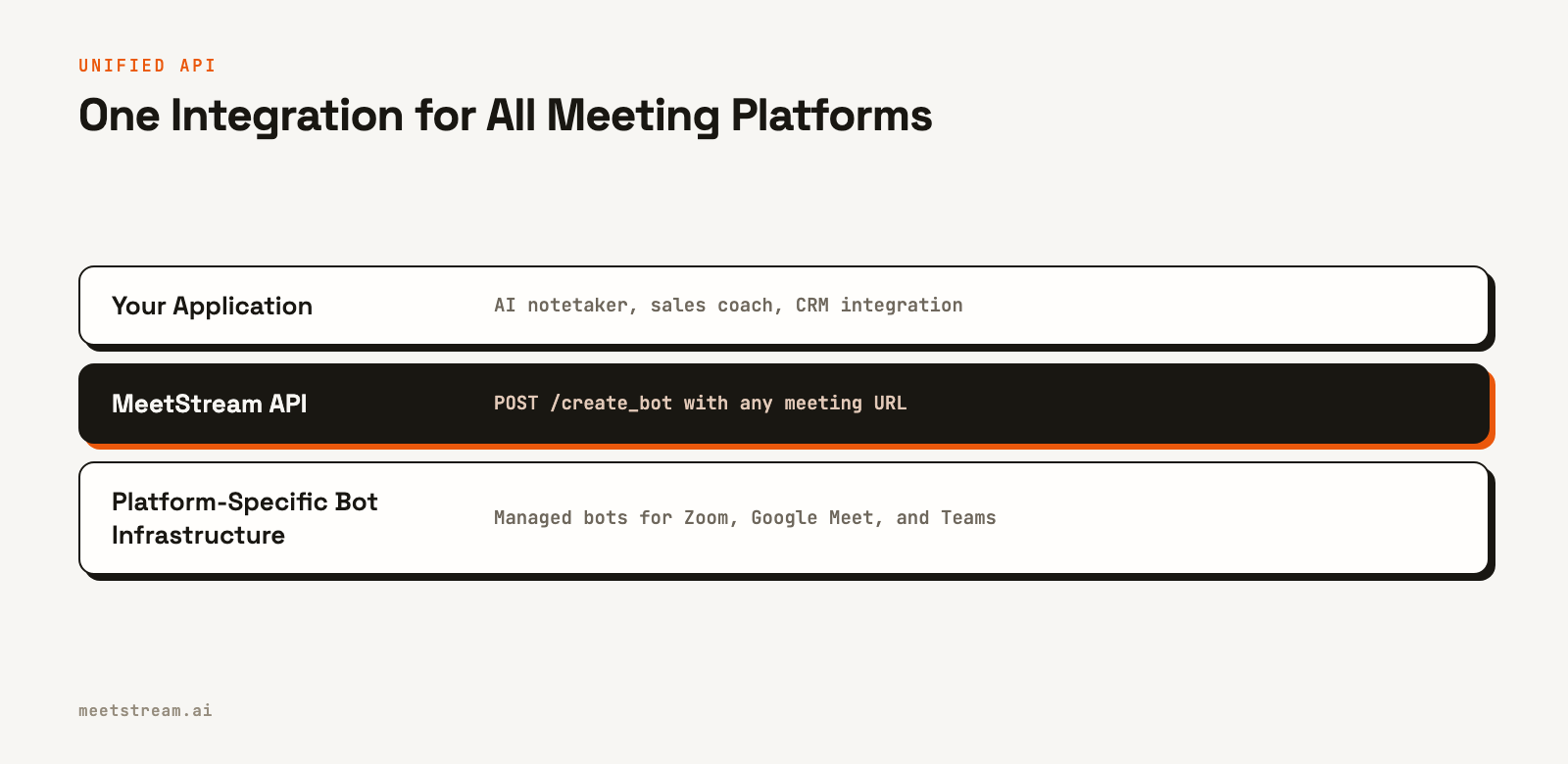
This approach provides the core voice infrastructure for building AI meeting agents that can join calls, listen to the conversation, and act on what they hear. Instead of just getting a recording after the fact, you get a programmable participant. This works for Zoom, Google Meet, and Microsoft Teams using the same API, requiring only the meeting link and a name for your bot.
Many teams building products on top of meetings start with Zoom's native APIs but run into limitations with account ownership, Marketplace approvals, and a data model not built for third-party applications. A bot-based architecture avoids these issues entirely.
This article walks through the complete automated workflow for Zoom recording and transcription using the MeetStream API. We will cover the API call to create a bot, how to track its lifecycle with webhooks, and how to retrieve the final transcript. Let's get into it.
Why Automate Zoom Recording with a Bot API?
Zoom has two built-in ways to record. Local recording works on every plan, including free accounts, and saves an MP4 video, an M4A audio file and a chat text file to the computer of the person who records. Your application never sees those files unless someone uploads them. Cloud recording needs a paid plan and keeps the files on Zoom's servers, where the Cloud Recording API can fetch them with the recording:read scope, but only from accounts that have authorized your app.
Zoom's native Cloud Recording API is designed for internal use, where you control the Zoom accounts hosting the meetings. It works well for pulling recordings from your own company's account. This model breaks down when your users bring their own Zoom accounts, as is common for sales intelligence tools or AI notetakers.
The alternative is building an application for the Zoom App Marketplace. This lets users install your app via OAuth, granting you access to their recordings. This path, however, involves a formal security review and adherence to Zoom's platform policies, which can add weeks or months to a project timeline.
A bot provides a different architecture. Instead of pulling recordings from Zoom's cloud storage, a bot joins the meeting as a participant and captures the media streams directly. This means you do not need administrative access to the host's Zoom account, recordings are available regardless of the host's plan, and the same integration pattern works for Google Meet and Microsoft Teams.
MeetStream handles the underlying bot infrastructure. After a one-time setup for your Zoom app, you just send meeting URLs to the API. Your application code never has to manage Zoom OAuth tokens directly.
The create_bot Request for Zoom Recording
The process starts with a single POST request. Here is a complete curl example for a typical recording and transcription workflow.
curl -X POST "https://api.meetstream.ai/api/v1/bots/create_bot" \
  -H "Authorization: Token <YOUR_API_KEY>" \
  -H "Content-Type: application/json" \
  -d '{
    "meeting_link": "https://zoom.us/j/987654321",
    "bot_name": "Sales Recorder",
    "callback_url": "https://yourapp.com/webhooks/meetstream",
    "video_required": false,
    "recording_config": {
      "transcript": {
        "provider": {
          "assemblyai": {}
        }
      },
      "retention": {"type": "timed", "hours": 720}
    },
    "automatic_leave": {
      "waiting_room_timeout": 300,
      "everyone_left_timeout": 60,
      "voice_inactivity_timeout": 1800,
      "in_call_recording_timeout": 7200
    },
    "custom_attributes": {
      "deal_id": "deal_abc123",
      "rep_email": "sarah@company.com"
    }
  }'
A few parameters are worth noting. Setting video_required: false captures audio only, which reduces processing time and storage costs. For most transcription workflows, the video track is not needed. The custom_attributes field lets you attach your own metadata to a bot. These attributes are returned in all webhook payloads, making it easy to link a recording back to a CRM record or user account without a separate lookup table.
The API response contains the identifiers for the new bot.
{
  "bot_id": "604c0a0b-973d-4eb1-a5bf-2c7513f6bbe0",
  "transcript_id": "8a1b3c2d-e4f5-4a6b-8c7d-9e0f1a2b3c4d",
  "meeting_url": "https://zoom.us/j/987654321",
  "status": "Active"
}
You should store both bot_id and transcript_id in your database. You will use the bot_id to track the session and the transcript_id to fetch the final transcript.
The Full Webhook Event Sequence
Your application receives updates on the bot's status through webhooks sent to the callback_url you provided. Here is the typical event lifecycle and how to handle it.
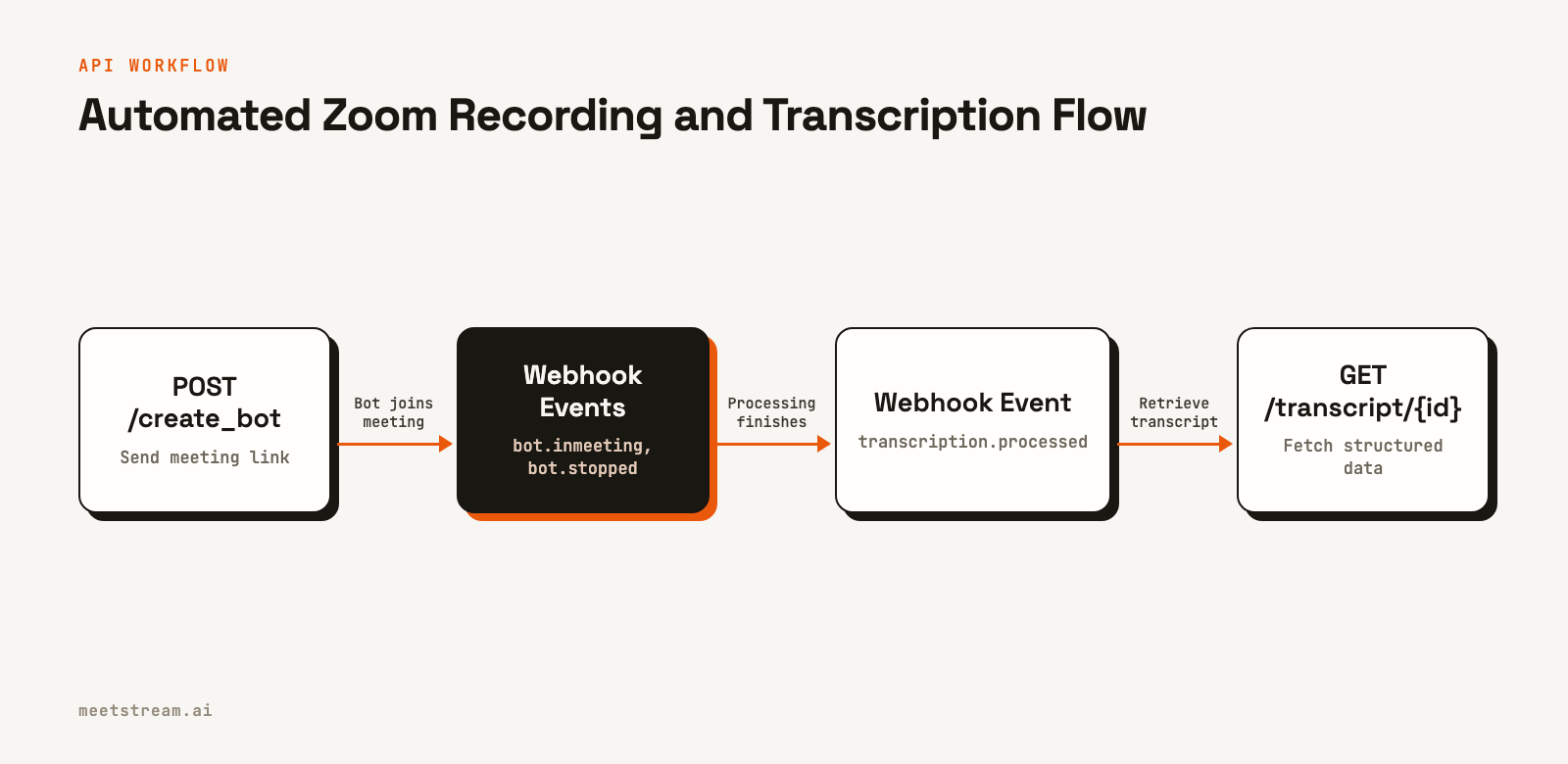
This Python example using Flask shows a simple webhook handler.
# Python webhook handler using Flask
from flask import Flask, request, jsonify
import requests

app = Flask(__name__)

API_KEY = "YOUR_API_KEY"
BASE_URL = "https://api.meetstream.ai/api/v1"

@app.route('/webhooks/meetstream', methods=['POST'])
def handle_meetstream_webhook():
    payload = request.json
    event_type = payload.get('bot_event')
    bot_id = payload.get('bot_id')

    if event_type == 'bot.inmeeting':
        # Bot has successfully joined the meeting
        db.update_session(bot_id, status='recording')
    elif event_type == 'bot.stopped':
        # Bot has left, recording is complete
        db.update_session(bot_id, status='processing')
    elif event_type == 'bot.notallowed':
        # Bot was not admitted from the waiting room
        db.update_session(bot_id, status='failed', error='Not admitted')
    elif event_type == 'bot.failed':
        # An unexpected error occurred
        db.update_session(bot_id, status='error', error=payload.get('message'))
    elif event_type == 'transcription.processed':
        # Transcript is ready to be fetched
        transcript_id = db.get_transcript_id(bot_id)
        queue.add(fetch_and_process_transcript, transcript_id)

    return jsonify({'status': 'ok'}), 200

def fetch_and_process_transcript(transcript_id):
    # This function runs in a background worker
    headers = {'Authorization': f'Token {API_KEY}'}
    url = f"{BASE_URL}/transcript/{transcript_id}/get_transcript"
    response = requests.get(url, headers=headers)
    transcript_data = response.json()
    # ... logic to update CRM, run analysis, etc.
A key practice is to make your webhook handler fast. It should acknowledge the request by returning a 2xx status code immediately and then pass the payload to a background job queue for any slow processing, like making API calls to a CRM. Workspace webhooks are signed and logged, and you can resend any delivery from the dashboard.
Retrieving the Zoom Transcript
When you receive the transcription.processed event, you can retrieve the full, speaker-labeled transcript using the transcript_id from the initial create_bot response.
curl -X GET "https://api.meetstream.ai/api/v1/transcript/8a1b3c2d-e4f5-4a6b-8c7d-9e0f1a2b3c4d/get_transcript" \
  -H "Authorization: Token <YOUR_API_KEY>"
The response is a structured JSON object containing the full transcript broken down by speaker.
[
  {
    "speaker": "Alex Torres",
    "transcript": "Thanks for joining. I wanted to walk you through our Q1 metrics.",
    "start_time": 3.2,
    "end_time": 8.9,
    "words": [
      {
        "word": "Thanks",
        "start": 3.2,
        "end": 3.5,
        "confidence": 0.99,
        "punctuated_word": "Thanks",
        "speaker": "Alex Torres"
      }
    ]
  }
]
The speaker labels are derived from the participants' display names in Zoom. If your users have consistent display names, this speaker diarization works well. For calls where participants use initials or inconsistent names, you may need an additional normalization step in your application.
Scheduling Bots for Future Meetings
To automate recording for meetings on a calendar, you can schedule a bot to join at a specific time using the join_at parameter. Pass an ISO 8601 timestamp, and the bot will be scheduled to join three minutes before the specified time.
curl -X POST "https://api.meetstream.ai/api/v1/bots/create_bot" \
  -H "Authorization: Token <YOUR_API_KEY>" \
  -H "Content-Type: application/json" \
  -d '{
    "meeting_link": "https://zoom.us/j/111222333",
    "bot_name": "Sales Recorder",
    "join_at": "2026-04-05T14:00:00Z",
    "callback_url": "https://yourapp.com/webhooks/meetstream",
    "recording_config": {
      "transcript": { "provider": { "deepgram": {} } }
    }
  }'
For a more integrated solution, MeetStream offers a Google Calendar integration. Once connected, it automatically detects upcoming meetings, creates bots, and handles rescheduled or canceled events without requiring any per-meeting API calls from your application.
Tradeoffs and What to Watch For
The quality of any transcription depends on the audio quality of the meeting. We have found that some transcription providers perform better than others on audio with significant background noise. It is a good practice to test different providers with a sample of your own meeting recordings to see which performs best for your use case.
The voice_inactivity_timeout setting in the automatic_leave object is a useful safeguard. It instructs the bot to leave if there is no detected speech for a set period. A value of 1800 seconds (30 minutes) is a safe default for most meetings. If you set it too low, a bot might leave prematurely during a long silent period, such as a screen-sharing session without commentary.
Two more timeouts complete the set. everyone_left_timeout sets how long the bot stays after the last other participant leaves, and in_call_recording_timeout caps the length of a single recording, so a meeting that nobody ends cannot keep the bot recording for hours.
The bot appears in the participant list under the bot_name you choose, so everyone in the call can see that it is there. Recording-consent rules apply to bots as they do to people: tell participants that the meeting is recorded, and follow the law where they are. Our compliance primer covers consent under GDPR and US state law.
Finally, be aware of Zoom Waiting Rooms. If a bot is not admitted by the host, it will time out based on the waiting_room_timeout and you will receive a bot.notallowed webhook event. Your application should handle this state gracefully, either by notifying the user or marking the recording as failed.
How MeetStream Fits In
MeetStream provides the recording bot infrastructure and transcription pipeline as a unified API. The Zoom recording API workflow described here uses the same pattern for Google Meet and Microsoft Teams. If your application supports multiple meeting platforms, you only need to build and maintain one integration. We have processed over 1,000,000 meeting minutes, and this API-driven pattern is what we see work at scale.
Conclusion
To automate Zoom recording and transcription, the API workflow involves three main parts: a POST request to create_bot with your configuration, a webhook handler to process lifecycle events, and a GET request to fetch the transcript after the transcription.processed event. Using custom_attributes connects bot sessions to your application's data, and automatic_leave parameters help make unattended bots more reliable. This is the pattern that scales from a few meetings a week to thousands.
See the full API reference at docs.meetstream.ai.
Frequently Asked Questions
Does someone in the meeting have to start the recording?
No. The bot records from its own seat as a participant, so nobody has to press record. Schedule it with join_at for a future meeting, and let the automatic_leave timeouts end the session. If the meeting has a waiting room, someone still has to admit the bot.
Which Zoom plan does the host need for API-based recording?
Any plan. The bot captures the meeting as a participant and does not use Zoom's cloud recording, so the host does not need a paid plan with cloud recording turned on.
How does the Zoom recording API work with multiple Zoom accounts?
A bot-based API does not require credentials for the meeting host's account. The bot joins as a participant using its own credentials, so recording works regardless of which Zoom account hosted the meeting. This is ideal for applications where your users come from many different companies.
What transcription providers does the API support?
MeetStream has its own in-house transcription engine, which needs no provider key. Deepgram, AssemblyAI, Sarvam and JigsawStack are also available with your own provider keys, and on Google Meet and Teams you can use the meeting's own captions. The best choice depends on your needs for accuracy, latency, and cost.
How long does automated Zoom transcription take?
For a typical 30 to 60-minute meeting, the transcription.processed webhook usually arrives within five to ten minutes after the meeting ends. Processing time scales with the meeting's duration. For use cases that need text faster, you can use a real-time transcription provider.
Can I attach metadata to a Zoom recording bot?
Yes, the custom_attributes parameter in the create_bot request accepts a JSON object for your own metadata. This data is included in all webhook payloads for that bot session, allowing you to associate recordings with your application's internal IDs for users or deals.
What happens if a Zoom bot is not admitted from the waiting room?
The bot will wait for the duration specified in waiting_room_timeout. If it is not admitted by the host within that time, it will leave the meeting. Your application will then receive a bot.notallowed webhook event, which you should handle as a failed recording attempt.


