
Build a Teams Transcription Bot: Real-Time Speaker-Labelled Audio

To get live transcription from a Microsoft Teams meeting, you use an API to send a bot into the call. The bot joins as a participant, captures the meeting's audio stream, and sends it to a transcription service. That service generates a real-time, speaker-labelled text feed that is sent to your application through webhooks. The entire process, from joining the meeting to receiving text, is handled programmatically.
This API-driven approach avoids the significant overhead of building directly on Microsoft's native frameworks. MeetStream is agent-first voice infrastructure for meetings. Our API lets you deploy bots that can join, listen, and act in any Teams call with a single POST request. You get access to the media streams without managing the underlying bot infrastructure yourself.
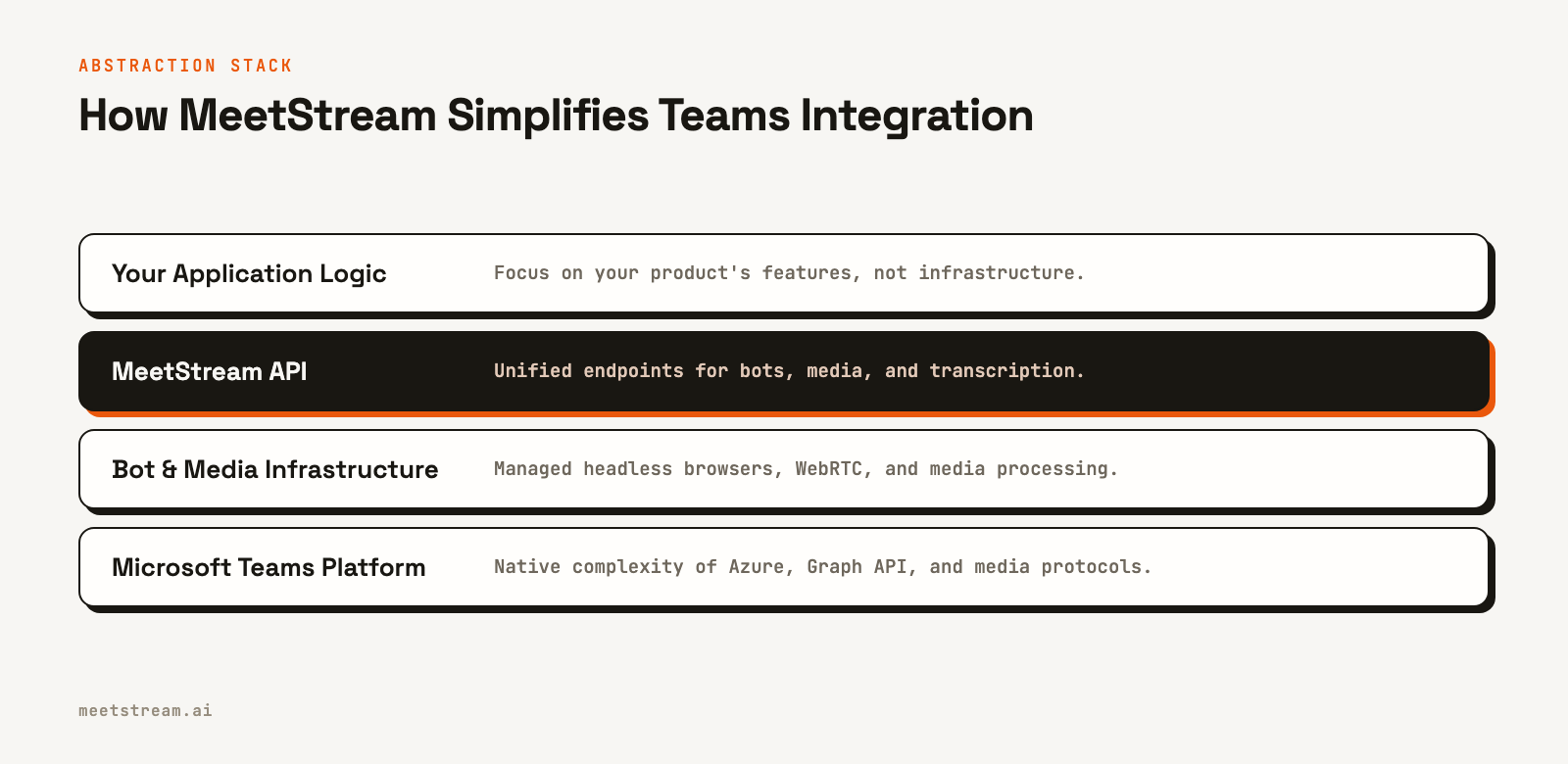
Building a native Microsoft Teams meeting bot requires registering an Azure app, configuring messaging endpoints, setting up Microsoft Graph API permissions, deploying a bot service, and submitting to the Teams App Store. This can take days of setup before you write any application logic. For developers who just need a reliable transcript stream, there is a much faster path.
A Teams transcription bot built with MeetStream requires no platform-side setup. You provide a Teams meeting URL and a webhook URL in an API call. Our bot joins the meeting and immediately starts streaming the speaker-labelled transcript to your endpoint. No Azure App ID, no Graph API permissions, and no app store review.
Why Native Teams Bot Development is Complex
Integrating directly with Microsoft Teams for real-time media is a significant engineering project. The platform is powerful but exposes a complex surface area for developers. First, you must register your application in Azure Active Directory to get the necessary credentials for authentication.
Next, your application needs to use the Microsoft Graph API, which requires a reliable OAuth 2.0 implementation to handle user and app permissions. For real-time media, you need to request specific, sensitive permissions like Calls.AccessMedia.All, which often require administrator consent. Your bot then has to handle the complexities of the WebRTC protocol to receive audio and video streams, a non-trivial task to implement correctly and scale reliably.
Finally, for others to use your bot, it must be packaged as a Teams App and submitted to the Microsoft AppSource marketplace for review. This entire process is built for deep, application-level integrations, not for simply getting a media stream. For teams that want to build AI features on top of meeting conversations, this infrastructure work is a distraction from their core product.
The API-First Approach to Teams Transcription
An API-first approach abstracts this complexity away. When you call the MeetStream API with a Teams meeting link, our infrastructure handles joining the meeting. We manage a fleet of headless browser instances that join the call using the bot_name you provide, appearing in the participant list just like any other guest joining from the web.
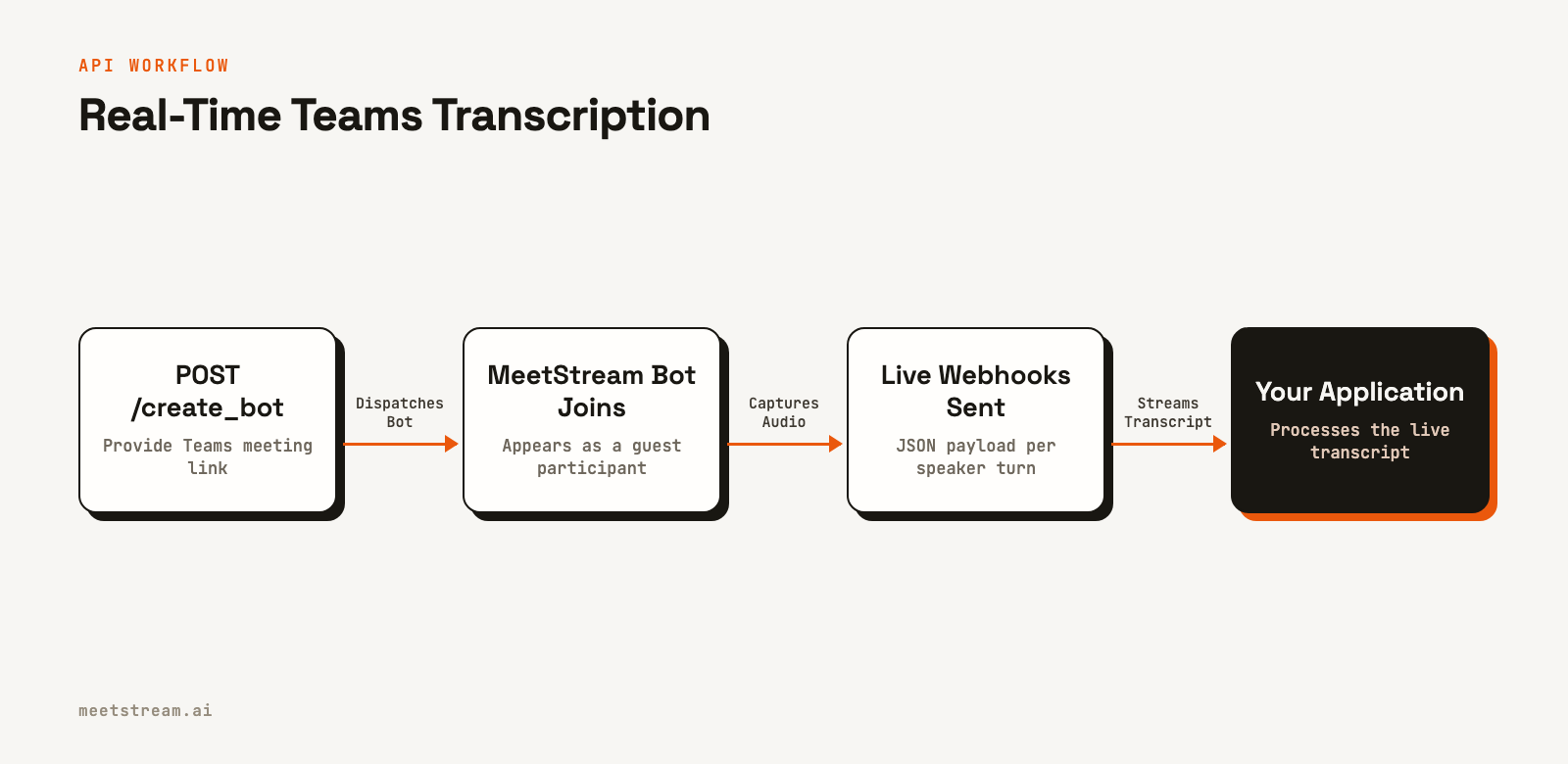
Because the bot joins via a standard meeting link, it doesn't require any special permissions or registration within your Azure or Teams environment. It interacts with Teams as a regular user, subject to the meeting's lobby and admission settings. This model separates the problem of media access from application logic, letting you focus on what you do with the transcript, not on how to get it.
Sending a Bot to a Teams Meeting
Creating a Teams transcription bot is a single POST request to the /bots/create_bot endpoint. The only required fields are the meeting_link and a bot_name. To get a live transcript, you include the live_transcription_required object, specifying the webhook_url where you want to receive the data.
It's good practice to include the bot's unique ID in your webhook URL so you can associate incoming data with the correct meeting session. You can also pass arbitrary metadata in custom_attributes, which will be included in webhook events from the separate callback_url for lifecycle tracking.
curl -X POST "https://api.meetstream.ai/api/v1/bots/create_bot" \
  -H "Authorization: Token <YOUR_API_KEY>" \
  -H "Content-Type: application/json" \
  -d '{
    "meeting_link": "https://teams.microsoft.com/l/meetup-join/...",
    "bot_name": "Transcription Bot",
    "live_transcription_required": {
      "webhook_url": "https://your-app.com/webhooks/transcript/bot-session-123"
    }
  }'
The API responds immediately with a bot_id and confirms the bot is being dispatched. The status will be Active, and the bot will begin the process of joining the meeting.
{
  "bot_id": "604c0a0b-973d-4eb1-a5bf-2c7513f6bbe0",
  "transcript_id": null,
  "meeting_url": "https://teams.microsoft.com/l/meetup-join/...",
  "status": "Active"
}
This same API call works for Google Meet and Zoom meetings, allowing you to build a single integration for all major platforms. For a deeper dive into audio, see our guide on real-time audio streaming.
Handling Real-Time Transcription Webhooks
Once the bot is in the meeting, MeetStream will begin sending POST requests to the webhook_url you provided. Each payload is a JSON object containing a segment of the conversation. It includes the speaker's name, a timestamp, the transcribed text for that segment, and word-level detail with start and end times.
The following Python example uses FastAPI to create a simple webhook handler. It receives the transcript data and prints it to the console. In a production application, you would write this data to a database or message queue for further processing.
Workspace webhooks are signed and logged, and you can resend any delivery from the dashboard. Your endpoint should respond quickly with a 2xx status code to acknowledge receipt and then process the data asynchronously. This prevents timeouts and ensures your handler is ready for the next event.
from fastapi import FastAPI, Request, HTTPException
from typing import Dict, Any

app = FastAPI()

# In a real application, use a database or Redis
transcript_store: Dict[str, list] = {}

@app.post("/webhooks/transcript/{session_id}")
async def handle_transcript_webhook(session_id: str, request: Request):
    try:
        payload = await request.json()
    except Exception:
        raise HTTPException(status_code=400, detail="Invalid JSON")

    speaker = payload.get("speakerName", "Unknown")
    text_segment = payload.get("transcript", "").strip()
    timestamp = payload.get("timestamp")

    if not text_segment:
        return {"status": "ignored_empty_segment"}

    turn = {
        "speaker": speaker,
        "text": text_segment,
        "timestamp": timestamp,
        "words": payload.get("words", [])
    }

    if session_id not in transcript_store:
        transcript_store[session_id] = []

    transcript_store[session_id].append(turn)

    print(f"[{timestamp}] {speaker}: {text_segment}")

    # Acknowledge receipt immediately
    return {"status": "received"}
What to Watch For: Lobbies and In-Progress Joins
A few things to keep in mind when working with bots in Teams. First, if a meeting organizer has enabled a lobby, the bot will wait there until it is admitted by a host. You can configure Teams meeting policies to allow guests to bypass the lobby, which is the best solution for automated workflows. If you can't control this setting, the bot will simply wait to be admitted manually.
Second, you can send a bot into a meeting that is already in progress. The bot will join and begin transcribing from the moment it is admitted. The transcript will only contain the conversation from that point forward. It will not include anything said before the bot joined.
Finally, while live webhooks are great for real-time applications, they are not a substitute for a durable record. If you need a guaranteed, complete transcript after the call, you should configure a post-call transcription provider in your create_bot request. This is covered in our guide on real-time vs post-call transcription.
How MeetStream Fits In
MeetStream is designed to be the fastest way for developers to get programmatic access to meeting data. For a Microsoft Teams transcription API, this means a single endpoint to get a live, speaker-diarized transcript without any platform-specific setup in Azure. Our goal is to provide the infrastructure that lets you focus on building your application's unique value.
Once you have a transcription feed, you can expand your product's capabilities. You can move from simple transcription to building an interactive meeting agent that can respond to questions or trigger actions. Because our API is platform-agnostic, the same integration you build for Teams will also work for Zoom and Google Meet, saving significant development time.
Conclusion
Building a Teams transcription bot with an API-first platform like MeetStream avoids the complex and time-consuming process of native integration. You can bypass Azure app registration, Graph API permissions, and app store reviews. A single API call dispatches a bot to any Teams meeting, and a simple webhook handler can start receiving a real-time, speaker-labelled transcript within seconds. This approach lets you build and ship AI-powered meeting features faster. See the full API reference at docs.meetstream.ai.
Related guides
Frequently Asked Questions
Do I need an Azure app to build a Teams meeting bot?
If you use Microsoft's native Bot Framework, yes, you must register an app in Azure. With MeetStream, you do not. Our bots join via a standard meeting link as a guest, which requires no Azure registration or special permissions from the meeting organizer.
How does a bot appear in a Microsoft Teams meeting?
The bot appears in the participant list with the display name you provide in the bot_name field of your API request. To other participants, it looks like any other external guest who has joined the meeting from a web browser.
What does the live transcription webhook payload contain?
Each webhook payload is a JSON object containing the speakerName, a timestamp for the start of the speech segment, the transcript text for that segment, and an array of words with individual timing and confidence scores. The format is the same for Teams, Zoom, and Google Meet.
How do automated bots handle the Teams meeting lobby?
If a meeting has a lobby enabled for guests, the bot will wait in the lobby until admitted by a host. For fully automated workflows, the best practice is to configure the Teams meeting policy to allow guests to bypass the lobby, which lets the bot join automatically.
Can I transcribe a Teams meeting that is already in progress?
Yes. You can call the API to send a bot to a meeting at any time. The bot will join and start transcribing from the moment it's admitted. The final transcript will only include the portion of the meeting that occurred after the bot joined.


