
How to Send ChatGPT Into a Meeting on Your Behalf
Learn how to connect ChatGPT to a meeting bot API so it can join Zoom, Google Meet and Teams calls, post in chat and return the transcript.

Updated 12 November 2026.
ChatGPT is the assistant most teams already have open, which makes it the one most people try first when they want something to attend a call for them.
On 12 November 2026 Anthropic shipped Claude Meetings, where Claude joins a Google Meet call as a visible participant and builds notes and artifacts while people talk, in beta on Team and Enterprise plans. It gave everyone a clear picture of what an in-meeting agent looks like. It also showed the limits of building that as a feature: one platform, one vendor's plans, output in one place.
Connectors mean it already reaches the rest of your stack, so a meeting becomes one more source it can act on rather than a separate tool to check. This guide is how to get the same shape with ChatGPT, on Zoom, Google Meet and Microsoft Teams, without waiting for ChatGPT to ship a meetings feature of its own.
You can send a bot into a meeting by adding the MeetStream MCP (Model Context Protocol) server to ChatGPT as a plugin. This gives the agent a set of tools to perform actions like joining a call, getting a transcript, or sending a chat message. The bot joins as a distinct participant named by you; it does not impersonate your user account.
This setup turns a conversational large language model (LLM) into an active participant. Instead of just processing information after the fact, the agent can be present in the meeting. At MeetStream, we built our platform as agent-first voice infrastructure for exactly this purpose: giving any AI agent a seat at the table, with the ability to hear, speak, and act.
This is a significant shift from traditional meeting bots, which were primarily focused on passive recording and transcription. With a direct agent integration, you can build interactive workflows, from automatically capturing action items to having an AI assistant pull up data and present it live in the call.
In this guide we will cover what you need, how agent-to-meeting connections work, the setup steps, a worked example and the security side. Let's get into it.
What You Will Need
Before you start, make sure you have the following ready. This process should take about ten minutes.
- A ChatGPT account that can add custom MCP servers. Account and workspace policies decide this, so on Business or Enterprise an administrator may need to allow it.
- A MeetStream API key. You can get a free key from the MeetStream dashboard.
- A meeting link. This can be for a scheduled or an instant meeting on Google Meet, Zoom, or Microsoft Teams.
How Agent-to-Meeting Connections Work
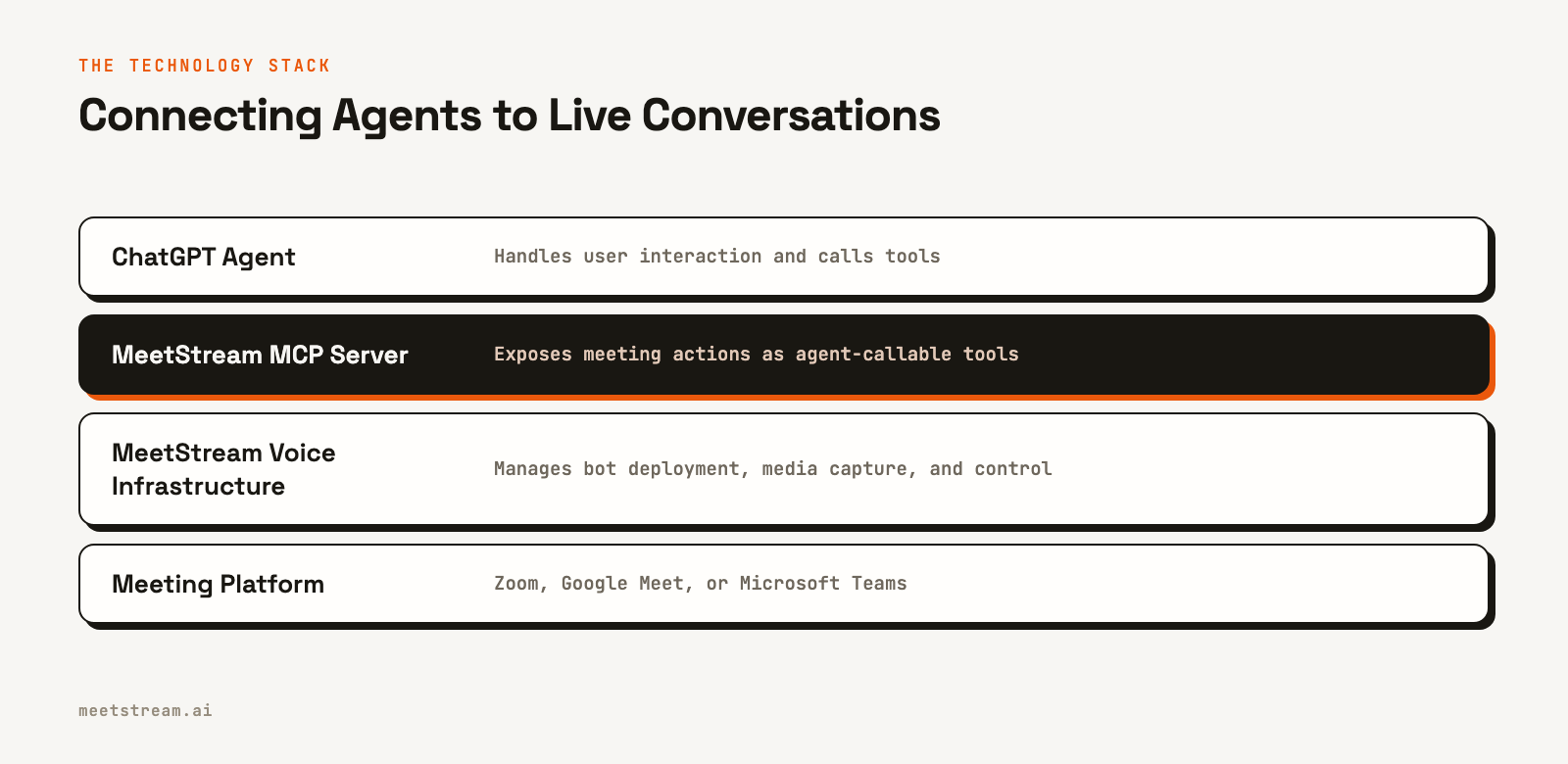
To understand how this works, it helps to know about the Model Context Protocol (MCP). MCP is a specification that exposes meeting infrastructure actions, like deploying a bot or fetching a transcript, as a set of tools that AI agents and LLMs can use.
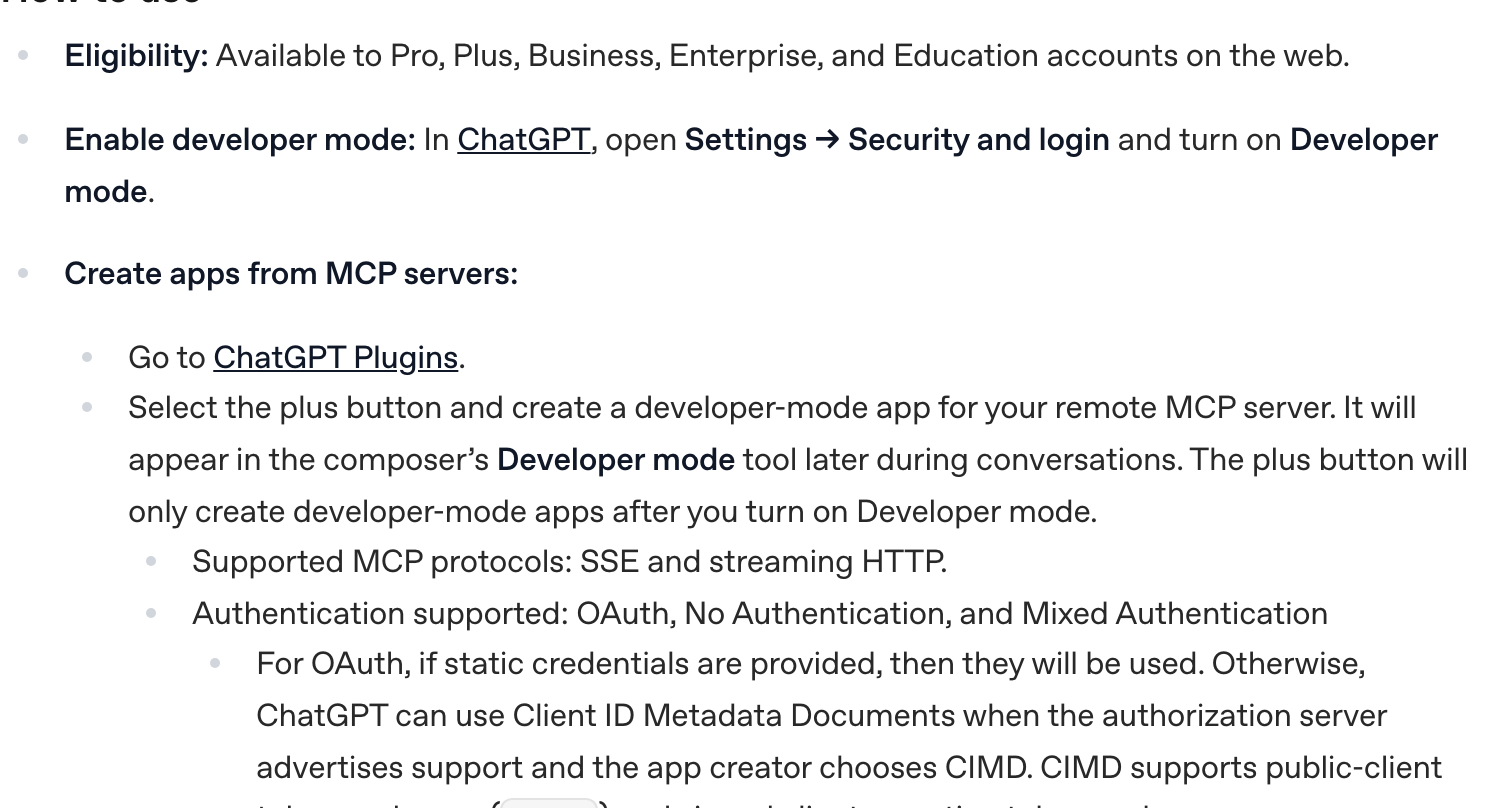
Instead of you writing code to call our REST API, the agent calls it directly. We host a public MCP server that acts as a bridge. When you connect ChatGPT to this server's URL, ChatGPT discovers the available tools, understands their inputs and outputs, and learns how to use them to fulfill your requests.
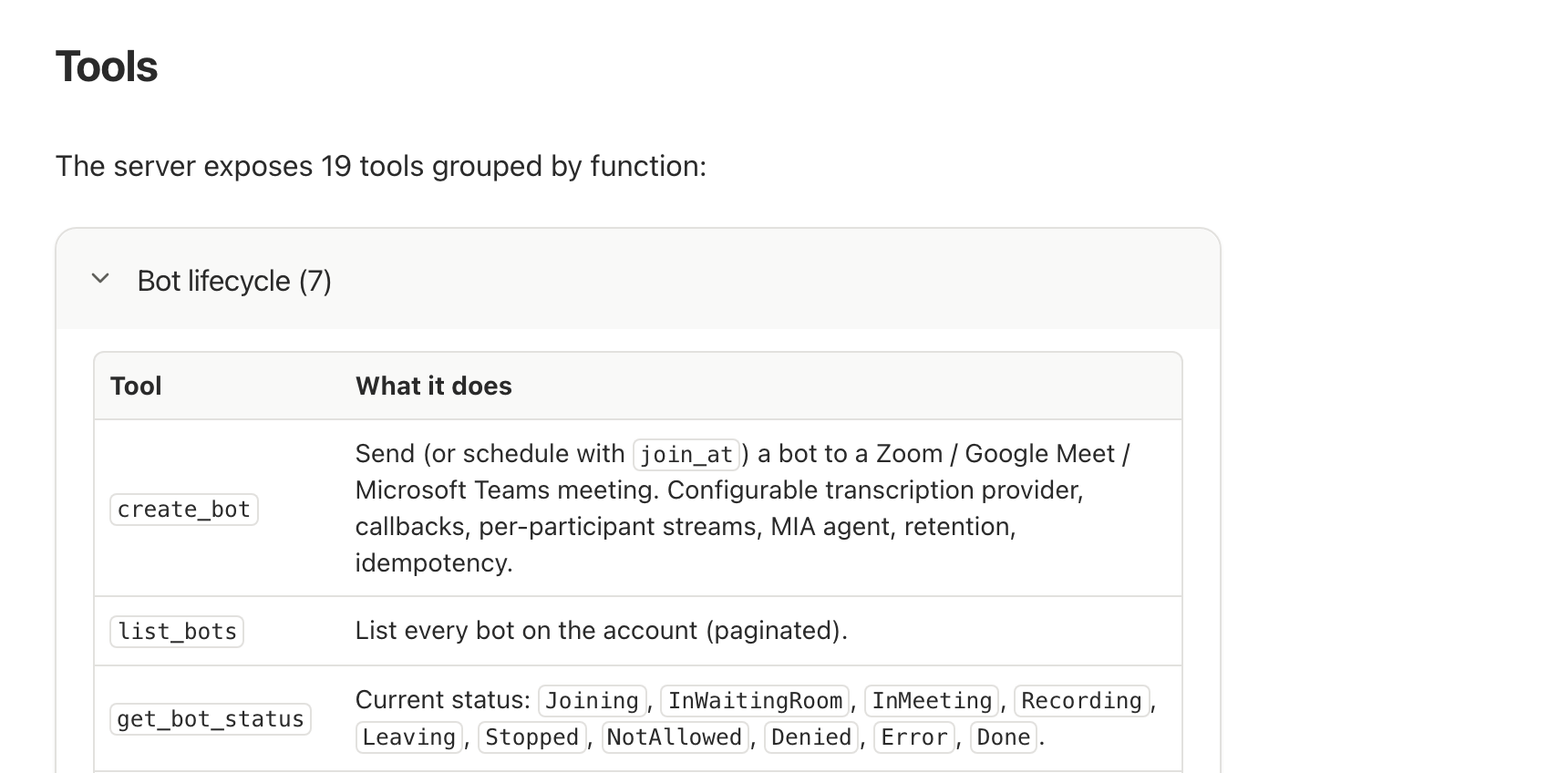
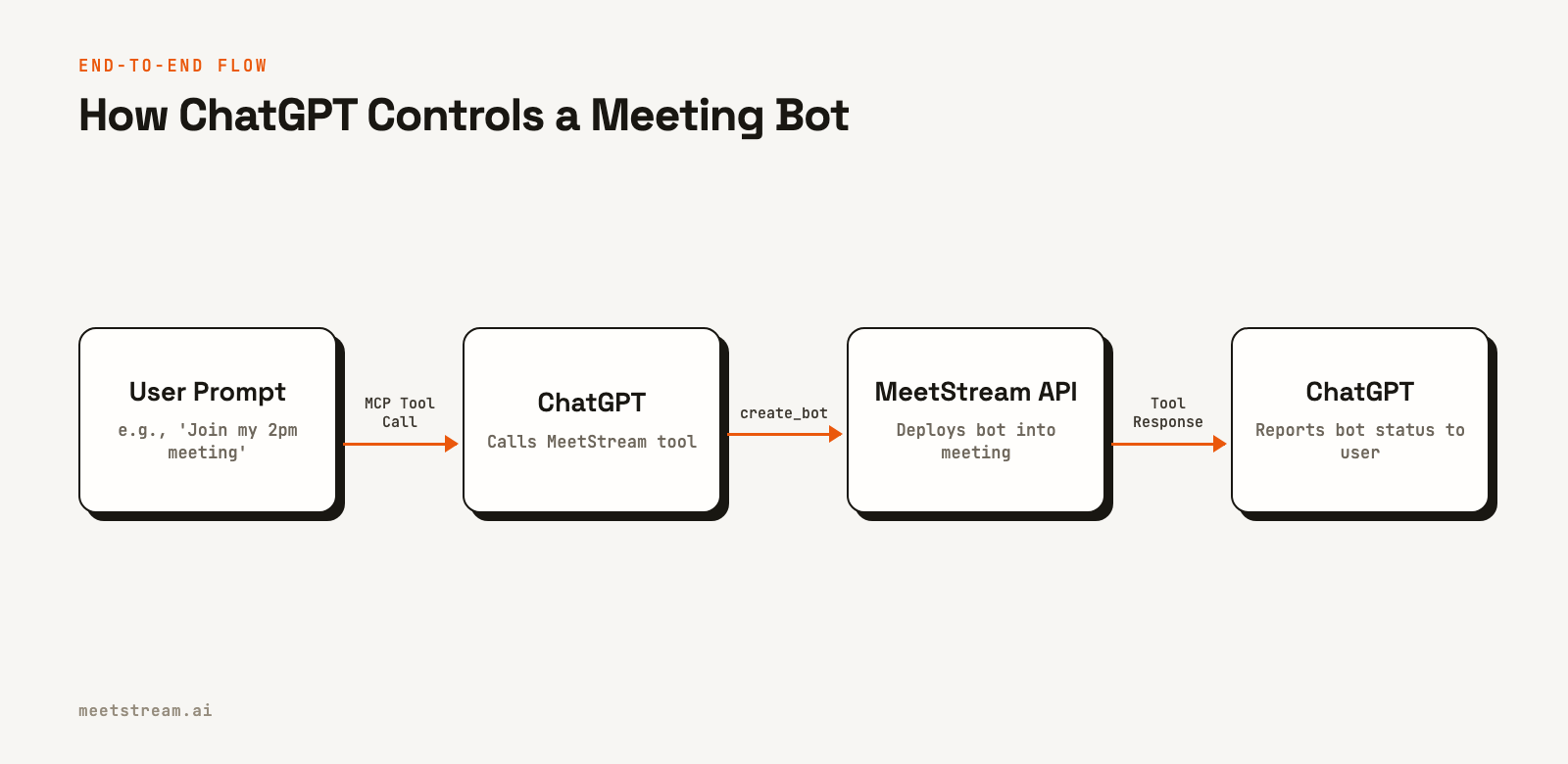
In practice, this means you can type a natural language command like, "Send a bot named 'Notetaker' to my 10am standup and give me the transcript when it's done." ChatGPT translates this into a sequence of tool calls to the MeetStream MCP server. It will first call create_bot with the meeting link and bot name, then periodically call get_bot_status, and finally use get_transcript once the meeting is over.
Step-by-Step: Connecting ChatGPT to MeetStream
Follow these steps to add the MeetStream MCP server to ChatGPT as a plugin.
Step 1: Get your MeetStream API Key
First, log in to your MeetStream account and navigate to the API Keys section. Generate a new key and copy it. You will need this in Step 3.
Step 2: Add MeetStream as a custom MCP server
- Go to ChatGPT Plugins.
- Select the plus button, then Add custom MCP server.
- Enter a name, such as MeetStream, and a short description.
- Under Connection, enter the server URL with the key you copied in Step 1:
https://mcp.meetstream.ai/mcp?key=<YOUR_API_KEY> - For authentication, choose none, since the key is already in the URL. Review the risk warning and continue.
- Select Create as a plugin, then review the tools ChatGPT discovers.
Note: menus change. OpenAI keeps the current steps in its guide to connecting a plugin.
Step 3: Use the plugin in a chat
Install the plugin, start a new conversation, type @ and select MeetStream. ChatGPT can now call the MeetStream tools in that chat, and it asks before any tool that changes something, such as sending a bot. You are now ready to send ChatGPT into a meeting.
A Worked Example: Joining a Call and Getting a Summary
Now that ChatGPT is connected to MeetStream, you can issue commands in plain English. Let's try a common use case: sending a bot to a meeting and asking for a summary afterward.
Open a new chat in ChatGPT and make sure your new MeetStream developer app is enabled. Then, use a prompt like this:
Please send a bot named 'AI Assistant' to https://meet.google.com/abc-def-ghi. Wait for the meeting to end, then give me the full transcript.
Here’s what happens under the hood:
- Tool Selection: ChatGPT recognizes the intent and determines that the
create_bottool is the correct one to use. - Tool Call: It makes a call to the MeetStream MCP server, passing the parameters
bot_name: "AI Assistant"andmeeting_link: "https://meet.google.com/abc-def-ghi". - Bot Deployment: The MeetStream API receives the request and deploys a bot into the specified Google Meet call. The bot appears as a participant named "AI Assistant".
- Status Polling: ChatGPT receives a
bot_idin response. It will then use theget_bot_statustool with this ID to monitor the bot's progress. It will wait until the status isStoppedorDone. - Transcript Retrieval: Once the meeting ends, ChatGPT calls the
get_transcripttool using the samebot_id. - Final Response: The MeetStream API returns the full transcript, which ChatGPT then presents to you in the chat interface.
You can build on this with more complex requests, like asking the agent to wait for the transcript and then generate a summary, extract action items, or identify key decisions made during the call.
Rights, Permissions, and Security Considerations
When you send an AI agent into a meeting, it's important to understand the permissions involved at each layer.
- Agent Permissions: Within ChatGPT, you control which developer apps are active. Write actions, like sending a bot, may require your confirmation in the chat interface by default.
- MeetStream API Key: Your API key grants access to deploy bots on your behalf. Keep it secure. Anyone with the key can create bots tied to your account. Using the
?key=parameter in the MCP URL makes it visible in your ChatGPT settings. - Meeting Platform Permissions: The bot is a participant and subject to the meeting's rules. If there is a waiting room, the host must admit the bot. For Zoom meetings, recording is gated by host consent. Zoom needs no setup; a Zoom OBF token is only for optional on-behalf-of joins with your own Zoom app.
- Legal and Ethical Duties: Always inform other participants that an AI bot is present and recording the conversation. Comply with all relevant laws and company policies regarding meeting recordings.
How MeetStream Provides the Voice Infrastructure
MeetStream is the underlying platform that makes this interaction possible. Our unified meeting bot API handles the complex, real-time engineering challenges of connecting to Zoom, Google Meet, and Microsoft Teams. We manage the bot infrastructure, scale it to handle thousands of concurrent meetings, and process the raw audio and video streams.
The MCP server is a layer on top of this core infrastructure, designed specifically for AI agents. It provides a stable, documented set of tools that allows any agent to become an active meeting participant. Whether you need real-time audio streaming for a voice agent or a simple post-call transcript for summarization, our API provides the necessary building blocks.
Letting ChatGPT take part, not just watch
The setup above gets ChatGPT a recording and a transcript after the call. To take part while the call is running, the agent needs the transcript as it happens, a way to answer in the chat or out loud, and a clear signal that someone is talking to it, such as its name.
For a spoken reply, OpenAI's realtime models are the fastest option in our voice agents runtime, with one provider end to end and echo control built in. If the agent should wait to be called by name, use pipeline mode instead, which adds a wake phrase and finer interruption control.
Conclusion
Connecting ChatGPT directly to a meeting is a powerful way to automate tasks and create interactive AI assistants. By adding the MeetStream MCP server to ChatGPT as a plugin, you give the agent the tools it needs to join calls, process conversations, and deliver insights. This approach allows developers to move beyond simple post-call analysis and build applications where AI can participate and act in real time. As you explore how to send ChatGPT into a meeting, this direct integration provides a reliable and scalable foundation.
See the full API reference at docs.meetstream.ai.
Sources and further reading
- OpenAI: Connect and test your plugin
- OpenAI Help Center: Developer mode and MCP apps in ChatGPT
- MeetStream MCP server documentation
Frequently Asked Questions
Can ChatGPT join a meeting without anyone knowing?
No. The MeetStream bot joins as a clearly visible participant with the name you assign it, such as "Notetaker" or "AI Assistant". It is not hidden and you should always inform other attendees that a bot is recording the call.
What can the ChatGPT meeting bot do?
Through MeetStream's MCP tools, the agent can join or be scheduled for a meeting, get the live or post-call transcript, receive a summary, list participants, send chat messages, and display an image as its video feed. More advanced agents can use our voice agent infrastructure to speak in the meeting.
Is it secure to put my API key in the ChatGPT connector URL?
Placing the API key in the URL is convenient for setup but means it is stored and visible within your ChatGPT account settings. For production applications, we recommend more secure authentication methods. Treat your API keys like passwords and revoke them if you suspect they have been compromised.
Is this the same as Claude Meetings?
No. Claude Meetings is Anthropic's own feature, in beta on Team and Enterprise plans, where Claude joins a Google Meet call and writes notes and artifacts into claude.ai. This guide connects ChatGPT to meeting infrastructure instead, so it works on Zoom, Google Meet and Microsoft Teams and the output lands wherever you decide.
Can ChatGPT join a Zoom or Microsoft Teams meeting?
Not by itself. No general assistant has a way into a call on its own. It can through a meeting bot API. With MeetStream, Zoom needs no setup: send the meeting link with your MeetStream API key. Zoom's On Behalf Of token rule from March 2026 applies to Meeting SDK apps, so on MeetStream it matters only for optional signed-in joins with your own Zoom app.


