
How to Send Claude Into a Meeting on Your Behalf
Learn how to connect Claude to the MeetStream MCP server so it can send and control bots in Zoom, Google Meet and Microsoft Teams from a prompt.

You can send Claude into a meeting by connecting it to the MeetStream MCP (Model Context Protocol) server. This gives Claude a set of tools to deploy, monitor, and control bots in Zoom, Google Meet, and Microsoft Teams meetings. Once connected, you can ask Claude in plain English to join a call, record it, and provide a transcript or summary.
This works because MeetStream provides agent-first voice infrastructure for meetings. Instead of just getting a recording after a call, you get an active participant that can hear, speak, and act during the meeting. The MCP server is a public endpoint that exposes our API as a set of tools any conversational agent can use, including Claude.
This setup allows you to build powerful workflows without writing complex integration code. You can have Claude automatically transcribe your sales calls, summarize your team stand-ups, or even have a specialized AI voice agent join to answer questions live.
This article provides the exact steps to connect Claude to MeetStream and use it to manage meeting bots.
Updated 12 November 2026.
Anthropic put Claude in video calls on 12 November 2026. Claude Meetings joins a Google Meet call as a visible participant, follows the conversation, and builds documents and whiteboards while people are still talking, on Team and Enterprise plans.
This guide is about something different, and the difference is worth getting straight before you start. Claude Meetings is a feature inside Anthropic's product, for your own team's calls on one platform. What follows is how to give Claude itself the ability to send and control meeting bots, on Zoom, Google Meet and Microsoft Teams, from whichever Claude client you already use. You stay in the chat; the bot goes to the call.
That matters if you want Claude in a Zoom or a Teams meeting today, if you are not on a Team or Enterprise plan, or if you want the recording and transcript to land somewhere you control rather than in a workspace page. It also works when your organisation is on a configuration that the beta does not cover.
Introducing Claude Meetings: add Claude to your team’s video call and it builds docs, whiteboards, and other artifacts with you while you’re still talking.
Starting to roll out in beta on Team and Enterprise plans. pic.twitter.com/qlZYTcXBsCIn this guide we will cover when to use Claude Meetings or the MCP server, what you need, the three setup steps, a worked example and the security side. Let's get into it.
Claude (@claudeai) November 12, 2026
Claude Meetings or the MCP server: which one you want
Use Claude Meetings if the calls are your own team's, they happen on Google Meet, you are on a Team or Enterprise plan, and you want notes, action items and artifacts in claude.ai with nothing to set up.
Use the approach in this guide if you need Zoom or Microsoft Teams, if you want to ask Claude to send a bot to a meeting you are not attending, if you want the transcript and audio in your own systems, or if you want to drive the whole thing from a prompt in the client you already work in. The two are not mutually exclusive, and plenty of teams will end up with both.
What You Will Need
Before you start, make sure you have the following ready:
- A Claude account. Custom connectors work on every plan, but the Free plan is limited to one, and on Team and Enterprise an Owner adds the connector for the organization.
- A MeetStream account and an API key.
- A meeting link for a Zoom, Google Meet, or Microsoft Teams call.
Step 1: Get Your MeetStream API Key
Your API key authenticates your requests to the MeetStream platform. You will need one key for your account, which you can then use in the Claude connector.
- Sign up for a MeetStream account or log in.
- Navigate to the API Keys page at
app.meetstream.ai/api-key. - Copy your API key. Keep this key secure, as it provides access to your account.
Step 2: Connect Claude to the MeetStream MCP Server
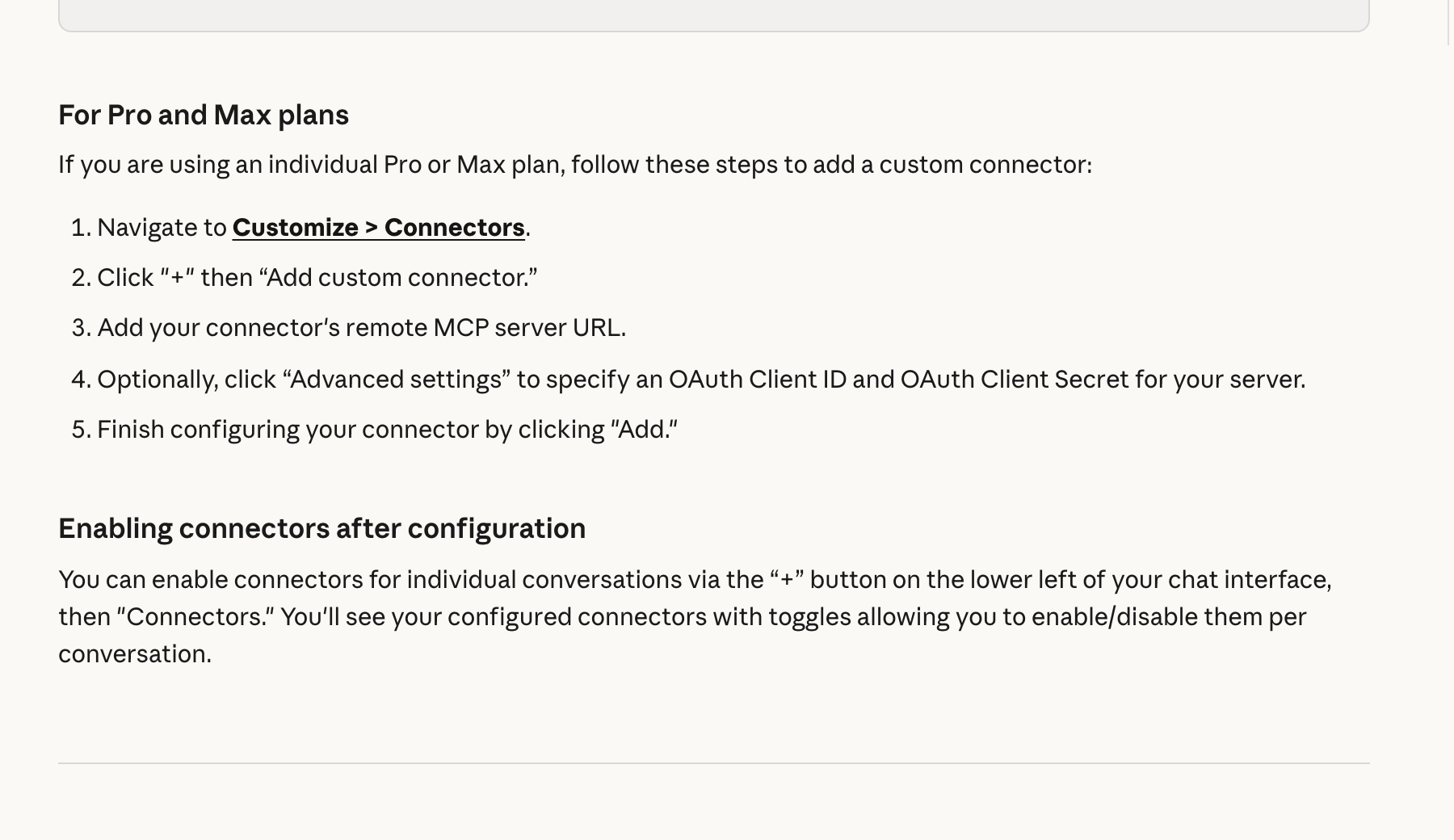
The next step is to add the MeetStream MCP server as a custom connector in Claude. The process differs slightly depending on your Claude plan. The MCP server URL is the same for everyone, but you will embed your personal API key in it.
The URL you will use is: https://mcp.meetstream.ai/mcp?key=YOUR_API_KEY
Replace YOUR_API_KEY with the key you copied in the previous step.
For Pro and Max Users
If you are on a personal Pro or Max plan, you can add the connector directly from your settings.
- In the Claude interface, go to Customize and select the Connectors tab.
- Click the + button, then choose Add custom connector.
- Paste the MCP server URL (with your API key included) into the URL field.
- Leave the OAuth Client ID and Secret fields blank.
- Click Add to save the connector.
For the latest instructions, always check the official Claude documentation on custom connectors, as user interface elements can change.
For Team and Enterprise Users
On Team and Enterprise plans, an organization Owner must first add the custom connector at the organization level. Once added, members can enable and authenticate it for their own use.
- (Owner) Go to Organization settings, then Connectors.
- Click Add, select Custom, then Web.
- Paste the MCP server URL:
https://mcp.meetstream.ai/mcp?key=YOUR_API_KEY. - (Member) Go to Customize, then Connectors, and enable the MeetStream connector.
A security note: adding your API key directly to the URL is convenient but means it will be visible in your Claude connector settings. Treat this connection with care and use a key that you can revoke if needed.
Step 3: A Worked Example with Claude
Once the connector is configured, you can start a new conversation and enable it. Click the + button above the chat input, select Connectors, and toggle the MeetStream MCP connector on.
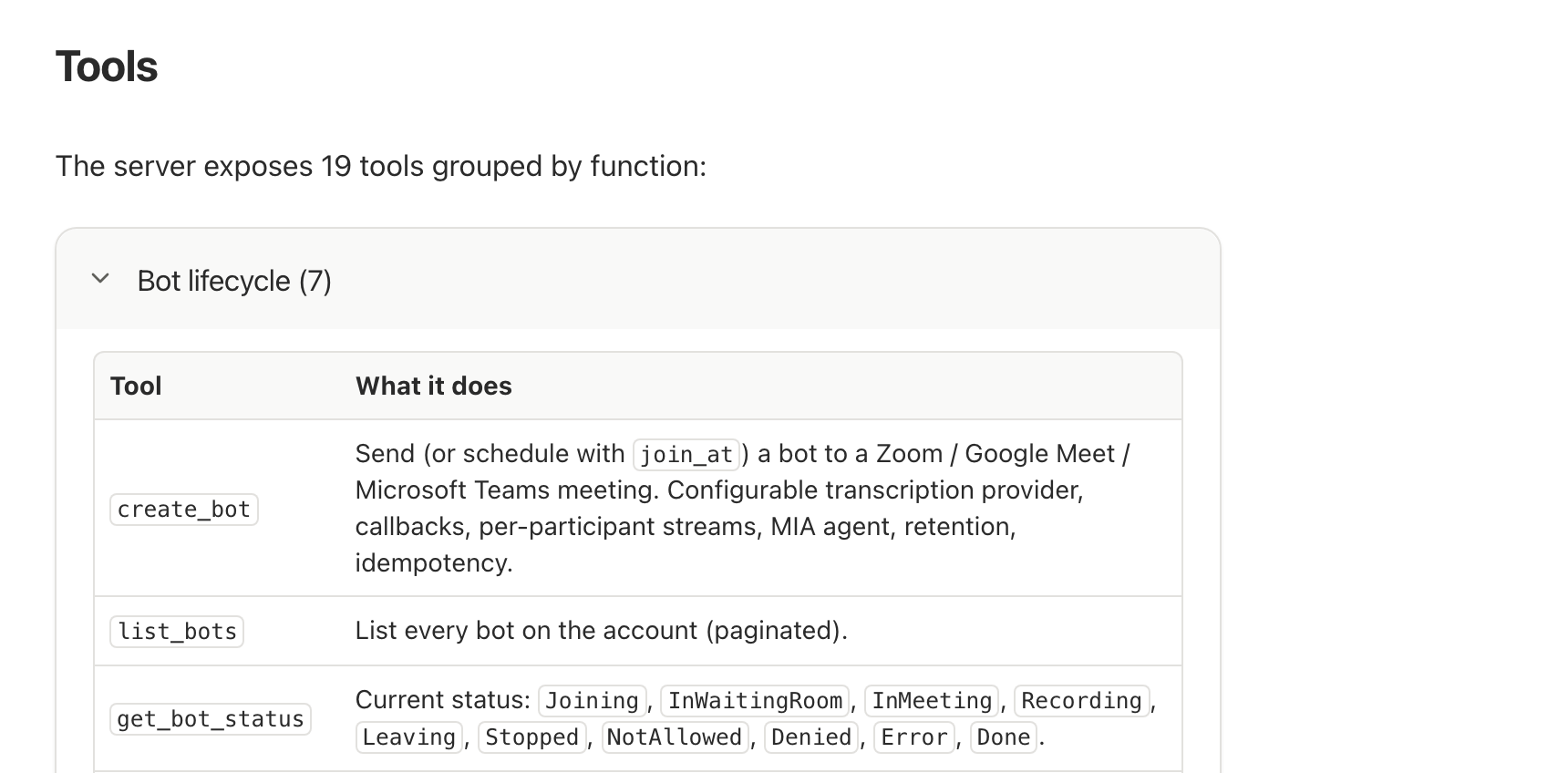
Now, you can use natural language to interact with the MeetStream API. Here is a sample prompt you can copy and paste. Replace the meeting link with your own.
Please send a bot named "Meeting Assistant" to https://meet.google.com/abc-def-ghi. Once the meeting is over, wait for the transcript to be ready and then give me a summary of the key topics discussed.
When you send this prompt, Claude will first ask for your permission to use the MeetStream tools. It will show you the specific tool it wants to run, such as meetstream.create_bot. You can approve it once or select "Allow always" to avoid future prompts for that tool.
After you grant permission, Claude will execute the request and confirm that the bot is on its way to the meeting.
How It Works: The End-to-End Flow
Understanding the process helps when you want to build more advanced workflows. The interaction follows a clear sequence from your prompt to the bot's actions.
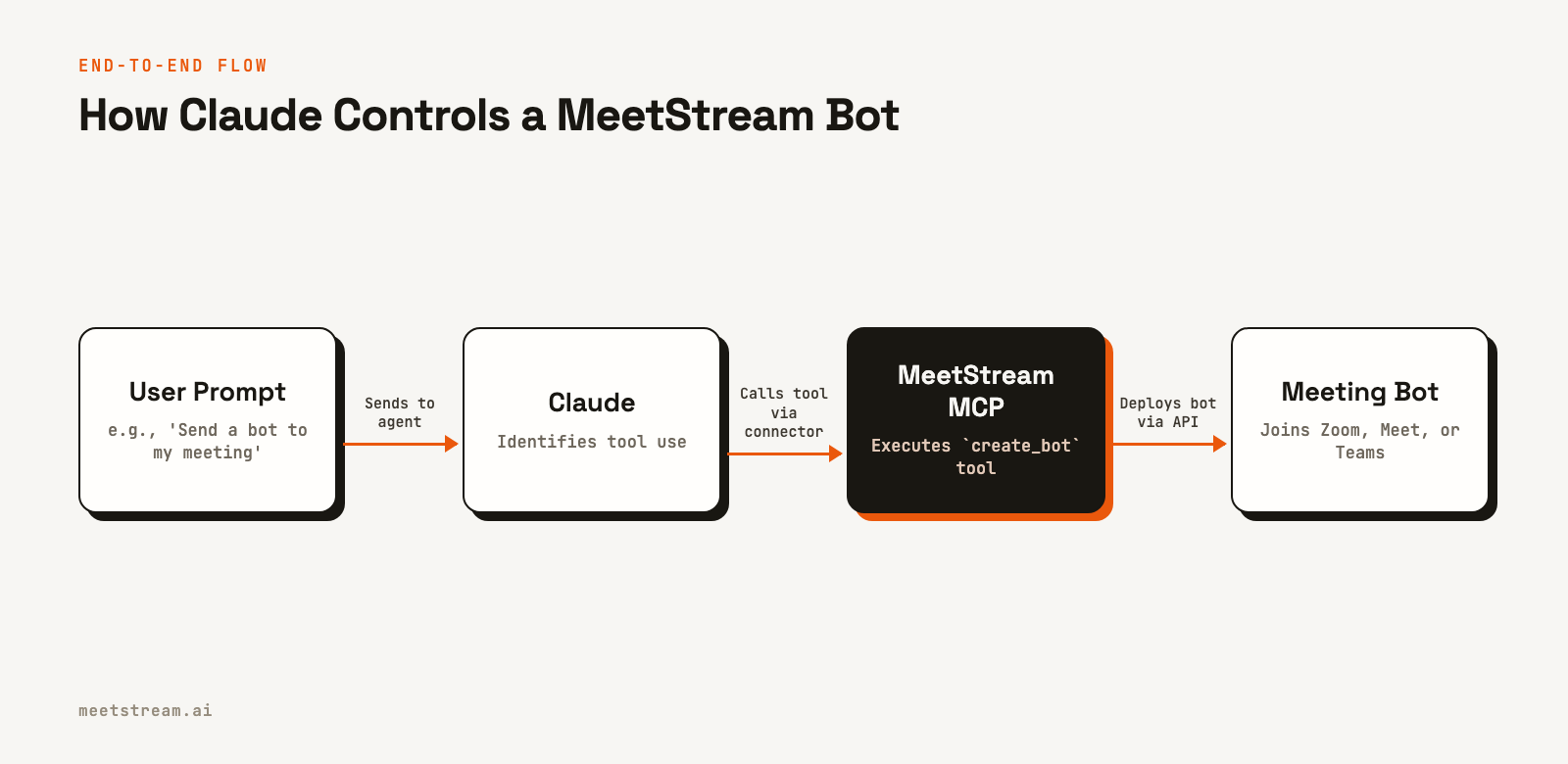
Here is the step-by-step flow:
- Prompt and Tool Identification: You provide a prompt to Claude. Claude's underlying model analyzes the text and determines that your request requires an external tool. It matches your intent to one of the available MeetStream tools, like
create_botorget_transcript. - Tool Execution: Claude makes a secure HTTPS request from Anthropic's servers to the MeetStream MCP endpoint you configured. The request includes the tool name and parameters extracted from your prompt, like the bot's name and the meeting link.
- API Call: The MeetStream MCP server receives the request, authenticates it using your API key, and translates the tool call into a standard REST API request to the core MeetStream API. For this example, it makes a
POSTrequest to the/api/v1/bots/create_botendpoint. - Bot Deployment: The MeetStream infrastructure spins up a new bot instance and directs it to join the specified meeting URL. The bot appears as a distinct participant in the call list.
- Data Processing: Once the meeting ends, MeetStream processes the audio and generates a transcript. When the transcript is ready, Claude can use the
get_transcripttool to retrieve it and fulfill the second part of your request: creating a summary.
Permissions and Security Considerations
Giving an AI agent the ability to join meetings requires a clear understanding of the permissions involved at each layer.
- Claude Permissions: First, your Claude plan must support custom connectors. Within a conversation, you must explicitly grant Claude permission to use a tool the first time it tries. This acts as a safeguard against unintended actions.
- MeetStream API Key: Your API key is the credential that authorizes all actions. Anyone with this key can deploy bots on your behalf. You can manage and revoke keys from your MeetStream dashboard.
- Meeting Platform Permissions: The bot is subject to the rules of the meeting platform. It may be held in a waiting room until the host admits it. Zoom meetings need no setup: no Zoom Marketplace app and no tokens. An OBF token is only for optional on-behalf-of joins with your own Zoom app, which you can learn more about in our guide to Zoom OBF. On Zoom, recording is also gated by host consent.
- Participant Consent: Always inform other participants that a bot is present and recording the meeting to comply with legal requirements and maintain trust.
How MeetStream Enables Conversational Agents
Connecting agents like Claude to meetings is a primary use case for our platform. We provide the infrastructure that gives any agent a seat at the table, allowing it to perceive and act within a live conversation. The MCP server is the bridge that makes this possible without custom code.
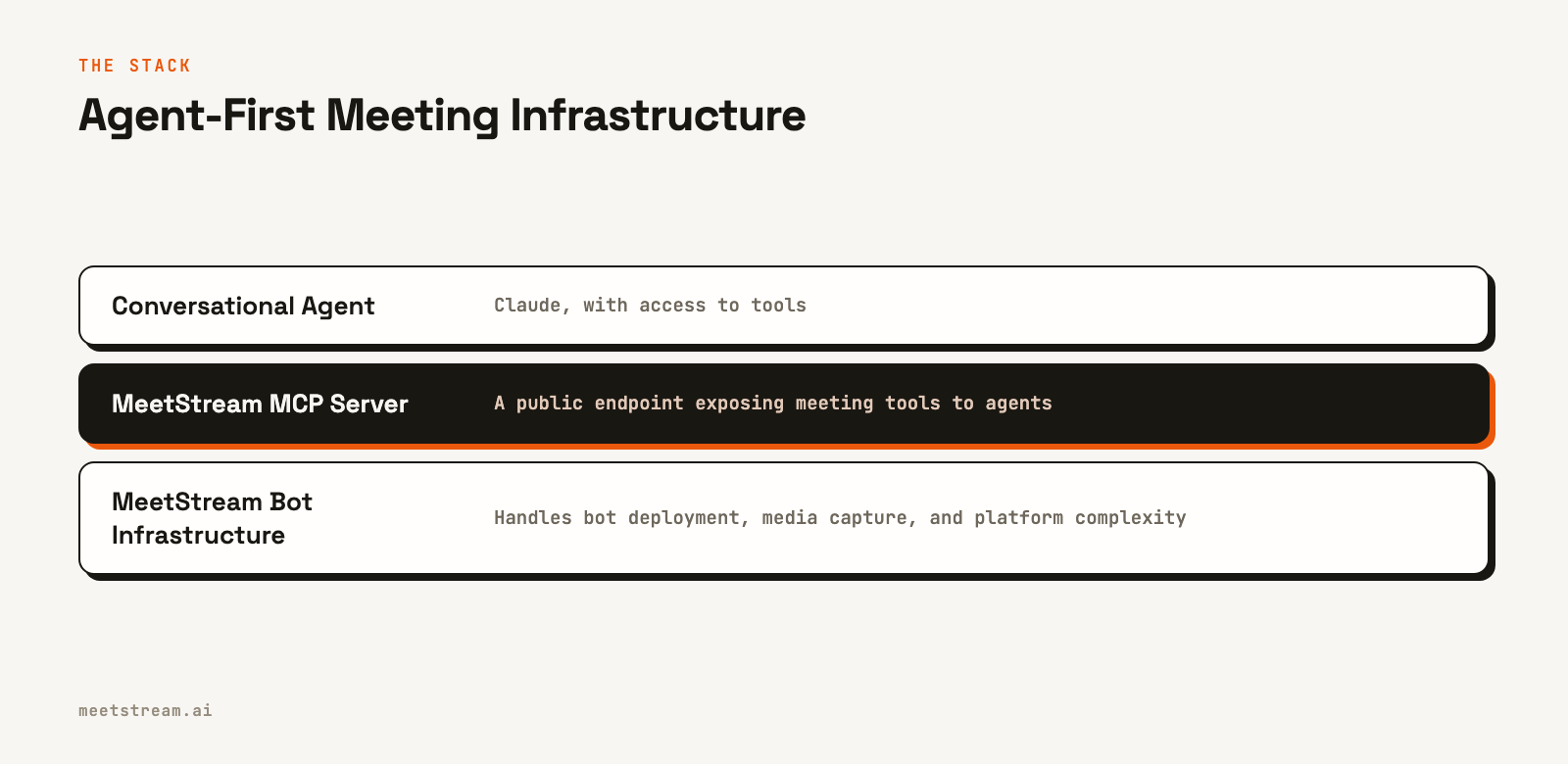
This approach separates the conversational intelligence of the agent from the complex, real-time infrastructure required to manage meeting bots at scale. You can focus on designing the agent's behavior while we handle the challenges of cross-platform compatibility, low-latency media streaming, and reliable bot deployment. Whether you need a simple post-call transcription bot or a fully interactive live meeting agent, the underlying tools are the same.
Conclusion
By connecting Claude to the MeetStream MCP server, you can send Claude into a meeting to act on your behalf. That covers a lot of ground, from pulling a summary after the call to having an assistant post in the chat while it is still running. It demonstrates a practical way to extend the capabilities of large language models into real-time conversational environments.
See the full API reference at docs.meetstream.ai.
Sources and further reading
Frequently Asked Questions
Does the bot impersonate me in the meeting?
No, the bot does not impersonate you or use your account. It joins as a separate, visible participant with the name you provide, such as "Meeting Assistant" or "Notetaker".
Can I use this with the free version of Claude?
Yes. Custom connectors work on every Claude plan, but the Free plan is limited to one.
Is it secure to put my API key in the connector URL?
Placing the API key in the URL is a simple authentication method supported by Claude. However, the key will be stored and visible in your Claude connector settings. You should use a dedicated key for this purpose and revoke it if you no longer need the integration.
Is this the same as Claude Meetings?
No. Claude Meetings is Anthropic's own feature, in beta on Team and Enterprise plans, where Claude joins a Google Meet call as a visible participant and builds notes and artifacts in claude.ai. The method in this guide connects Claude to meeting infrastructure through MCP, so it can send and control bots on Zoom, Google Meet and Microsoft Teams from any Claude client.
Can Claude join a Zoom meeting?
Not through Claude Meetings, which supports Google Meet only at launch. It can through the MCP server described here, because the bot that joins is a MeetStream bot and that works across all three major platforms. Zoom needs no setup: send the meeting link with your MeetStream API key. Zoom's On Behalf Of token rule from March 2026 applies to Meeting SDK apps, so here it matters only for optional signed-in joins with your own Zoom app.


