
How to Send OpenAI Codex Into a Meeting
Learn how to send OpenAI Codex into a meeting from your repository, so design reviews and incident calls end up back in the codebase.

Updated 12 November 2026.
Codex works inside your repository, which makes it unusually well placed for the meetings where the conversation is about the code in front of you.
On 12 November 2026 Anthropic shipped Claude Meetings, where Claude joins a Google Meet call as a visible participant and builds notes and artifacts while people talk, in beta on Team and Enterprise plans. It gave everyone a clear picture of what an in-meeting agent looks like. It also showed the limits of building that as a feature: one platform, one vendor's plans, output in one place.
A design review or an incident call produces decisions that belong in the codebase, and the agent that writes them is already there. This guide is how to get the same shape with OpenAI Codex, on Zoom, Google Meet and Microsoft Teams, without waiting for OpenAI Codex to ship a meetings feature of its own.
You can give OpenAI Codex the ability to join meetings, take notes, and retrieve transcripts on your behalf. By connecting it to a meeting bot API, you can turn a simple text prompt into an active participant in any Zoom, Google Meet, or Microsoft Teams call. This is done by exposing the API as a set of tools the agent can call.
This approach gives you a powerful way to automate meeting-related tasks directly from your development environment. Instead of building custom integrations, you can instruct an agent to perform actions like scheduling a bot to join a future sales call or fetching the summary from a team sync you missed. It treats meeting participation as just another function call.
MeetStream provides the agent-first voice infrastructure for this. Our platform is designed to give AI agents a seat in the meeting, where they can listen, understand, and act. What matters is a Model Context Protocol (MCP) server, which acts as a bridge between the agent's environment and our meeting bot API.
In this guide we will cover what you need, the configuration steps, an example prompt, how the agent uses the API and the rights to consider. Let's get into it.
What You'll Need
Before you start, make sure you have these three things ready. The process is straightforward and requires no complex setup.
- An OpenAI Codex account: You need access to the Codex environment with the ability to add custom tools.
- A MeetStream API key: You can get a free API key from the MeetStream dashboard. This key authenticates your requests to our API.
- A meeting link: The URL for the Zoom, Google Meet, or Microsoft Teams meeting you want the bot to join.
Configuration Steps
There are two parts to the setup: getting your API key into your environment and telling Codex where to find the MeetStream tools.
Step 1: Set your MeetStream API key as an environment variable
For security, it is best to handle your API key as an environment variable rather than hardcoding it into a configuration file. In your terminal, export the key:
export MEETSTREAM_API_KEY=YOUR_API_KEY_HEREReplace YOUR_API_KEY_HERE with the key you obtained from the MeetStream dashboard.
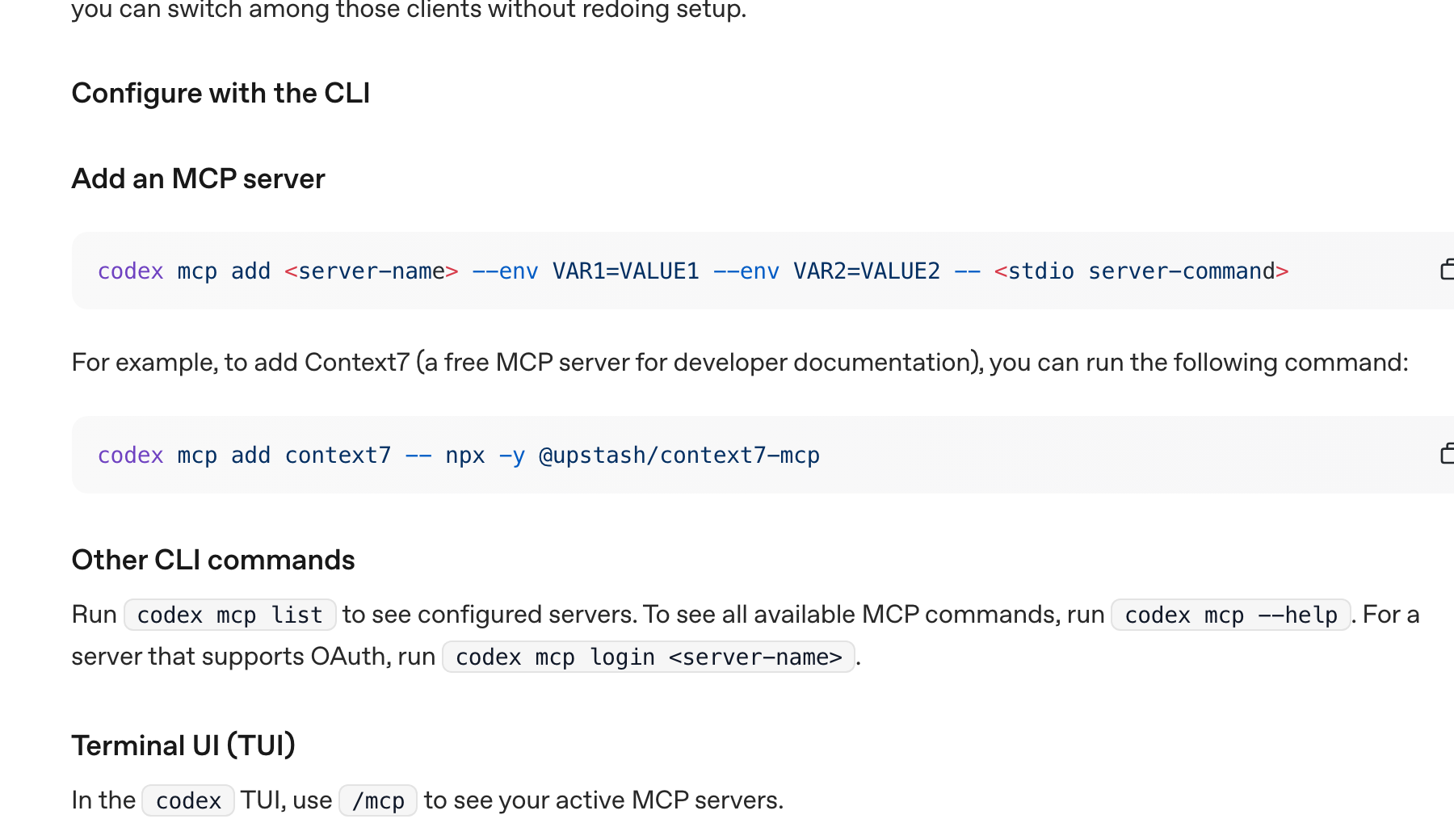
Step 2: Add the MeetStream MCP server to Codex
Next, use the Codex command-line interface to add the public MeetStream MCP server as a new tool source. This command registers the server and tells Codex to use the environment variable for authentication.
codex mcp add meetstream --url https://mcp.meetstream.ai/mcp --bearer-token-env-var MEETSTREAM_API_KEYAlternatively, you can add this configuration directly to your ~/.codex/config.toml file:
[mcp_servers.meetstream]
url = "https://mcp.meetstream.ai/mcp"
bearer_token_env_var = "MEETSTREAM_API_KEY"
You can confirm the server was added by running codex mcp list.
Step 3: Configure tool approval
For safety, you should configure how Codex handles tools that perform actions, like sending a bot into a meeting. We recommend setting the default approval mode to prompt for any action that writes data or incurs cost.
Set this with default_tools_approval_mode in your config file, choosing either prompt or writes.
Example Prompt: Join a Meeting and Get the Transcript
Once configured, you can instruct Codex in plain English. Here is a sample prompt you can use to send a bot to a meeting and have it return the transcript after the call ends.
Paste this into your Codex prompt:
Using the meetstream tool, send a bot named "Meeting Recorder" to https://meet.google.com/abc-def-ghi.
After the bot has joined and the meeting is over, fetch the full transcript and display it.
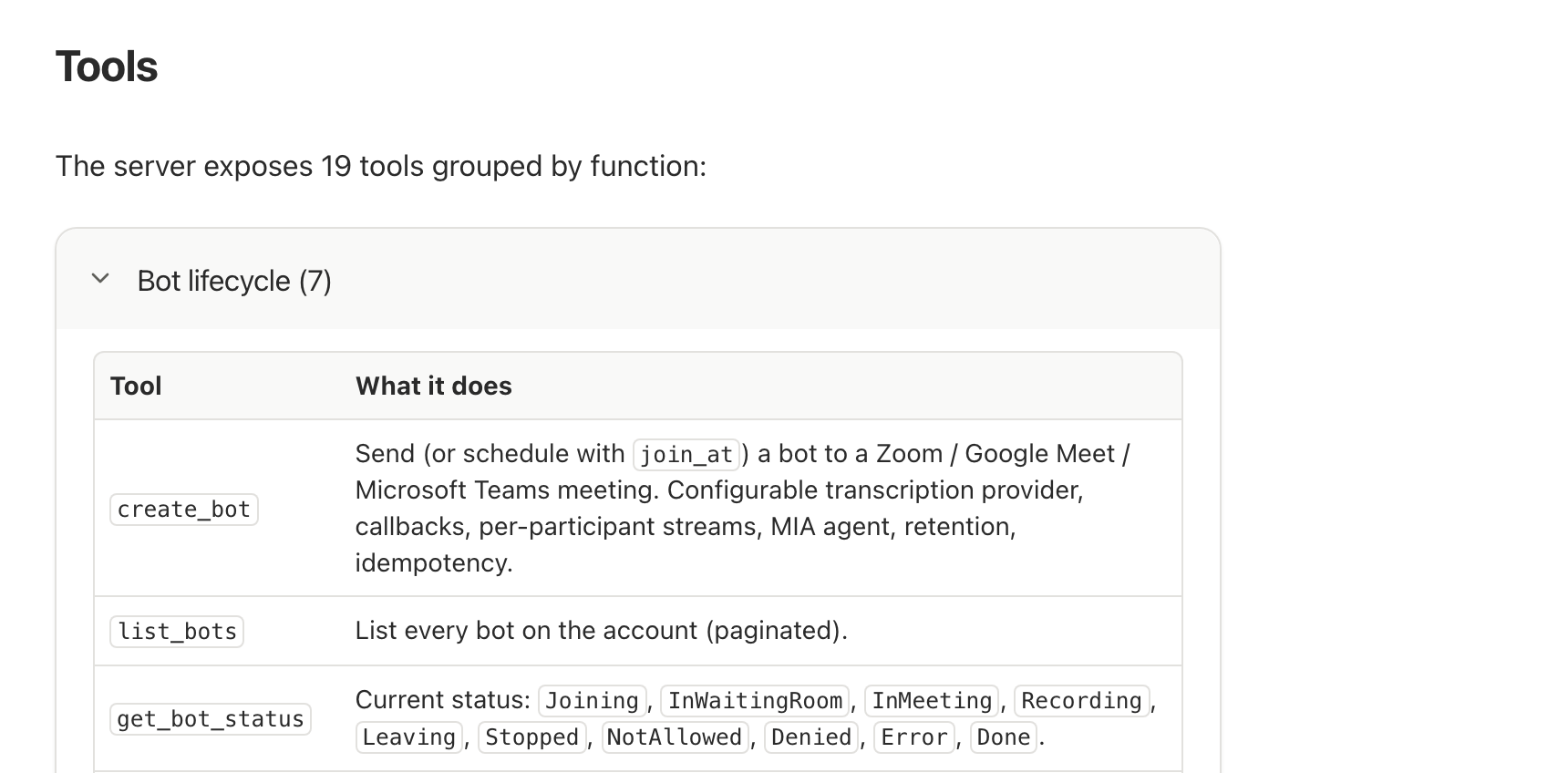
Codex will first ask for your approval to run the create_bot tool. After you approve, it will make the API call. It will then use the get_bot_status tool to poll for completion and finally call get_transcript to retrieve the text.
How It Works: The Agent and the API
The interaction between Codex and MeetStream follows a clear, logical sequence. Understanding this flow helps with troubleshooting and building more complex automations.
- Prompt Interpretation: Codex parses your natural language prompt and identifies the intent to use the
meetstreamtoolset it learned about from the MCP server. - Tool Execution: It constructs and executes a call to the
create_bottool. Under the hood, this is an HTTP POST request to the MeetStream API, authenticated with your API key as a Bearer token. Note that the MCP server usesBearer, while our direct REST API usesTokenauthentication. - Bot Deployment: The MeetStream API receives the request and deploys a bot instance from our infrastructure pool. The bot navigates the meeting platform's lobby and joins the call, appearing as a participant with the name you specified.
- Data Capture: Once in the meeting, the bot captures the audio and sends it to be processed by the selected transcription provider. You can see a full guide on our post-call transcription bot for more detail.
- Status Polling and Retrieval: The agent can periodically call the
get_bot_statustool to check if the bot has finished. Once thebot.stoppedandtranscription.processedevents occur, the agent can callget_transcriptto fetch the final result.
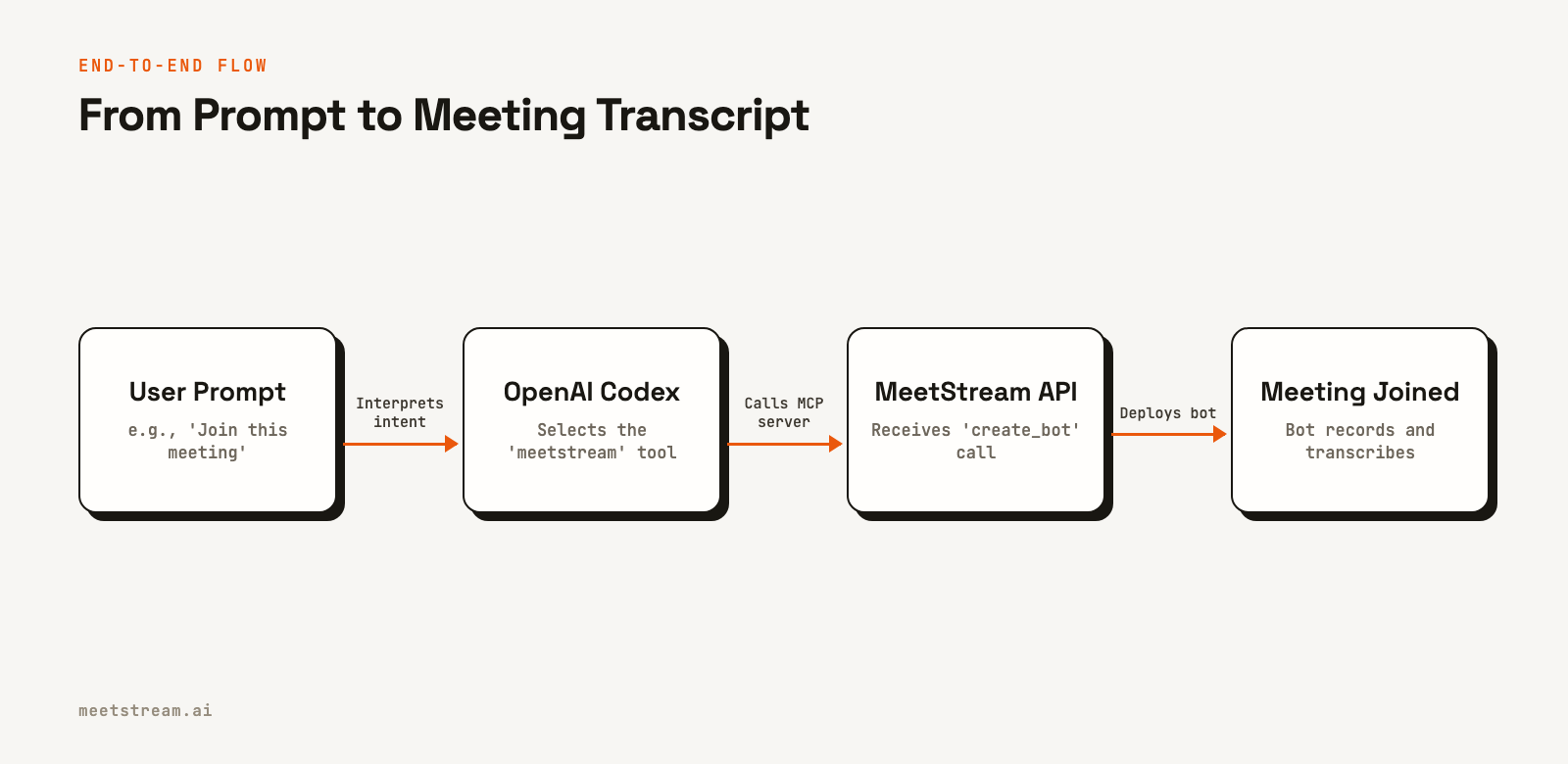
This entire process turns a complex infrastructure task into a simple, conversational command.
Rights and Permissions to Consider
Giving an AI agent the ability to enter meetings requires careful consideration of permissions at multiple levels. Here are four key areas to be aware of.
- Agent-Side Permissions: Your OpenAI Codex account must be on a plan that allows custom tool usage. Check the official OpenAI documentation for the latest requirements, as platform features can change.
- API Key Security: Your MeetStream API key grants access to deploy bots on your behalf. Treat it like a password. Using an environment variable is good practice. Be aware that adding the key via a URL parameter can expose it in logs. You can revoke keys anytime in the MeetStream dashboard.
- Meeting-Side Permissions: The bot is a participant and subject to the meeting's rules. A host may need to admit it from a waiting room. Zoom meetings need no setup: no Zoom app and no tokens. An OBF token is only for optional on-behalf-of joins with your own Zoom app; see our guide on Zoom OAuth and OBF tokens for details. Always inform other participants that the meeting is being recorded.
- Tool Approval Prompts: The approval mechanism within Codex is your final checkpoint. By requiring a manual confirmation for actions, you prevent the agent from joining meetings or running up costs unexpectedly.
How MeetStream Enables In-Meeting Agents
MeetStream is the infrastructure layer that gives agents like Codex a presence inside live conversations. Our API handles the complexity of connecting to different meeting platforms, managing bot lifecycles, and processing real-time media streams.
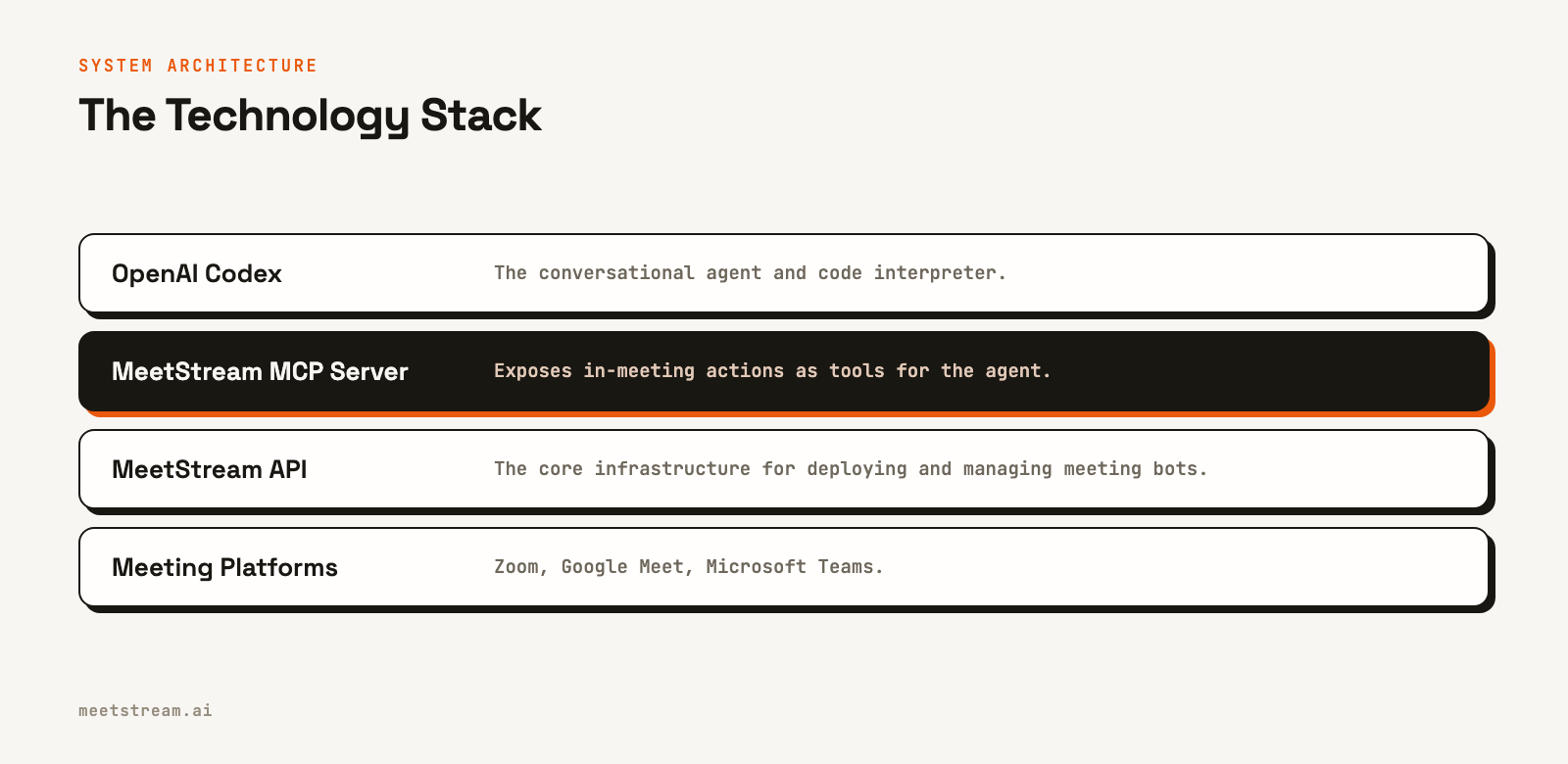
While this guide focuses on a simple record-and-transcribe workflow, the platform is built for more interactive use cases. By passing an agent_config_id in your create_bot call, you can deploy one of our MIA voice agents that can listen and respond in real-time. The MCP server exposes other tools for sending chat messages (send_chat_message) or even changing the bot's video frame to an image (send_image).
The core idea is to provide a stable, unified API that lets developers and agents programmatically interact with meetings, regardless of the underlying platform. We manage the scaling and reliability, so you can focus on the agent's logic. You can see the full API capabilities in our guide to creating your first bot.
Using Codex to build the live part
Codex is a coding agent, so its best use here may be writing the integration rather than sitting in the call. Ask it to build the webhook handler that receives live transcripts, or the service that decides when your agent should reply.
The live agent then runs in your own code, close to the meeting, while Codex stays in your editor. Our list of ten use cases is a good place to pick what that agent should do.
Conclusion
Connecting OpenAI Codex to the MeetStream API provides a direct, powerful way to automate meeting workflows. By registering our MCP server as a tool, you give the agent a rich set of capabilities for joining calls, recording conversations, and retrieving structured data like transcripts. This turns meeting automation from a complex integration project into a simple conversational prompt. Get started free at meetstream.ai.
Sources and further reading
Frequently Asked Questions
Can OpenAI Codex join a password-protected Zoom meeting?
Yes. You can include the password in the meeting_link URL itself. MeetStream will parse it and use it to join the meeting. The bot will still need to be admitted if a waiting room is enabled.
Does the bot impersonate my user account?
No, the bot does not impersonate you. It joins as a distinct participant with the bot_name you provide in the API call, such as "Notetaker" or "Sales Coach". Other participants will see it in the list just like any other person.
Is it secure to give an AI agent an API key?
Security depends on your implementation. The recommended approach is to use an environment variable, as shown in this guide, so what matters is not stored in code or configuration files. You should also use the agent's built-in tool approval prompts as a safeguard and revoke unused keys from your MeetStream dashboard.
Is this the same as Claude Meetings?
No. Claude Meetings is Anthropic's own feature, in beta on Team and Enterprise plans, where Claude joins a Google Meet call and writes notes and artifacts into claude.ai. This guide connects OpenAI Codex to meeting infrastructure instead, so it works on Zoom, Google Meet and Microsoft Teams and the output lands wherever you decide.
Can OpenAI Codex join a Zoom or Microsoft Teams meeting?
Not by itself. No general assistant has a way into a call on its own. It can through a meeting bot API. With MeetStream, Zoom needs no setup: send the meeting link with your MeetStream API key. Zoom's On Behalf Of token rule from March 2026 applies to Meeting SDK apps, so on MeetStream it matters only for optional signed-in joins with your own Zoom app.


