
AI Meeting Knowledge Base: Meet Companion Setup Guide
Learn how to build an AI meeting knowledge base with Meet Companion: searchable notes, action items, source-backed answers and in-call recall.

Three weeks after a planning call, someone asks what the team decided about the CSV export and who owns the follow-up. The answer exists somewhere: a transcript nobody reopened, a note filed under the wrong meeting, or one person's memory. An AI meeting knowledge base fixes that by turning every call into searchable notes, decisions and action items you can question later.
Most teams already record or transcribe their calls. Turning those calls into searchable meeting transcripts is a good first step, but a pile of transcripts is still an archive, not a memory. Nobody has time to read forty of them, so decisions get re-debated and action items quietly expire.
Meet Companion is an open-source, self-hosted app built to close that gap. A bot joins your Google Meet, Zoom or Microsoft Teams call through MeetStream, the transcript comes back when the call ends, and an LLM of your choice extracts decisions, commitments and action items into organized Markdown notes. You can then search by meaning, ask questions and get answers with sources, and let an agent recall past conversations while you are still in the next meeting.
In this article, we'll explore what a meeting transcript knowledge base is, how Meet Companion builds AI meeting memory from your calls, how search, Ask AI and the knowledge graph work, and how to set it up and share it safely. Let's get started!
Why Meetings Need a Knowledge Base, Not Just a Recording
Meetings are where decisions get made, and speech is the worst format for keeping them. Notetakers help, but they work one meeting at a time: each call gets a summary, and the summaries pile up in separate places.
The questions that matter come later, and they cross meetings. What did we promise the customer? Why did we drop multi-currency support? Who still owes us a document? Answering them means reading across calls, which is exactly the work people skip.
What is an AI meeting knowledge base?
An AI meeting knowledge base is a searchable store of everything said in your meetings, organized into decisions, commitments and action items, that you can query in plain language and get answers with sources. It has four working parts:
- Captured. Transcripts arrive from a meeting bot, or you paste or import them.
- Structured. An LLM extracts memories and action items, with owners and due dates where they were spoken.
- Retrievable. Search works by meaning and by keyword, across every meeting at once.
- Answerable. Questions get answers grounded in your own notes, with links back to the source.
A meeting transcript knowledge base is the same idea seen from the input side. Transcripts are the raw material, and the knowledge base is everything you build on top of them.
| What you need | Transcript archive | AI meeting knowledge base |
|---|---|---|
| Find something | Keyword search inside one file, or scrolling | Hybrid search by meaning and keywords across every meeting |
| Recall a decision | Read the transcript and spot it yourself | Decisions extracted as memories, filed in a note |
| Track action items | Copy them into another tool by hand | Owners and due dates extracted, with live checkboxes |
| Ask a question | Open several meetings and compare | Ask AI answers with links to its sources |
| See connections | None | Knowledge graph of meetings, people, decisions and action items |
| Use it in a live call | Not possible | In-call agent queries memory through MCP |
The Problem: Transcripts Are Not Memory
A transcript records what was said. It does not tell you what mattered, who agreed to do what, or how this call relates to the last one. Three things break when transcripts are your only memory.
You cannot find it. Keyword search misses paraphrase. The team said "ship the CSV" in March and "release the export" in April, and a search for either word finds only half the story. It also works inside one file at a time.
You cannot trust it. A summary without sources is a claim you have to re-verify. If you cannot see which meeting an answer came from, you end up reading the transcript anyway.
You cannot act on it. Action items buried in prose have no owner, no due date and no checkbox. They exist only until someone forgets them.
The fix is not a bigger model. It is structure, retrieval and provenance. Extract what matters once, when the meeting is ingested, instead of re-reading transcripts for every question. Retrieve across all meetings, not one. And keep a link from every answer back to its source.
The same gap shows up in the call itself. An AI meeting assistant with memory can pull last month's decision into this month's conversation. An assistant that only hears the current call starts cold every time.
To keep the rest of this guide concrete, we'll use the billing export example from the project's own Ask AI walkthrough. It is demo data: a team decides to ship a CSV of invoice totals behind a feature flag, USD only, with named owners for each follow-up. Every screenshot below comes from Meet Companion itself.
How Meet Companion Builds an AI Meeting Knowledge Base
Meet Companion is a FastAPI backend with a React interface, packaged as a desktop app for Windows, macOS and Linux, or as a Docker image. It is MIT licensed and self-hosted. You choose the AI model and the database, and the project reports no telemetry.
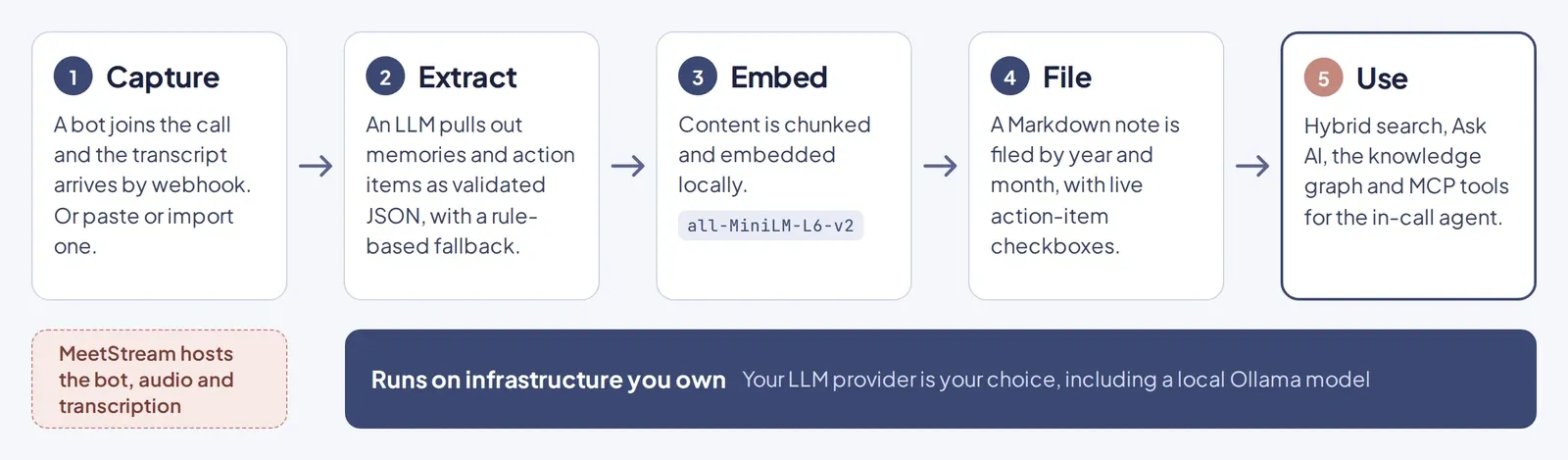
How does Meet Companion create searchable meeting memory?
Every meeting follows the same path:
- Capture. A transcript arrives from a MeetStream webhook, or you paste or upload one.
- Store. Transcript segments and participants are saved.
- Extract. Your chosen LLM turns the transcript into memories and action items as structured JSON, which is validated. If the provider fails, a rule-based fallback still produces output, and the meeting is marked as processed without AI so you can reprocess it later.
- Embed. Content is chunked and embedded locally with
all-MiniLM-L6-v2, a 384-dimension model that runs on your machine. - File. A Markdown note is written and filed under
Meetings / year / month.
The extraction step is where searchable meeting memory actually gets made. Meet Companion pulls out several kinds of memory:
| Memory type | What it captures |
|---|---|
| Decisions | What the team settled |
| Commitments | What someone agreed to deliver |
| Requirements | What the work must satisfy |
| Concerns | Risks or objections raised |
| Facts | What was stated or established |
| Open questions | What is still unresolved |
| Action items | Tasks, with owners and due dates |
The result is a note that reads like something a person wrote. Here is one from the demo workspace:
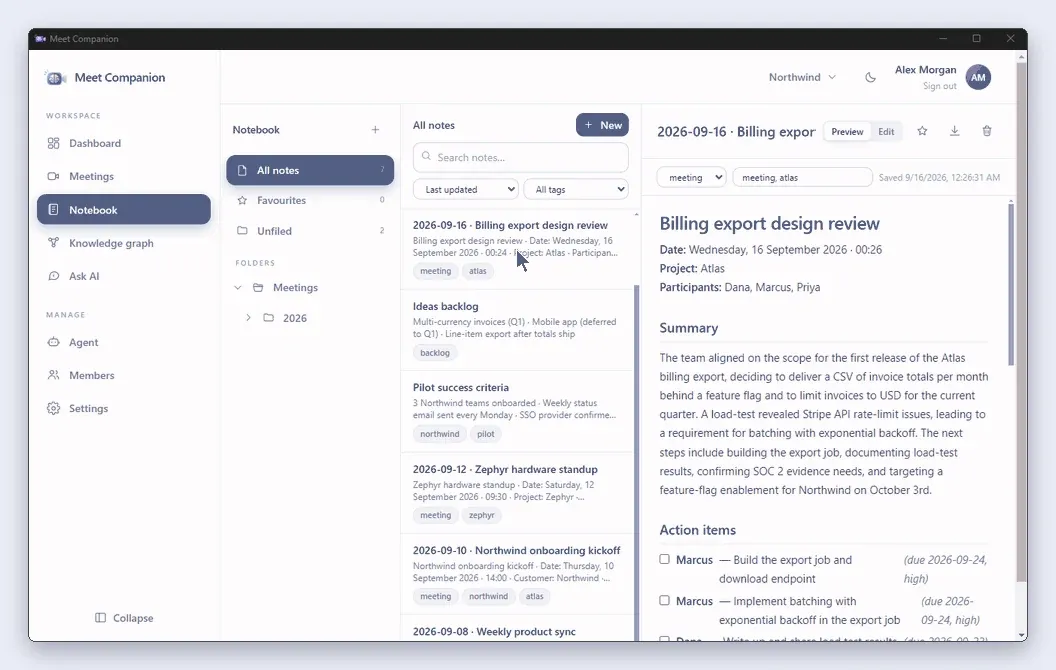
Each call produces AI meeting notes and action items in one place, and the checkboxes are live. Tick one in a note and the task completes. Write - [ ] call Bob in any note and it becomes a real task.
Turning Action Items Into a Meeting Action Item Tracker
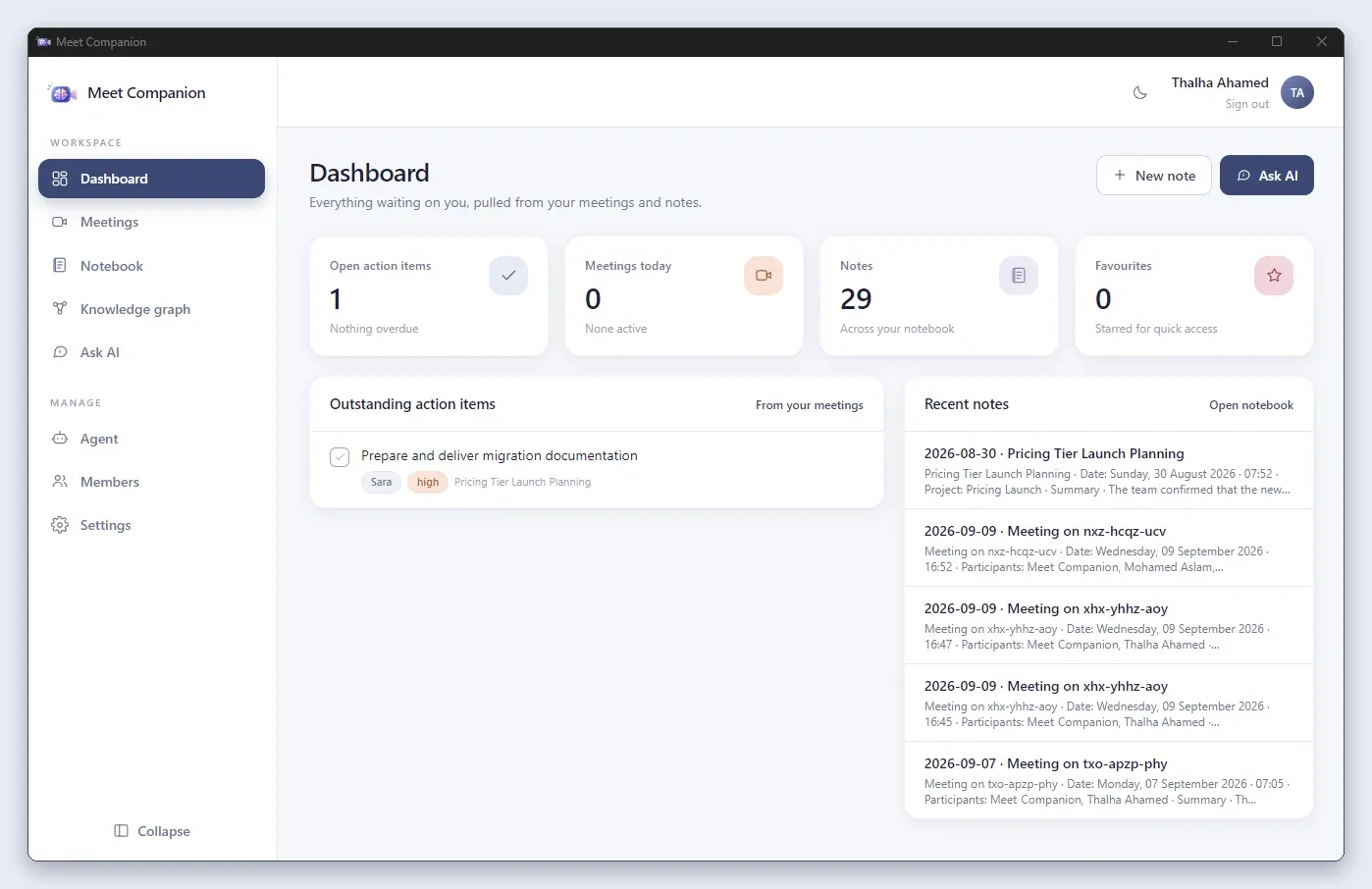
Because action items are extracted with owners, priorities and due dates, they can be collected outside the notes too. The dashboard lists outstanding items pulled from your meetings, next to today's meetings and recent notes. It works as a meeting action item tracker without a separate task tool, which matters most for the small teams this project targets.
How does semantic search work for meeting notes?
In practice, semantic search for meetings compares meaning instead of exact words. Each chunk of a meeting is stored as a vector, the query is embedded the same way, and the closest vectors win. That is how "release the export" finds a note that says "ship the CSV".
Meaning alone is not enough. Names, ticket IDs and product terms need exact matching, so Meet Companion runs a hybrid search: vector similarity and keyword search side by side, then merges the two ranked lists with reciprocal rank fusion. If your query mentions a date, results are re-ranked by it.
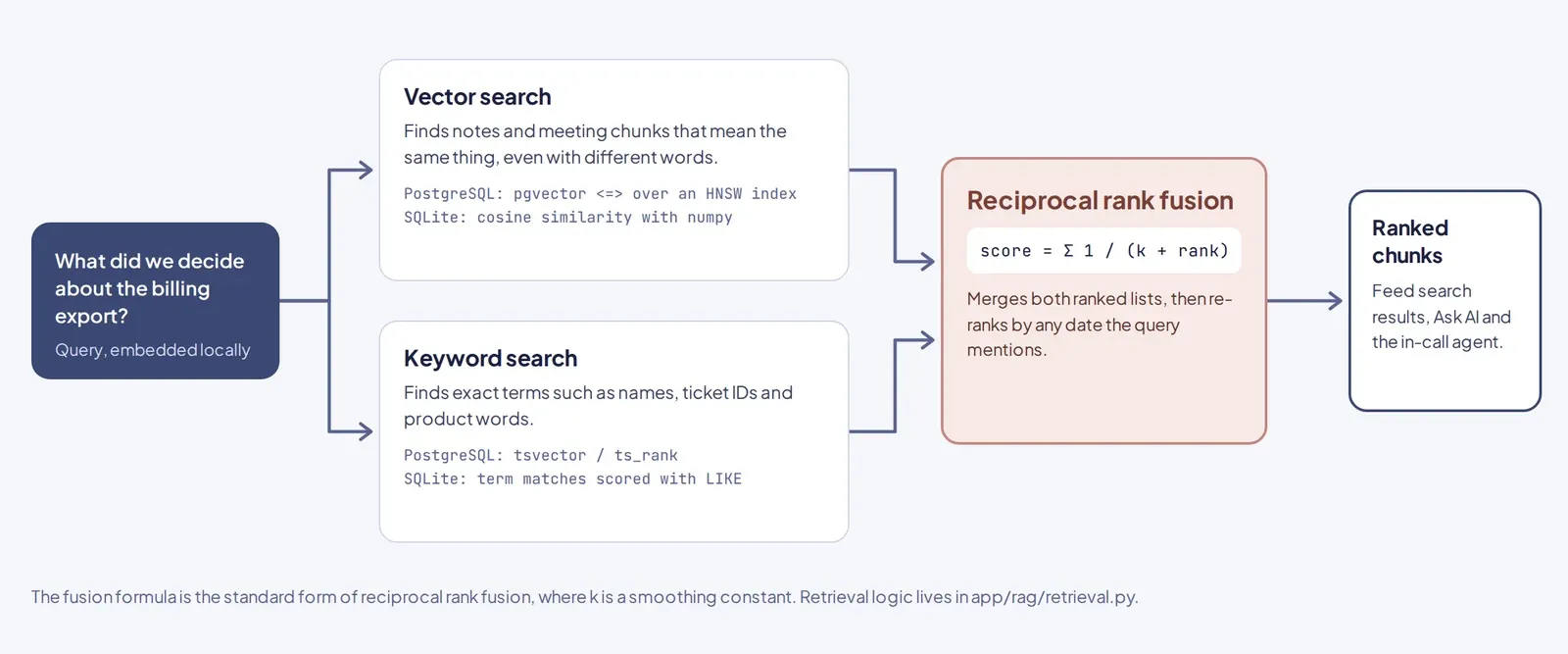
Reciprocal rank fusion is simple. Each result scores 1 / (k + rank) in every list it appears in, and the scores are summed. Here is an illustrative sketch of the technique, not Meet Companion's source code:
def rrf(rankings, k=60):
    """Merge several ranked lists of IDs into one."""
    scores = {}
    for ranked_ids in rankings:  # one list per retriever
        for rank, doc_id in enumerate(ranked_ids, start=1):
            scores[doc_id] = scores.get(doc_id, 0) + 1 / (k + rank)
    return sorted(scores, key=scores.get, reverse=True)
The database you pick changes how the two searches run, not what you get:
| Operation | PostgreSQL | SQLite (default) |
|---|---|---|
| Similarity | pgvector <=> over an HNSW index |
Cosine similarity with numpy |
| Keyword | tsvector / ts_rank |
Term matches scored with LIKE |
The SQLite path scans candidate rows, so it slows down as the corpus grows. That is comfortable for one person's meeting history. Shared or very large deployments should use PostgreSQL.
Ask AI: Answers Grounded in Your Notes
Search finds documents. Ask AI answers questions. You type something like "What did we decide about the billing export, and who owns the follow-ups?" and get a written answer with an owner table and links to the notes and meetings it drew from. It can also use uploaded documents in PDF, Word, Markdown or CSV format.
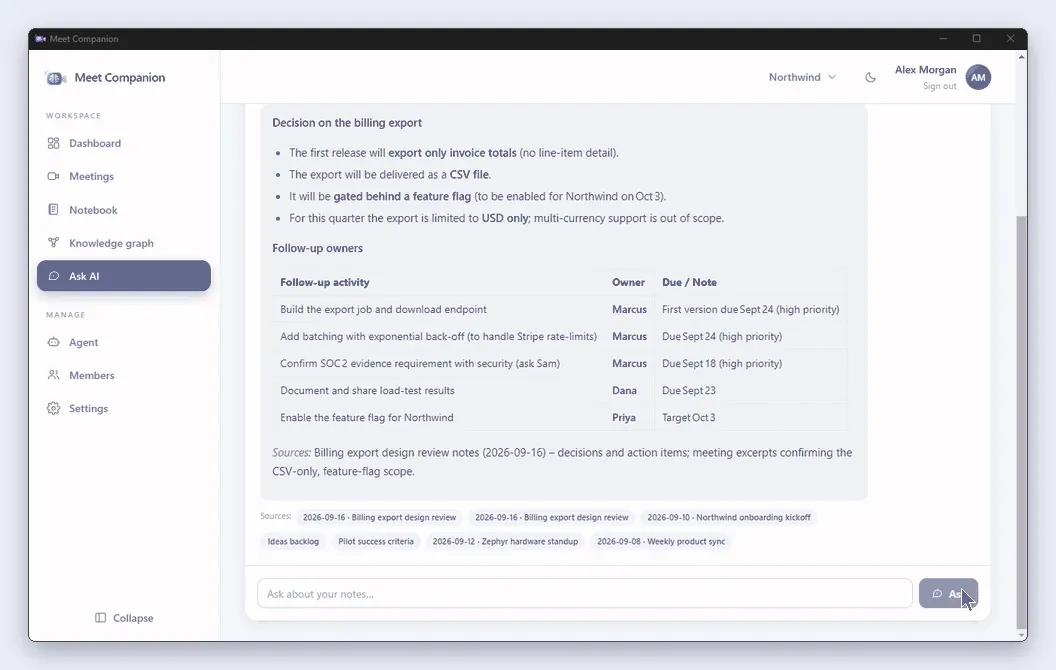
Here is what happens behind that answer:
- The question is embedded locally, the same way the notes were.
- Vector and keyword search each return the closest chunks, led by the billing export design review.
- Reciprocal rank fusion merges the two lists into one ranking.
- The LLM writes the answer from those chunks, and the notes it used appear as the source links under it.
The project documentation says answers are grounded in what you have captured and are never invented. Treat that as the design goal, not a guarantee. Click through to the sources before you repeat a decision to a customer.
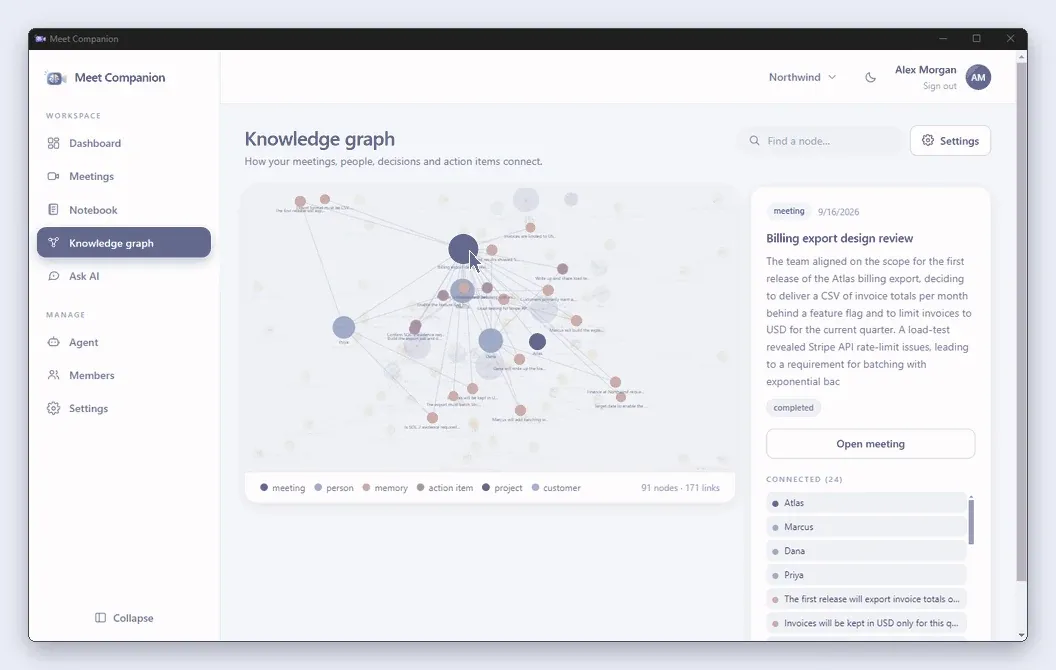
What is a meeting knowledge graph?
A meeting knowledge graph is a map of how your meetings, people, memories, action items, projects and customers connect. Instead of a list of notes, you see that one call involved three people, produced four action items and belongs to a project.
In Meet Companion you select a meeting to see everything connected to it, then filter by node type. It answers questions that search does not, such as which meetings a person appears in, or which action items trace back to a single call.
How can an in-meeting agent recall previous conversations?
Meet Companion includes a built-in MCP server that the in-meeting agent queries live. When someone asks "what did we decide last time?", the agent calls tools on your server, retrieves matching memories and answers inside the call. That makes it an AI meeting assistant with memory rather than a note-taker that starts fresh.
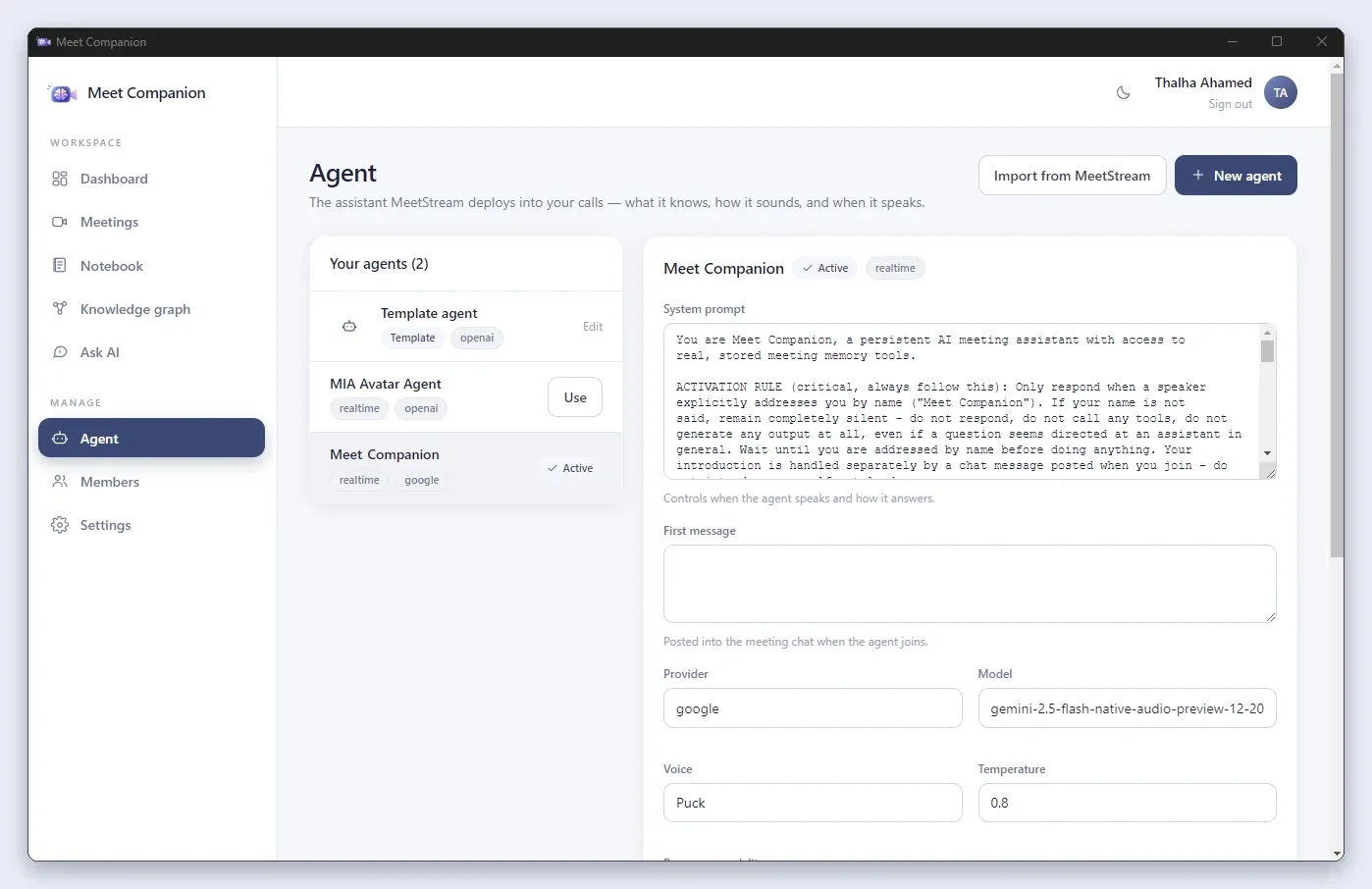
The agent is configured in the app: system prompt, model provider, voice and behavior. In the screenshot below the agent is named Meet Companion, and its prompt tells it to stay silent unless a speaker addresses it by name.
The same server handles both directions. During the call, the agent reads memory. After the call, the transcript flows back in and updates it.
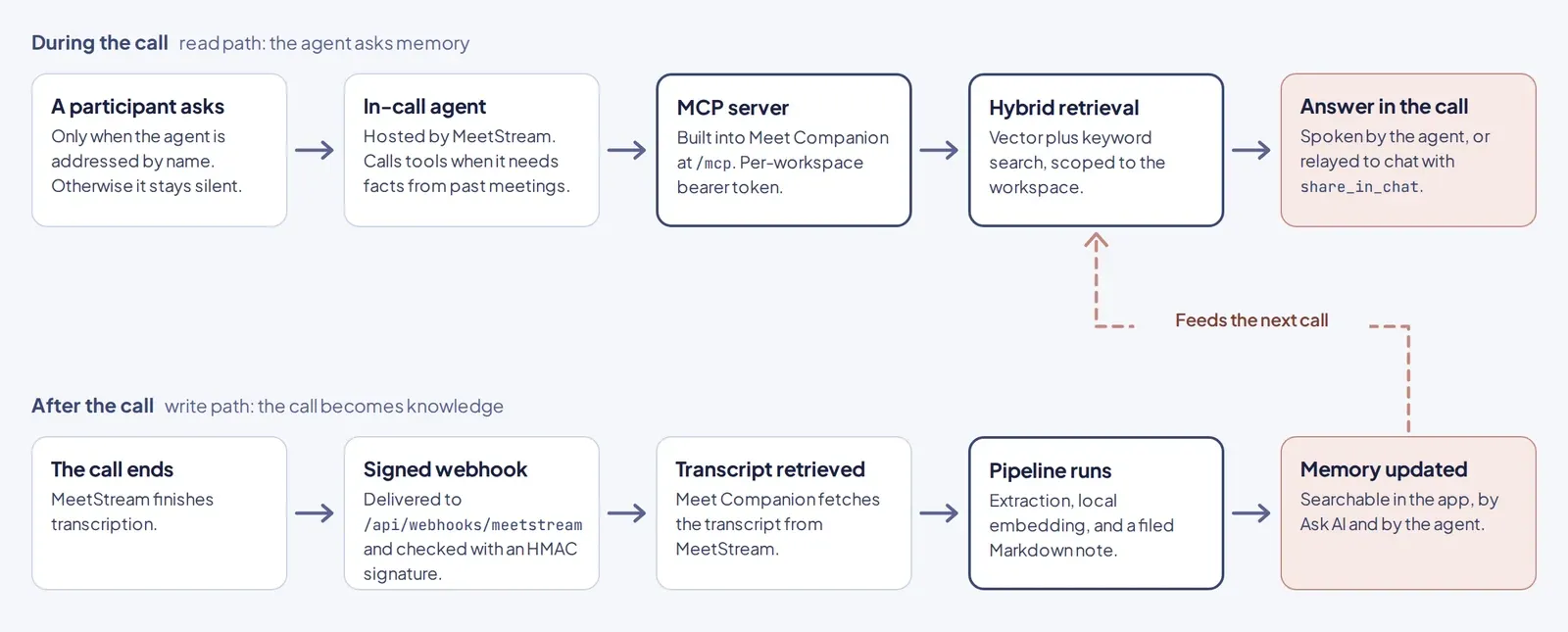
A few details matter for safety and setup:
- The agent's MCP tools are authenticated with a per-workspace bearer token.
- Its write tools, which create notes and action items from what people say, can be switched off by owners to keep the agent read-only.
- MeetStream must be able to reach your server for webhooks (
/api/webhooks/meetstream) and the agent's tool calls (/mcp), so a laptop needs a public URL or tunnel while a bot is in a call.
The wake-word pattern is not unique to this project. MeetStream's guides on building a hello world voice agent and a Hermes Agent meeting integration cover the same idea from the API side.
How the Pieces Fit Together
Under the interface, Meet Companion follows one rule: no vendor in the application layer. Requests pass through an auth gate and a per-workspace permission check, then into services for extraction, embeddings and retrieval. Only the provider layer knows which LLM or database you chose.
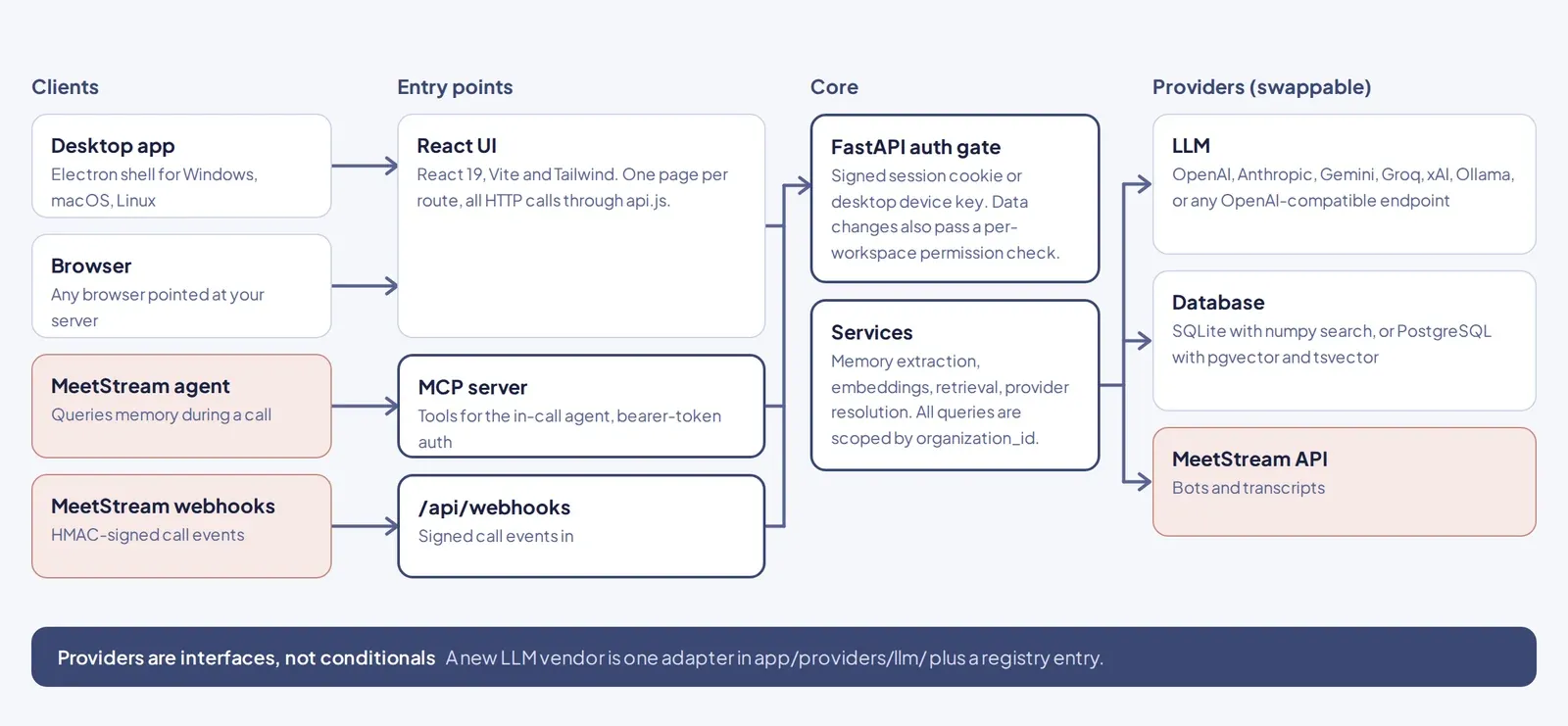
Providers are interfaces, not conditionals. A new LLM vendor is one adapter plus a registry entry, and switching databases is a change to DATABASE_URL, because only similarity and keyword search differ between them. Every query is scoped to the caller's workspace in the repository layer, so there is no path that reads a row by ID alone.
Where Self-Hosted Meeting Memory Fits in the Market
Teams that want meeting memory generally end up with one of three approaches. The tradeoffs are real, and none wins everywhere.
| Hosted notetaker | DIY pipeline | Self-hosted knowledge base | |
|---|---|---|---|
| Setup effort | Lowest | Highest: you build capture, extraction, indexing and UI | Moderate: install and configure |
| Where data lives | Usually the vendor's cloud | Wherever you build it | Your database and your machine |
| Model choice | Set by the vendor | Yours | Yours, including local models |
| Cross-meeting search | Varies by product | Whatever you build | Built in |
| Best when | Speed matters most | You need full control and have engineers to spare | You want ownership without building everything |
Two patterns sit underneath all of this. Retrieval-augmented generation, meaning fetch relevant text and let the model answer from it, is the standard way to make an LLM answer from private data. And MCP is becoming a common way to expose that data to agents as tools, which is how the in-call recall above works.
Capture is the third decision. A bot joins as a visible participant and records server-side. Desktop capture records quietly on one device. The tradeoffs are covered in MeetStream's guide to botless recording versus meeting bots. Meet Companion uses the bot path for live calls and accepts pasted or uploaded transcripts for everything else.
Self-hosting has costs, and it is worth naming them:
- Desktop builds are unsigned for now. Windows shows a SmartScreen warning, and macOS needs a right-click and Open on first launch. Code signing is on the roadmap.
- You own uptime. A bot can only deliver results to a server that is reachable.
- Changing the embedding model requires re-indexing, and that feature is still on the roadmap.
- Sign-up is open to anyone who can reach the server unless you turn it off.
How MeetStream Fits In
Meet Companion does not replace capture. It sits on top of it. MeetStream sends a bot into Zoom, Google Meet or Microsoft Teams through one meeting bot API, hosts the audio and transcription, and delivers events by webhook. Meet Companion turns what comes back into memory you own.
That division keeps each side simple. MeetStream handles the platform-specific work of joining calls. Meet Companion handles extraction, indexing, search and answers. In the dashboard screenshot above, meeting notes list Meet Companion as a participant, the same name the agent answers to.
You only need MeetStream to send a bot into a call. Upload, search and Ask AI work without it. When you do connect it, each member adds their own MeetStream API key, so bots bill to the person who launched them.
If you are building something similar, three MeetStream resources are worth reading first:
- The guide to creating your first bot in the documentation.
- The article on speaker labels in transcription, since a knowledge base is only as good as knowing who said what.
- The comparison of webhooks versus polling for real-time meeting data.
How to Put a Meeting Knowledge Base to Work
Set It Up in Five Steps
This is one path through the setup, not the app's own first-run wizard.
- Install. Download the latest release for Windows, macOS or Linux, or run Docker.
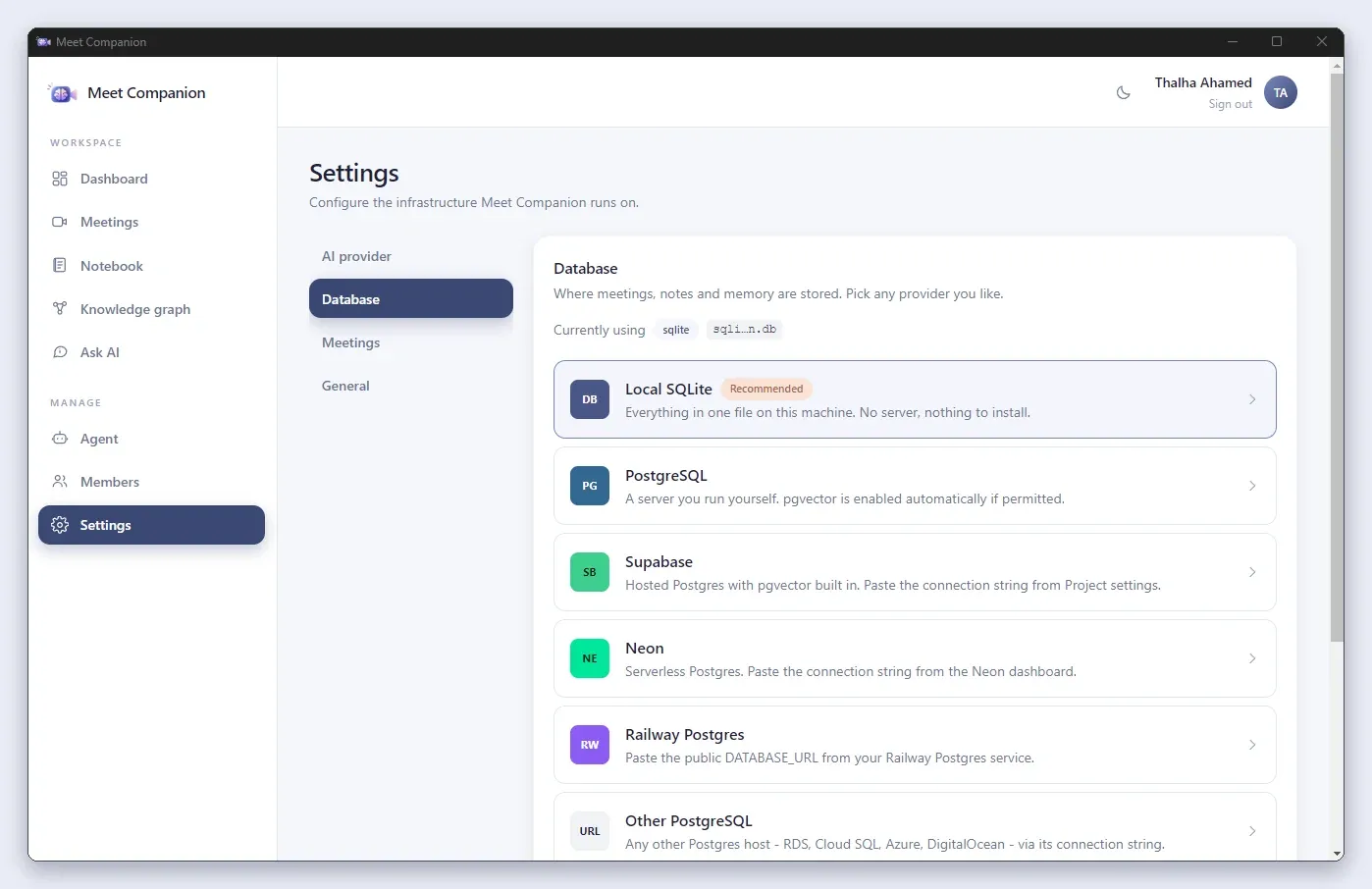
- Choose your AI and database. Local SQLite plus a local Ollama model needs no keys and keeps everything on your machine. For a shared team, point
DATABASE_URLat PostgreSQL. - Connect MeetStream. Add your API key under Settings, then Meetings, along with a webhook signing secret. Use the same secret on both sides.
- Make your server reachable. Set
MCP_SERVER_URLto your public/mcpaddress. On a laptop, use a tunnel. - Create or activate the agent. Re-activate it whenever the URL changes, because that is what re-points its wiring.
Then feed it history. Paste or import old transcripts and upload reference documents so the first question you ask already has something to find.
# Desktop or self-hosted, SQLite
docker compose up -d
# App on http://localhost:8000

# With a pgvector PostgreSQL alongside
docker compose --profile postgres up -d

# Expose the server while a bot is in a call (development)
cloudflared tunnel --url http://localhost:8000
The settings you will touch most often:
| Variable | Default | Purpose |
|---|---|---|
LLM_PROVIDER / LLM_MODEL / LLM_API_KEY |
From Settings | The AI used for extraction and Ask AI |
DATABASE_URL |
Local SQLite | postgresql://... for a shared or hosted database |
MEETSTREAM_API_KEY |
Per member | Lets the app send bots into calls |
MCP_SERVER_URL |
None | Public URL MeetStream reaches your server on |
ALLOW_SELF_SIGNUP |
true |
Set to false on a public server so only owners add members |
An environment variable that is set always wins over a value saved in the UI, which keeps containers reproducible.
How Teams Share Meeting Knowledge Safely
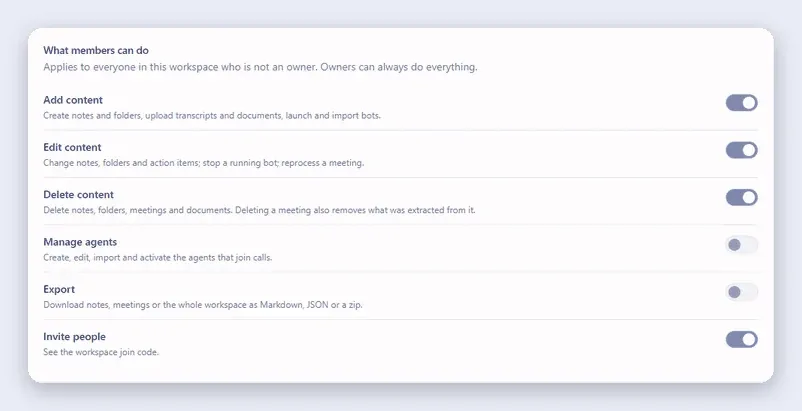
Everything in Meet Companion belongs to a workspace, and members of a workspace share it while never seeing other workspaces. A join code is a request, not a key: someone who uses it sees nothing until an owner approves them. Owners also decide what members may add, edit, delete, export, invite and manage.
Know what leaves your machine before you share it:
| Component | What it receives | When |
|---|---|---|
| Your LLM provider | Full transcript of each processed meeting, plus note excerpts for Ask AI | Only if you use a cloud provider. With Ollama, nothing leaves |
| MeetStream | Hosts the bot, audio and transcription, and stores the agent configuration including the MCP token | Only when you send a bot into a call |
| Hugging Face | A one-time download of the embedding model | First use |
Embeddings are computed locally and never leave the machine. Two cautions apply. API keys are stored in plaintext, in data/config.json and in the database, so protect the data directory the way you would protect a .env file. And sign-up is open to anyone who can reach the server, so set ALLOW_SELF_SIGNUP=false or put the server behind your own authentication proxy.
Habits That Make the Knowledge Base Better
These are suggestions, not app features. They cost little and improve what gets extracted.
- Say owners and dates out loud. "Marcus owns the export job, due Friday" gives the extractor something to capture.
- Name projects and customers consistently. They become graph nodes and search terms.
- Review the first few extractions. Fix anything wrong early so you learn how your model behaves.
- Open the sources. Use answers as a starting point, especially for anything customer-facing.
- Import history. A knowledge base with three meetings in it will disappoint you. One with three months does not.
Conclusion
A transcript archive tells you what was said. An AI meeting knowledge base tells you what was decided, who owns it and where it came from, and it answers in seconds instead of an afternoon. Meet Companion builds that from your calls with structured extraction, local embeddings, hybrid search, grounded answers, a knowledge graph and an in-call agent, all on infrastructure you control.
Your meetings shouldn't disappear when the call ends. Meet Companion turns them into searchable knowledge that your team, and your agents, can use. MeetStream provides the capture layer that makes the live-call path possible. To send your first bot into a call and point Meet Companion at it, read the MeetStream documentation.
Frequently Asked Questions
Can an AI assistant remember decisions across meetings?
Yes, if decisions are stored outside the model's context window. Meet Companion saves them as searchable memories when a meeting is ingested, so the assistant looks them up in later calls instead of recalling them. Check the linked sources, since accuracy depends on the transcript and your model.
How can I search across all my meeting transcripts?
Put them all in one workspace, either from bot captures or by pasting and uploading old transcripts, then use the app's search or Ask AI. Both search by meaning and keywords across every meeting. Uploads and search work without MeetStream.
Can AI extract decisions and action items from meetings?
Yes. Your chosen LLM extracts decisions, action items and other memory types, with owners and due dates where they were spoken. If it fails, a rule-based fallback runs and you can reprocess later. Review the results, since quality depends on how clearly things were said.
Can an AI meeting assistant provide source-backed answers?
Yes. Ask AI answers from your notes, meetings and uploaded documents and lists the sources it used, so you can open the original. The project is designed to answer only from what you have captured. Verify anything important against the linked source.
How can teams securely share meeting knowledge and action items?
Use a shared workspace on one PostgreSQL database. Members join with a code that owners must approve, and owners control who can add, edit, delete, export and invite. On a public server, set ALLOW_SELF_SIGNUP=false, protect the data directory because API keys are stored in plaintext, and remember that a cloud LLM provider receives your transcripts unless you run a local model.