
Record Google Meet Programmatically: API Guide with Code

You can record a Google Meet call programmatically by using a Google Meet recording API to send a headless bot into the meeting as a participant. The bot joins via the meeting link and captures audio and video streams directly from the call. This server-side method avoids screen scraping and provides a reliable way to automate recording and data extraction for your application.
This approach is fundamentally different from using Google's native recording feature, which is designed for manual use by individuals and requires a specific Google Workspace license. An API gives you programmatic control over when to record, what data to capture, and where to send it, making it suitable for building scalable products on top of meeting data. MeetStream is an agent-first voice infrastructure platform that provides this API, enabling bots to join, listen, and act in meetings.
The core of the system is a single API call to deploy a bot. From there, your application receives a series of webhooks detailing the bot's lifecycle, from joining the call to the final transcript being ready. This allows for building reliable, event-driven workflows for applications like AI notetakers, sales coaching platforms, or compliance monitoring systems.
Why Programmatic Recording is Necessary
Google Meet's built-in recording feature is useful for personal archiving but presents several limitations for developers. First, it requires a paid Google Workspace account, such as Business Standard, Business Plus, or Enterprise. Free personal Google accounts cannot initiate recordings. Second, the recording must be started and stopped manually by the meeting host or a co-host, which is not a scalable solution for automated workflows.
Programmatic access to these native recordings is also indirect and complex. After a meeting, a link to the video file is saved in the host's Google Drive. To access it, your application would need to use the Google Drive API, handle OAuth permissions for each user, and poll for the new file. Once downloaded, you would still need to run the video through a separate transcription service. This multi-step process is brittle and depends on human action.
A programmatic approach using a recording bot solves these issues. It works with any Google Meet link, regardless of the host's account type, and requires no manual intervention during the call. The entire process, from recording to transcription, is managed through a single, unified API.
How a Google Meet Recording Bot Works
A recording bot is a server-side participant that you control via an API. When you send a request with a meeting URL, the bot joins the call just like a human participant. Once inside, it has access to the meeting's audio and video streams. It captures this data and sends it for processing after the call ends.
Under the hood, the bot establishes a connection to the meeting and captures the media. For Google Meet, this provides per-participant audio and video streams. This is different from a simple screen recording, as it provides structured data ideal for analysis. The bot appears in the participant list with a name you specify, making its presence clear to attendees.
One of the main advantages of this method for Google Meet is the simple setup. Unlike other platforms like Zoom that require creating and configuring an app in their marketplace, you can start sending bots to Google Meet calls immediately after getting an API key. This removes a significant layer of administrative overhead.
Step-by-Step: Recording a Call via API
The entry point for recording a call is the create_bot endpoint. You send a POST request containing the meeting_link and a callback_url for receiving webhook events. The API handles the rest.
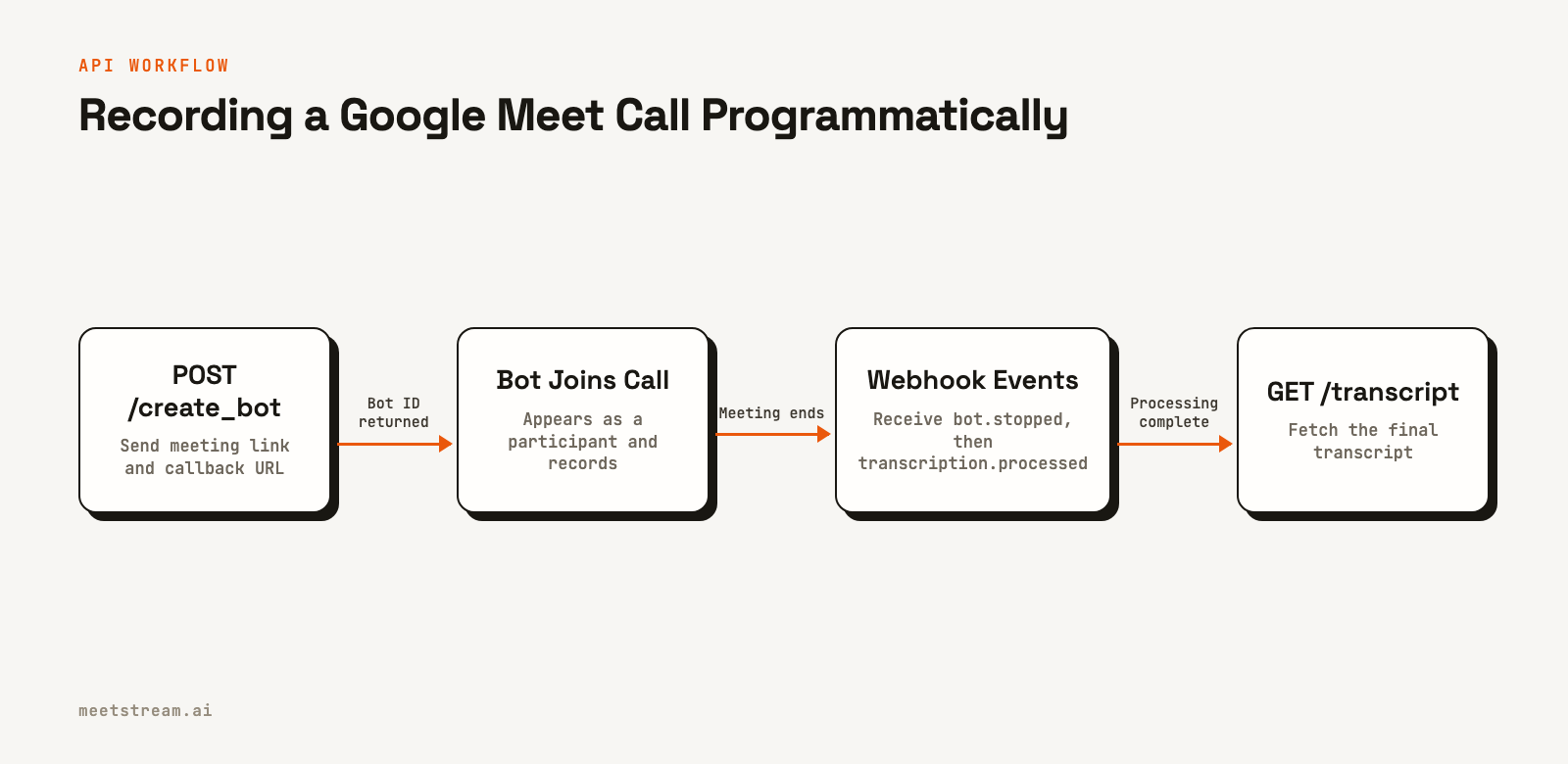
Here is a minimal example using cURL to send a bot to a Google Meet call and request a transcript using MeetStream's in-house provider.
curl -X POST "https://api.meetstream.ai/api/v1/bots/create_bot" \
  -H "Authorization: Token <YOUR_API_KEY>" \
  -H "Content-Type: application/json" \
  -d '{
    "meeting_link": "https://meet.google.com/abc-defg-hij",
    "bot_name": "Meeting Recorder",
    "callback_url": "https://your-app.com/webhooks/meetstream",
    "recording_config": {
      "transcript": {
        "provider": {
          "meetstream": {}
        }
      }
    }
  }'
The API will respond with a bot_id and confirms the bot is being deployed. You should store the bot_id and the transcript_id to retrieve data later.
{
  "bot_id": "604c0a0b-973d-4eb1-a5bf-2c7513f6bbe0",
  "transcript_id": "f1b2c3d4-e5f6-4a9b-8c7d-6e5f4a3b2c1d",
  "meeting_url": "https://meet.google.com/abc-defg-hij",
  "status": "Active"
}
The recording_config object is where you define post-call processing. In this example, we specified meetstream as the transcription provider. You can also use other integrated providers like deepgram or assemblyai. If you only need audio and transcription, setting video_required: false in the request body can reduce processing time.
Handling the Webhook Event Lifecycle
Building a reliable recording application requires handling a sequence of events sent to your callback_url. Your server should be prepared to receive these POST requests and respond quickly with a 2xx status code to acknowledge receipt.
The primary success path for a recorded meeting follows this event sequence:
- bot.joining: The bot is attempting to connect to the meeting URL.
- bot.inmeeting: The bot has successfully joined the call and recording has started. This is your confirmation that the capture is active.
- bot.stopped: The bot has left the meeting. This can happen because the meeting ended, the bot was removed, or it left due to an inactivity timeout.
- audio.processed / video.processed: These events fire as the raw media files become available.
- transcription.processed: The transcript is complete and ready for retrieval. You should wait for this event before attempting to fetch the transcript.
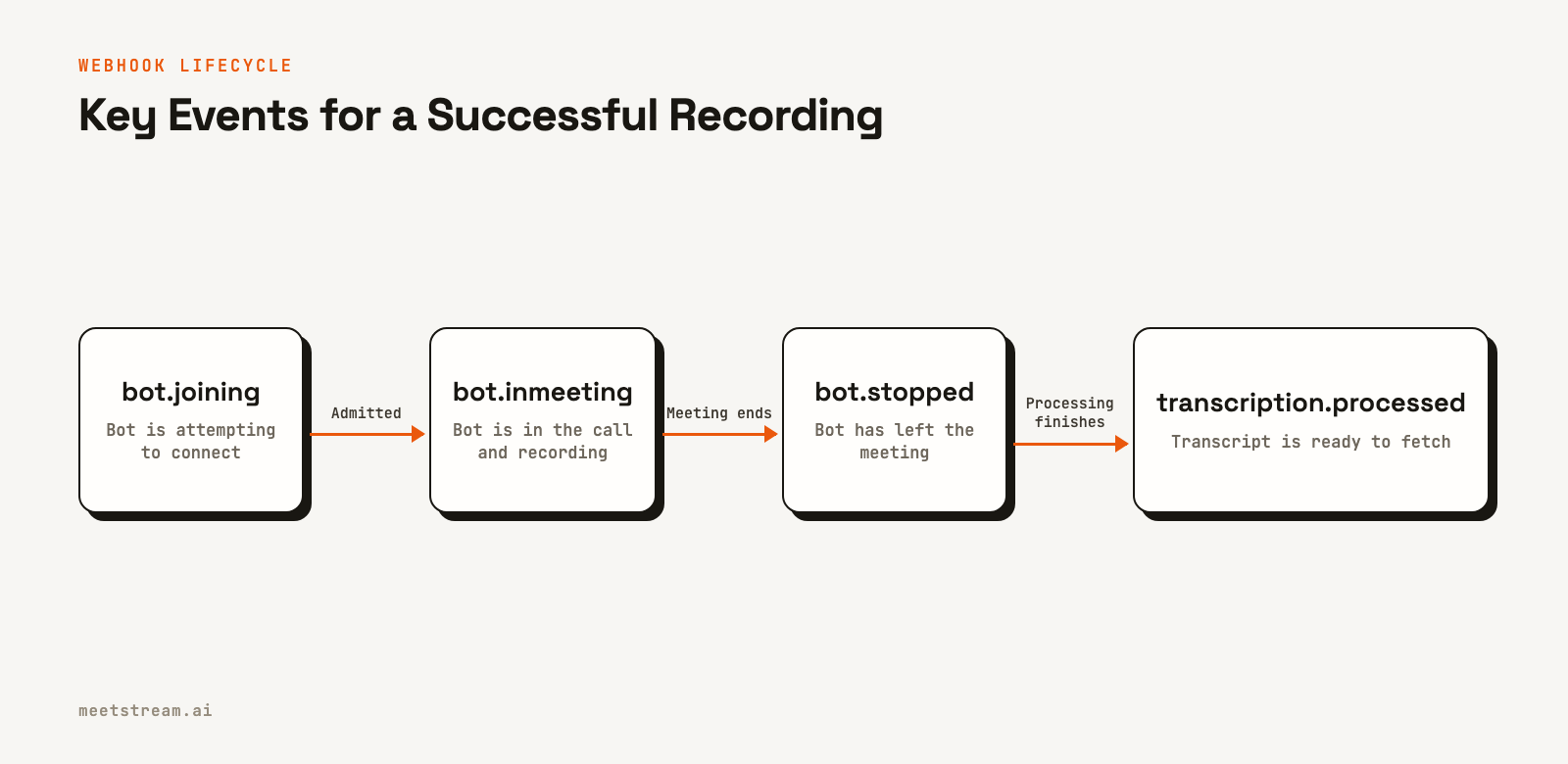
It is important to parse the bot_event field in the webhook payload to determine the event type. Here is an example payload for the bot.stopped event:
{
  "bot_event": "bot.stopped",
  "bot_id": "604c0a0b-973d-4eb1-a5bf-2c7513f6bbe0",
  "bot_status": "Stopped",
  "message": "Bot has stopped.",
  "status_code": 200,
  "timestamp": "2026-02-27T08:15:30+00:00",
  "custom_attributes": {}
}
You should also handle failure events. For example, if the bot is not admitted from the waiting room, you will receive a bot.notallowed event. If it is kicked from the call, you will receive a bot.kicked event. Designing your application to handle these distinct events is key to building a reliable system.
Retrieving Recordings and Transcripts
After you receive the transcription.processed webhook, you can fetch the final transcript using the transcript_id returned in the initial API call.
To get the transcript, make a GET request to the transcript endpoint:
curl -X GET "https://api.meetstream.ai/api/v1/transcript/f1b2c3d4-e5f6-4a9b-8c7d-6e5f4a3b2c1d/get_transcript" \
  -H "Authorization: Token <YOUR_API_KEY>"
The response will be a JSON object containing the full, speaker-diarized transcript with timestamps for each word. This structured data can be used to power search, generate summaries, or extract action items.
Similarly, you can download the audio and video files using the bot_id. The endpoints GET https://api.meetstream.ai/api/v1/bots/{bot_id}/get_audio and GET https://api.meetstream.ai/api/v1/bots/{bot_id}/get_video return a JSON object containing a presigned URL. You download the media file from this URL for storage or further processing.
Common Pitfalls and Best Practices
When building with a recording bot, there are a few practical considerations. First, the bot always appears as a participant in the meeting list with the bot_name you provide. Using a clear and descriptive name like "Notetaker by YourApp" helps avoid confusion for other participants.
If a Google Meet call has a waiting room enabled, the bot will need to be admitted by a host. If it is not admitted, you will receive a bot.notallowed event. Your application should have logic to handle this state, either by notifying the user or by attempting a retry if appropriate.
Finally, webhook handlers should be designed to be fast and idempotent. Acknowledge the event by returning a 200 OK response immediately, and then process the payload asynchronously in a background queue. This prevents timeouts. Workspace webhooks are signed and logged, and you can resend any delivery from the dashboard. You can also read the bot's current state by calling GET /api/v1/bots/{bot_id}/status if you suspect an event was missed.
How MeetStream Fits In
MeetStream provides the managed infrastructure for deploying bots into Google Meet, Zoom, and Microsoft Teams. Instead of building and maintaining a fleet of headless browsers, you can use a single, reliable meeting bot API. The platform handles the complexities of joining calls, capturing high-quality media, and processing the data, allowing you to focus on your application's core features.
The API is designed to be a unified interface across all major meeting platforms. The same create_bot call works for a Google Meet link, a Zoom link, or a Teams link. This simplifies development for applications that need to support users across different communication tools. For fully automated scheduling, the Google Calendar integration can automatically deploy bots to upcoming events.
Conclusion
For developers who need to record Google Meet calls programmatically, a bot-based API is a more scalable and reliable solution than relying on native recording features. It removes dependencies on user licenses and manual actions, providing full control over the data capture process. By sending a bot to a meeting, you can reliably get structured audio, video, and transcript data to power your application. The process is straightforward: call the API to create a bot, handle the lifecycle events via webhooks, and then fetch the processed data.
See the full API reference at docs.meetstream.ai.
Related guides
- How to Build a Google Meet Bot With Puppeteer, Step by Step
- Record a Microsoft Teams Meeting Programmatically (API Guide)
- AI Voice Agents for Zoom, Meet and Teams
Frequently Asked Questions
How do I record Google Meet without a Google Workspace account?
You can use a third-party recording bot API like MeetStream. The bot joins the meeting as a participant and captures the audio and video, which bypasses the Google Workspace license requirement for native recording. This works for any meeting, whether you are the host or an attendee.
Does the Google Meet recording bot API require any special setup?
No, MeetStream's API for Google Meet requires no platform-specific setup. You can start sending bots to Google Meet URLs as soon as you have an API key. This is simpler than the process for Zoom, which requires setting up an application in their App Marketplace.
How long does it take to get a Google Meet transcript after the meeting?
For a typical hour-long meeting, the transcript is usually available within a few minutes after the call ends. You will receive a transcription.processed webhook event as soon as it is ready. For very long meetings, processing may take slightly longer.
Can I record a Google Meet that I'm not hosting?
Yes, a recording bot can join and record any Google Meet call it has a link to, regardless of who is hosting. The bot will appear in the participant list. If the meeting has a waiting room enabled, a host will need to admit the bot into the call.
What transcription providers are available for Google Meet recording?
MeetStream integrates with several transcription providers, including our own in-house model, Deepgram, and AssemblyAI. You can specify your preferred provider in the recording_config object when you create the bot, allowing you to choose the best fit for your application's accuracy and language requirements.


