
Build a Grok Meeting Agent for Zoom, Meet and Teams
Build a Grok meeting agent with the MeetStream API: xAI models, context per meeting, MCP tools and task tracker updates on Zoom, Meet and Teams.

When xAI's @bot account announced on 13 November 2026 that Grok Bot can join meetings, the people who build software asked a different question from everyone else. "How is this done? Can a bot be created just for this?" "Tell me what the features are and how to implement them." "Can you switch any model of choosing and context with your meeting integration?" They did not want Grok in their own calls. They wanted a Grok meeting agent API they could put in their own product.
Grok Bot is not that. As of 13 November 2026 it is a workspace assistant that joins Google Meet, Zoom and Microsoft Teams from your chat with it, answers in the meeting chat, and writes a summary afterwards. Its documentation lists no API or SDK for meetings. That is fine for a team assistant, and it means the answer to "how is this done" for a developer is a different stack.
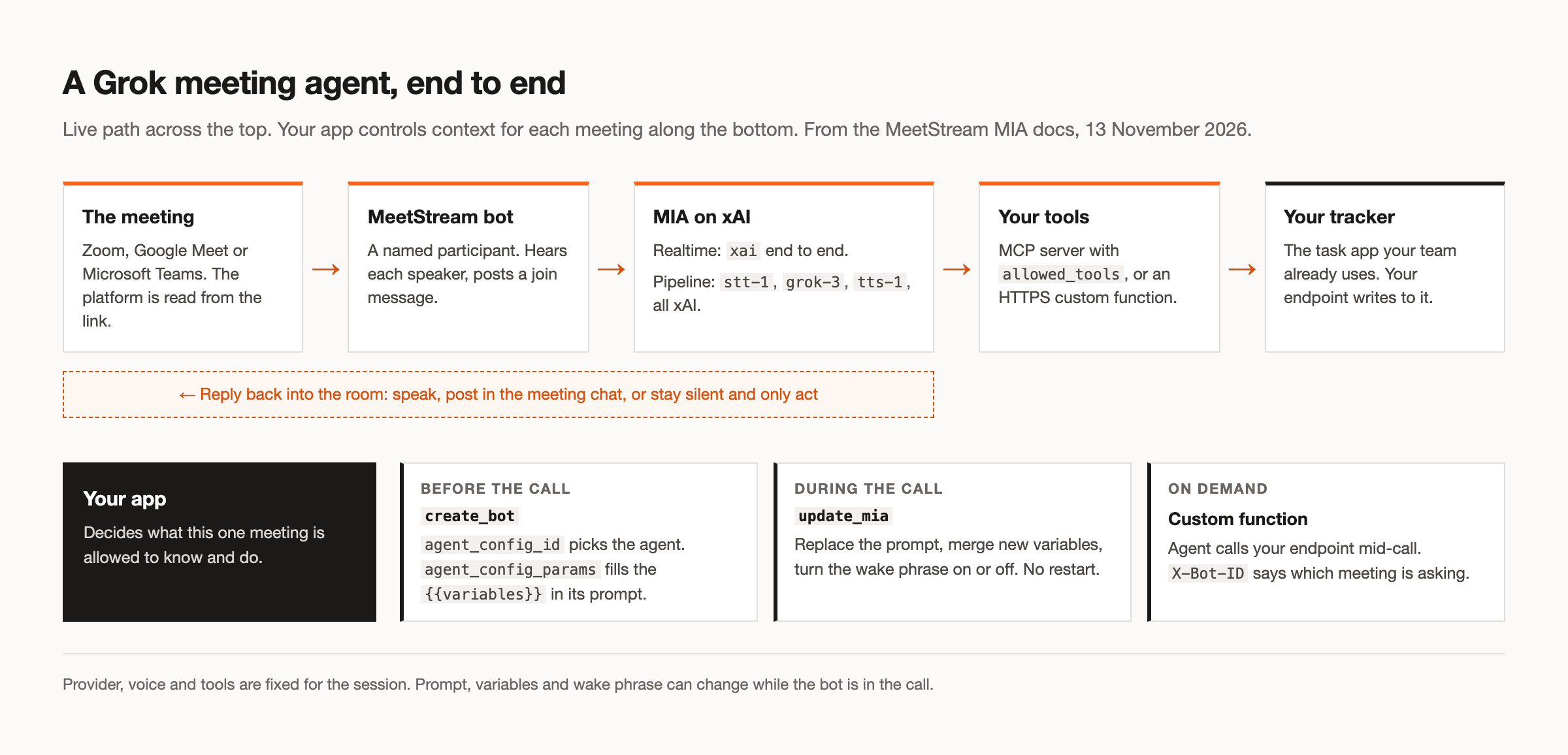
The stack has three layers. A meeting bot that can join all three platforms. An agent runtime that hears the call, reasons with the model you choose, and replies by voice, chat or silent action. And your own code, which decides what each meeting's agent knows and which tools it can touch. MeetStream provides the first two, and xAI is one of the model providers.
In this guide we will cover the architecture, saving a Grok agent config, sending it into a meeting with its own context, changing that context mid-call, connecting tools so decisions land in your task tracker, choosing chat, voice or silent per meeting, and the consent questions that come with customer calls. Let's get into it.
What a Grok meeting agent API looks like
Here is how it works. You create a bot with a meeting link. MeetStream reads the platform from the link and joins Zoom, Google Meet or Microsoft Teams as a participant with the name you chose. Because the bot carries an agent config, the in-meeting agent runtime, called MIA, receives the live audio, runs it through Grok, and sends the reply back into the room.
When the agent needs to do something outside the conversation, it calls a tool: an MCP server you connect, or an HTTPS endpoint you host, registered as a custom function. That endpoint can write to whatever your team already uses, including a task tracker.
Your app sits underneath all of it. It picks which agent goes into which meeting, fills that meeting's context at creation time, and can change the context while the call is running. That last layer is the difference between a workspace assistant and a product feature, and it is where most of the design work goes.
Step 1: Save a Grok agent config
An agent config is a saved definition: the mode, the model, the voice, the prompt, the reply mode and the tools. You create it once with POST /api/v1/mia and reuse it for every meeting. Provider keys stay out of the config. You add your xAI key once in the dashboard under Integrations, and MIA resolves it when a session starts.
Grok can run two ways. In realtime mode you set the provider to xai and MeetStream selects the xAI realtime model; you choose a voice such as Ara. It is the lowest-latency mode, but the wake phrase is off. In pipeline mode you choose each stage, and with xAI for all three you get stt-1 for transcription, grok-3 as the model and xAI's tts-1 voice. Pipeline is the right default for a shared meeting, because the wake phrase, adaptive barge-in and speaker-aware replies are pipeline features.
The system prompt is where per-meeting context starts. Both system_prompt and first_message accept {{variable}} placeholders, so the saved config describes the job and leaves blanks for the details of each call.
Step 2: Send it into a meeting with its own context
This is the whole integration in one place: the agent config, saved once, and the create-bot request that sends it into a specific meeting with that meeting's context.
POST https://api.meetstream.ai/api/v1/mia
{
  "agent_name": "Scribe",
  "mode": "pipeline",
  "transcriber": { "provider": "xai", "model": "stt-1" },
  "model": {
    "provider": "xai",
    "model": "grok-3",
    "system_prompt": "You are Scribe for {{team_name}}. Agenda: {{agenda}}. When the group agrees an action item, call add_task. Answer only when addressed."
  },
  "voice": { "provider": "xai", "voice_id": "ara" },
  "wake_word": { "enabled": true, "words": ["scribe"] },
  "agent": {
    "response_modality": "chat",
    "custom_functions": [{
      "name": "add_task",
      "description": "Add one agreed action item to the team's task tracker.",
      "url": "https://your-app.example.com/tools/add-task",
      "headers": { "Authorization": "Bearer <TASKS_TOKEN>" },
      "parameters": {
        "type": "object",
        "required": ["title"],
        "properties": { "title": { "type": "string" }, "owner": { "type": "string" } }
      }
    }]
  }
}

POST https://api.meetstream.ai/api/v1/bots/create_bot
{
  "meeting_link": "<YOUR_MEETING_LINK>",
  "agent_config_id": "<AGENT_CONFIG_ID>",
  "agent_config_params": { "team_name": "Platform", "agenda": "Q1 roadmap cut" }
}
Both requests use Authorization: Token <YOUR_API_KEY>. The first returns an agent_config_id. The second fills the placeholders before the session starts, so Grok receives a prompt about this team and this agenda, and nothing else. A placeholder you do not fill is left as written, which is easy to spot in testing.
That answers "can a bot be created just for this?" Yes: one config for the job, one create-bot call per meeting. The create-bot request also takes a bot_name for the participant list and a bot_message that posts in the meeting chat when the bot joins. With an agent attached, MeetStream fills in the audio and control connections for you, and the same request works on all three platforms.
Step 3: Change the context during the call
Meetings drift. The agenda changes, a new account comes up, or the call moves from discussion to decisions. POST /api/v1/bots/{bot_id}/update_mia handles that without restarting the agent. It can replace the active system_prompt, merge new agent_config_params, switch the wake phrase on or off with wake_word_enabled, and replace the phrases with wake_words.
A few things to keep in mind. The update is accepted asynchronously, so a success response means the command was forwarded, not that the agent has already applied it. Live changes last for the current session only; to keep a change for future meetings, update the saved config with PUT /api/v1/mia. And the provider, voice and tools are fixed for the session. If a meeting needs a different model or toolset, that is a different agent config, chosen when you create the bot.
For context the agent should fetch on demand rather than carry from the start, use a custom function. MeetStream adds an X-Bot-ID header to each call, so your endpoint knows which meeting is asking and can return only that meeting's data. Fields you capture with response_variables stay available for the rest of the session. Our post on context control covers each of these controls in more depth.
Step 4: Give it tools, and push decisions to your tracker
One reply asked: "Can it push the decisions straight into Todoist after the call?" Yes, with one clarification. Todoist is your tool, not a MeetStream integration. You connect it the same way you would connect any tracker, through one of two routes.
The first is a custom function, as in the example above. You host a small HTTPS endpoint that takes a task title and owner and writes it to Todoist, Linear, Jira or whatever your team uses, with a narrowly scoped token. You can register up to 20 custom functions per agent. Each has a 30 second default timeout, and you can turn on a short filler line so the room is not left in silence while the call runs. For a silent side effect, set speak_after_execution to false and the agent ends its turn without commenting.
The second is an MCP server you connect under mcp_servers. If you already run one that exposes task tools, list it with an allowed_tools whitelist so the agent can only call the tools you name, for example creating a task but not deleting a project. MCP calls have a 10 second default timeout, and by default the agent still starts without those tools if the server is unreachable, rather than failing the session.
Both routes write decisions during the call, as they are agreed. If you would rather wait until the end, listen for the bot.stopped webhook and process the transcript in your own code. And if you want an assistant to dispatch bots and read transcripts on your behalf, the hosted MCP server exposes 19 tools for that.
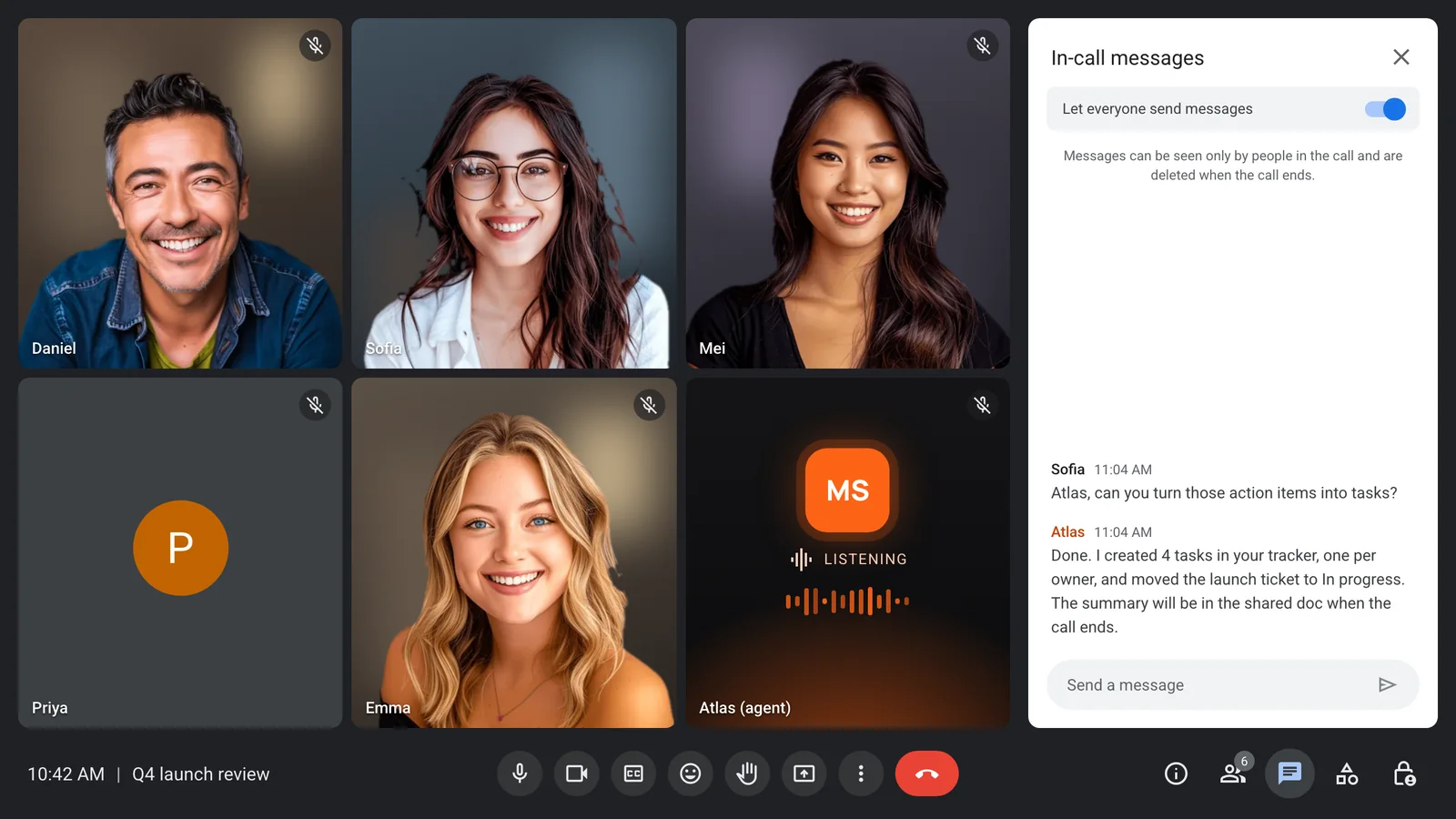
Step 5: Choose chat, voice or silent per meeting
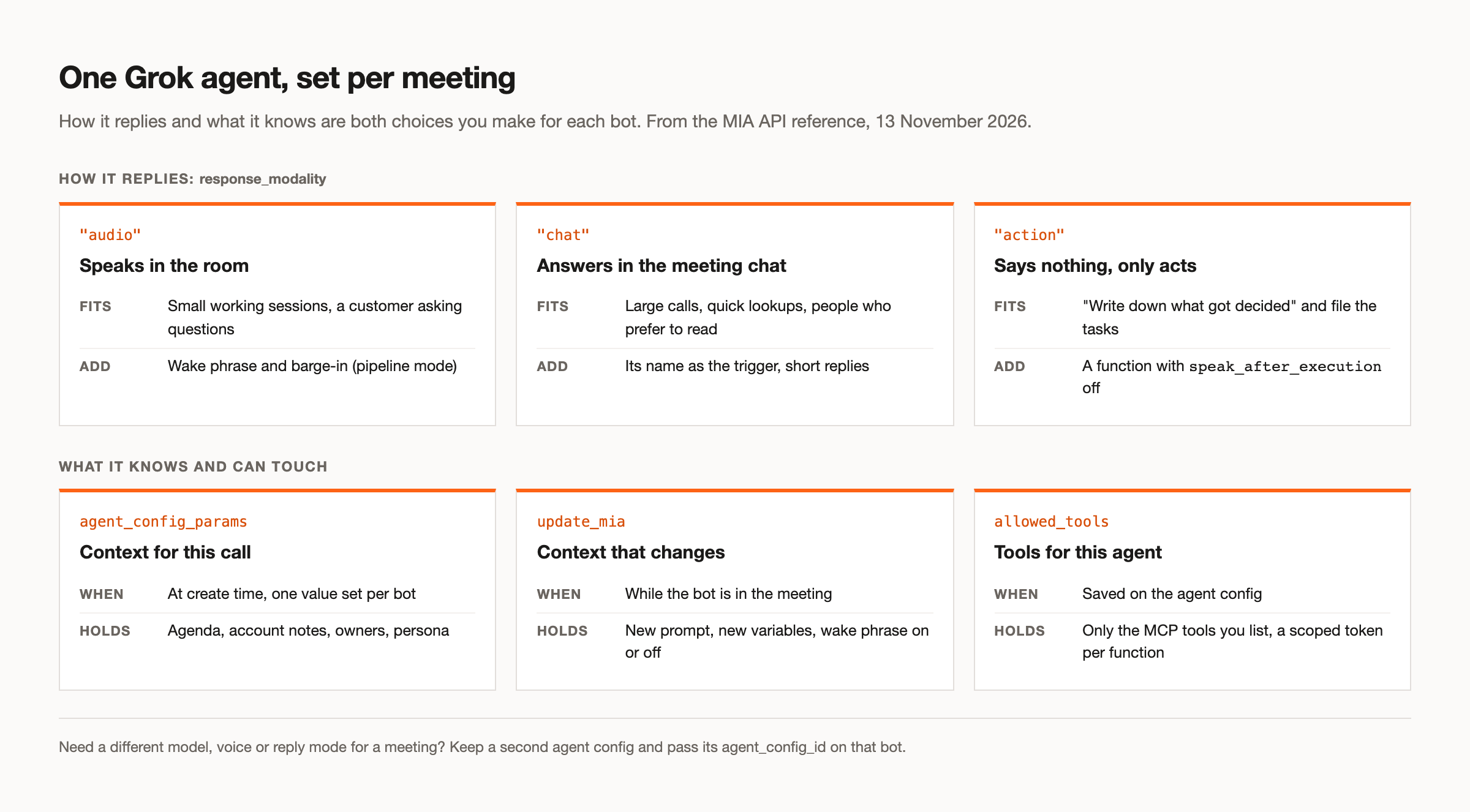
response_modality decides how the agent replies: audio speaks, chat posts in the meeting chat, and action says nothing and only calls tools. All three can use tools.
Because the reply mode lives on the agent config, the practical pattern is to keep a few configs that share a prompt template and differ in mode, then pass the right agent_config_id for each meeting. A voice agent for one-to-one working sessions and customer questions. A chat agent for large calls where a spoken interruption would cost more than it saves. An action agent for the meetings where, as another reply put it, the room does not need another voice but needs someone who writes down what got decided.
For voice in a shared room, use pipeline mode so the wake phrase can gate it. After the agent hears its phrase it stays active for a 30 second rolling window, and a small-call bypass, if you turn it on, drops the gate when only one person is in the call. Adaptive barge-in stops the agent when someone talks over it, and ignores a short "uh-huh". Our companion piece, can Grok speak, covers what voice needs in more detail.
Switching models, or switching an existing bot to Grok
Another reply asked us directly: "can you switch any model of choosing and context with your meeting integration?" Yes. The model is chosen per agent, and the context per meeting. MIA supports OpenAI, Anthropic, Google and xAI models. Realtime mode runs on OpenAI, Google or xAI; Anthropic's Claude runs in pipeline mode. In pipeline mode you can also mix stages, such as one provider for transcription and another for the model.
So "change my meetings bot to use this instead" is a small change if your bot already runs on MeetStream. Update the saved agent with PUT /api/v1/mia and set the model provider to xai, or save a new Grok config and pass its agent_config_id on the next bot. Your create-bot code, webhooks and storage stay as they are. You can run Grok for one customer and another model for the next, with each meeting's context still set by agent_config_params.
If you would rather have Grok itself send bots into calls from a chat, our guide to sending Grok in covers connecting it to the MeetStream MCP server.
Customer calls: consent and a clear name
"Join my meeting and respond to my customer" is a reasonable request, and it carries obligations. The customer did not choose your agent, so they should know it is there and what it is. Give the bot a name that says what it is, such as your product name followed by "assistant", and use bot_message to post a short notice when it joins. Our guide to bot consent covers the rest.
Then scope it. Load only that customer's notes through agent_config_params, give it only the tools the call needs, and keep recordings in your own storage with a retention period set on the bot. In pipeline mode, speaker_aware_responses with a speaker_aware_prompt lets you tell the agent to take instructions only from your named team members and treat everyone else as a guest. Together with loading only that customer's context, it limits what a guest can get the agent to do.
When Grok Bot is enough
None of this is needed if what you want is Grok in your own team's calls. If you are on an eligible plan, Grok Bot joins Google Meet, Zoom and Microsoft Teams with no code, answers questions in the chat, keeps track of decisions and remembers earlier conversations. That is less work than anything in this guide.
Build when the agent belongs to your product rather than your workspace: when it needs your name in the participant list, a specific model per customer, context limited to one meeting, tools you control, or a voice now. Our Grok Bot overview compares the two in full, and the integration layer page explains why we built for the second case.
Wrapping up
A Grok meeting agent API comes down to two requests: save an agent config on xAI, then create a bot with a meeting link, that config's ID and the context for that call. Add update_mia for context that changes mid-call, a custom function or MCP server for your tracker, and a reply mode that suits the meeting. See the full API reference at docs.meetstream.ai.
Frequently asked questions
Does Grok Bot have an API for meetings?
Not as of 13 November 2026. xAI's meetings documentation describes adding the Bot from your chat with it and documents no API or SDK for meetings. To put a Grok agent into calls from your own code, run it through a meeting agent API such as MeetStream with xAI as the model provider.
How do I build a meeting bot with Grok?
Save an agent config that uses xAI, either realtime mode or a pipeline with stt-1, grok-3 and tts-1. Then call create-bot with the meeting link and the config's agent_config_id. The same request works on Zoom, Google Meet and Microsoft Teams.
Can a meeting agent use a different model for each customer?
Yes. On MeetStream the model is set per agent config, so you can keep a Grok config and an OpenAI, Anthropic or Google config side by side and pass whichever agent_config_id fits each meeting. Context is set per bot with agent_config_params.
Can an AI meeting agent create tasks during the call?
Yes, through a tool. Register an HTTPS endpoint as a custom function, or connect an MCP server with an allowed_tools whitelist, and the agent can create tasks in your tracker as decisions are agreed. In action mode it does this without speaking or posting in the chat.
Can I change what the agent knows in the middle of a meeting?
Yes. update_mia replaces the system prompt, merges new template variables and switches the wake phrase on or off without restarting the agent. The provider, voice and tools stay fixed for the session.


