
How to Send Grok Into a Meeting on Your Behalf
Learn how to put Grok in a live meeting with a bot API, using realtime mode for low latency replies on Zoom, Google Meet and Microsoft Teams.

Updated 13 November 2026.
Grok's realtime mode is built for fast back and forth, which is the right shape for something that has to keep up with people talking.
On 12 November 2026 Anthropic shipped Claude Meetings, where Claude joins a Google Meet call as a visible participant and builds notes and artifacts while people talk, in beta on Team and Enterprise plans. It gave everyone a clear picture of what an in-meeting agent looks like. It also showed the limits of building that as a feature: one platform, one vendor's plans, output in one place.
Low latency matters more in a meeting than almost anywhere else, because a reply that arrives after the subject changed is worse than no reply. This guide is how to get the same shape with Grok inside your own product, on Zoom, Google Meet and Microsoft Teams, with voice and context you set for each meeting.
You can give an AI agent like Grok the ability to join a live meeting, providing it with a real-time stream of conversation to act upon. This allows the agent to move beyond summarizing static documents and participate in dynamic discussions, taking notes, tracking action items, or answering questions as a dedicated participant.
This is possible because agents can now use external tools through standardized protocols. MeetStream is an agent-first voice infrastructure platform for meetings; our API lets you deploy bots that can join, listen, and speak in Zoom, Google Meet, and Microsoft Teams. Grok can access this API through a feature called Connectors, which act as a bridge between the agent and external services.
By connecting Grok to the MeetStream API, you give it a set of tools to control meeting bots. The agent can then use its language understanding to decide which tool to use based on your prompts. This turns a complex series of API calls into a simple conversational request.
In this guide we will cover how the integration works, what you need, the setup steps, a worked example and the rights and permissions involved. Let's get into it.
Update: Grok Bot can now join meetings itself
On 13 November 2026, xAI announced that Grok Bot can join Google Meet, Zoom and Microsoft Teams calls, on Super, Ultra, Team and Enterprise plans. You paste the meeting link into your chat with the Bot, the host admits it, and it takes notes and answers questions in the meeting chat. If you want Grok in your own team's calls, that is now the simplest route, and our Grok Bot guide covers it.
The route in this guide still fits when Grok has to work inside a product you are building, speak in the call, or get its context and tools set for each meeting through an API. For that, see how to build a Grok agent on MeetStream.
How the Grok and MeetStream Integration Works
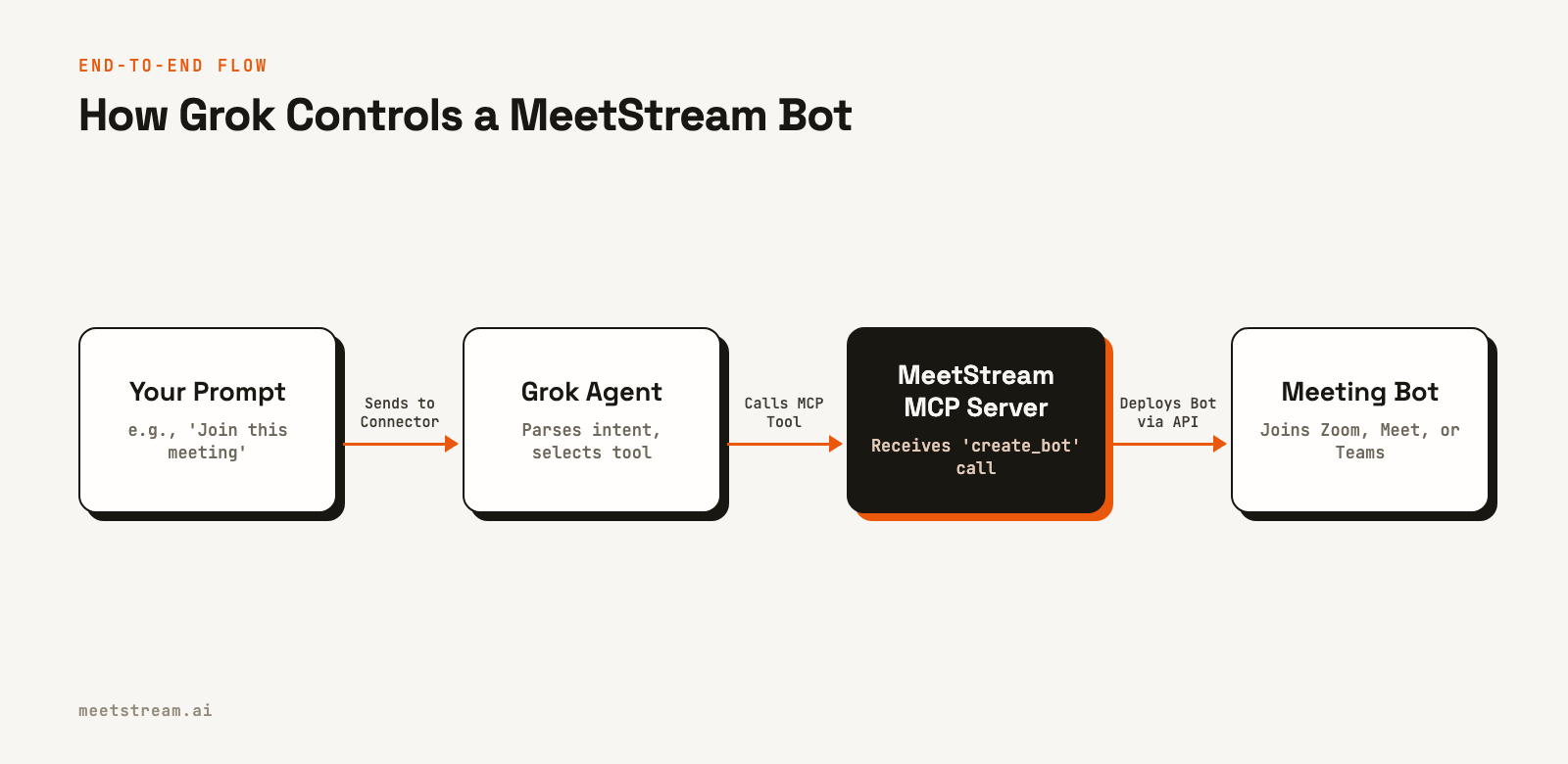
The connection between your prompt and a bot joining a call involves a few distinct layers. When you ask Grok to join a meeting, it doesn't connect to Zoom or Google Meet directly. Instead, it uses a tool you have authorized it to access.
Here's how it works:
- You give Grok a prompt in natural language.
- Grok interprets your request and determines that it needs to use an external tool from its available Connectors.
- The Grok Connector makes a standardized call to the specified tool server, in this case, the MeetStream MCP server.
- The MeetStream MCP Server receives the tool call, authenticates it, and translates it into a specific REST API request to the core MeetStream API.
- The MeetStream API executes the command, for example, deploying a new bot participant into the specified meeting URL.
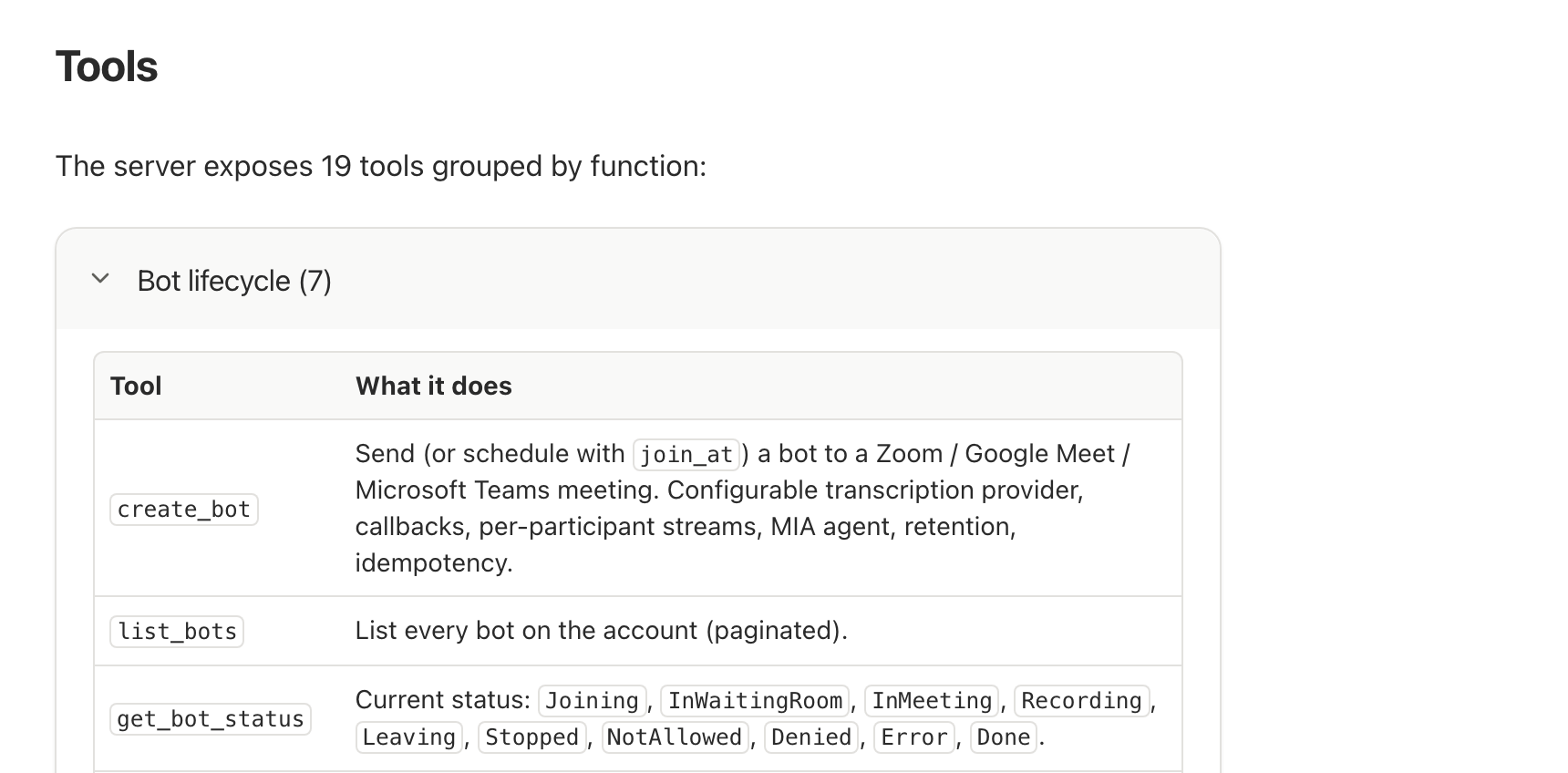
The Model Context Protocol (MCP) server is the key component here. It exposes a list of available actions, like create_bot, get_transcript, and send_chat_message, in a format that agents like Grok can understand and use. This architecture separates the agent's decision-making from the underlying complexity of meeting infrastructure.
Prerequisites: What You'll Need
Before you start, make sure you have the following three items ready. The entire setup process should take less than five minutes.
- A Grok account. You will need access to the custom Connectors feature. Check the official x.ai documentation for details on plan eligibility, as this may be limited to certain tiers.
- A MeetStream API key. If you don't have an account, you can sign up and get a free API key from the developer dashboard at
app.meetstream.ai. - A meeting link. This can be any standard Zoom, Google Meet, or Microsoft Teams meeting URL that you want the bot to join.
Step-by-Step: Connecting Grok to MeetStream
Follow these steps to configure a custom Connector in Grok that points to the MeetStream MCP server. This is a one-time setup.
Step 1: Get your MeetStream API Key
Log in to your MeetStream account and navigate to the API Keys section of the dashboard. Copy your API key to your clipboard. This key authenticates your requests to the MeetStream API.
Step 2: Open Grok Connectors
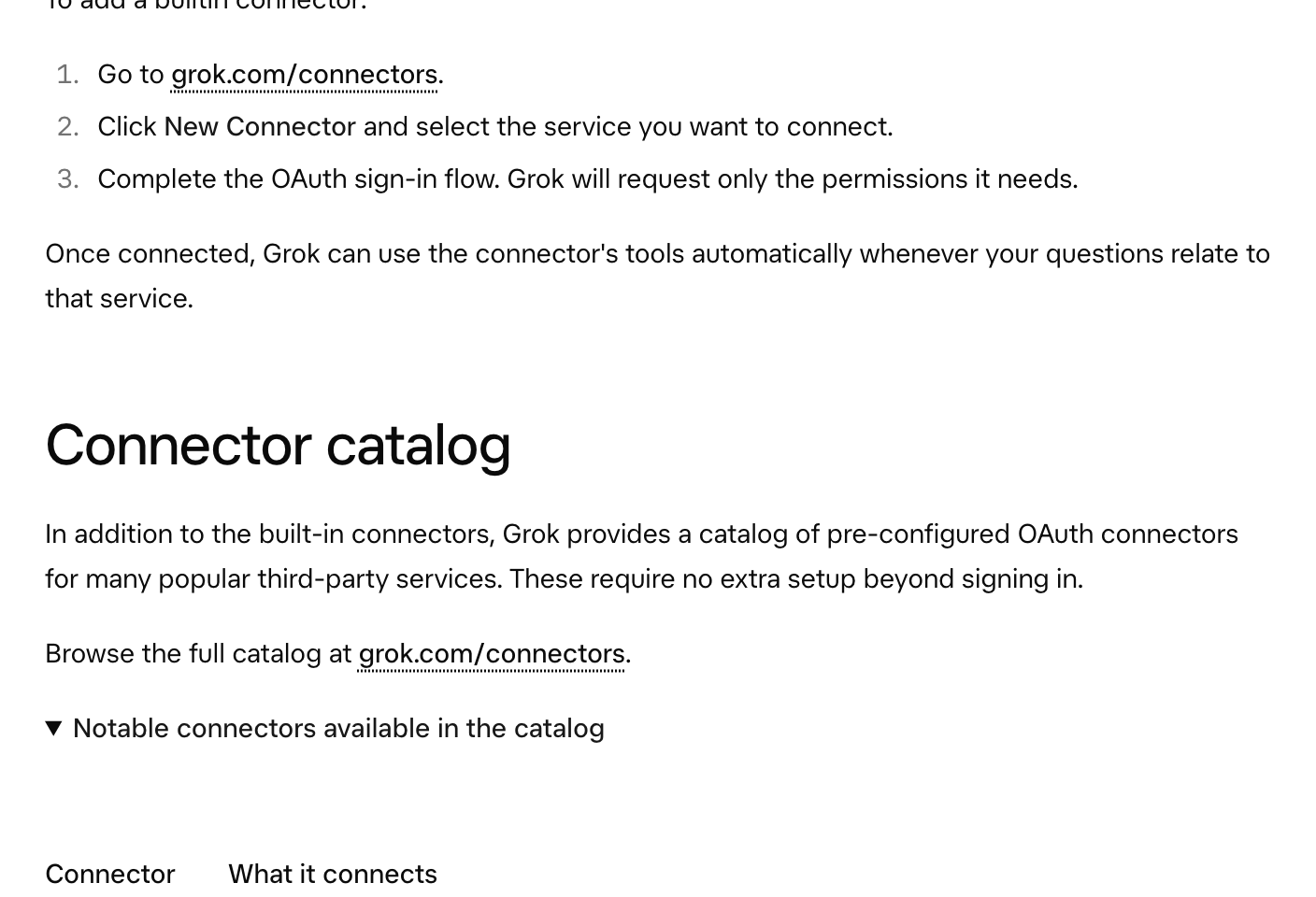
In the Grok application, navigate to the Connectors section. According to the official documentation, this is typically found at grok.com/connectors. Vendor menus can change, so always refer to their latest documentation for the correct path.
Step 3: Create a Custom Connector
Look for an option to create a new connector. Select the 'Custom' connector type, which allows you to specify any tool server that follows the required protocol.
Step 4: Configure the Connector URL
In the configuration screen for the custom connector, you will be asked for a server URL. Paste the following URL into the field:
https://mcp.meetstream.ai/mcp?key=YOUR_API_KEYReplace YOUR_API_KEY with the actual API key you copied in the first step. A few things to keep in mind: including the key in the URL is simple but means it may be visible in your Grok settings and platform logs. For production use cases, we recommend more secure authentication methods if the platform supports them.
Sending Grok Into a Meeting: A Worked Example
Once the connector is saved, you can start using it in any conversation with Grok. The agent will now have access to the full set of MeetStream tools, including creating bots, retrieving transcripts, and sending chat messages.
Example Prompt
To send a bot into a meeting, you can use a prompt like this. You can be specific about the bot's name and what you want it to do after the call.
Use the MeetStream tool to send a bot named 'Sales Analyst' to https://meet.google.com/abc-def-ghi. After the meeting ends, fetch the full transcript and summarize the key action items.
What Happens Under the Hood
When Grok receives this prompt, it recognizes the intent to use the MeetStream tool. It identifies the need for two separate actions: first, to send the bot, and second, to retrieve the transcript.
The first part of the request triggers a call to the create_bot tool on the MCP server. This is translated into a standard API call to MeetStream's REST API, which looks like this:
curl -X POST "https://api.meetstream.ai/api/v1/bots/create_bot" \
  -H "Authorization: Token <YOUR_API_KEY>" \
  -H "Content-Type: application/json" \
  -d '{
    "meeting_link": "https://meet.google.com/abc-def-ghi",
    "bot_name": "Sales Analyst",
    "recording_config": {
      "transcript": {
        "provider": {
          "meetstream": {}
        }
      }
    }
  }'
The bot joins the meeting as a visible participant named "Sales Analyst". After the meeting concludes, Grok would then use the get_transcript tool, providing the bot_id from the first call, to retrieve the text and perform the summarization you requested. This shows how the agent can chain multiple tool calls together to complete a complex task.
Understanding Rights and Permissions
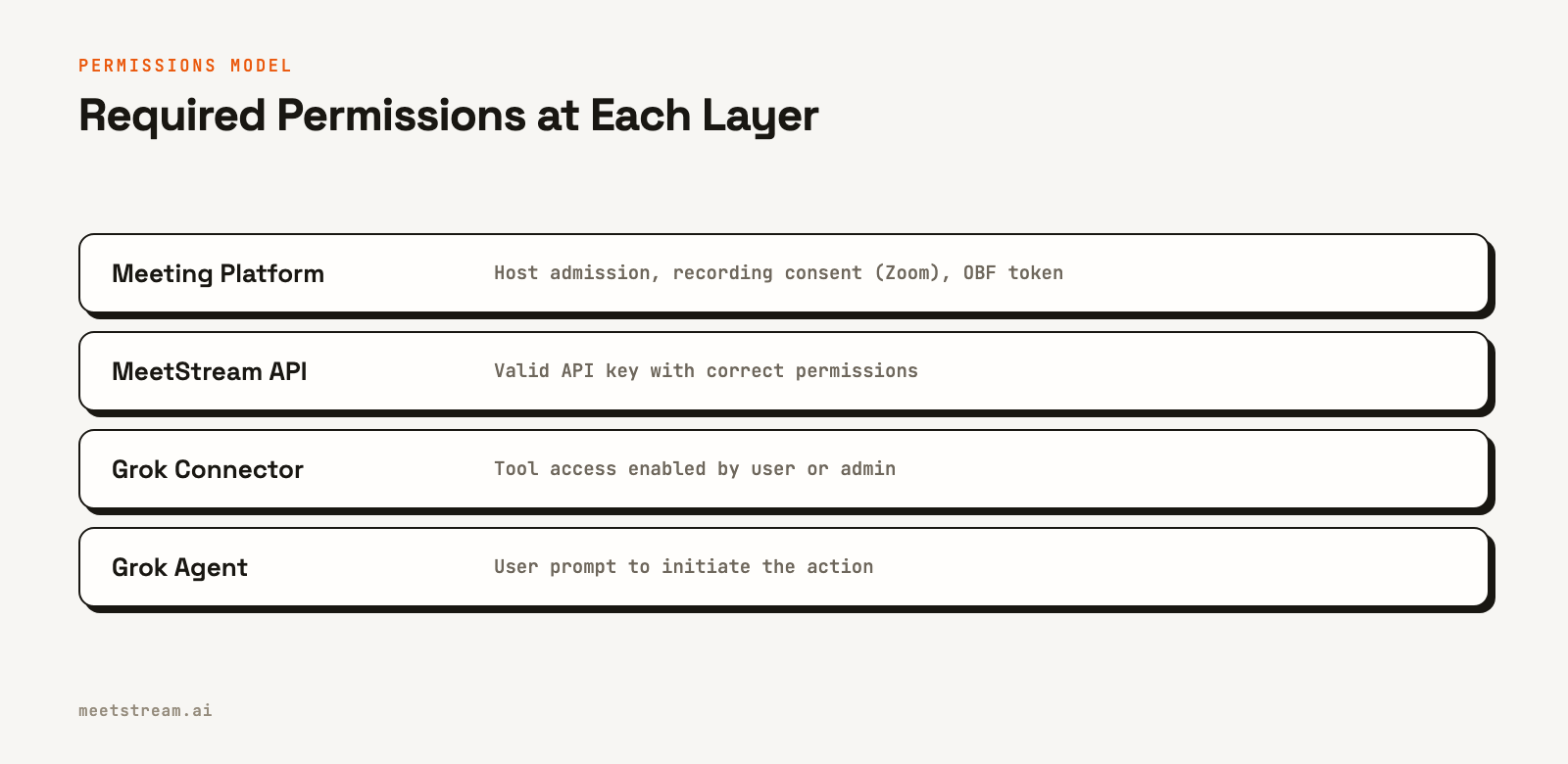
Sending a bot into a meeting requires a chain of permissions to be in place. A failure at any level will prevent the bot from joining or functioning correctly. It is important to understand each layer.
1. Grok Platform Permissions
Your ability to use custom Connectors is determined by your Grok account plan. For business accounts, an administrator may need to enable or provision the MeetStream connector for your use.
2. MeetStream API Key
The API key you provide must be active and have the necessary permissions to create bots. Each key is tied to a specific user or service account, allowing for access to be revoked easily from the MeetStream dashboard without affecting the agent's other tools.
3. Meeting Platform Access
The bot is subject to the rules of the meeting platform itself.
- Waiting Rooms: If a waiting room is enabled, the meeting host must manually admit the bot.
- Zoom Permissions: To join a Zoom meeting, no setup is needed: no Zoom Marketplace app and no tokens. If you use your own Zoom app, the bot can optionally join on behalf of an authenticated user via an OBF (on-behalf-of) token. That requires the authorizing user to already be in the call, and the bot will be removed when they leave. Recording on Zoom is also gated by host consent. You can learn more about Zoom OBF tokens in our guide.
- Consent: You should always inform participants that a bot is present and recording the conversation, in compliance with local laws and platform terms of service.
4. Agent Tool Approval
For safety, most agents will prompt you for confirmation before taking a significant action like sending a bot into a meeting. You will likely need to explicitly approve the tool use before the API call is made.
How MeetStream Enables Agent Integration
MeetStream is designed as the infrastructure layer for running AI agents in live conversations. While this guide focuses on a simple transcription use case with Grok, our platform provides the tools for more advanced, interactive agents.
The same bot that joins a meeting can be configured to stream real-time audio to your own systems for live analysis. Using our interactive endpoints, an agent can speak back into the meeting using text-to-speech, send chat messages, or even change its video frame to display images.
This enables developers to build AI voice agents that do more than just record. They can function as active participants, answering questions, updating a CRM in real time, or collaborating with a team. The integration with Grok is one example of how MeetStream provides the voice and ears for any AI agent in any meeting.
Giving Grok a voice in the call
Connectors let Grok send a bot and read the transcript afterwards. Having Grok speak in the meeting is a different job: it has to hear the room live, know when it is being asked, and stop when someone talks over it.
xAI covers every stage in our voice agents runtime: speech to text, the Grok model and a Grok voice. That keeps one provider end to end, with the wake word, interruptions and echo control handled for you.
Conclusion
Connecting Grok to the MeetStream API gives the agent a powerful new capability: the ability to attend and understand live meetings. By using a custom Connector with the MeetStream MCP server, you can conversationally direct a bot to join a call, record the discussion, and deliver a transcript directly back to your agent for further processing.
This integration demonstrates a shift towards interactive AI that can participate in real-time events, not just analyze past data. As you build applications that need to understand live conversations, having a reliable way to get an agent into a call is a critical piece of infrastructure. To send Grok into a meeting, you need a reliable API that handles the complexity of multiple meeting platforms.
See the full API reference at docs.meetstream.ai.
Sources and further reading
- xAI: Grok connectors
- xAI API: Remote MCP tools
- MeetStream MCP server documentation
Frequently Asked Questions
Does the bot join the meeting using my personal account?
No, the bot does not impersonate you or use your personal Zoom, Google, or Microsoft account. It joins as a distinct participant with the name you provide, such as "Notetaker" or "Grok Assistant".
Is it secure to put my API key in the Connector URL?
Placing the API key in the URL's query string is a simple method for authentication but may expose the key in server logs or the agent's UI. For applications requiring higher security, you should use authentication methods like Bearer tokens in headers if the agent platform supports them for custom connectors.
What other agents can connect to MeetStream?
Any AI agent or framework that can make calls to an external tool server can integrate with the MeetStream MCP server. We have guides for integrating with other popular agents, such as our tutorial on how to send Claude into a meeting.
Is this the same as Claude Meetings?
No. Claude Meetings is Anthropic's own feature, in beta on Team and Enterprise plans, where Claude joins a Google Meet call and writes notes and artifacts into claude.ai. This guide connects Grok to meeting infrastructure instead, so it works on Zoom, Google Meet and Microsoft Teams and the output lands wherever you decide.
Can Grok join a Zoom or Microsoft Teams meeting?
Yes, since 13 November 2026. Grok Bot joins Google Meet, Zoom and Microsoft Teams calls on Super, Ultra, Team and Enterprise plans, and answers in the meeting chat. To put Grok into calls inside your own product, or to have it speak, you go through a meeting bot API. With MeetStream, Zoom needs no setup: send the meeting link with your MeetStream API key. Zoom's On Behalf Of token rule from March 2026 applies to Meeting SDK apps, so on MeetStream it matters only for optional signed-in joins with your own Zoom app.


