
Can Grok Bot Speak in Meetings? Voice vs Chat Agents
Find out if Grok Bot can speak in meetings, what a voice agent needs, and how to run a Grok voice agent on Zoom, Meet and Teams today.

On 13 November 2026 xAI's @bot account posted that Grok Bot can now join meetings, and the first replies were not about notes. They were about voice. "Can it be an active meeting participant with speech capabilities?" "Waiting for using the bot's voice when joining meetings." And, from someone who had already tried it: "it seems like it can only type in the chat." If you searched for grok bot voice meetings after that thread, this is the answer, with the dates attached.
The question matters because a meeting agent that speaks is a different product from one that types. Typing is forgiving. A chat answer can arrive late, sit there until someone reads it, and never talk over anyone. A spoken answer has to know it was asked, wait for the right moment, stop when someone cuts in, and not hear its own voice as a new question.
Grok Bot is xAI's named, persistent assistant with its own memory, and as of this week it attends Google Meet, Zoom and Microsoft Teams calls. It is a workspace feature: you add it from your chat with the Bot, and it works for your team. That is a good shape for a lot of people, and it is worth being clear about where it ends.
In this guide we will cover what Grok Bot does in a call today, what a speaking agent needs that a chat agent does not, how to run a Grok voice agent in a meeting now, and the fair cases for chat, silence, avatars and screen sharing. Let's get into it.
Can Grok Bot speak in meetings? The short answer
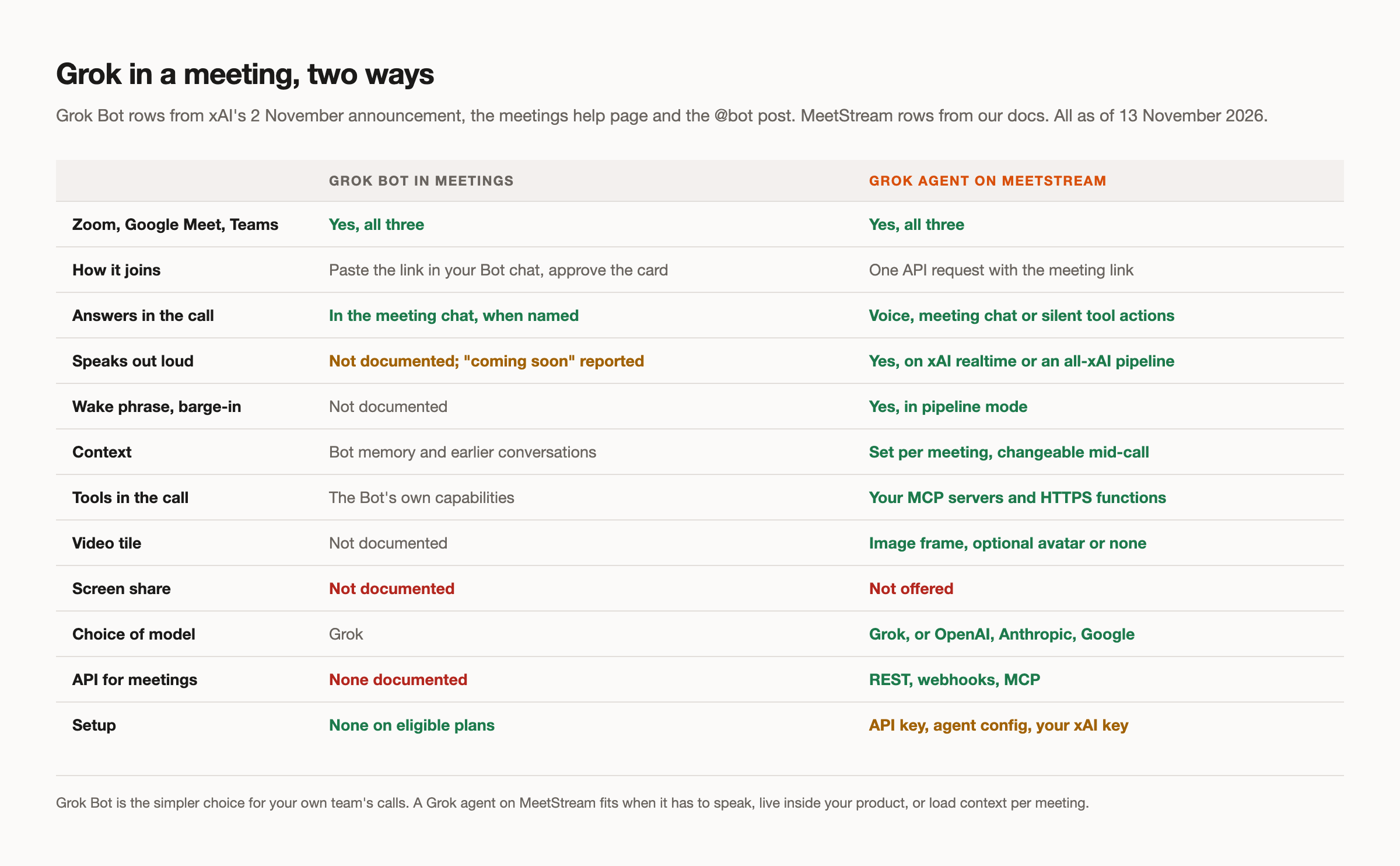
Not as documented. As of 13 November 2026, xAI's meetings help page and the 2 November "Grok Bot 1.0" announcement describe a Bot that listens, takes notes, and answers questions in the meeting chat when someone addresses it by name. The announcement says Bots "participate through the chat". Nothing in either source describes the Bot speaking out loud in a call.
So the reply in the thread that said it can only type in the chat was correct. A third-party write-up reports that xAI called live back-and-forth "coming soon". We have not seen that in xAI's own documentation, so treat it as reported rather than confirmed, and note that no date was attached to it.
Here is what the Bot does do. You paste the meeting link into your chat with the Bot, ask it to join and take notes, and approve a card. The host admits it. In the participant list it shows as your Bot's name with "(your first name's Bot) - transcribing", or "(Team Bot) - transcribing" for a Team Bot. A Bot that follows your calendar can join scheduled meetings on its own. On Zoom, a private chat message gets a private answer. After the call, the summary and action items land in the Bot's chat, with a longer report on a Page if you have Pages.
Availability is plan-based. The 13 November reply in the same thread lists Super, Ultra, all Team and Enterprise plans, and Enterprise admins switch Meetings on under "Bot Capabilities". If you are on one of those plans and want notes plus chat answers in your own team's calls, that is a complete product today with nothing to build.
What Grok Bot voice in meetings would need
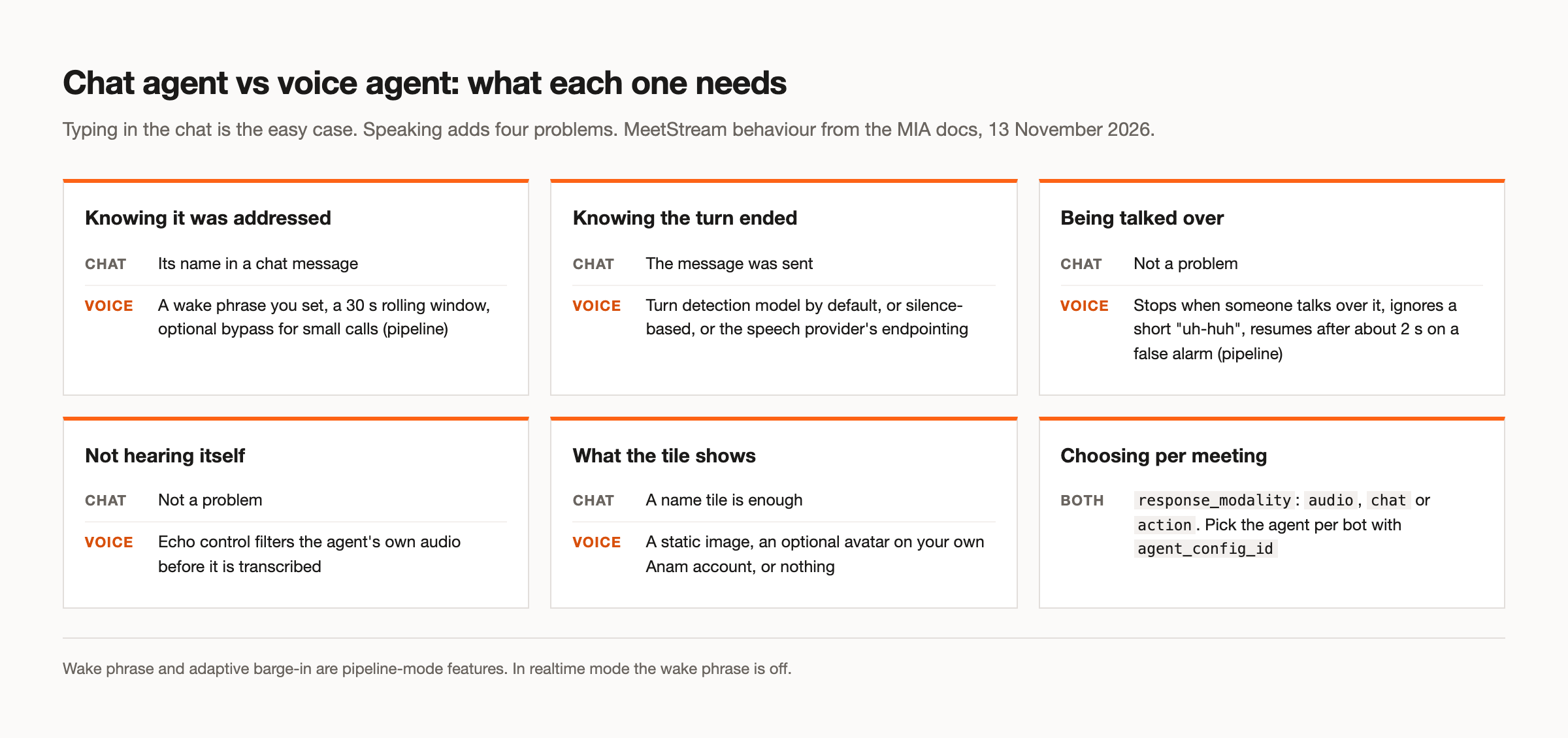
The interesting part of the voice question is why it is harder than it sounds. A chat agent gets three things for free that a voice agent has to earn.
The first is being addressed. In chat, someone types the agent's name and the intent is obvious. In audio, the agent hears every sentence in the room, including sentences about it that are not addressed to it. A speaking agent needs a gate: a wake phrase, such as its name, and a rule for how long it keeps listening after being called. Without one it either interrupts constantly or needs someone to press a button.
The second is turn detection. A chat message is finished when it is sent. Speech has no send button. People pause mid-thought, trail off, and restart. The agent has to decide when the speaker is actually done, and the cost of guessing wrong is visible: answer too early and it cuts someone off, too late and the room has moved on.
The third is barge-in. When a person starts talking while the agent is mid-sentence, the agent should stop. But not for every sound: a listener saying "uh-huh" or "right" is agreeing, not interrupting, and an agent that halts on every murmur is as irritating as one that never stops.
Then there is echo control. The agent's own audio comes back through the meeting. If it transcribes itself, it will happily answer its own sentences. This one is invisible when it works and obvious the first time it does not.
Last, and easy to skip, is choosing the mode per meeting. The same agent might speak in a two-person working session, answer in chat during a forty-person all-hands, and stay completely silent in a customer call where only the follow-up matters. That choice belongs to whoever runs the meeting, not to a global setting.
Running a Grok voice agent in a meeting today
If you want Grok's voice in a call now, you can run it through an in-meeting agent runtime rather than waiting for Grok Bot to ship speech. On MeetStream, the runtime is called MIA, and xAI is one of its model providers. A Grok agent can run fully on xAI in either of two modes.
Realtime mode uses one provider end to end. You set the provider to xai, give it a system prompt and pick a voice such as Ara, and MeetStream selects the xAI realtime model. Audio goes in, audio comes out. It is the lowest-latency path MeetStream offers, and it suits conversations where speed matters most. The trade is that the wake phrase is off in realtime mode, so it fits one-to-one calls and small sessions better than a busy room.
Pipeline mode splits the work into speech to text, the model, and the voice, and lets you choose each stage. With xAI for all three you get stt-1 for transcription, grok-3 as the model, and xAI's tts-1 voice with ara, eve, leo or rex. Pipeline mode is where the meeting manners live. The wake phrase is a pipeline feature: you set the phrase, usually the agent's name, and after it is called the agent stays active for a 30 second rolling window. A small-call bypass, if you turn it on, skips the gate when only one person is in the call with the bot. Adaptive barge-in is also pipeline: the agent stops when someone talks over it, keeps going through a short "uh-huh", and resumes after about 2 seconds if the interruption turns out to be a false alarm.
Echo control is built in, and turn detection uses a turn detection model by default, with silence-based detection or the speech provider's own endpointing as alternatives. The same agent config works on Zoom, Google Meet and Microsoft Teams, because the bot reads the platform from the meeting link. The voice agents page covers the settings in more depth, and the build guide walks through the request.
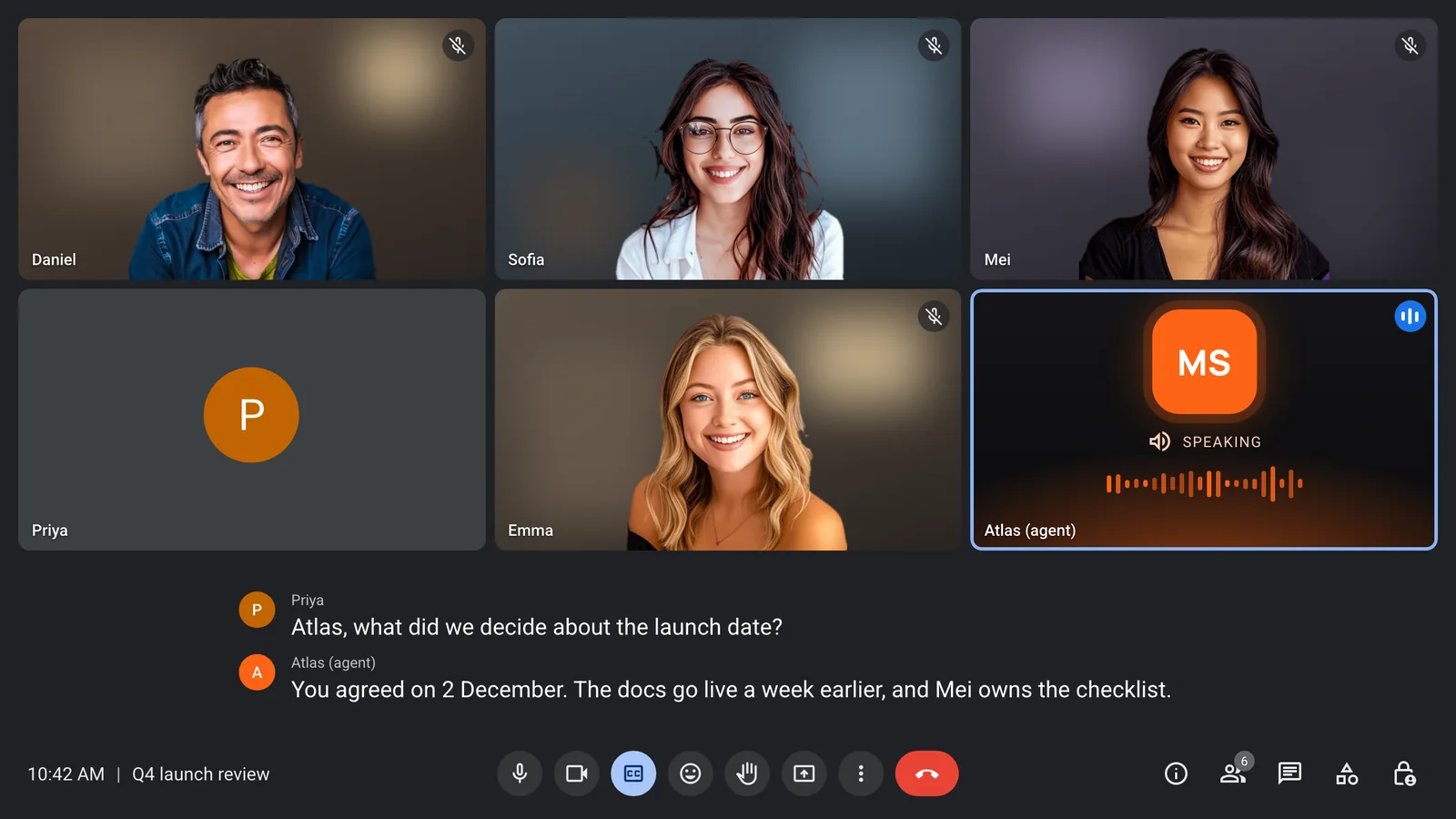
Worth noting: speech is not the only thing that changes when you run Grok this way. The agent carries the name you choose, joins from your product rather than a workspace, and can be given different context for each meeting. We go into that below.
Does a meeting even need another voice?
One of the sharper replies in the thread pushed back on the whole idea: "The meeting doesn't need another voice. It needs someone who writes down what got decided." For a lot of meetings, that is right, and it is worth taking seriously rather than arguing past.
A speaking agent earns its place when people would otherwise stop and look something up: a support call where the customer asks about an order, a working session where someone asks what was agreed last week, a one-to-one practice call. In a large meeting with a fixed agenda, a voice that can be summoned at any moment is a distraction more than a help.
That is why reply mode should be a per-meeting choice. On MeetStream an agent replies in one of three ways: audio speaks, chat posts in the meeting chat, and action says nothing at all and only calls tools. An action-mode agent is exactly the "someone who writes down what got decided": it listens, picks out decisions, and files them where your team works, without saying a word in the room.
Grok Bot has a version of this too. For scheduled meetings it offers "Disable Interactivity", which keeps the notes and stops it answering. If silent note-taking in your own calls is all you need, that setting does the job.
Avatars, video tiles and screen sharing
Another reply asked about the visual side: "why does he keep looking around confused? that would be distracting." An animated face that does not match what is happening in the room is a real cost, and the fix is simple: do not use one unless it helps.
On MeetStream an avatar is optional and off unless you turn it on. If you want one, it runs on your own Anam account and lip-syncs to the agent's voice on Google Meet and Microsoft Teams, and on Zoom with your own Zoom app. Most meeting agents do not need it. A static frame with the product's logo, or nothing at all, is perfectly fine, and arguably better for a participant whose job is to be useful rather than to look human. The bot can also show any image as its video frame through the send image endpoint, and you can change that image during the call.
Then: "Can it also demonstrate a product or share its screen?" For Grok Bot, nothing in the documentation as of 13 November 2026 covers screen sharing or product demos. For MeetStream, the honest answer is that the bot does not share its screen. What it can do is show an image as its video frame, which covers a diagram, a status card or a slide-sized visual, but it is not a live product walkthrough. If a real demo is the requirement, a person should share their screen and the agent can answer questions alongside.
When Grok Bot is the simpler choice
Being fair here matters, because for many readers the right answer is to use Grok Bot and build nothing.
If you already pay for an eligible plan, want an assistant in your own team's calls, and are happy with chat answers plus a summary afterwards, Grok Bot is the shorter path. There is no API key, no agent config and no provider key to set up. It brings information from earlier conversations into the discussion and keeps track of decisions, which is the context a team's own assistant should have. Its privacy behaviour is sensible too: the help page says it will not share your credentials in a meeting, and if someone asks for something it held back, it tells you who asked.
Two things to watch. Several people in the X thread reported running through their weekly usage quickly in meetings, which is anecdotal but worth checking against how many calls you sit in. And as of 13 November 2026 the documentation does not cover consent notices to participants, external participants, supported languages, or how long transcripts and audio are kept. If those matter for your calls, ask before you roll it out.
The case for building is different. You need the agent to speak now, or to live inside your own product under your name, or to run a model other than Grok for some customers, or to know only what belongs to one meeting. Those are integration problems, not assistant problems, and our integration layer page explains how we think about that split.
Where MeetStream fits
MeetStream is meeting bot and in-meeting agent infrastructure. One create-bot request puts a bot named by you into a Zoom, Google Meet or Microsoft Teams call, and attaching an agent config turns it into an agent that runs on the model you pick: xAI's Grok, or OpenAI, Anthropic or Google models, chosen per agent.
The part that answers the Grok Bot thread most directly is context. A workspace assistant draws on your workspace. An agent you deploy through an API gets exactly what you hand it for that call: account notes for this customer, the agenda for this review, the tickets for this escalation, and nothing from other meetings. You can change that context while the call runs, limit which tools it can reach, and keep recordings in your own storage with a retention period set per bot. Our post on context control goes through each of those controls.
Whichever route you take, tell people the agent is there. MeetStream bots post a join message in the meeting chat, and the name is yours to make clear. Our guide to bot consent covers the rest. For the bigger picture of Grok in calls, see our Grok Bot overview, and if you want Grok itself to dispatch bots through MCP, there is a guide to sending Grok in.
The answer, in one paragraph
As of 13 November 2026, Grok Bot answers in the meeting chat and its documentation says nothing about speaking, though a third-party report says xAI called live conversation "coming soon". For grok bot voice meetings today, the working route is a Grok voice agent on xAI through an in-meeting agent runtime, in realtime mode for speed or pipeline mode for wake phrase and barge-in, with chat or silent modes for meetings that do not need another voice. Get started free at meetstream.ai.
Frequently asked questions
Can Grok speak in meetings?
Grok Bot, as documented on 13 November 2026, answers in the meeting chat rather than out loud. A third-party write-up reports xAI calling live back-and-forth "coming soon", without a date. A Grok voice agent can speak in Zoom, Google Meet and Microsoft Teams calls today through MeetStream, running on xAI in realtime or pipeline mode.
Does Grok Bot work on Zoom and Microsoft Teams?
Yes. xAI documents Google Meet, Zoom and Microsoft Teams for Grok Bot meetings. Nothing else is documented as of 13 November 2026, so platforms such as Webex or Discord are not covered.
How do I stop a meeting AI from talking over people?
Use a wake phrase so it only answers when called, and barge-in so it stops when someone starts speaking. On MeetStream both are pipeline-mode features, and adaptive barge-in ignores short acknowledgements like "uh-huh". If the meeting does not need speech at all, switch the agent to chat or silent action mode.
Can an AI meeting bot share its screen?
Grok Bot's documentation does not cover screen sharing as of 13 November 2026. MeetStream bots do not share a screen either. They can show an image as their video frame and change it during the call, which works for diagrams and status cards but not for a live product demo.
Do I need an avatar for a voice agent in a meeting?
No. A static image or a plain name tile works well and avoids the distraction of a face that does not match the room. On MeetStream an avatar is optional, off by default, and runs on your own Anam account if you want one.


