
Is There a Claude Meetings API? What You Can Use
Find out whether Claude Meetings has an API, what Anthropic has published, and how to put an AI agent into Zoom, Google Meet and Teams from code.

Almost as soon as Claude Meetings went into beta, Google's related-search data was serving four variants of one query: claude meetings api example, claude meetings api tutorial, claude meetings api github, and the bare term itself. Developers went looking for a programmable surface.
The short answer is that there is not one. Anthropic has published no API, SDK, webhook or embed path for Claude Meetings. The announcement, the help documentation and the developer platform are all silent on it, which is a reasonable thing for an end-user feature to be.
That gap is worth taking seriously rather than treating as an oversight, because it tells you what Claude Meetings is for. It is a feature inside a workspace product, aimed at a team's own calls. It is not a building block for someone else's product, and nothing in what Anthropic has shipped suggests it is meant to be.
In this guide we will cover exactly what has and has not been published, why developers are asking anyway, what a meeting agent API actually looks like in code, and how to connect an assistant to real meetings today. Let's get into it.
What has been published, and what has not
Claude Meetings went into beta on 12 November 2026. Claude joins a Google Meet call as a visible participant, posts a notice in the meeting chat, follows the conversation, and builds documents and whiteboards alongside the people on the call. It writes the notes and action items. Afterwards everything lives on a page for that meeting inside claude.ai.
Here is what is not in the record. No REST endpoints. No client libraries. No webhook for meeting events. No way to trigger a join from your own code, to receive the transcript into your own system as it happens, or to put the feature inside an application you are building. The one published operational limit is a cap of eight hours on a single meeting.
There is a developer surface in this story, but it runs the other way. Through the Model Context Protocol, third-party meeting products expose their data to Claude, so you can ask Claude about a recording that some other tool made. That is inbound. It does not let you drive Claude Meetings from outside, and it does not give you the meeting.
Worth stating plainly: this is an absence from the published record as of 12 November 2026, not a statement by Anthropic that an API will never exist. Beta products gain surfaces. If you are making a decision this quarter, decide on what exists.
Why developers are asking anyway
The searches are not confusion. They come from people who saw a demo of an agent doing something useful in a call and immediately wanted it inside their own product, for their own users, on the platforms their customers actually use.
That instinct runs into four walls at once. Claude Meetings is on Google Meet only, so Zoom and Microsoft Teams are out. It needs a Team or Enterprise plan, so your users would each need one. It is not offered to organisations on zero data retention, HIPAA-ready configuration, or customer-managed encryption keys, which rules out a large part of regulated software. And the output lands in claude.ai rather than in your database.
None of those are solvable from the outside. If the agent has to live in your product, you need meeting infrastructure rather than a meeting feature.
What a meeting agent API looks like
The core operation is simple enough to show in full. You post a meeting link, you get a bot in the call.
curl -X POST "https://api.meetstream.ai/api/v1/bots/create_bot" \
  -H "Authorization: Token <YOUR_API_KEY>" \
  -H "Content-Type: application/json" \
  -d '{
    "meeting_link": "<YOUR_MEETING_LINK>",
    "bot_name": "Notes Agent",
    "video_required": false
  }'
That returns a bot_id, a transcript_id, the meeting URL and a status. The same call shape works for Zoom, Google Meet and Microsoft Teams, which is the part that matters: the platform differences in authorisation and admission are handled underneath rather than three times in your code.
From there the interesting options are additive. Pass a callback_url and you get lifecycle webhooks: bot.joining, bot.inmeeting, and a terminal bot.stopped that carries a status telling you whether the bot was in the meeting, denied, not allowed, or errored. Pass live_transcription_required with a webhook and speaker-labelled text arrives while the call is running. Pass live_audio_required with a WebSocket URL and you receive the audio itself.
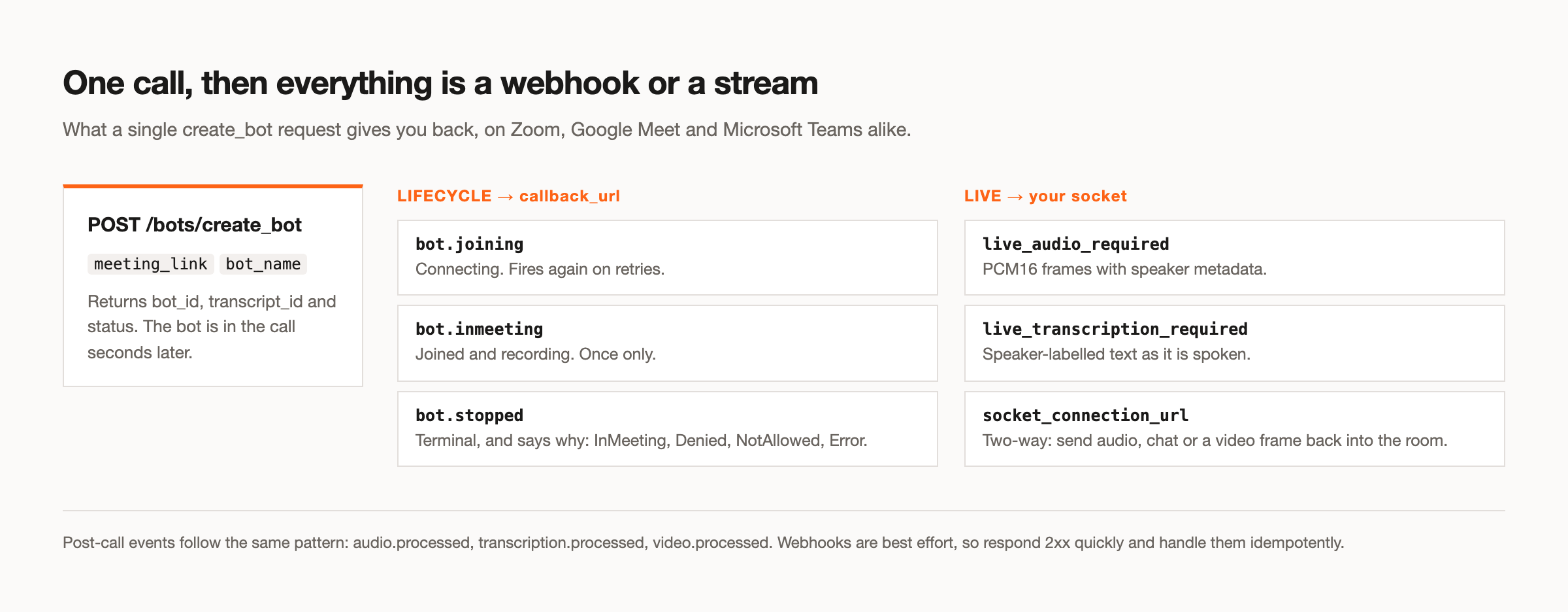
Scheduling is a field rather than a service: join_at takes an ISO 8601 timestamp and the bot turns up then. Admission behaviour is configurable through automatic_leave, which is where you set the waiting room timeout. That one matters more than it looks, because the lobby is where most bot dispatches actually die, and an unanswered waiting room runs until the timeout you set.
A worked example: an agent that answers when addressed
Putting those pieces together, here is the shape of the thing people are actually trying to build. A bot joins, listens for its name, and replies out loud when someone asks it something.
{
  "meeting_link": "<YOUR_MEETING_LINK>",
  "bot_name": "Research Agent",
  "video_required": false,
  "callback_url": "https://your-app.example.com/hooks/bot",
  "live_transcription_required": {
    "webhook_url": "https://your-app.example.com/hooks/transcript"
  },
  "socket_connection_url": {
    "websocket_url": "wss://your-app.example.com/control"
  },
  "automatic_leave": { "waiting_room_timeout": 300 }
}
Your transcript webhook receives each utterance with a speakerName, the new_text, and flags for whether the word is final and whether the speaker has finished their turn. You watch for your wake phrase, run whatever reasoning you want on the transcript so far, synthesise a reply, and push it down the control socket as a sendaudio command. If someone starts speaking while your agent is mid-sentence, you send interrupt and it stops.
Notice what is not in that payload: anything platform-specific. The same JSON works whether the link is Zoom, Google Meet or Microsoft Teams. That is the whole argument for infrastructure over three integrations.
Making the agent speak
Claude Meetings answers in writing by default. If what you are building needs to talk back in the room, that is a different set of problems, and it is worth knowing what they are before you start.
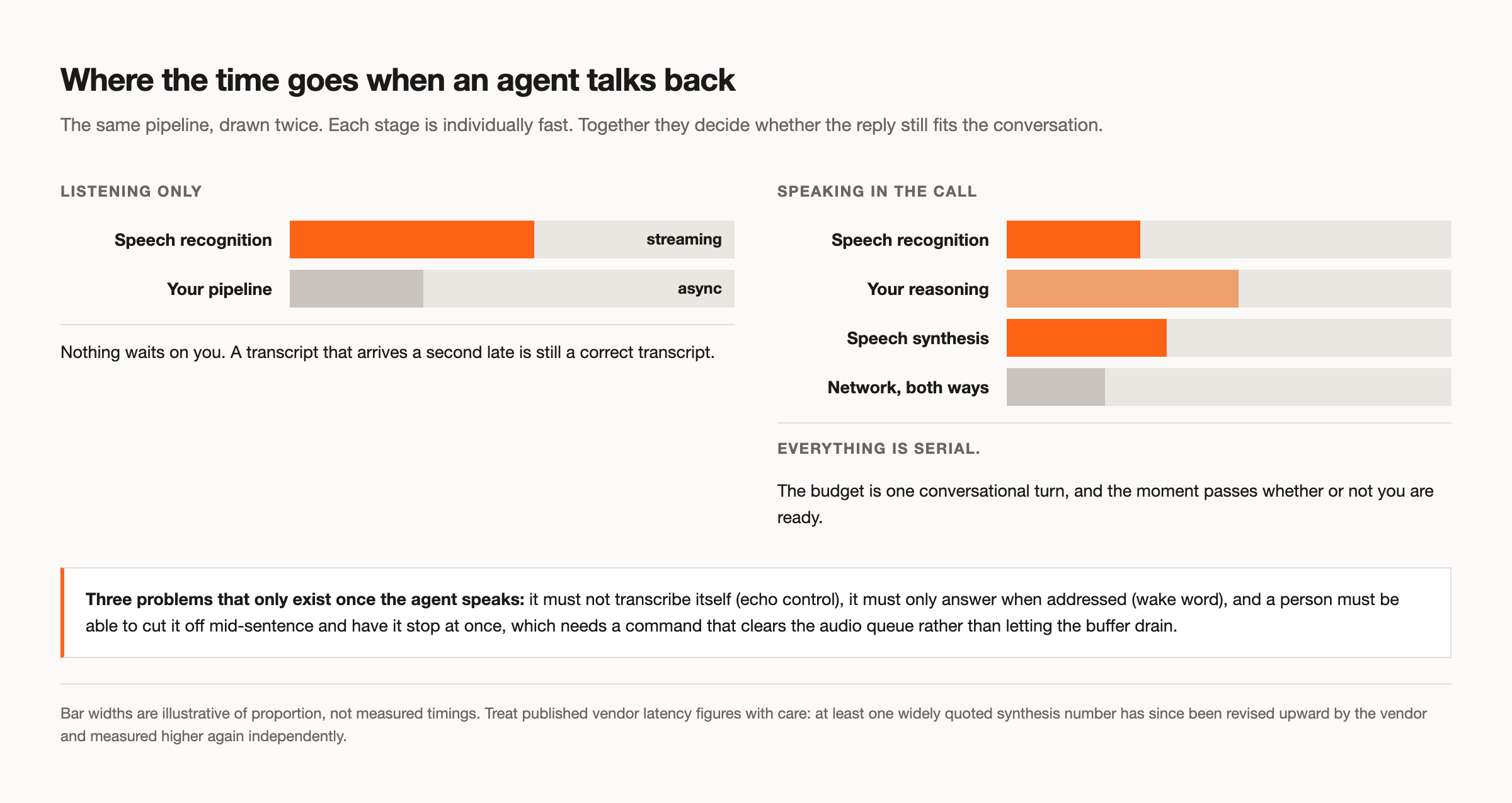
Opening a control socket with socket_connection_url gives you a two-way channel into the call. You send JSON commands: sendaudio plays audio through the bot, sendmsg posts to the meeting chat, sendimg sets the bot's video frame (on Google Meet, use the REST send image endpoint instead), and interrupt stops playback and clears the queue. That last one is not a detail. Without it, a person who starts talking over your agent has to wait for it to finish, which reads as rude in a way text never does.
Underneath that sit the problems nobody enjoys: echo control so the agent does not transcribe itself, wake words so it only answers when addressed, and a latency budget tight enough that the reply still fits the conversation. Our in-meeting agent runtime handles that layer, and the voice agents page goes through how it is configured.
Connecting an assistant through MCP
There is a way to get an assistant driving real meetings today, and it is the Model Context Protocol. MeetStream runs a hosted MCP server at https://mcp.meetstream.ai/mcp with nineteen tools covering bots, transcripts, media, live interaction and calendar.
Connect it to an MCP client and you can say something like send a bot to this meeting link with Deepgram transcription, and give me the summary when the call ends, and it happens against your account. There is nothing to install, authentication is OAuth from the client or an API key per request, and the server holds no key of its own.
One distinction is worth drawing because it decides whether this is useful to you. Many MCP servers in this category are read-only by default, offering observability over meetings that something else created. A server that exposes a create-bot tool can actually start the meeting agent. That is the difference between an assistant that can tell you about yesterday's call and one that can send a bot to the next one. Our MCP server guide covers the full tool list and the setup for each client.
What you can build that a meeting feature cannot
The honest comparison is not feature by feature, because these things are aimed at different jobs. It is about who the agent belongs to.
Claude Meetings belongs to the team using it. It shows up in their Google Meet calls, on their Anthropic plan, and writes to their claude.ai workspace. That is a good shape for internal work and a bad shape for a product, because every one of those is a dependency your users would have to adopt.
Infrastructure belongs to you. The bot carries your product's name in the participant list. It works on all three major platforms whether or not your customer has a particular subscription. The audio, the per-participant tracks and the transcripts land in your storage. You decide retention. You can build things that are not a notetaker at all: a live coaching agent that feeds a rep cues mid-call, an interview assistant, a support agent that joins when a ticket escalates, a compliance recorder that writes to your own bucket.
Several of those are covered in more depth in our guide to real-time actions, and the full endpoint list is in the API documentation.
If you are still deciding what to build, our list of meeting agent use cases sorts ten of them by how much the agent has to do, and the feature comparison sets Claude Meetings and MeetStream side by side.
Where to start
If you want an agent in your own team's Google Meet calls, Claude Meetings does that now and there is nothing to build. If you need an agent inside a product, across platforms you do not control, with the data landing in your own systems, you need a meeting bot API.
The first call is the one at the top of this article, and the bot is in the meeting a few seconds later. Get started free at meetstream.ai.
Frequently asked questions
Is there a Claude Meetings API?
No. As of 12 November 2026, Anthropic has published no API, SDK, webhook or programmatic interface for Claude Meetings. It is an end-user feature available on Team and Enterprise plans rather than a developer product. Nothing published rules out an API later, but none exists today.
Can I connect Claude to a meeting from my own code?
Not through Claude Meetings. You can do it through a meeting bot API, which puts a bot into a Zoom, Google Meet or Microsoft Teams call from a single HTTP request and hands you the transcript, the audio and a two-way control channel.
What is a meeting agent API?
An interface that lets your code put a software participant into a live video call and work with what happens there. The useful ones cover joining across platforms, streaming audio and transcripts out while the call runs, and sending audio, chat or video back into the room.
Does Claude Meetings work with Zoom or Microsoft Teams?
Not at launch. The beta supports Google Meet only, and Anthropic has said other platforms are coming without naming one or giving a date. Our guide to Claude Meetings on Zoom and Teams goes through what that means in practice.
Can an AI agent attend a meeting on my behalf?
Yes. A bot participant joins the call the way a person does, appears in the participant list, and can listen, transcribe, post in the chat and speak if you give it audio output. How it gets admitted differs by platform. On MeetStream, Zoom needs no setup: send the meeting link with your MeetStream API key. Zoom's token minted on behalf of an authorising user applies to Meeting SDK apps and to optional signed-in joins with your own Zoom app.


