
Record a Microsoft Teams Meeting Programmatically (API Guide)

You can record a Microsoft Teams meeting programmatically by sending a bot to join the call as a participant. This approach uses a third-party API to capture audio and video directly from within the meeting, which bypasses the need for administrator consent and tenant policy changes often required by Microsoft's native tools.
This method is part of a broader capability: deploying interactive agents into meetings. At MeetStream, we provide the voice infrastructure for these agents. A single API call sends an agent to any Teams meeting. It can listen, record, and even speak. The recordings and transcripts are simply outputs of this agent's presence. This is a different model than using a complex, permission-gated platform API.
For developers building applications that need to reliably record meetings across different customer tenants, the native path presents several challenges. It depends on specific Microsoft 365 licenses, tenant-level admin settings, and manual actions by a meeting organizer. An API-driven bot provides a consistent, automated alternative.
This guide explains how to use an API to record Microsoft Teams meetings, get transcripts, and handle the process programmatically. Let's get into it.
Why Programmatic Recording is a Challenge in Teams
The built-in Microsoft Teams recording feature is designed for enterprise users within a single, managed organization, not for third-party application developers. Using it programmatically means working with the Microsoft Graph API, which introduces several constraints.
First, access requires specific permissions like OnlineMeetingRecording.Read.All. These permissions need administrator consent in Azure Active Directory. For an internal tool, this is a one-time setup. For a SaaS product, this means every customer's IT admin must grant your application high-level permissions to their tenant, a process that can be slow or outright denied by security policies.
Second, the native feature has strict licensing requirements. Recording is only available on paid plans like Microsoft 365 Business Basic, Standard, or Premium. A tenant administrator must also enable the recording policy in the Teams admin center. If your application serves users on varied or unmanaged plans, you cannot depend on this feature being available.
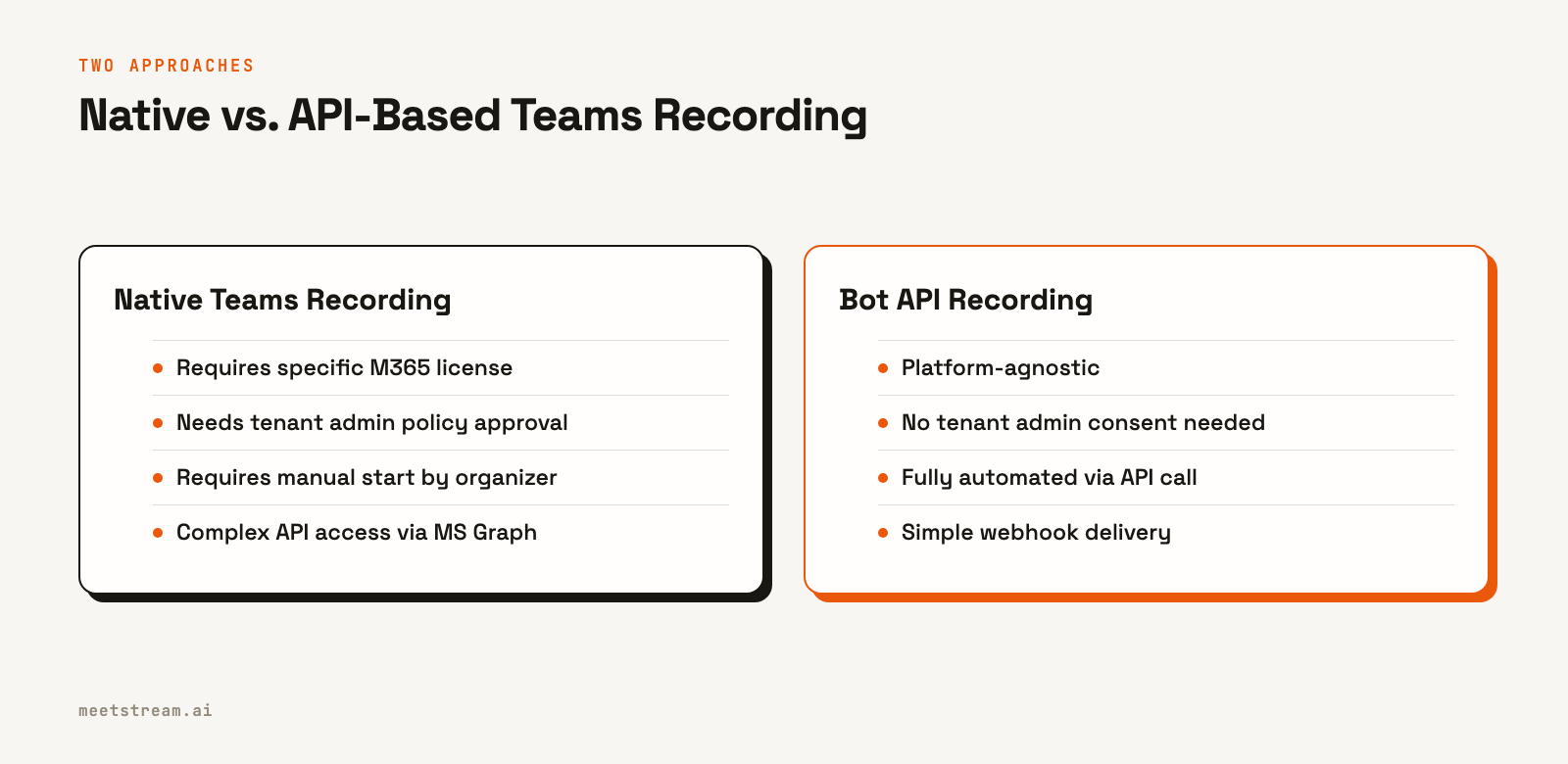
Finally, the recording must be started manually by a meeting organizer or co-organizer. The Graph API can retrieve a recording after it's made, but it cannot initiate the recording itself. This lack of automation makes it unsuitable for products that need to capture every meeting without human intervention.
How API-Driven Recording Works
An alternative is the bot participant model. Instead of relying on Microsoft's infrastructure, a bot joins the Teams meeting just like a human attendee. Once inside, it has access to the audio and video streams of the call.
This approach shifts the problem from API permissions to meeting access. As long as the bot has a valid meeting link and can get past the lobby, it can record. This works across any Microsoft 365 tenant, regardless of its specific license or policy configuration, because it doesn't use the native recording feature at all. It simply captures the media it receives as a participant.
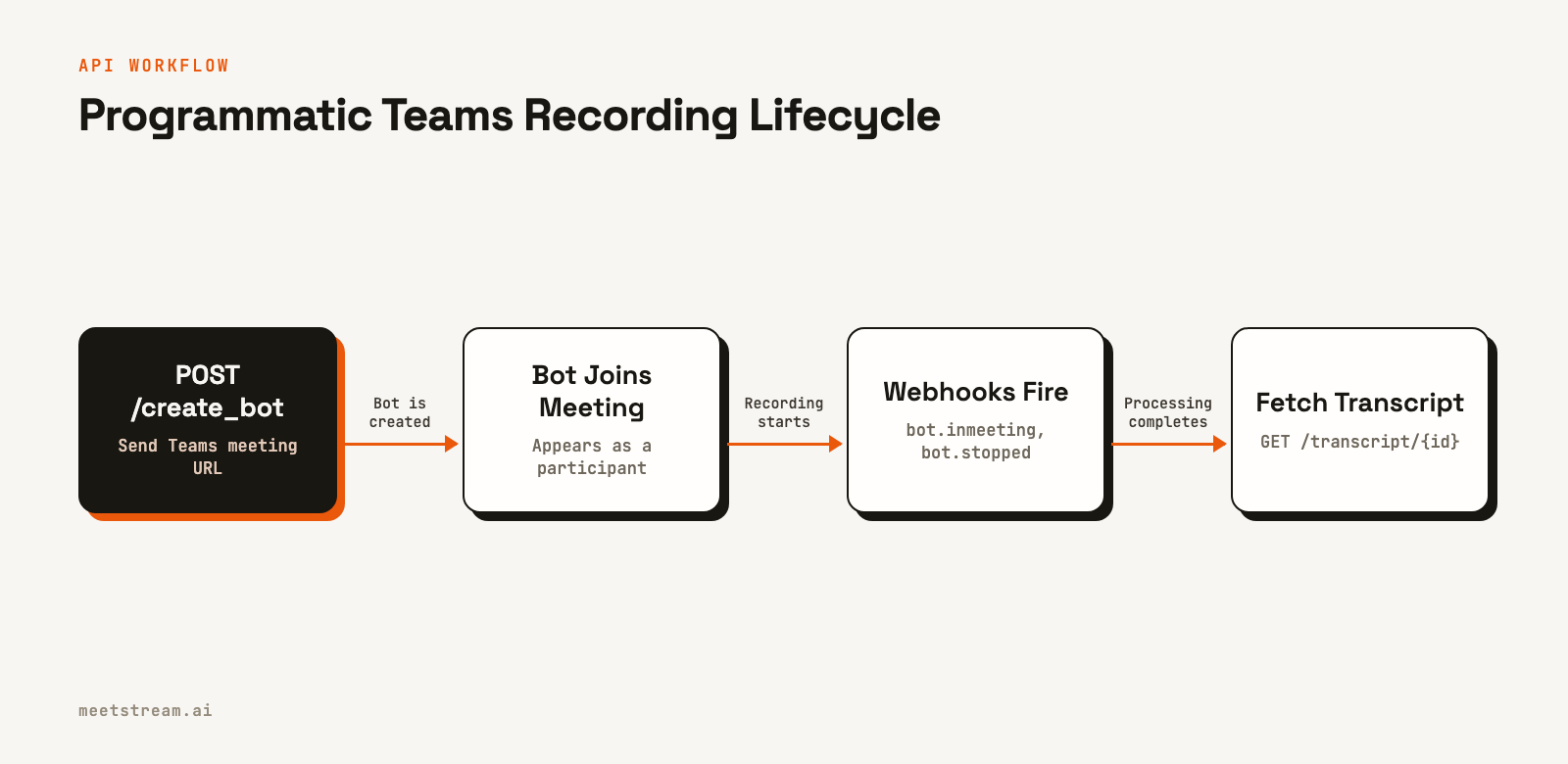
The core of this model is a Meeting Bot API. You make a single API request with the meeting URL, and the service handles the complexity of deploying the bot, managing its connection, and processing the media. For Teams, this process requires no special application marketplace setup or pre-approval from Microsoft.
The output is delivered through webhooks and API endpoints. When the bot joins, when the meeting ends, and when the final transcript is ready, your application receives a notification. This event-driven architecture is well-suited for building automated workflows around meeting data.
Sending a Bot to Record a Teams Meeting
To deploy a bot, you send a POST request to the MeetStream API. The only required fields are the meeting_link and a bot_name. For a real application, you would also include a callback_url to receive webhook events.
Here is a complete example that sends a bot to a Teams meeting, requests a post-call transcript, and sets automated leave conditions.
curl -X POST "https://api.meetstream.ai/api/v1/bots/create_bot" \
  -H "Authorization: Token <YOUR_API_KEY>" \
  -H "Content-Type: application/json" \
  -d '{
    "meeting_link": "https://teams.microsoft.com/l/meetup-join/...",
    "bot_name": "Meeting Recorder",
    "callback_url": "https://yourapp.com/webhooks/meetstream",
    "video_required": true,
    "recording_config": {
      "transcript": {
        "provider": {
          "deepgram": {}
        }
      }
    },
    "automatic_leave": {
      "waiting_room_timeout": 300,
      "everyone_left_timeout": 30,
      "voice_inactivity_timeout": 900
    }
  }'
In this request, the recording_config specifies that we want a transcript after the call using Deepgram as the provider. You can also use other providers like AssemblyAI or MeetStream's in-house engine. The API response will include a bot_id, which you use to track the bot's status and retrieve data later.
Getting Real-Time Transcripts via Webhook
For applications that need to react to conversations as they happen, you can request a live transcription stream. This is enabled by adding the live_transcription_required object to your create_bot request. Instead of waiting for a single transcript at the end, this sends a stream of small, speaker-attributed text fragments to your webhook URL throughout the meeting.
This is useful for building features like live meeting coaching, automated note-taking, or real-time alerts based on keywords. The payload for each webhook contains the speaker's name, the new text, and word-level timestamps.
Here is the correct structure of a live transcript webhook payload:
{
  "speakerName": "Priya",
  "timestamp": "2026-02-27T07:12:03.000Z",
  "transcript": "Let us ship on Friday",
  "words": [
    {
      "word": "Let",
      "start": 1.2,
      "end": 1.4,
      "confidence": 0.98,
      "speaker": "Priya",
      "punctuated_word": "Let",
      "speech_confidence": 0.97
    }
  ]
}
Your webhook endpoint should respond quickly with a 2xx status code to acknowledge receipt. Any time-consuming processing of the transcript data should be handled asynchronously in a background job or queue to prevent timeouts.
What to Watch For
The bot participant model has its own set of operational details to consider. The bot joins as a visible participant with the name you provide in bot_name. This transparency is generally a good thing, but you are responsible for ensuring your use case complies with any applicable consent and notification laws.
Microsoft Teams meetings often use a lobby to hold participants until an organizer admits them. If the meeting's policy is "Only organizers and co-organizers can bypass the lobby," your bot will wait. The waiting_room_timeout parameter in the automatic_leave object is important here. A value of 300 seconds (five minutes) is a safe default to prevent the bot from waiting indefinitely for a meeting that never starts.
The bot will only be admitted and start recording after the organizer joins and lets people in from the lobby. Your application will receive the bot.inmeeting event from your meeting bot webhooks at this point, which is the correct trigger to consider the recording active.
How MeetStream Fits In
MeetStream provides a single, unified API for deploying bots and agents into Microsoft Teams, Google Meet, and Zoom. The API request to record a Teams meeting is identical to the one for other platforms. This simplifies development for any product that needs to handle meetings from multiple sources.
For Teams specifically, our Microsoft Teams Integration requires no customer-side setup, admin consent, or app marketplace installation. You provide a meeting URL, and the bot joins. This low-friction onboarding is a significant advantage when selling to enterprise customers who have strict IT policies. The platform provides per-participant audio and video streams, which are the raw materials for building advanced meeting intelligence features.
Conclusion
While native Microsoft Teams recording is available, it is not designed for programmatic use by third-party applications. For reliable, automated recording of Microsoft Teams meetings, a bot API is a more direct and flexible solution. It removes dependencies on customer licensing, tenant policies, and manual intervention.
With a single API call, you can send a bot to any Teams meeting to capture audio and video, and receive transcripts through webhooks. This approach provides a solid foundation for building applications on top of meeting data. See the full API reference at docs.meetstream.ai.
Frequently Asked Questions
What Microsoft 365 license do I need to record a Microsoft Teams meeting?
Native Microsoft Teams recording requires a paid license, such as Microsoft 365 Business Basic or higher. Using a bot API like MeetStream to record a meeting does not have this requirement, as the bot joins as a participant and captures media independently of the native feature.
How do I record a Teams meeting without admin permissions?
You can record a Teams meeting without tenant admin permissions by using a third-party recording bot. An API call sends the bot into the meeting with a standard URL, where it joins as a participant and records the call. This method does not require any changes to the Microsoft 365 tenant's administrative settings.
Can I get a Teams meeting transcript via API?
Yes. While the Microsoft Graph API has endpoints for transcripts, it requires admin-level permissions. A simpler method is to use a Teams transcription API that sends a bot to the meeting. After the call, you receive a webhook and can fetch the full, speaker-diarized transcript from an API endpoint.
Does Microsoft Teams support real-time transcription via API?
Microsoft Teams does not provide a public API for its built-in live captions. To get a real-time transcript stream for an application, you can use a meeting bot. The MeetStream API can stream speaker-labeled text segments to a webhook URL as the conversation happens, enabling live analysis and display.
Is the API for recording Teams the same as for other platforms?
With a unified Microsoft Teams recording API like MeetStream, the process is the same. You use the same create_bot endpoint and parameters for a Teams link as you would for a Google Meet or Zoom link. This consistency simplifies building applications that need to support multiple meeting platforms.


