
How to Send Perplexity Into a Meeting
Learn how to put Perplexity in a live call so it answers factual questions with sources on Zoom, Google Meet and Microsoft Teams.

Updated 12 November 2026.
Perplexity answers with sources, which is the behaviour you want when somebody asks a factual question mid-call and everyone starts guessing.
On 12 November 2026 Anthropic shipped Claude Meetings, where Claude joins a Google Meet call as a visible participant and builds notes and artifacts while people talk, in beta on Team and Enterprise plans. It gave everyone a clear picture of what an in-meeting agent looks like. It also showed the limits of building that as a feature: one platform, one vendor's plans, output in one place.
Research during a meeting is usually the thing that stalls it. An agent that can look something up and cite where it came from removes the stall. This guide is how to get the same shape with Perplexity, on Zoom, Google Meet and Microsoft Teams, without waiting for Perplexity to ship a meetings feature of its own.
AI agents can read documents, browse the web, and write code, but they are typically locked out of the most critical source of business information: live conversations. Key decisions, customer feedback, and team alignment happen in meetings, and most agents have no way to access that data. This creates a gap between an agent's potential and its practical utility in a workplace.
The introduction of agentic workspaces with extensible tools, like Perplexity's Computer, changes this. By adding custom connectors, you can give an agent access to new capabilities. This allows a developer to bridge the gap between a large language model and real-world events like a video call. What matters is having the right infrastructure to connect to.
Connecting an agent to a meeting isn't about screen scraping or listening to a speaker. It requires an API designed for agent-first voice infrastructure. This means deploying an actual participant into a Zoom, Google Meet, or Microsoft Teams call. This participant can hear the room, record the conversation, and expose the results through a set of tools the agent can use.
In this guide we will cover what you need, adding MeetStream as a custom connector in Perplexity, a single prompt that sends a bot into a meeting, and the API calls underneath. Let's get into it.
What You Will Need
Before you begin, make sure you have the following ready:
- A Perplexity account. The ability to add custom connectors is required.
- A MeetStream account and API key. You can get a key from the MeetStream dashboard.
- A meeting link. This can be a link to a Google Meet, Zoom, or Microsoft Teams meeting.
Step 1: Get Your MeetStream API Key
First, you need an API key to authenticate requests to the MeetStream API. This key tells the MCP server that the requests from Perplexity are authorized by your account.
- Log in to your MeetStream account at
app.meetstream.ai. - Navigate to the API Key section in your settings.
- Generate a new key if you don't have one, and copy it to your clipboard. You will need it in the next step.
Step 2: Add the MeetStream Custom Connector in Perplexity
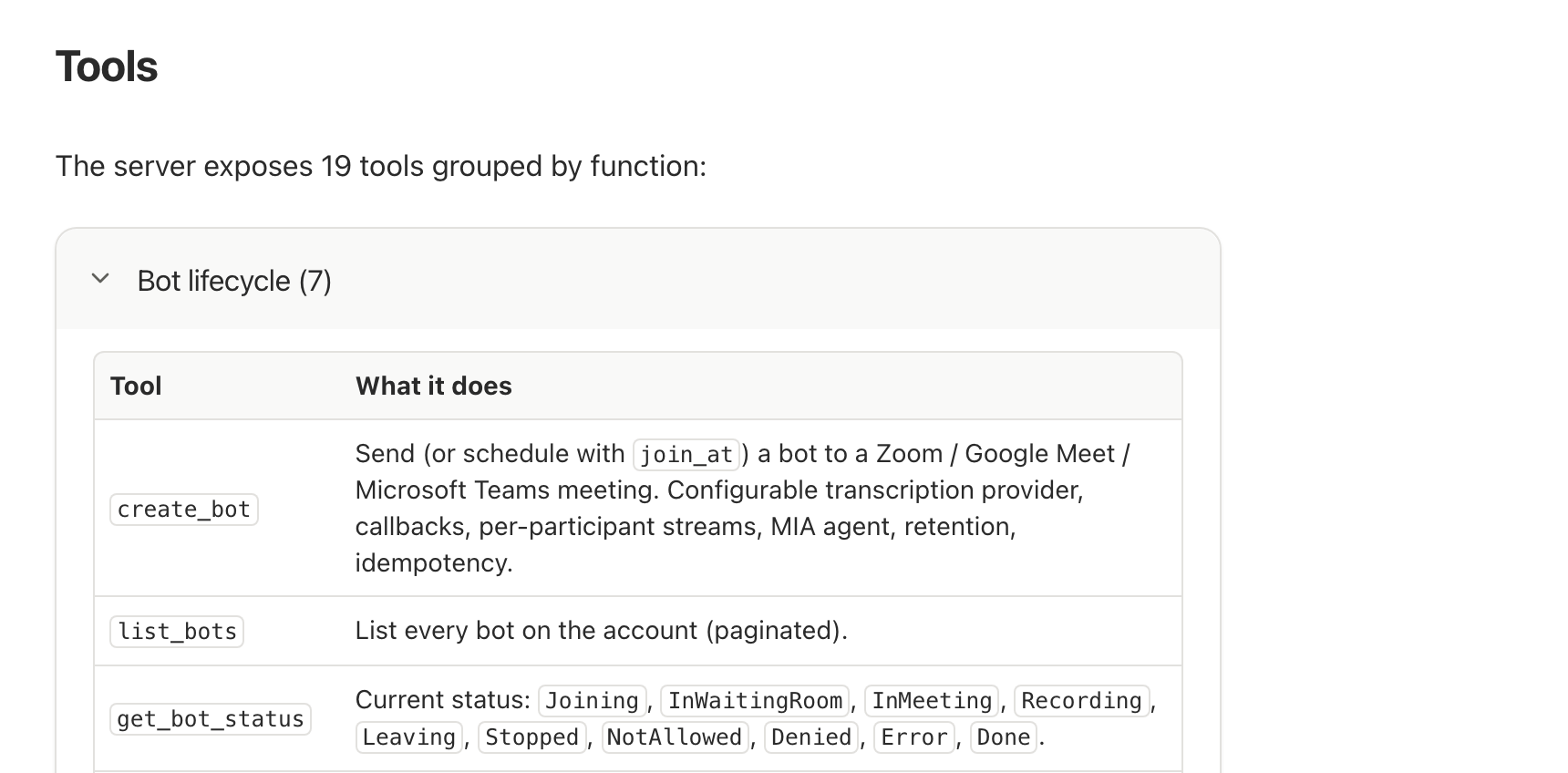
Next, you will configure Perplexity to use MeetStream's hosted MCP (Model Context Protocol) server. The MCP server exposes a set of tools, like create_bot and get_transcript, that Perplexity can call to interact with meetings.

Here are the steps to add the connector. Vendor menus can change, so refer to Perplexity's official documentation on adding custom connectors for the most current interface.
- In your Perplexity account, go to Settings and select Connectors.
- Click + Custom connector and choose the Remote option.
- Fill in the connector details:
- Name:
MeetStream - URL:
https://mcp.meetstream.ai/mcp?key=YOUR_API_KEY(ReplaceYOUR_API_KEYwith the key you copied in Step 1). - Description:
Sends a bot to record and transcribe meetings. - Authentication:
None(The API key is in the URL). - Transport:
Streamable HTTP
- Name:
- Acknowledge the notice about custom connectors and click Add.
- Find the new MeetStream connector card and click it to enable it for your workspace.
A quick security note: placing your API key in the URL is convenient for setup but means it will be visible in Perplexity's connector settings and potentially in logs. For production use, generate a dedicated key for this integration that can be revoked independently.
Step 3: Prompt Perplexity to Join and Transcribe a Meeting
With the connector enabled, you can now instruct Perplexity to use the MeetStream tools. The agent will parse your natural language prompt, identify the correct tool to use (create_bot), and construct the necessary API call.
In the Perplexity prompt bar, with the MeetStream connector active, type the following:
Use MeetStream to join the meeting at https://meet.google.com/abc-def-ghi, record it, and give me the full transcript when it's done. Name the bot "Sales Analyst".
Perplexity will confirm its plan to use the MeetStream tool. After you approve, a new participant named "Sales Analyst" will join your Google Meet call. Once the meeting is over and the bot has left, you can ask Perplexity for the transcript, and it will use the get_transcript tool to retrieve it.
How It Works: From Prompt to Transcript
Understanding the sequence of events is useful for troubleshooting and building more complex workflows. The process is asynchronous because a meeting can last for an hour or more.
Here is the end-to-end flow:
- Prompt and Tool Selection: Perplexity's model interprets your request and determines that the
create_bottool from the MeetStream connector is the best fit. It extracts themeeting_linkandbot_namefrom your prompt. - First MCP Call (
create_bot): Perplexity makes a call to the MCP server endpoint forcreate_bot. This in turn calls the main MeetStream API, which validates the request and queues a bot for deployment. The API returns a uniquebot_id. - Bot Joins Meeting: The MeetStream infrastructure spins up a bot instance, which navigates the meeting platform's lobby and joins the call as a participant. It begins capturing audio and video.
- Meeting Ends: When the meeting concludes, the bot leaves. MeetStream processes the captured audio, generating a transcript with your chosen provider.
- Second MCP Call (
get_transcript): Because the MCP server is stateless, Perplexity does not maintain a persistent connection. To get the result, it must make a second call. It will first poll theget_bot_statustool with thebot_iduntil the status isStoppedorDone. Then, it calls theget_transcripttool, which retrieves the completed text.
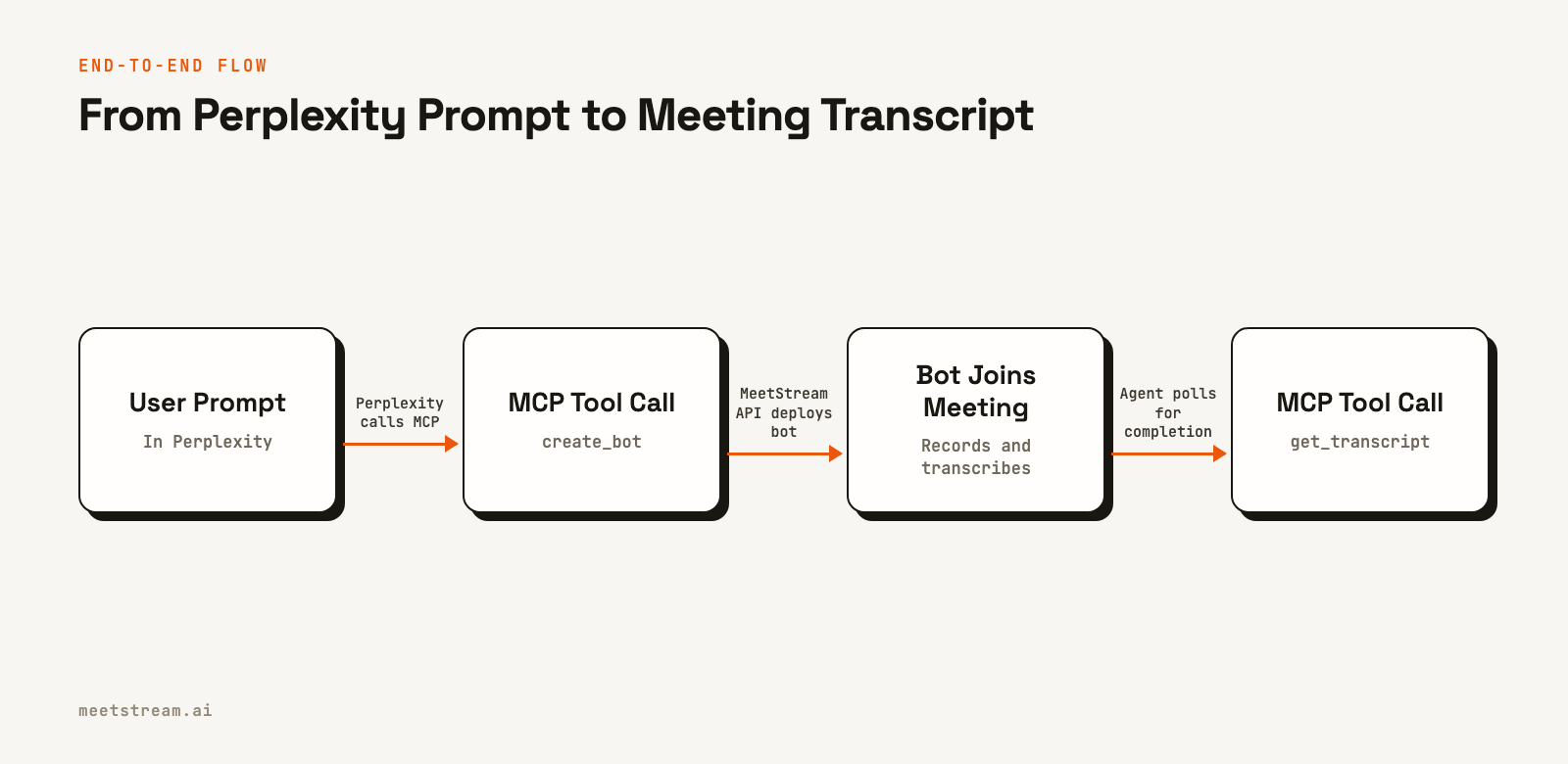
This asynchronous, polling-based approach is common when agents interact with long-running, real-world processes. For direct integrations, developers often use webhooks for faster updates, but polling is a reliable pattern for stateless connectors.
Rights and Permissions to Consider
Deploying a bot into a meeting involves several layers of permissions that you need to manage.
- Perplexity Permissions: Your ability to add a custom connector may be controlled by your organization's Perplexity administrator. You also must explicitly approve the agent's plan to use the MeetStream tool for the first time.
- MeetStream API Key: The API key is your credential. Anyone with the key can deploy bots on your account. Keep it secure and use separate keys for different integrations so you can revoke access without disrupting other services.
- Meeting Platform Permissions: The bot is a guest. It may be held in a waiting room until the host admits it. For Zoom meetings, recording is gated by host consent. Zoom needs no setup: no Zoom app and no tokens. An On-Behalf-Of (OBF) token is only for optional joins with your own Zoom app.
- Participant Consent: Always inform participants that the meeting is being recorded and transcribed by an automated tool. The bot's name should clearly indicate its function, like "Notetaker" or "Sales Analyst".
How MeetStream Provides the In-Meeting Infrastructure
MeetStream is the agent-first infrastructure that gives Perplexity a seat at the meeting. The MCP server is just the entry point; the core platform handles the complex work of managing bot lifecycle, capturing media streams, and processing the data.
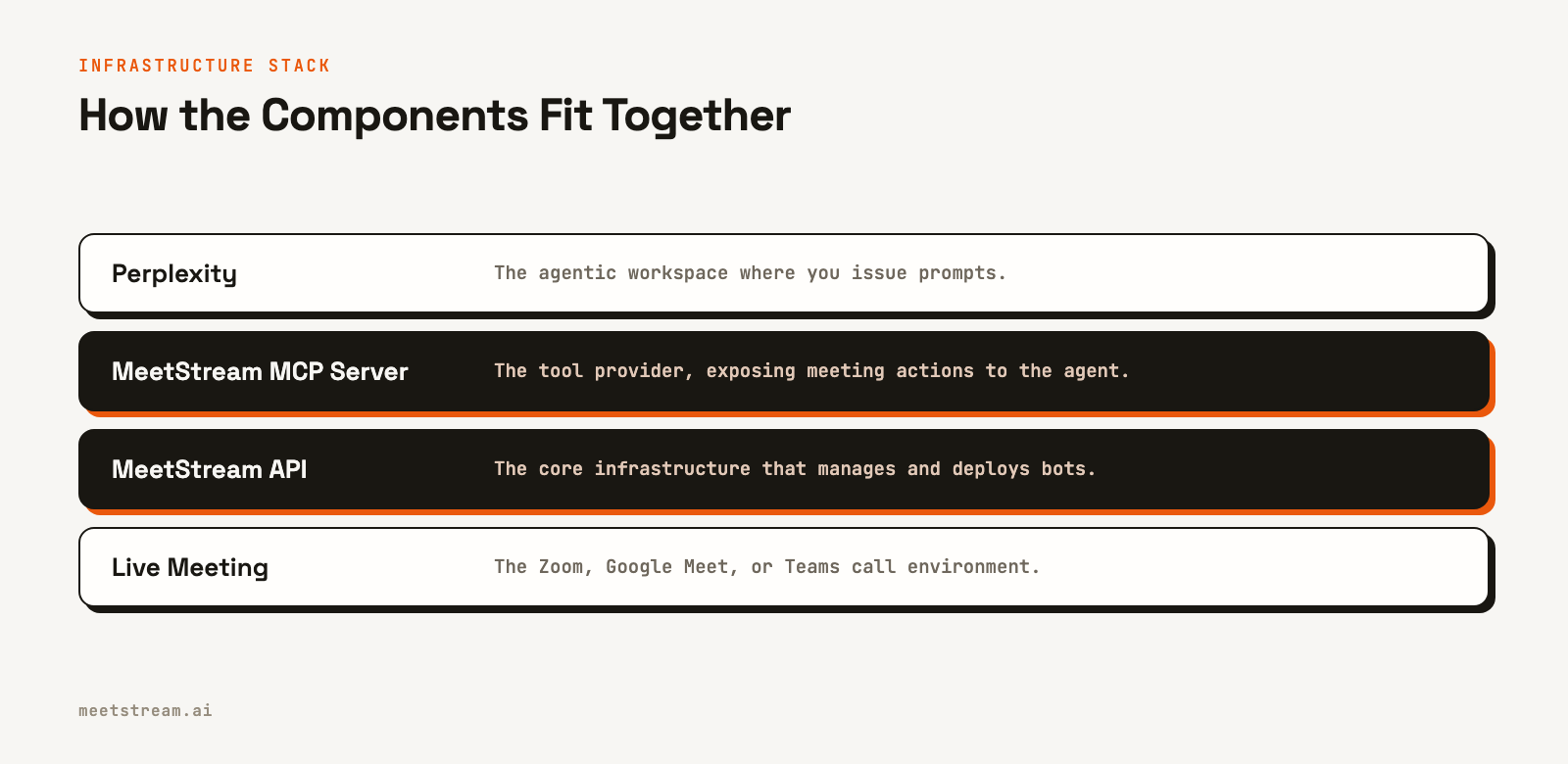
By providing a single, unified API across Zoom, Google Meet, and Teams, MeetStream abstracts away the platform-specific details of authentication, joining, and media handling. This allows an agent like Perplexity to operate on a meeting without needing to know the underlying provider. The platform is designed to deploy interactive AI voice agents that can not only listen but also speak and act within the call, turning any LLM into an active meeting participant.
A research assistant that answers in the chat
Perplexity is built to find and cite sources, which suits a different kind of meeting agent: one that hears a question in the call, looks it up and posts the answer with its sources in the meeting chat.
A chat reply often works better than a spoken one here, because people can open the links later. The agent still needs the live transcript and a clear trigger, such as its name. See the research assistant in our use cases.
Conclusion
Connecting Perplexity to live meetings opens up powerful new use cases for AI agents, from automated summarization to real-time analysis. By using a custom remote connector with the MeetStream MCP server, you provide the agent with the tools it needs to join, record, and understand conversations as they happen. This turns your agent from a passive data processor into an active participant in your team's most important discussions.
See the full API reference at docs.meetstream.ai.
Sources and further reading
Frequently Asked Questions
Is it possible for the bot to speak in the meeting?
Yes. While this guide focuses on transcription, the underlying infrastructure supports interactive voice agents. By passing an agent_config_id when creating the bot, you can deploy a full MIA voice agent that can listen and respond with text-to-speech, enabling real-time conversation.
What happens if the bot can't join the meeting?
If a bot fails to join, for example, because it was denied entry from a waiting room, its status will update accordingly. You can ask Perplexity to check the status using the get_bot_status tool, which will return a state like NotAllowed or Denied with an explanatory message.
Can I schedule a bot to join a meeting in the future?
Yes, the create_bot tool supports a join_at parameter with an ISO 8601 datetime. You can prompt Perplexity to schedule a bot for a future meeting, and the MeetStream platform will automatically deploy it at the specified time.
Is this the same as Claude Meetings?
No. Claude Meetings is Anthropic's own feature, in beta on Team and Enterprise plans, where Claude joins a Google Meet call and writes notes and artifacts into claude.ai. This guide connects Perplexity to meeting infrastructure instead, so it works on Zoom, Google Meet and Microsoft Teams and the output lands wherever you decide.
Can Perplexity join a Zoom or Microsoft Teams meeting?
Not by itself. No general assistant has a way into a call on its own. It can through a meeting bot API. With MeetStream, Zoom needs no setup: send the meeting link with your MeetStream API key. Zoom's On Behalf Of token rule from March 2026 applies to Meeting SDK apps, so on MeetStream it matters only for optional signed-in joins with your own Zoom app.


