 Meta Muse + MeetStream
Muse meeting connector for Google Meet, Microsoft Teams and Zoom
Muse is Meta's personal AI agent, and it can build a custom connector to an API you describe. One pasted prompt turns that into a Muse meeting connector, built on the MeetStream API. You give Muse a meeting link, it sends a bot, and after the call you ask it for the transcript with speaker names.
 Sidhdharth Sivasubramanian
Co-founder and CEO, MeetStream
What is the Muse meeting connector?
The Muse meeting connector is a custom connector that lets Meta Muse put a recording bot in a Google Meet, Microsoft Teams or Zoom call through the MeetStream API. You paste one prompt into Muse, Muse builds the connector, and from then on it can start a bot, check where that bot is, and fetch the transcript with speaker names.
The same thing gets called the Meta Muse connector, a Muse custom connector for meetings, a Muse meeting bot or a Muse notetaker. Meta does not ship one, so this is a connector you create yourself, in about two minutes, with the prompt and the OpenAPI file on this page.
| Question | Answer |
|---|---|
| Who builds it | You do, by pasting a prompt. Muse writes the connector |
| What it runs on | The MeetStream API, at $0.35 per bot-hour with $5 free credit |
| Which meetings | Google Meet, Microsoft Teams and Zoom, from a meeting link |
| What you get back | A transcript in segments, each with a speaker name and timings |
| Time to set up | One prompt, once. After that, plain language |
What the Muse meeting connector gives you
MeetStream gives Muse a bot that joins video calls. The connector is the bridge: Muse calls the MeetStream API, the bot sits in the meeting, and the transcript comes back into your Muse chat.
The same create_bot call works for a Zoom, Google Meet or Microsoft Teams link.
The bot joins under the name you give it. Nobody is impersonated, and the host can admit or remove it like anyone else.
Segments carry the speaker name, the text and start and end times, from MeetStream's in-house transcription.
Meta puts shared credentials in secure storage Muse cannot read, and a separate Sentinel approves anything that leaves Muse's machine.
+
What Muse is
Muse is Meta's personal AI agent, announced in September 2026. You message it the way you message a person, in the Muse app or directly in WhatsApp. It runs on Muse Secure VM, a dedicated computer in the cloud that holds the agent and your data, and it checks with you before sensitive actions. Meta is rolling it out in the US on iOS, Android and muse.ai.
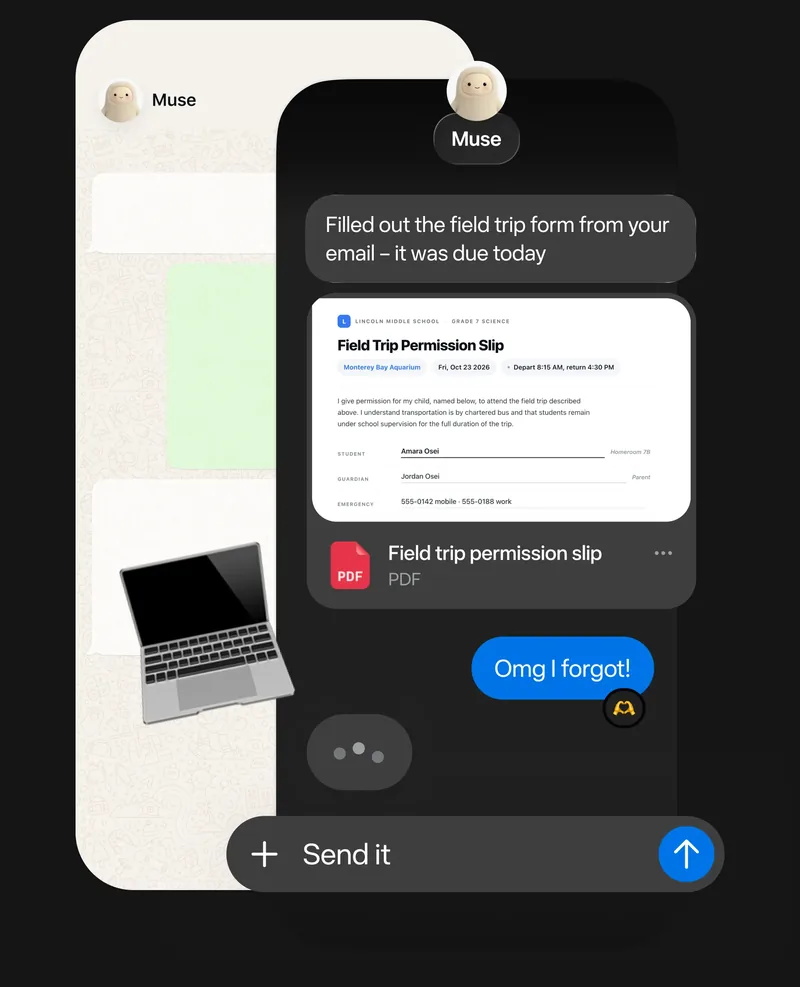
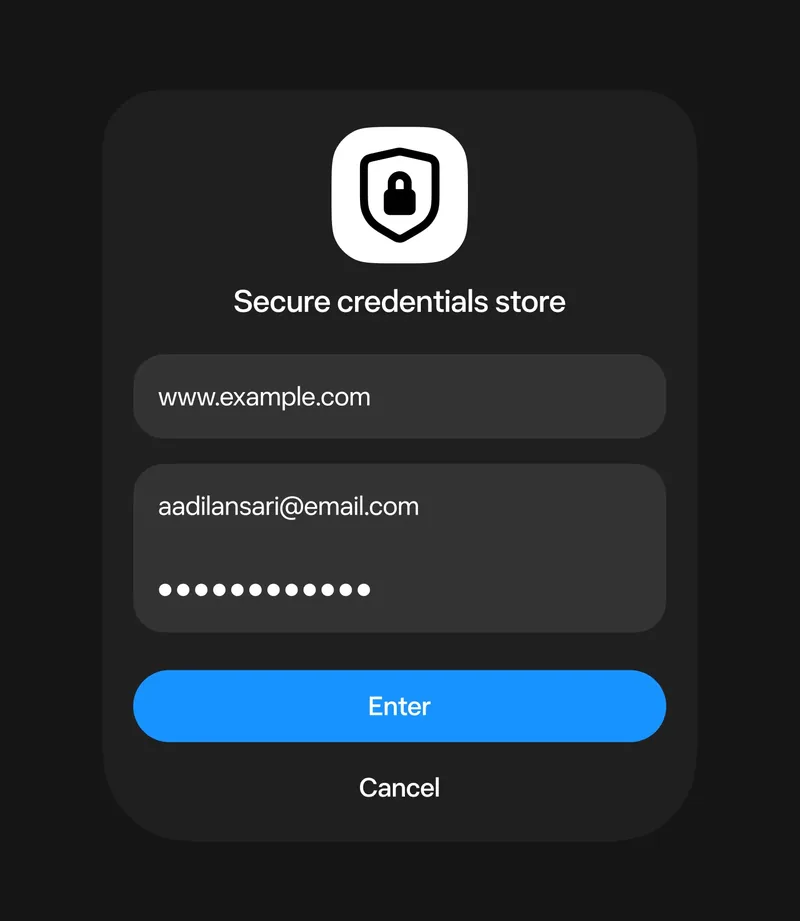
Product images: Meta, from muse.ai and Meta's announcement. Muse and the Muse logo are trademarks of Meta. MeetStream is not affiliated with or endorsed by Meta.
Muse builds the connector from a prompt
You ask Muse to create a custom connector and paste a short specification of the three MeetStream endpoints it needs. Muse saves the connector, and you do this once.
- Create a botPOST /bots/create_bot with the meeting link and a bot name. Returns a bot_id and a transcript_id.
- Check its statusGET /bots/{bot_id}/status while the call is live, from Joining to InMeeting to Stopped.
- Fetch the transcriptGET /transcript/{transcript_id}/get_transcript once the meeting ends. A list of speaker-labelled segments.
Set it up in three steps
- Get a MeetStream API key. Sign in to the dashboard, open the API tab and generate a key. Use a separate key for Muse so you can revoke it without touching anything else. New accounts start with $5 free credit, no card required.
- Paste the connector prompt into Muse. Keep the key out of the prompt text. Share it as the connector credential instead, so it goes into secure storage rather than your chat history. The prompt names the connector MeetStream Meeting Bot.
- Send a bot. In a new chat, give Muse a meeting link and a bot name. It calls
create_bot, and you get a bot_id and a transcript_id back.
Create a new Custom Connector for an API called MeetStream. Here is the specification:

The API base URL is https://api.meetstream.ai/api/v1/
Authentication uses a token in the header. The header should be:
"Authorization": "Token <MeetStream API key, stored as a connector credential>"

The connector needs three operations:

1. Operation "create_bot"
   - Description: Sends a bot to a meeting link.
   - Method: POST
   - Path: /bots/create_bot
   - Body (JSON): {"meeting_link": "string", "bot_name": "string", "recording_config": {"transcript": {"provider": {"meetstream": {}}}}}
   - Response (201, JSON): {"bot_id": "string", "transcript_id": "string", "meeting_url": "string", "status": "string"}

2. Operation "get_bot_status"
   - Description: Gets the current status of a bot.
   - Method: GET
   - Path: /bots/{bot_id}/status
   - Path Parameters: {"bot_id": "string"}
   - Response (JSON): {"bot_id": "string", "status": "string", "custom_attributes": {}}

3. Operation "get_transcript"
   - Description: Fetches the final transcript for a completed meeting.
   - Method: GET
   - Path: /transcript/{transcript_id}/get_transcript
   - Path Parameters: {"transcript_id": "string"}
   - Response (JSON): a list of segments, each {"speaker": "string", "transcript": "string", "start_time": number, "end_time": number, "words": [...]}

Please build this connector and name it "MeetStream Meeting Bot".Using the MeetStream Meeting Bot connector, send a bot named "My AI Assistant" to this meeting: https://meet.google.com/abc-def-ghi Wait for the meeting to finish, then fetch and display the full transcript.
Meta says Muse keeps working on longer tasks after you close the app. You can also ask for the status at any time, and for the transcript once the bot has left. The connector spec is also available as a file: openapi.json, the same three operations in OpenAPI form, for Muse or any other agent that prefers a schema over prose.
What is the status of the bot with ID 123e4567-e89b-12d3-a456-426614174000?
What each status means
The status endpoint returns one word. These are the ones Muse will see most, in the order they happen. The debugging guide has the full list.
| Status | Meaning | What to do |
|---|---|---|
Joining | The bot is on its way to the meeting | Wait a few seconds |
InWaitingRoom | The bot asked to join and the host has not admitted it yet | Admit it from the meeting |
InMeeting | The host admitted the bot | On Zoom, the host also answers the recording prompt |
Recording | Capture is running | Nothing. Ask for the transcript after the call |
Stopped | The bot left the meeting | Ask Muse for the transcript. If it is still processing, retry shortly |
Done | Post-call processing finished | Fetch the transcript |
NotAllowed or Denied | The bot was never admitted, or was refused | Check the link and the lobby, then send it again |
Zoom, Google Meet and Microsoft Teams
Muse sends the same request for all three. What differs is how each platform lets a bot in.
| Platform | How the bot joins | What the host sees | Notes |
|---|---|---|---|
| Zoom | By meeting link, as a Meeting SDK participant | A join request, then a recording consent prompt | Recording waits for host consent. Meetings hosted by others need a production-approved Marketplace app, see the Zoom page |
| Google Meet | By meeting link, as a guest by default or as a signed-in bot | A "wants to join" request that anyone in the call can admit | With host management on, only hosts and co-hosts see the request |
| Microsoft Teams | By meeting link, with no Azure app registration | A lobby request | Most tenants hold external participants in the lobby, so an organiser admits the bot |
Muse connector for Google Meet
Give Muse a meet.google.com link and it sends the bot straight there. By default the bot joins as a guest, so a participant sees a request to join and clicks Admit. With host management on, only hosts and co-hosts see that request. A signed-in bot on your workspace domain skips the lobby.
Muse connector for Microsoft Teams
Teams meetings work from the link alone, with no Azure app registration and nothing for your IT team to approve. Most tenants hold external participants in the lobby, so an organiser admits the bot. Everything after that, the recording and the transcript, is identical to the other two platforms.
Muse connector for Zoom
Zoom adds one step: the host grants recording permission after the bot joins, and the bot leaves cleanly if that is declined. Meetings hosted by other people need a production-approved Marketplace app, which the Zoom integration page walks through.
Speaker-labelled transcripts come from the in-house meetstream provider set in the prompt. Deepgram, AssemblyAI, JigsawStack and Sarvam are available through the same recording_config.transcript.provider field; see the transcription API.
Permissions and security
Four parties have a say when an agent joins a meeting on your behalf. Each one is worth a sentence.
- Meta. Muse builds custom connectors on your instruction, and Meta does not review them. Credentials you share go into secure storage Muse cannot read. Nothing Muse does reaches the internet unless a separate Sentinel agent approves it. You can change or disconnect a connector under Settings, then Connectors.
- MeetStream. The API key is your account. Give Muse its own key, revoke it from the dashboard when you stop using the connector, and never paste it into a chat or a repository. Recording storage includes 30 days, and security and compliance covers the rest.
- The meeting platform. The bot is a participant. The host admits it, and on Zoom the host also grants recording. The host can remove it at any time, like any other attendee.
- The people in the room. Tell participants that an assistant is present and recording. Recording consent rules differ by country and by company policy, and the bot name is the simplest place to say what it is.
Frequently asked questions
What is the Muse meeting connector?
It is a custom connector that lets Meta Muse send a recording bot into a Google Meet, Microsoft Teams or Zoom meeting through the MeetStream API. You paste one prompt into Muse, it builds the connector, and after that you ask in plain language for a bot or a transcript.
Is there an official Muse connector for Zoom, Google Meet or Teams?
Not from Meta and not from the platforms. Muse builds custom connectors on your instruction, so the connector on this page is the one you create, against MeetStream's public API. That is also why it covers all three platforms at once.
How do I send Muse into a meeting?
Paste the connector prompt once, then send Muse a meeting link and a name for the bot. Muse calls create_bot, the bot joins the call as a named participant, and you ask for the transcript when the meeting ends.
Is this an official Meta connector?
No. It is a Custom Connector that Muse builds from the prompt above, using Muse's public connector feature and MeetStream's public API. You are responsible for the connector you create and the data it handles. MeetStream maintains the prompt and the OpenAPI file on this page.
Do I need to write code?
No. You paste the specification and Muse saves it as a connector. From then on, plain language prompts run the API calls.
Which meeting platforms does it cover?
Google Meet, Microsoft Teams and Zoom. The same create_bot operation takes a link from any of the three. The differences are in admission and, on Zoom, in recording consent.
Does the bot pretend to be me?
No. It joins as a separate participant with the name you choose, such as My AI Assistant. Hosts can admit or remove it like any other attendee.
How do I get the transcript with speaker names?
The connector sets the in-house meetstream transcription provider, and get_transcript returns segments that each carry the speaker, the text and the timing. Ask Muse for the transcript after the bot has stopped.
What does it cost?
MeetStream costs $0.35 per bot-hour, prorated to the second, with volume and startup pricing down to $0.25. New accounts get $5 free credit with no card required. Meta says Muse is free for most of what people need, with subscription plans for people who want to do more.
Can Muse keep the bot running for meetings I have not started yet?
The bot joins the link you give it as soon as you ask. For calendar-driven joins, MeetStream's calendar API schedules bots against Google or Outlook events, which suits a standing rule better than a chat prompt.
Give your agent a seat in the meeting
Muse is one client. The same API puts Claude, ChatGPT, Gemini or your own agent into any Zoom, Google Meet or Teams call.