Send your agents to meetings
Invite any of your agents. Send your agents to meetings with one API request, and they join Zoom, Google Meet and Microsoft Teams as real participants that wave hello, speak, post in chat, present on camera and call your tools.




 Maya
 Jordan
 Priya
Invite any of your agents











Customers using agents already
 Foxsense Innovations
 ReOrcHHRCG
 Factory Bucket
 MyDayOne
 Convogenie
 ADORE Homes
 Zime AINNimbly
 Kaizen Softworks
 InterConnecta
 AI4Group
 HedgX
 Tabeer
 Rezoomex
A real participant, built your way
Your agent takes a seat in the call under its own name. It hears each person, answers when it is called on, and gets work done before the meeting ends. You choose the model, the voice and the tools.

Live audio and transcripts, with speaker names.
Out loud, in the chat, or silent through tools.
Images or live video on its own camera.
Tasks, tickets and CRM updates during the call.
Your agent, your stack. No web page to host.
Some platforms ask you to build the agent as a web page and pass its URL. Here you own the whole build: any model, any framework, three ways in.
Configure it
Choose a model, a voice and tools in the dashboard or over the API. MeetStream runs the agent in the call.
- OpenAI, Anthropic, Google or xAI models
- Wake phrase, barge-in and turn taking
- MCP tools and custom functions
Plug in your framework
Take live audio out and send audio back over WebSockets. Run an OpenAI Realtime session, a LiveKit agent, or any audio in, audio out system.
- Live audio, mixed or per speaker
- Speak, chat and interrupt commands
- Any model you run yourself
Let an agent drive
Connect the hosted MCP server, and the assistant you already use sends the bot, reads the call and posts in the chat.
- 19 tools for bots and transcripts
- Sign in with OAuth or an API key
- Works in any MCP client
Everything a participant can do, your agent can do
Pick a skill to see it in a call. Each one is a setting on the agent.
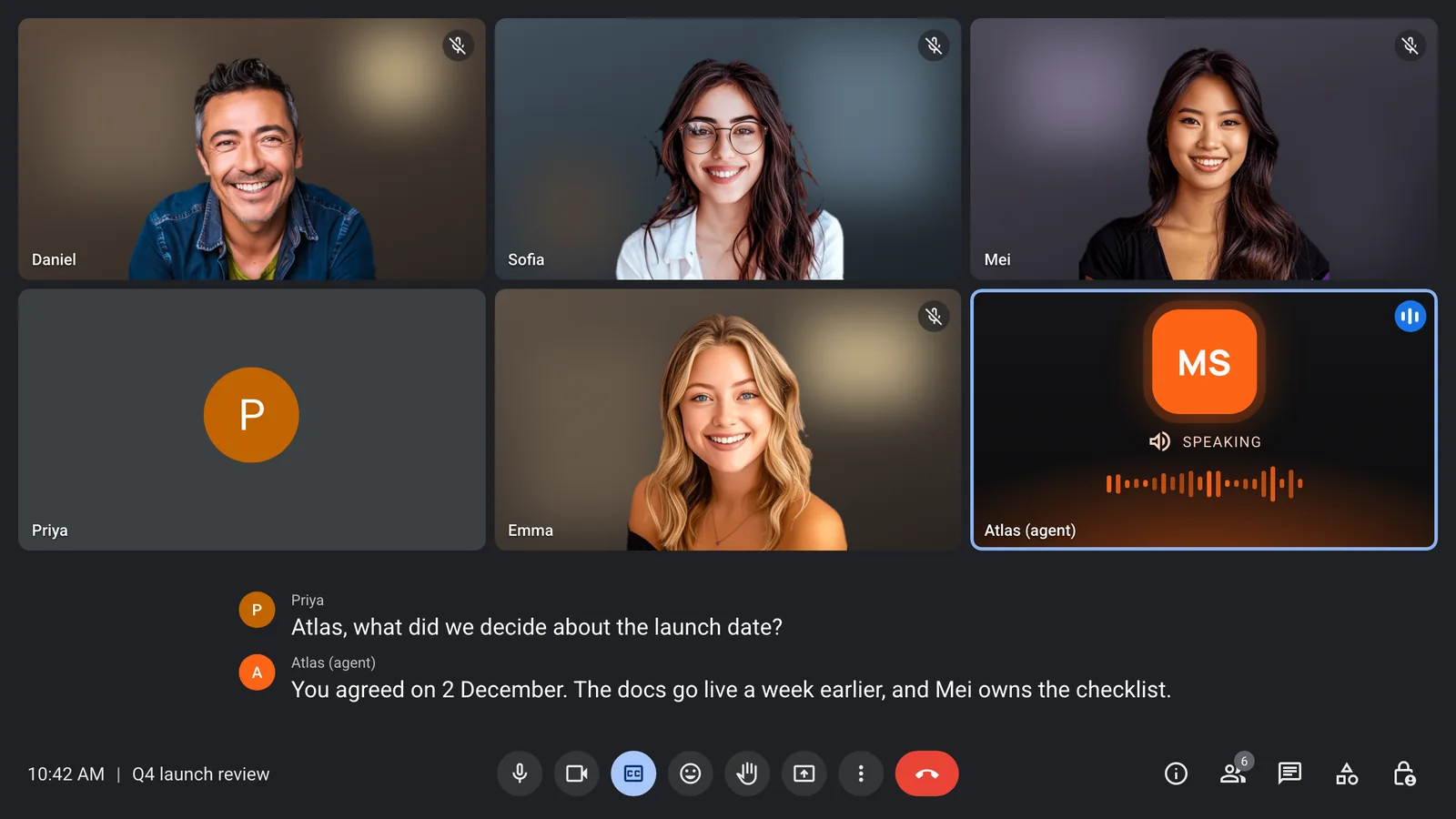
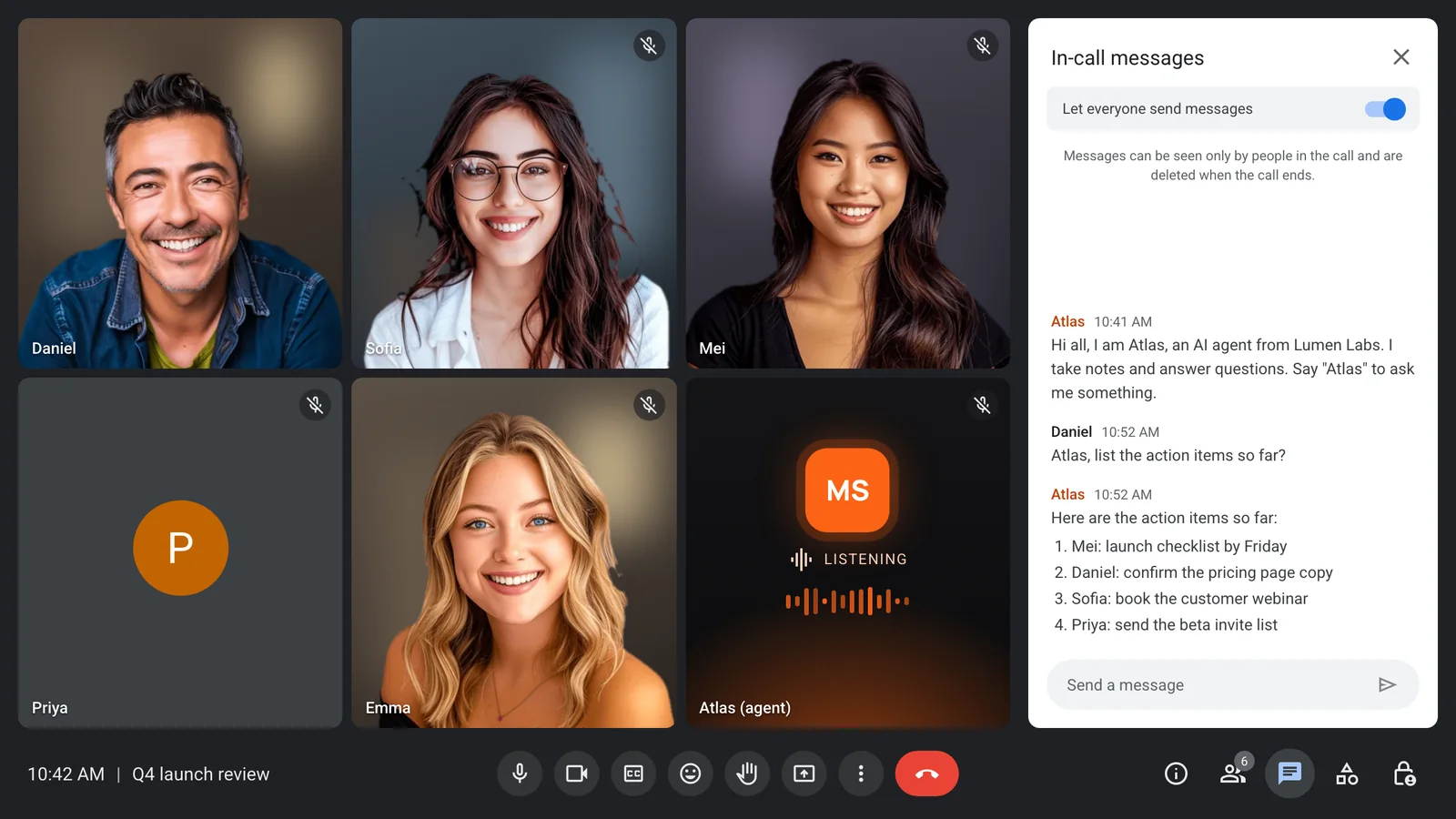
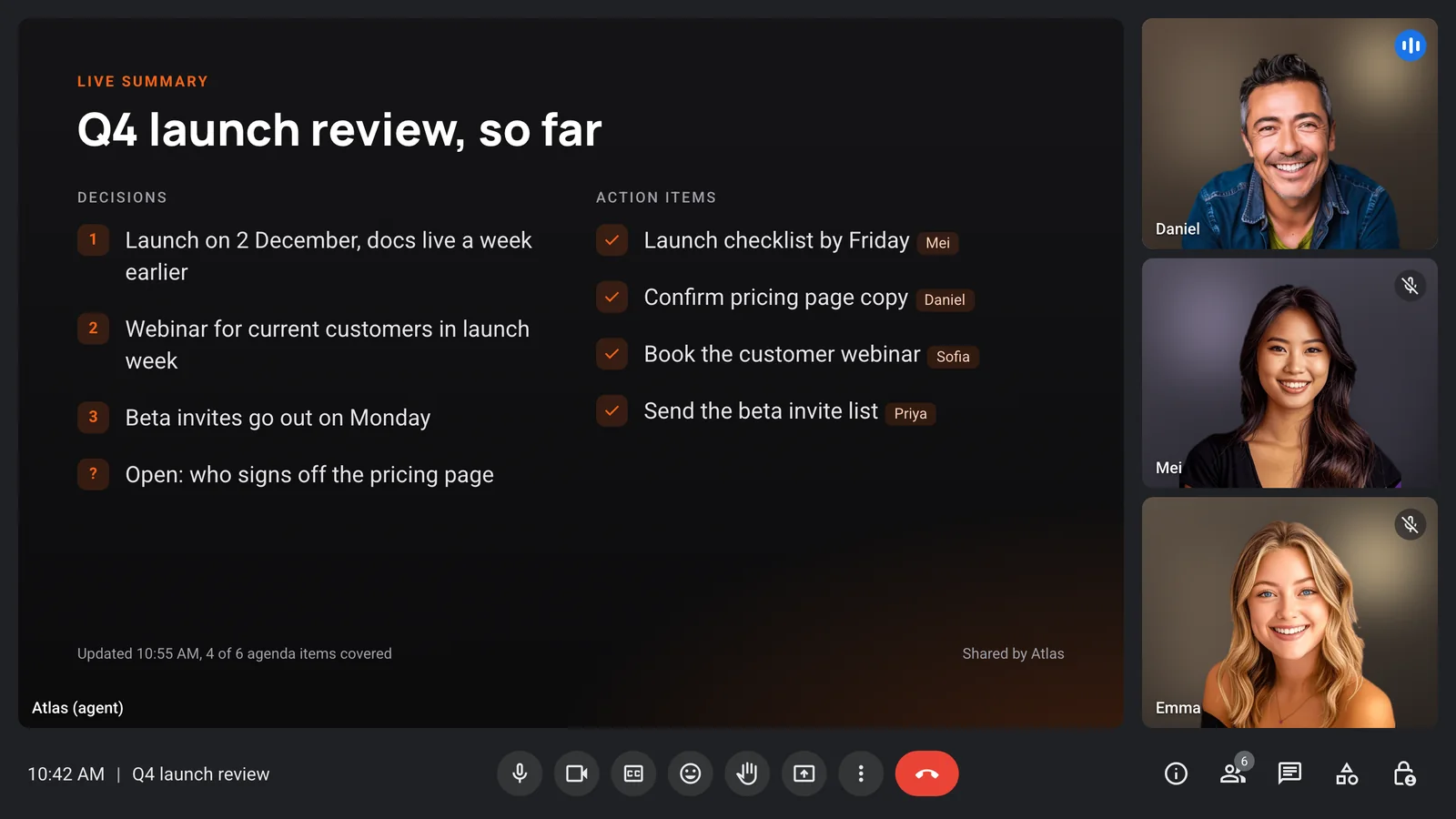
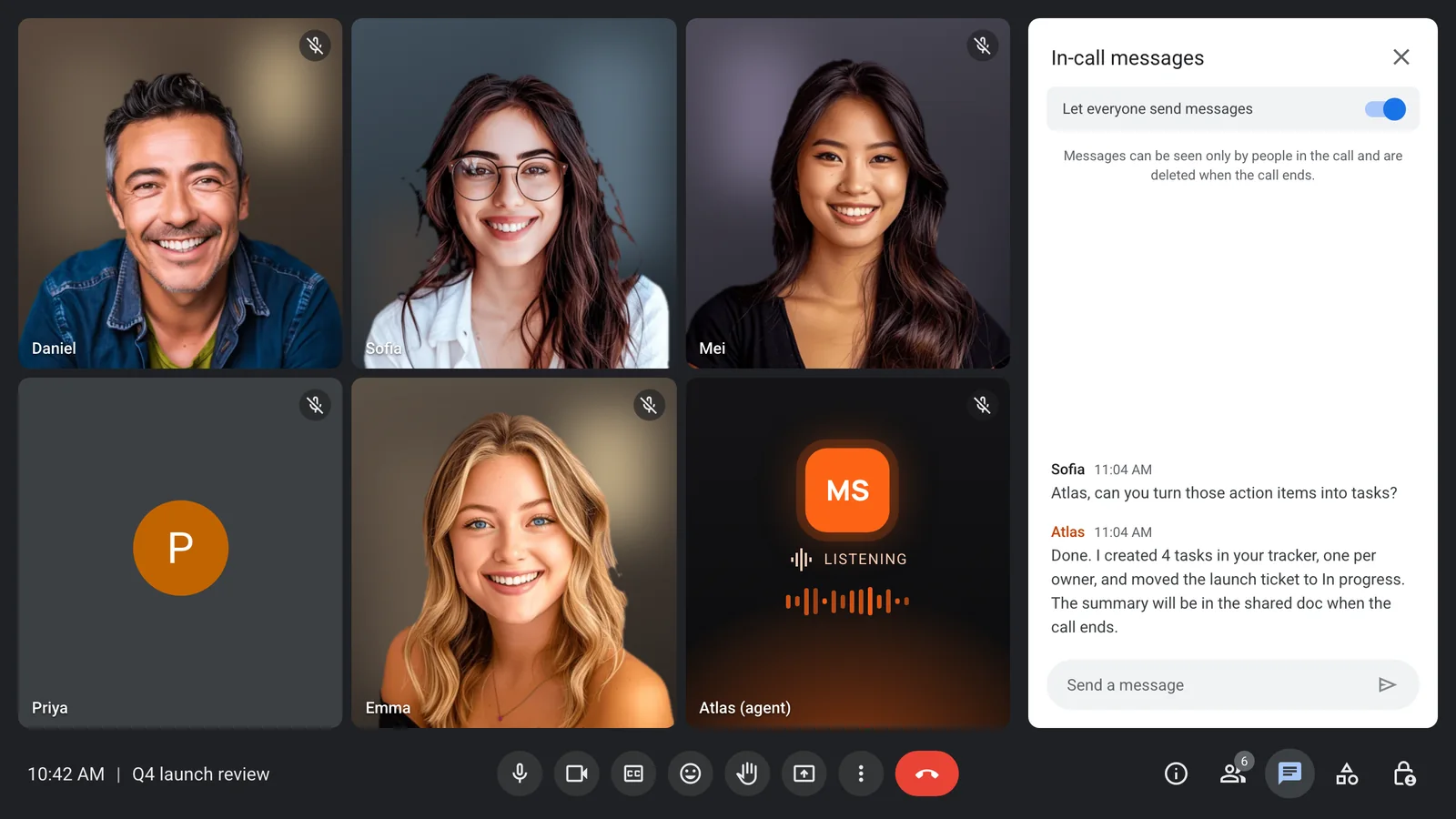
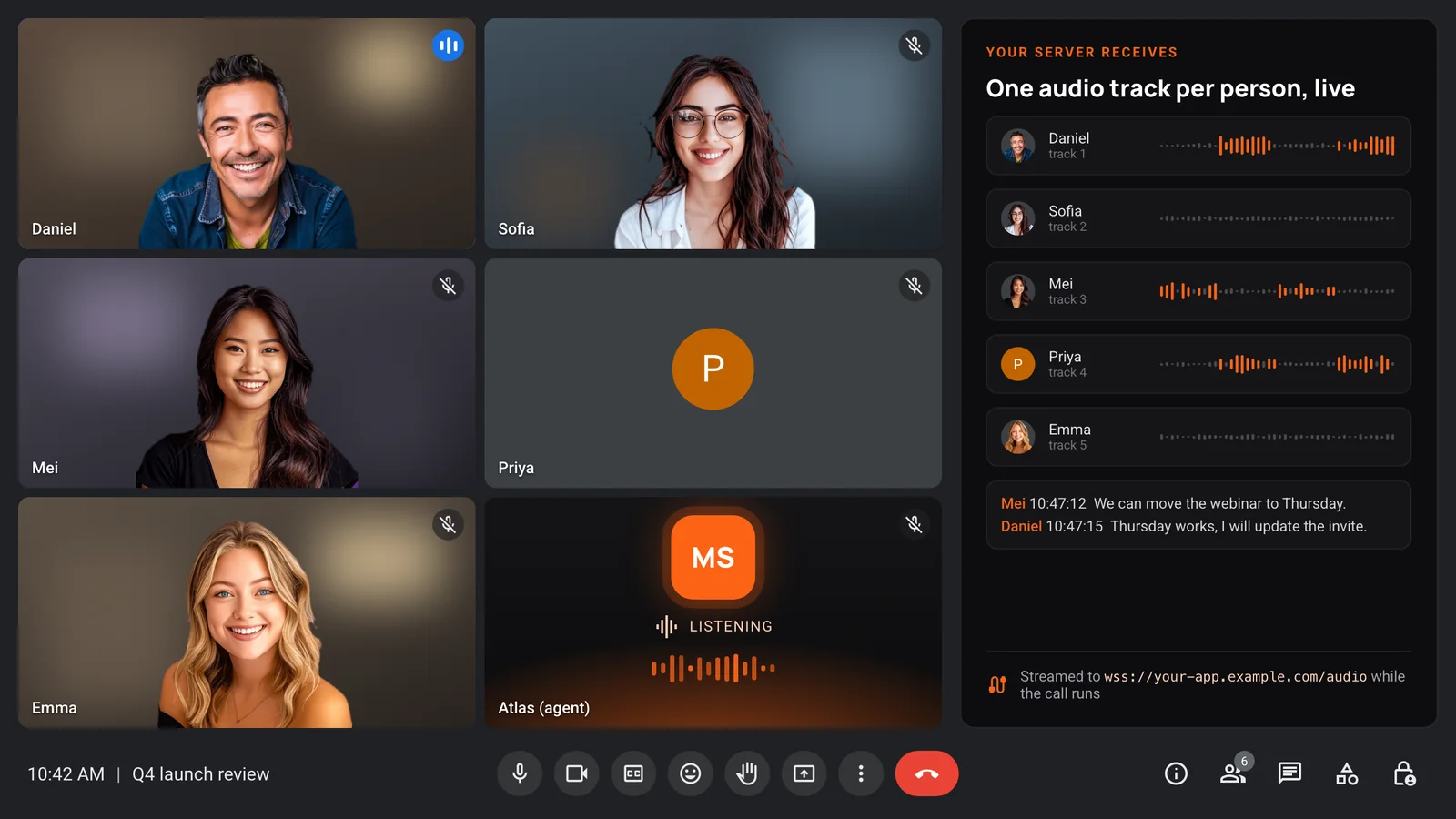
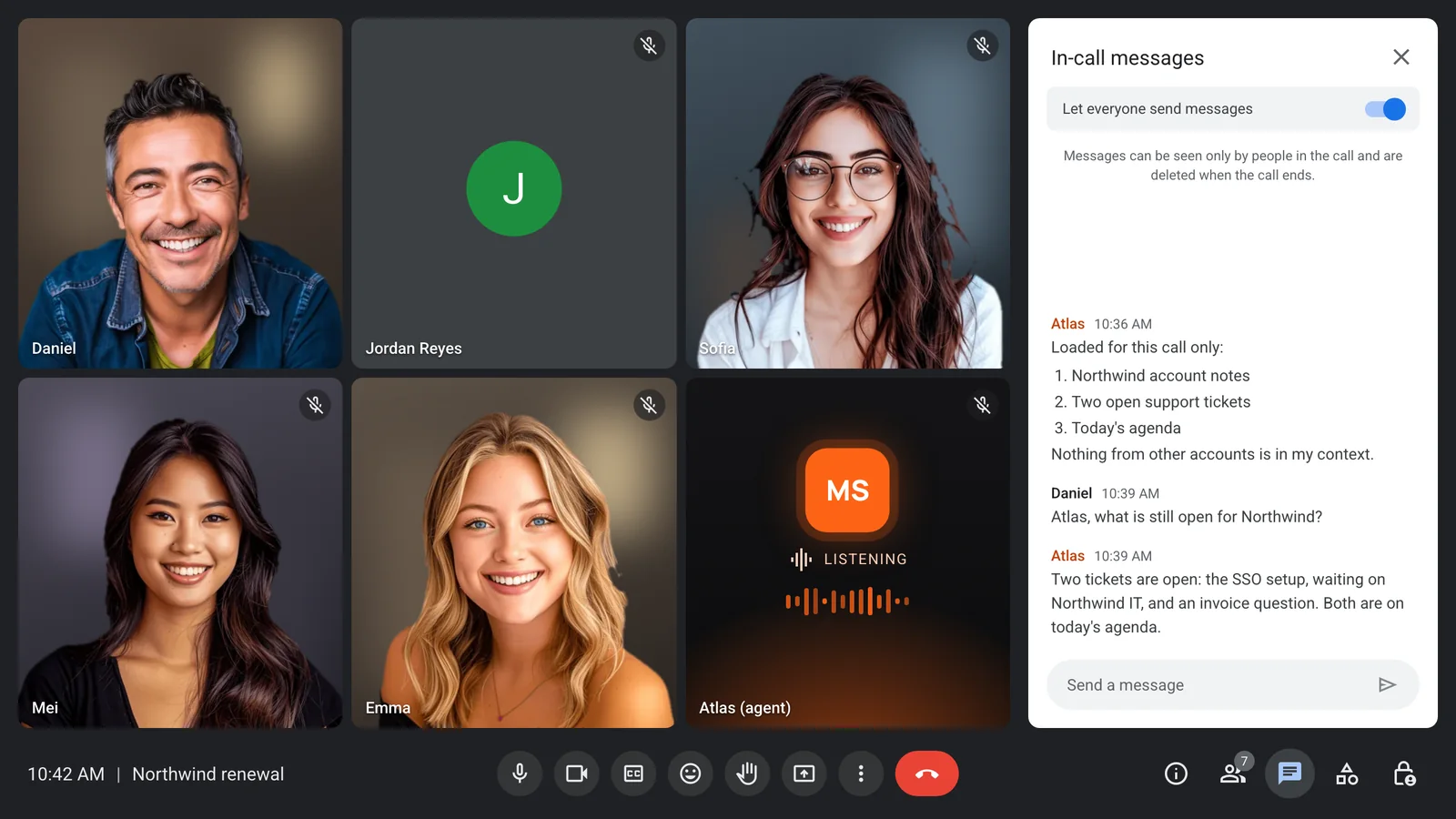
Priya says the agent's name, and the agent answers out loud. Illustration of a MeetStream agent in a Google Meet call.
Show the room what it sees
The agent owns its camera tile. Send an image, or stream live video into it: a running summary, your slides or a product demo. On Zoom, live video uses your own Zoom app.
- An image as its video frame
- Live video into its camera
- Slides or a product demo
- An optional avatar
The controls that make an agent good company
These decide whether an agent helps a meeting or talks over it. Each one is a setting on voice agents.
- Wake phraseIn pipeline mode the agent waits for a phrase you set, such as its name, then keeps listening for 30 seconds.
- Barge-inIn pipeline mode, talking over the agent stops it, while a short "mm-hm" lets it finish the point.
- Turn takingA turn detection model, or plain silence, decides when a person has finished speaking.
- Reply modeVoice, meeting chat, or silent action through tools. Set per agent, and different per meeting if you like.
In the meeting with one request
Send the meeting link and the agent to use. The second object fills that meeting's context into the agent's prompt.
curl -X POST "https://api.meetstream.ai/api/v1/bots/create_bot" \
  -H "Authorization: Token <YOUR_API_KEY>" \
  -H "Content-Type: application/json" \
  -d '{
    "meeting_link": "<ZOOM_MEET_OR_TEAMS_LINK>",
    "bot_name": "Atlas",
    "agent_config_id": "<YOUR_AGENT_ID>",
    "agent_config_params": { "account": "Northwind", "agenda": "Renewal" }
}'What teams send into meetings
The same agent runtime powers very different products. See ten use cases in detail.
- Live sales coachHears the customer, checks the CRM, and prompts the rep in the chat while the deal is live.
- Interview assistantFollows a question plan, keeps each voice apart, and scores answers as the interview runs.
- Support agentJoins an escalated call with the ticket history loaded, and files the follow-ups before it ends.
- Meeting teammateAnswers questions from your docs, tracks decisions, and turns action items into tasks.
One request, every platform
The same request joins Zoom, Google Meet and Microsoft Teams. Zoom needs no setup: the meeting link and your API key are enough.
- Zoom with no setup
- Google Meet
- Microsoft Teams
- WhatsApp calls in Beta
Enterprise-level security, keep your data private.
The certificate, the audit status and the Trust Center are all on the security page.
Keep recordings with MeetStream, or write them straight to your own storage bucket.
Support on Slack, email and chat, with a response inside one working day.
Concurrent bots scale on their own. There is no cluster for you to run.


Got a question? We got the answer.
Common questions about building agents, models, voice and platforms.
How do I send my agents to meetings?
Create an agent, then send one API request with the meeting link and the agent to use. The bot joins Zoom, Google Meet or Microsoft Teams, and the agent hears the room and replies.
Do I have to build my agent as a web page?
No. There is no page to host and no URL to pass. Configure the agent in MeetStream, connect your own framework over WebSockets, or let an assistant drive it through the MCP server.
Which models and frameworks can I use?
The built-in runtime runs OpenAI, Anthropic, Google and xAI models. With your own pipeline you can run any model, for example an OpenAI Realtime session or a LiveKit agent.
Can the agent speak, chat and show video?
Yes. It can answer out loud, post in the meeting chat, and show an image or live video on its camera. On Zoom, live camera video uses your own Zoom app.
Does Zoom need any setup?
No. Zoom needs only the meeting link and your MeetStream API key. Your own Zoom app is optional and adds signed-in joins and live camera video.
Can I control what the agent knows in each meeting?
Yes. You fill the prompt with that meeting's context when you send the bot, limit its tools to an allow-list, and can change the prompt during the call.
Send your first agent
One request puts it in the call. The stack behind it is yours.